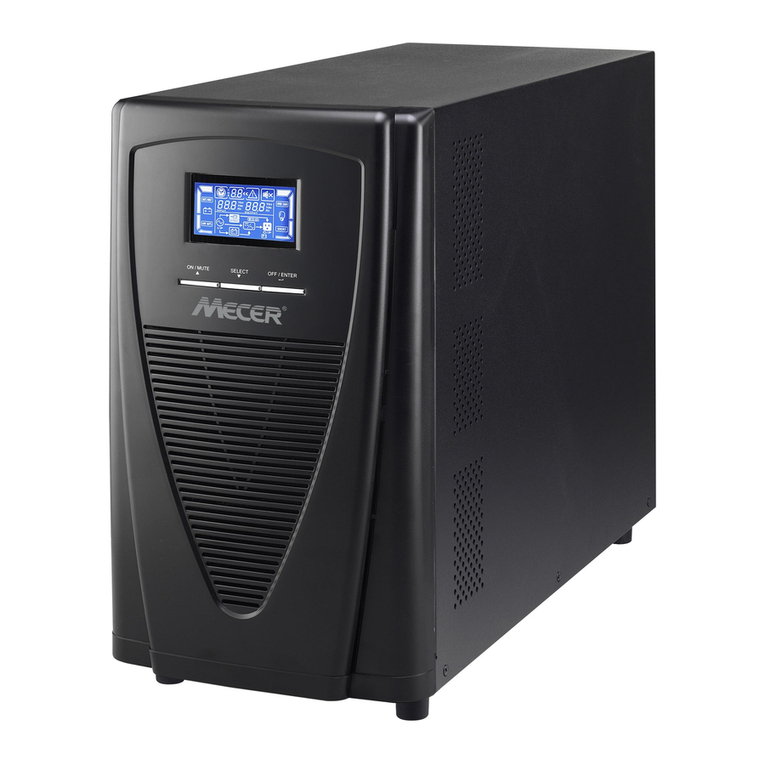
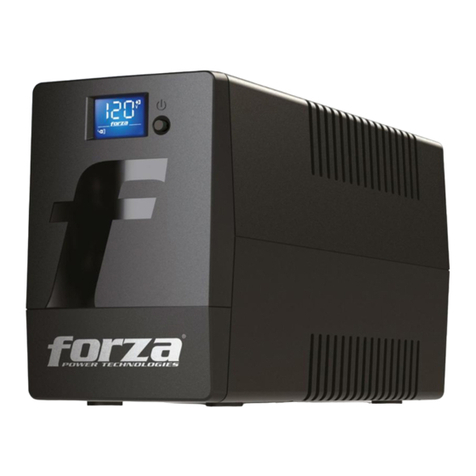
Silcon DATAPOWER DP300E series User manual

1User Guide DP300E
7OA0001 GB rev.09
DATAPOWER™
DP300E Series
User guide
Copyright © 1997 Silcon Power Electronics A/S
Due to continuous product development information given in this
manual is subject to change without notice.

2User Guide DP300E
7OA0001 GB rev.09

3User Guide DP300E
7OA0001 GB rev.09
Contents:
1.0 Introduction
1.1 General
1.2 The display unit
2.0 Stop-start
2.1 General
2.2 Stop
2.3 Start
3.0 Operation
3.1 Keyboard description
4.0 Programming parameters
4.1 General
4.2 Parameters
5.0 Reading out measurements
6.0 Alarms - what to do
6.1 General
6.2 The events stack
6.3 Alarm messages
6.4 The events logger
6.5 Displaying the events stack
7.0 Service bypass switch
7.1 Operating the external service bypass switch
7.2 Operating the external service bypass switch
for parallel systems
8.0 Preventive maintenance
8.1 General
8.2 Fan
8.3 Battery
8.4 Battery capacity test
9.0 Economy operation
10.0 Software
10.1 Choice of software
10.2 Configuration codes
10.3 Choice of cable
11.0 How to contact Silcon

4User Guide DP300E
7OA0001 GB rev.09
Introduction
1.0 Introduction
1.1 General
Congratulations on your choice of UPS (Uninterruptible Power Supply).
This UPS has been designed and produced for reliable and troublefree long-term
use.
For you it means that once installed and commissioned, you can forget it. You only
have to arrange a preventive maintenance as described in section 8 of this manual.
1.2 The display unit
The display unit – placed on the front of the UPS – is the link between user and
UPS.
It consists of a display, an alarm LED, and a keyboard.
The display is used for showing parameters, measured values, and alarm mes-
sages. A background light is activated in case of an alarm or if one of the keys are
pressed. No activity or no alarm for 5 minutes will automatically switch of the
light.
By pressing and simultaneously you increase the contrast, and by
pressing and simultaneously you decrease the contrast.
The alarm LED is together with an acoustic signal the indicator for unusual
operating situations. The light changes from green to red in case of alarm. The
keyboard is used for programming of operating parameters and for calling read-
outs of parameters / alarm messages.
Note:
The display accuracy is
±1%, ±1 digit.

5User Guide DP300E
7OA0001 GB rev.09
2.0 Stop – start
2.1 General
According to electrical regulations only the local authorized electrical installer is
normally allowed to perform a complete switching in and out of the UPS, as it
involves operation of the battery supply breaker, where touch of high voltage parts
is possible.
For above reasons the normal user can only switch the UPS into system off mode
and from here back into normal operation via the “safe” push buttons.
2.2 Stop
Action Display shows Description
Open the front door
and activate the ”ON”
and “OFF” push-button
simultaneously
2.3 Start
Action Display shows
Open the front door and
activate the green “ON”
push-button
Stop – start
System off Alarm LED lights. Acoustic
alarm sounds for 30 seconds.
Warning:
Please read maintenance
section, if UPS has to be
stopped for more than one
week.
Normal operation
Load power xx%

6User Guide DP300E
7OA0001 GB rev.09
Operation
3.0 Operation
The display is used to show parameters, alarms/messages, and measured values.
The alarm LED is used with an audible alarm to indicate unusual operating
situations. The keyboard is used for programming and control of displaying param-
eters, alarm messages, and displaying measured values.
3.1 Keyboard description

7User Guide DP300E
7OA0001 GB rev.09
Programming parameters
NOTE:
The system must not run in
bypass mode for longer
periods of time as the
batteries will not be re-
charged
4.0 Programming parameters
4.1 General
Some operating parameters can be programmed directly from the keyboard, but
this has already been done during the commissioning. Unless you are quite sure of
the consequence of changing the following parameters, then let it be a task for your
local dealer, if needed.
Parameters are programmed as shown in the example 4.2.3.
4.2 Parameters
4.2.1
Parameter Setting* Comments
Bypass YES, NO “YES” will switch the system into
bypass mode
Language GB, D, F, Language of text in display
DK, S, SF
NL, PL, CZ
E, P, SK, H
Autostart YES, NO Automatic restart by mains return.
Ensures quick battery recharge.
Remote shutdown YES, NO Shutdown of UPS by remote signal
active
Remote shutdown HIGH, LOW Nature of remote shutdown signal polarity
Remote shutdown time 0, 1, 2, 3, 4 Time delay on remote shutdown of UPS
5, 6, 7, 8, 9
10 min.
Battery capacity test - Initiates check of back-up time.The
measured time is from start until it reaches
low DC warning level (See section 8.4)
Battery monitor test** - Initiates check of battery condition by
25% discharging.
Automatic battery test** NO, 3, 6 Activates the battery monitor test in cyclic
intervals (Unit - months)
Battery monitor reset** - Pressing the and key after
selecting this parameter resets alarms
and flushes messages in the alarm stack
Boost charge YES, NO “YES” results in boost charge (10 hours)
Autoboost charge YES, NO “YES” results in boost charge after battery
operation (10 hours)
Enter new date YYMMDD Local date can be entered
Enter new time HHMMSS Local time can be entered
*Text in bold letters are the standard setting
** Only for systems with Battery Monitor active

8User Guide DP300E
7OA0001 GB rev.09
Programming parameters
To return to normal operation
Action Display shows
5. Press to enter parameter stack
6. Press or until
7. Press until
8. Press to store
9. Press to exit
Programming of the other parameters can be performed in exactly the same way.
Bypass operation
: YES
Normal operation
load power xx%
Bypass operation
: NO
4.2.2 Keys used for programming
4.2.3 Programming example - switch to bypass operation
Action Display shows
1. Press to enter parameter stack
2. Press or until
3. Press until
4. Press to store
Bypass operation
: NO
Bypass operation
: YES

9User Guide DP300E
7OA0001 GB rev.09
Measurements
5.0 Reading out measurements
Press as indicated below one key or two keys simultaneously (Used values are only
random for illustration):
Action Display shows Description
96.04.16
10.22,13
Mains voltage
385 385 385 Vac
Battery current
+ 2 Adc
Mains Current
16 16 16 Aac
Battery voltage
438 437 Vdc
Year, month, day
Hour, minute, second
Mains voltage
is 3 x 385 Vac
Mains current
is 3 x 16 Aac
Battery voltage is 438 Vdc on batt.1.
437 Vdc on batt.2.
Charging current is (+) 2 Adc
(Discharging current (÷))
Output voltage
is 3 x 380 Vac
Output current
is 3 x 15 Aac
Output frequency
is 50 Hz
Battery temperature
is 25°C
Output peak current is 3 x 22Aac
(only of interest for service engineers)
Returns to normal status indication.
If not pressed, automatic switch back
will be performed after 20 seconds.
Output voltage
380 380 380 Vac
Output current
15 15 15 Aac
Output frequency
50Hz
Battery temp.
25ºC
Output peak current
22 22 22 Aac
Normal operation
load power xx%

10 User Guide DP300E
7OA0001 GB rev.09
NOTE:
A battery monitor test can
not be performed unless the
battery is fully charged.
6.0 Alarms - What to do
6.1 General
Alarms are indicated by the red lamp (above the upper left corner of the keyboard)
and by a 30 secs. acoustic signal. An alarm is registered in an alarm stack as long as
it is present, and if more in the same succession as they arise.
6.2 The alarm stack
The alarm stack can be displayed by:
Action Description
1. Press Access to the alarm stack
2. Press or Scroll up or down through the alarm stack messages.
Last message is “No (further) alarm”.
3. Press Exits the alarm stack. If not operated the system
will exit the alarm stack automatically
after 30 seconds.
6.3 Alarm messages
The alarm messages are together with the events logger (described in section 7.0)
part of a diagnostic system for the UPS service specialist.
Before calling for assistance you may take one or more of the following actions.
1. “Battery defective” means no back-up capacity any longer. Call for assistance.
“Battery Week” means reduced back-up capacity. Reset the “Battery week” alarm
signal according to point 4.2 and start up a battery capacity test according to
point 8.4. When finished – record the obtained back-up time and reset an
eventual new alarm from the battery monitor. Let the UPS recharge the battery
for at least 16 hours, and with the same load as before start up a second battery
capacity test. If this results in improved back-up time continue with further
capacity tests until none or insignificant improvements take place. Above might
“wake up” the battery – else call for assistance.
2. Check the local mains power supply. One or more fuses may be blown or some-
body could by accident have switched off the supply.
3. Check if the cooling air intake on your UPS has been blocked.
4. Check if somebody has switched more load on the UPS - the max. output capac-
ity may be exceeded.
5. If there is no output voltage from the UPS - the mains supply is present and
atempt to restart gives no result – bypass the UPS as described in the following
section by means of the external service bypass switch if present.
Alarms
Table of contents