Shopsmith TS-III ULTRA User manual

Safety Instructions 2
System Description 3
Preparing your Shopsmith 4
Installing the Ultra Base 6
Fence Assembly 7
Final Calibration 9
Operation 10
Adjustments 13
Maintenance 15
Warranty 15
CONTENTS
INCRA TS-III ULTRA OWNER’S MANUAL
Please read this manual
before use and keep it at
hand for easy reference.
For many years, INCRA
has been the accepted
upgrade of choice for
thousands of woodworkers
seeking to improve the
accuracy and repeatability
of their wood cutting tools.
Today, your search for
the perfectly placed cut
will come to an end. Your
Shopsmith workstation
will be transformed and
your skill elevated to a
new level of performance.
Now, take a few minutes
to read through this
ownerʼs manual, open up
your toolbox, and let the
transformation begin.
The only table saw fence with
Automatic Positioning Control™
Patented Precision Woodworking Tools
2 INCRA Woodworking Tools & Precision Rules
SAFETY INSTRUCTIONS
Important safety instructions for using the
INCRA TS-III Ultra
■ Before using the INCRA TS-III Ultra, read
and follow all of the instructions and safety
information in this manual.
■ When using the INCRA TS-III Ultra in
conjunction with any other tool, first read and
follow all instructions and safety information in
that toolʼs ownerʼs manual.
■ Never let any part of the INCRA TS-III Ultra
interfere with another toolʼs safety guards or
other safety equipment.
■ Before using your INCRA TS-III Ultra, make
sure all mounting screws are tight and that the
black clamping knobs are securely tightened.
■ Always turn off the power and make
sure that the blade is fully stationary before
changing the setting on any part of the INCRA
TS-III Ultra.
■ Always keep both hands behind the fence
when moving the INCRA TS-III Ultra to a new
setting.
■ Before making a cut, always make sure
that the carriage clamp is fully engaged.
■ Use appropriate safety devices. Keep
hands clear of the saw blade! Always use a
push stick, rubber soled push block, or other
safety devices to keep your hands safely
away from the saw blade.
■ Never let the saw blade come into contact
with any part of the INCRA TS-III Ultra.
■ Always hold the Shopsmith table height
crank firmly as you loosen the table height
lock when making changes to your worktable
height.
■ Wear safety glasses, hearing protection,
and follow all normal shop safety practices.
System
Photo Precision Racks Micro Adjust
1
2
5
6
7
10
98
11 12 13
14
15
16
4
4
3

INCRA TS-III ULTRA Shopsmith Owner’s Manual 3
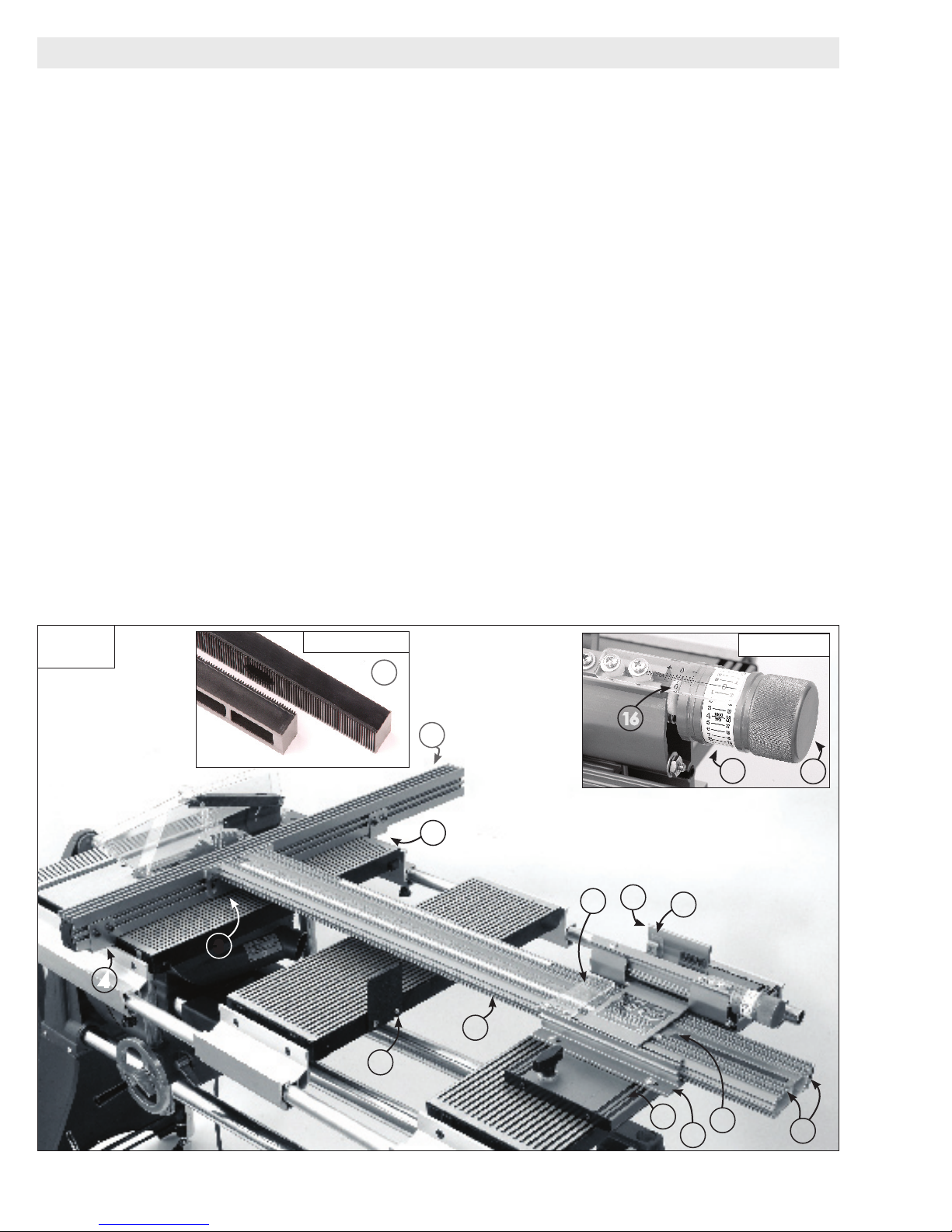
SYSTEM DESCRIPTION
Positioning Control
The INCRA TS-III Ultra obtains its great accuracy
and repeatability from the precision cast saw-
toothed racks which position the fence in exact
increments of 1/32”.
Rip Fence
The 36” long heavy-duty rip fence is precision
machined for perfect flatness along its length.
T-slots along the front face permit easy addition of
user made wooden subfences using standard
¼-20 hex bolts and hex nuts.
Fence Mounting Bracket
This bracket provides a quick and easy means to
attach the rip fence.
Rip Fence Glides
These heavy duty glides support the rip fence
slightly above the worktable surface providing an
effortless motion from one fence position to the
next. The glides can be configured for either the
Shopsmith model 510 or 520 rails.
Floating Table Tab
Moves floating table with rip fence to provide extra
support for the fence and large work pieces.
Carriage
The reinforced square tube design of the carriage
provides the ultimate in strength and support for
your fence. The carriage rides on self-lubricating
UHMW guide bearing surfaces in the base to
provide a velvet smooth glide to your next fence
setting.
Primary Sliding Scale
After setting up your INCRA TS-III Ultra and
“zeroing” the fence to the blade, slide this scale to
read 0” under the hairline cursor. The precision
etched stainless steel scale is held on a magnetic
track. Use this scale as the primary source for
readout of fence to blade distance.
Auxiliary Scale Slots
Four auxiliary scale slots are provided to allow
additional setups and cutting operations to take
place without altering the primary scale position.
Simply slide the supplied 1/32” “floating” scale into
position as needed for reference. These extra
slots are great for advanced joinery applications
requiring the use of the INCRA templates. You
can even leave your most frequently used joinery
templates from the optional INCRA Master
Reference Guide & Template Library permanently
installed.
Ultra Base
The Ultra base provides both tracking and support
for the carriage and is the control center for most
of the INCRA TS-III Ultraʼs features.
Base Support Panel
Once attached to your Shopsmith floating table,
this panel makes it easy to add or remove the
Ultra Base from your Shopsmith workstation. The
T-slot design makes the final calibration alignment
between the rip fence and blade a snap.
Hairline Cursor
The large hairline cursor provides a clear visual
reference of the fence location and spans all five
scale positions.
Carriage Clamp
By pushing the carriage clamp down into the
“unlocked” position, the carriage is free to glide to
the next setting. Pull the clamp handle up into the
“locked” position and the carriage is locked solidly
in place, ready for your next cut.
Micro Adjust Lever
After pushing the carriage clamp down into the
“unlocked” position, push the micro adjust lever
down to place the Ultra Base into the “micro adjust
mode”. After micro adjusting your fence position,
simply reset the micro adjust lever and then pull
the carriage clamp up into the “locked” position
before making your next cut.
Micro Adjust Knob
When in the “micro adjust mode”, use this knob
to fine-tune the position of the fence in one
thousandth of an inch increments. A hairline
cursor and easy-to-read scale give a clear readout
of your fence movement. Turning the knob
clockwise moves the fence closer to the blade.
Turn it counterclockwise and the fence moves
away from the cutter. Each full turn of the knob
moves the fence 1/32”. Micro adjust range is plus
or minus 1/4”, for a full 1/2” of vernier travel.
Micro Adjust Scale with Zeroing Feature
Large easy-to-read numbers make fine-tuning
your fence position a snap, and once youʼve micro
adjusted and pulled the carriage clamp up into the
“locked” position, you can re-zero the scale if you
desire. Just rotate the scale (not the knob) gently
with your fingers to return the zero on the scale to
its original position under the cursor.
Micro Adjust Cursor
Your INCRA TS-III Ultra has a micro adjustment
range of plus or minus 1/4”. By sighting through
the micro adjust cursor to the left end of the micro
adjust knob, this feature tells you how far you
have micro adjusted away from the mid-range (0”)
position and which way youʼve gone. The scale is
marked off in 1/32” increments.
1
2
3
4
5
6
7
8
9
12
11
10
14
13
16
15

4 INCRA Woodworking Tools & Precision Rules
To enjoy the full working range of the
INCRA TS-III Ultra , you will want to
configure your Shopsmith workstation
at shown in Fig. 1. This configuration
requires, (2) 5ʼ Connector Tubes, (2)
Telescoping Legs, and (2) Floating
Tables. The instructions below detail
the modifications needed for the floating
tables and the final set up. Begin by
unplugging the Shopsmith, then remove
the blade guard.
Note: The blade guard must be
reinstalled after you have finished
mounting the INCRA TS-III Ultra to
your Shopsmith workstation.
1
Drill access holes in one
floating table
Turn one of your Shopsmith floating
tables upside down at the drill press
and, using a 3/8” twist drill bit, drill
through the table at the two locations
shown in Fig. 2. Try to center the holes
on the existing hole recesses in the
casting.
CAUTION: When drilling metal,
always operate your drill press at
“Slow” speed and securely clamp the
floating table to your drill press table.
DO NOT ATTEMPT TO DRILL THE
FLOATING TABLE FREEHAND.
2
Pull hex nuts into hole
recesses
Open hardware pack B-06. Gently
press a ¼-20 hex nut into each of
the two hole recesses drilled above.
See Fig 3. Place a washer on the ¼-20
hex bolt provided and thread the bolt
into the hex nut from the top of the table.
Now use a 7/16” wrench to pull the hex
nuts firmly into the hole recesses. See
Fig. 4. Tighten the bolt until the nut
bottoms out in the hole. Remove and
discard the hex bolt and washer.
PREPARING YOUR SHOPSMITH WORKSTATION
Figure 1
Figure 3
Figure 4
Pull hex nut into
hole recess using
¼-20 hex bolt
with washer as
shown
Gently press ¼-20 hex nut into
each of two hole recesses
Figure 2 Drill 3/8” diameter holes
through table at these
two locations

INCRA TS-III ULTRA Shopsmith Owner’s Manual 5
3
Add table tab to remaining
floating table
Mark drill centers on the right edge of
the remaining floating table as shown
in Fig. 5, then use the (2) #10 x 5/8”
self drilling Phillips head fasteners to
attach the table tab. See Fig. 6. Leave
each of the two fasteners slightly loose
to allow the tab to pivot down and
out of the way for other floating table
applications. For the model 510 floating
table, add self adhesive UHMW to both
ends of the tubular rails. Adhere the
pads just inside the tubes at the top as
shown in Fig. 7.
Figure 5
Figure 6
Figure 7
Figure 8
4
Final Shopsmith
workstation set up
Loosen the headstock and carriage
locks and slide both to the far left end of
the way tubes. Tighten the headstock
and carriage locks. Now insert (2) 5ʼ
extension tubes into the worktable rails
allowing 32” of the tubes to extend
beyond the right edge of the worktable.
Tighten the locking thumbscrews.
Slide the floating table with table tab
onto the right end of extension tubes.
Slide floating table with drilled access
holes onto the right end of the extension
tubes. Position this floating table 23”
from the worktable and tighten the
locking thumbscrews. Now attach the
telescoping legs as shown in Fig. 8 and
extend to hold the work surface at 90° to
the blade.
Leave fasteners loose
enough to allow tab to pivot
For Model 510 floating
table, adhere UHMW
pads as shown to front
and rear rails
table tab
#10 x 5/8”
self-drilling
fasteners
13/16”
4 9/16”
1 ¾”
32”
23”

6 INCRA Woodworking Tools & Precision Rules
Figure 9
INSTALLING THE ULTRA BASE
Figure 10
Figure 11
Figure 12
1
Remove endcap from base
support panel
Remove the (2) fasteners that secure
the endcap to one end of the base
support panel and remove the endcap.
See Fig. 9.
2
Attach the Ultra base to
base support panel
Open hardware pack B-07.
Place #10 washers on each of the (6)
#10-32 x ½” Phillips pan head screws.
Insert four of the screws through the
slotted holes on the Ultra base and
loosely thread a #10-32 hex nut onto
each screw. Insert the remaining two
screws through the two inside holes
located in the middle of the Ultraʼs base
and attach hex nuts. Slide the hex nuts
on all six screws into the T-slots on the
base support panel. The (4) screws/
nuts in the slotted holes slide into the
outer T-slots. The (2) screws/nuts inside
the Ultraʼs base slide into the inner T-
slots. See Fig. 10.
Position the Ultraʼs base on the base
support panel as shown in Fig. 11.
(Edge of the Ultra base should be about
3 ¼” from the end of the panel.) Use
a square to align the Ultra base at 90˚
to the panel and tighten only the four
screws installed in the slotted holes.
Do not tighten the two screws inside the
Ultraʼs base at this time. Replace the
base support panel end cap removed
earlier.
3
Attach base support panel
to floating table.
Using the (2) ¼-20 x 1 ½” threaded
knobs with washers, attach the base
support panel to the floating table as
shown in Fig. 12. Visually align the
leading edge of the base support panel
parallel with the grooves in the top of the
floating table and tighten the threaded
knobs.
Base support
panel
End cap
2 fasteners
mentioned in Fig. 11 below
slide into inside T-slots
4 screws/nuts for slotted holes on
Ultra base slide into outer T-slots
Do not tighten these 2 screws at this time
Square Ultra base to support panel and tighten fasteners
¼-20 x 1 ½” threaded
knobs with washers
¼-20 x 1 ½” threaded
knobs with washers
3¼”

INCRA TS-III ULTRA Shopsmith Owner’s Manual 7
1
Slide carriage into Ultra
base
Slide the carriage into the Ultraʼs base
and position the fence mounting bracket
above the right edge of the worktable.
Pull the carriage clamp up to lock the
carriage in place. See Fig. 13.
2
Loosely attach rip fence
Open hardware pack B-08. Place a
¼” flat washer on each of (2) ¼-20 x ½”
socket head cap screws and insert the
screws through the slotted holes on the
fence mounting bracket. Thread the
¼-20 square nuts onto the screws, then
slide the fence onto the square nuts as
shown in Fig. 14, capturing the nuts in
the upper T-slot. Allow the infeed end of
the fence to overhang the worktable by
about 3”. See Fig. 15. Do not tighten
the fence mounting screws at this time.
FENCE ASSEMBLY
Figure 13
Figure 14
Figure 15
Fence mounting bracket
Align fence mounting bracket above
edge of worktable and lock
carriage clamp
carriage
rip fence
capture nut in
upper T-slot
¼-20 x ½” socket head
fastener with washer
3”

8 INCRA Woodworking Tools & Precision Rules
3
Attach fence glides
Note: The fence glides included in
hardware pack B-08 are configured
for the Shopsmith model 520. To
convert the glide for the model 510,
see the bottom of this page.
Place one of the supplied ¾” x 3”
cardboard spacers under each end
of the fence as shown in Fig. 16 and
attach the two fence glides to the rear
of the fence using (4) ¼-20 x ½” socket
head cap screws, ¼” washers and ¼-20
square nuts. Capture the nuts in the
lower T-slot on the fence. See Fig. 17.
Slide the glide onto the fence and
position it so that the UHMW pad on the
underside sits on top of the Shopsmith
rail and the white nylon spacer is about
1/32” away from the outside of the rail.
Visually level the glide and tighten
the fasteners. Finally tighten the (2)
fasteners that secure the fence to the
fence mounting bracket. Take care not
to raise or lower the fence mounting
bracket as you tighten the screws.
Remove and save the cardboard
spacers.
Figure 16
Figure 17
Figure 18
Converting the fence glides
for the model 510
Remove the fasteners and the large
diameter nylon spacers from each of
the two fence glides. Remove one
of the UHMW bearing strips from
each of the fence glides as shown.
Remove the UHMW from the left
side of one glide and the right side of
the other. See Fig. 18. Using ¼-20
x 1-½” Phillips head screws with
washers and ¼-20 lock nuts, attach
the 1” long nylon spacers to the glide
through the holes located near the
edge of the glide. Retain the large
diameter nylon spacers and fasteners
for future re-conversion should you
upgrade to the model 520 rails.
First: Place
cardboard spacers
under fence
Second: Attach
fence glide
Capture
nuts in
lower
T-slot
Fence glide
Nylon spacer approximately
1/32” away from rail
UHMW pad sits
on top of rail
¼-20 x ½” socket fasteners
with washers and square nuts
Attach conversion
hardware here
Fence glide
1” long nylon spacer
¼-20 x 1½”
Phillips head
screw with washer
Remove UHMW
pads from opposite
sides of glides

INCRA TS-III ULTRA Shopsmith Owner’s Manual 9
1
Align fence parallel to
miter slot and tighten Ultra
base mounting screws
Unlock the carriage clamp, then slide
the fence up to the nearest miter slot
and clamp in place. Loosen the (4)
Phillips head screws that secure the
Ultra base to the base support panel
and align the fence to the miter slot.
See Fig. 19. Retighten the (4) screws.
Now unlock the carriage clamp and slide
the carriage forward far enough to allow
access to the (2) Phillips head screws
in the middle of the Ultra base. Tighten
the screws.
Important: If it becomes necessary
to realign the fence in the future,
make sure to loosen all (6) Ultra base
mounting screws.
2
Zero fence to saw blade
Retract the telescoping legs at the right
end of your Shopsmith workstation and
lower the worktable to expose about
1” of the saw blade above the table.
Caution: Always hold the Shopsmith
table height crank firmly as you
loosen the table height lock when
making changes to your worktable
height. Reposition the telescoping legs
so that the work surface is held at 90
degrees to the blade. Now slide the rip
fence forward until just before it contacts
the blade (to within less than 1/32”).
Place the Ultra base in the micro adjust
mode as described on page 13 and
micro adjust the rip fence forward until
it “kisses” the saw blade. See Fig. 20.
Release the micro adjust lever and lock
the carriage in place.
Note: After micro adjusting, you might
want to re-zero the scale on the micro
adjust knob by rotating the scale (not the
knob) to return to zero under the micro
adjust cursor.
Figure 19
FINAL CALIBRATION
Figure 20
First: Loosen all four ULTRA
base mounting screws, align
fence,then retighten screws
Second: Slide carriage forward
to access screws in middle of
ULTRA base and tighten
Miter slot
First: Slide fence forward
to less than 1/32” from
saw blade
Second: Micro adjust fence forward
until fence “kisses” the blade
Micro adjust zero

10 INCRA Woodworking Tools & Precision Rules
3
Set scale position
With the Ultra base still locked with the
rip fence at the “zeroed” position set in
step 2, lift one end of the stainless steel
scale from the magnetic track and slide
the scale to position 0” under the hairline
cursor. See Fig. 21. Lower the scale
back onto the magnetic track. If you
want, you can also slide the two-piece
lexan scale to agree with the stainless
steel scale. Make sure the overlapping
ends of the scales are aligned at 16”.
4
Reinstall your Shopsmith
blade guard
Before operating your new INCRA TS-
III Ultra, replace the Shopsmith blade
guard removed earlier, Fig. 22.
Moving the rip fence to a new scale
setting
Moving the rip fence to any new position
is simple. First, push the carriage clamp
down to “unlock”, then slide the fence to
the new position. See Fig. 23. Always
align the mark on the scale directly
under the hairline cursor before locking
the carriage clamp in place. To secure
the rip fence at the new scale location,
simply pull the carriage clamp up into
the “locked” position. When moving the
rip fence, take care not to accidentally
slide the scale in its slot.
When moving the rip fence in the area
between the worktable and the Ultra
base it is important to provide support
for the rip fence glides. This is done
by moving the floating table with the
rip fence. The table tab added to the
floating table earlier makes this dual
Figure 21
Figure 22
Figure 23
OPERATION
With fence zeroed to blade,
slide scale to read “0” under the
hairline cursor
When moving fence forward, grasp table
tab and fence to move floating
table with rip fence
Lower carriage
clamp to unlock
carriage
TIP
▼▼▼▼▼▼▼▼▼▼▼▼▼
To keep your rip fence glides and
floating table moving smoothly, clean
and apply paste wax to the rails and
extension tubes from time to time.
▲▲▲▲▲▲▲▲▲▲▲▲▲TIP
This manual suits for next models
1
Table of contents
Other Shopsmith Saw manuals