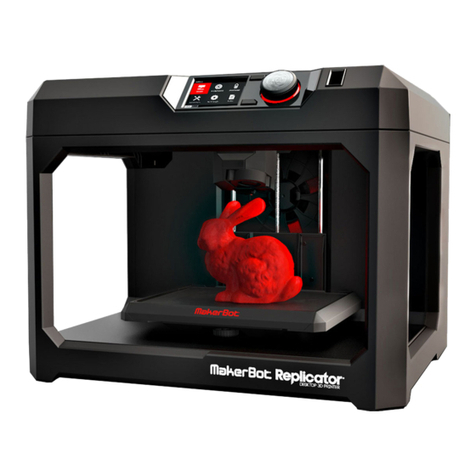
Shining 3D einstart-c User manual

Einstart®-C User Manual
Add: NO.1398 XIANGBIN RD. WENYAN XIAOSHAN, HANGZHOU, 311258, CHINA Website:www.shining3d.com
www.3dker.cn
Einstart®-C
USER MANUAL
HANGZHOU SHINING3D TECH CO., LTD.
STOCK CODE:830978

Einstart®-C User Manual
CATALOG
1 Summary................................................................................................................................................. 1
1.1 How to use the User Manual......................................................................................................... 1
1.2 Attention........................................................................................................................................ 1
1.3 Product Model............................................................................................................................... 1
2 Product Introduction................................................................................................................................ 2
2.1 Product Appearance ..................................................................................................................... 2
2.2 Device parameters and accessories............................................................................................. 2
2.3 Sound illustration .......................................................................................................................... 2
3 Preparation.............................................................................................................................................. 3
3.1 Hardware Installation .................................................................................................................... 3
3.2 Software Installation and Serial Number Registration................................................................... 3
4 Using the Printer ..................................................................................................................................... 6
4.1 Slicing ........................................................................................................................................... 6
4.2 Print .............................................................................................................................................. 8
5 Software.................................................................................................................................................. 9
5.1 Adetailed look at the software interface........................................................................................ 9
5.2 Software functions ...................................................................................................................... 10
5.3 Advanced Parameters ................................................................................................................ 12
5.4 Introduction of LED Screen Button and Its Logic ........................................................................ 13
6 3Dker Platform(Website address:http://www.3dker.com/).............................................................. 22
6.1 Model Downloading .................................................................................................................... 22
6.2 Software and Firmware Down loading. ....................................................................................... 22
7 Maintenance ......................................................................................................................................... 23
7.1 Printer Working Environment...................................................................................................... 23
7.2 Clean Up the Printing Environment............................................................................................. 23
7.3 Changing the Filament................................................................................................................ 23
7.4 Loading Filament ........................................................................................................................ 23
7.5 STL File....................................................................................................................................... 23

Einstart®-C User Manual
7.6 Set the Print Bed......................................................................................................................... 23
7.7 Sliding Rail.................................................................................................................................. 23
7.8 Consumable Parts List................................................................................................................ 23
8 FAQ....................................................................................................................................................... 24
8.1. The filament is blocked .............................................................................................................. 24
8.2. Extruder height adjustment........................................................................................................ 24
8.3. Model won’t stick to the platform................................................................................................ 24
8.4. Nozzle is surrounded by filament............................................................................................... 24
8.5. 3dStar software cannot connect to the 3D printer. ..................................................................... 25
8.6. Cannot read files on USB drive.................................................................................................. 25
8.7. The extruder is blocked, forming thin strands during printing or the model is dislocated. .......... 25
8.8. Limit switch malfunction............................................................................................................. 25
8.9 USB drive cannot be detected。................................................................................................. 25
Appendix:.............................................................................................................................................. 26

Einstart®-C User Manual
1
Einstart®-C User Manual
1 Summary
1.1 How to use the User Manual
This User Manual is set out to explain the following; Product Introduction, Preparation, How to Use the
Printer, Software Operation & Help, 3Dker Platform, Maintenance and FAQ. Please read the manual carefully
before use and follow instructions when using the Einstart-C.
1.2 Attention
Please consider the following information before using the printer.
1.2.1 Safety
The printer is only compatible with the power supply offered by Hangzhou Shining 3D Tech Co., Ltd.
Using an alternative power supply may lead to safety risks and/or damage to the printer
The print head reaches temperatures of over 200°C. To minimize potential risk, keep the printer door
closed during operation of the printer. It is also advisable to keep the printer door closed to reduce any outside
airflow, which can affect print quality.
DO NOT touch the model, print nozzle, print bed and any other part inside the printer until fully cooled to
room temperature. Care must be taken during the removal of 3D printed parts.
Although considered safe, the printer sends out small concentrations of vapor during printing therefore
good ventilation is recommended.
1.2.2 Protection
Keep the printer away from water as this may damage the printer.
DO NOT cut off power supply or unplug the USB cable during printing as it may cause print failure.
The printer operates at a room temperature of 5℃to 30 ℃. Print quality may be affected if the
temperature is not in this range.
Shining 3D has no responsibility for any damage caused to the printer through using print material or a
power supply not offered by Shining 3D.
1.3 Product Model
Einstart®-C Wifi International
Einstart®-C2 Wifi Domestic
Within this Manual, the model is noted as the Einstart®-C when describing common functions. Any notes
applying to the Einstart®-C2 will be made apparent.

Einstart®-C User Manual
2
2 Product Introduction
The Einstart®-C 3D printer is easy to operate and maintain. Its basic principle is that, upon digital input,
plastic is heated, melted and deposited to form the desired 3D model. The design is built up layer upon layer
with each successful layer turning solid to give a finished printed model that is sturdy and durable.
2.1 Product Appearance
Einstart®-C
2.2 Device parameters and accessories
See Appendix.
2.3 Sound illustration
The printer uses sound effects to give the user an indication of processes that are occurring e.g. Printer
start-up, filament loading etc.

Einstart®-C User Manual
3
3 Preparation
3.1 Hardware Installation
3.1.1 Remove the package
Unpack the inner and outer packaging and remove the cushioning foam. Use this manual and technical
drawings above to learn about accessories and set-up.
3.1.2 Print bed installation
Remove the print bed, open the printer door and fit it to the platform holder. Allow the magnet and
positioning block to cooperate and align with one another.
3.1.3 Install the Bowden Tube
Locate the transparent Bowden tube inside the printer and feed it through the central hole at the back of
the printer. Then insert it in to the extruder through the blue quick connector. The Bowden tube is easily
removed by pressing down on the quick connector and pulling the tube out.
3.1.4 Power Supply Connection
Start by connecting the adaptor to the cable plug. Once completed, insert the cable plug in to the mains
socket and connect the adaptor to the jack in the back right of the printer.
3.1.5 Turn On the Printer
Once the power supply is connected, press the switch on the right side of the printer to turn on. The LCD
screen display will indicate that the printer is turned on.
3.1.6 Filament Load
Remove the filament packaging and cut the end of the filament at an angle with pliers or scissors to create
a pointed tip. Place the filament reel on the filament holder located inside the printer on the right hand side.
Then feed the filament through the hole inside the printer and into the Bowden tube until it reaches the extruder.
Please refer to charter 5.4(11, 24, 25) for detailed operation.
Note: For better adhesion of the 3D print to the bed, we recommend a layer of masking tape or glue
stick on the print bed prior to print.
3.2 Software Installation and Serial Number Registration
The slicing software, 3dStar, supports several OS including WIN7 32bit/64bit, WIN8, WIN10 and Mac OS x.
The slicing software, serial port driver, serial number and selected model data can be found on the USB drive
provided. Please read the “Read Me” file and software user manual carefully before installing the software.

Einstart®-C User Manual
4
3.2.1 Software Installation and Registration for Windows OS.
3.2.1.1 Steps:
Open the file folder in the USB drive or download the installation software from our website. Find the
Setup.exe and run it. Click “Next” to enter the below interface and click “I Agree” after reading and accepting
the 3DPRINT END USER LICENSE AGREEMENT.
Choose the installation path you want by clicking “Browse” and click “Install”.
Upon Agreeing the license clause, click “Install” in the popup window. Complete the installation process by
Clicking “Finish”.

Einstart®-C User Manual
5
Note: If you’ve installed “Microsoft Visual C++ 2013”, just click “Repair” as below picture shows.
Install the FTDI CDM Drivers. Click “Extract” and operate according to the guidance given until installation
is complete.

Einstart®-C User Manual
6
4 Using the Printer
To obtain model data, please refer to charter 5.1 . There are also some 3D files available on the USB
drive provided.
4.1 Slicing
4.1.1 For slicing, open the 3dStar software and choose corresponding device model in “setting”,
“Application”. For this printer, you should choose E-c.
4.1.2 Choose the corresponding machine type. For this printer, you should choose E-C.Click the folder
icon to open and load an .stl file as the below picture demonstrates.

Einstart®-C User Manual
7
4.1.3 The 3dStar software allows users to view, move, rotate and scale their 3D model according to
requirements. To zoom in and out, use the scroll wheel on the mouse. To rotate around your model, left-click
and drag. To pan across your model, right-click and drag.
4.1.4 Click the settings icon on the top right of the screen to make any necessary adjustments to your 3D
model. See charter 5.1, 5.2 and 5.3 for detailed information on software and print settings. Click the generator
icon to generate path in .gsd format once you have confirmed your settings.
Other manuals for einstart-c
2
This manual suits for next models
1
Table of contents
Other Shining 3D 3D Printer manuals

Shining 3D
Shining 3D EinScan-SE User manual

Shining 3D
Shining 3D Einstart User manual

Shining 3D
Shining 3D Transcan-C User manual

Shining 3D
Shining 3D AccuFab-D1s User manual

Shining 3D
Shining 3D AccuFab L4D User manual

Shining 3D
Shining 3D einstart-c User manual

Shining 3D
Shining 3D AccuFab-L4D User manual

Shining 3D
Shining 3D AccuFab-D1s User manual

Shining 3D
Shining 3D AccuFab-L4D User manual

Shining 3D
Shining 3D einstart-c User manual