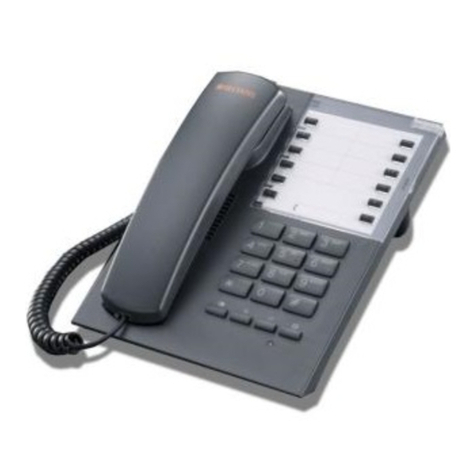
SDX Audio SPOT 14.4 User manual

SPOT 14.4
User's Guide
By SDX Business Systems
38GDE00001SCF - Issue 4 (11/96)

ContentsContents
SPOT 14.4SPOT 14.4 User's GuideUser's Guide 38GDE00001SCF - Issue 4 (11/96)38GDE00001SCF - Issue 4 (11/96)
Getting StartedGetting Started....................................................................................................................................................33
Installing SPOTInstalling SPOT..................................................................................................................................................77
SPOT Phone SetupSPOT Phone Setup..................................................................................................................................1212
Using SPOT as a Normal PhoneUsing SPOT as a Normal Phone..........................................................................................1414
Working with PC ApplicationsWorking with PC Applications....................................................................................................1616
TAPITAPI................................................................................................................................................................................1818
Modem Terminology OverviewModem Terminology Overview................................................................................................2424
UK Statutory RequirementsUK Statutory Requirements..........................................................................................................3434
Glossary of TermsGlossary of Terms......................................................................................................................................3838
IndexIndex..............................................................................................................................................................................3939
ContentsContents

Getting StartedGetting Started - Page- Page 33
SPOT 14.4SPOT 14.4 User's GuideUser's Guide 38GDE00001SCF - Issue 4 (11/96)38GDE00001SCF - Issue 4 (11/96)
Getting StartedGetting Started
Using this GuideUsing this Guide
This guide aims to make installing your SPOT easy. It does not cover all
the software that you can use with SPOT, since the number of data, fax,
voice and auto-dial applications is just too large. Those applications
included with your SPOT each come with their own on-line help and/or
printed manual. Please refer to these for assistance with those specific
programs.
Quick StartQuick Start: To install your SPOT, go page: To install your SPOT, go page 77..
PC RequirementsPC Requirements
SPOT requires a PC with the following specification:
Windows 3.1:Windows 3.1:
–486SX 25MHz processor minimum.
–486DX 50MHz processor recommended.
–4MB RAM.
–A free 9-pin or 25-pin D-type serial port (16550 UART type
recommend).
Windows 95Windows 95::
–486DX 50MHz processor minimum.
–75MHZ Pentium processor recommended.
–8MB RAM.
–A free 9-pin or 25-pin D-type serial port (16550 UART type
recommend).

Getting StartedGetting Started - Page- Page 44
SPOT 14.4SPOT 14.4 User's GuideUser's Guide 38GDE00001SCF - Issue 4 (11/96)38GDE00001SCF - Issue 4 (11/96)
What is SPOT?What is SPOT?
Welcome to SPOT, the handsfree telephone that you can control directly
from your computer. SPOT can provide you with many functions:
–Dial numbers directly from PC applications.
–Display caller details before you answer a call.
–Send and receive faxes.
–Use voicemail and answering machine software.
–Access on-line information services.
All this functionality is provided within SPOT, which simply connects to
your PC's serial port. You do not need to dismantle your PC in any way
(which might invalidate your PC warranty).
This User's Guide explains how to install SPOT and provides guidelines
for using telephony aware packages with SPOT.
–SPOT softwareSPOT software::
SDX supply a range of software packages that use the features of
SPOT. Each of these includes its own help files and/or
documentation.

Getting StartedGetting Started - Page- Page 55
SPOT 14.4SPOT 14.4 User's GuideUser's Guide 38GDE00001SCF - Issue 4 (11/96)38GDE00001SCF - Issue 4 (11/96)
SPOT Telephone FeaturesSPOT Telephone Features
With your PC switched off or not connected, SPOT still works as a
telephone. It also provides a range of additional features; handsfree
operation, mute, volume controls and redial.
Telephone SpecificationTelephone Specification::
–On-hook dialling.
–Handsfree speech.
–Last number redial.
–Handset and handsfree mute.
–Time break recall (TBR).
–Ringer volume control.
–Handsfree speaker volume control.
–DTMF dialling.
–LD dialling (with power supply unit connected and switched on).
–Alpha-numeric keypad.
–BABT approved.
–Standard BT telephone jack plug.
–Headset operation mode.
–Operates as a fully functional handsfree telephone even when its
power supply unit is disconnected or switched off.

Getting StartedGetting Started - Page- Page 66
SPOT 14.4SPOT 14.4 User's GuideUser's Guide 38GDE00001SCF - Issue 4 (11/96)38GDE00001SCF - Issue 4 (11/96)
SPOT Fax/Modem FeaturesSPOT Fax/Modem Features
With your SPOT connected to your PC you have true Computer
Telephony Integration (CTI) at the desktop. Your SPOT can be a modem,
fax machine, answer phone, advanced caller display unit,autodialler -
almost whatever your PC's software requires. This is all done via a single
cable between SPOT and the PC.
Modem SpecificationModem Specification::
–Hayes AT and Microsoft/Intel TAPI compatible.
–Maximum carrier speed 14400 bits per second.
–BABT approved.
–Compatible with V.21, V.22, V.22bis, V.23, V.32 and V.32bis.
–RS232C serial lead (9 PIN D-type connector).
–Error correction MNP2, MNP3, MNP4 and V.42.
–Compression MNP5 and V.42bis.
Fax SpecificationFax Specification::
–Group 3bis, Class 2 Send/Receive Fax.
–Maximum fax speed 14400bps (V.17, V.27ter, V.29).
Voice SpecificationVoice Specification::
–Voice serial data at 19.2 through to 115.2Kbps.
–Encoding/decoding: 8-bit linear, A-Law andMu-Law.
–Compression: DPCM 2:1 or None.
–Sampling rate: 4800Hz, 7300Hz and 8000Hz.
Caller DisplayCaller Display::
–Can pass BT and CCA (Cable Company Association) caller identity
information to suitable PC applications.

Installing SPOTInstalling SPOT - Page- Page 77
SPOT 14.4SPOT 14.4 User's GuideUser's Guide 38GDE00001SCF - Issue 4 (11/96)38GDE00001SCF - Issue 4 (11/96)
Installing SPOTInstalling SPOT
Unpacking & CheckingUnpacking & Checking
Quick StartQuick Start::
Check that you have all the parts required, then go to pageCheck that you have all the parts required, then go to page88..
Note that the number of manuals and software disks may vary.
SPOT includesSPOT includes::
–SPOT Telephone with captive serial cable.
–SPOT Handset.
–Phone lead.
–Power supply unit with lead.
–9-pin to 25-pin serial adapter.
–Manual(s).
–Software disk(s).
You also requireYou also require::
–Modern style telephone plug socket.
–PC with free 9-pin or 25-pin D-type serial port(see "PC
Requirements" on page 3).
–Domestic mains power socket (230V 50Hz).
–SPOT installation normally requires no tools.

Installing SPOTInstalling SPOT - Page- Page 88
SPOT 14.4SPOT 14.4 User's GuideUser's Guide 38GDE00001SCF - Issue 4 (11/96)38GDE00001SCF - Issue 4 (11/96)
Connecting SPOT to a Telephone SocketConnecting SPOT to a Telephone Socket
Quick StartQuick Start::
Connect your SPOT to a phone socket, then go to pageConnect your SPOT to a phone socket, then go to page99..
SPOT plugs into a modern style telephone plug socket. If you do not
have this type of socket, contact your telephone line provider to have a
suitable socket installed.
To connect SPOT as a telephoneTo connect SPOT as a telephone::
1. Plug the SPOT phone lead into theLINELINE socket on the underside of
the SPOT phone.
2. Plug the SPOT handset lead into theH/SETH/SET socket on the underside
of the SPOT phone.
3. Use the channels in the base of the SPOT phone to route the cables
as you prefer.
4. Plug the SPOT phone lead into your telephone socket.
5. Plug the SPOT power supply unit into a mains supply socket and
switch on.
6. Plug the power supply cable into the socket on theunderside of the
SPOT phone.
7. Test the connection by making a normal phone call.
–If this does not work, check the cable connections.
–If the cables are okay, switch the SPOT from MF (tone) dialling to
LD (pulse) dialling (see page 12).
–If it still does not work, try making a call with another phone in the
same socket.
Phone Ringing ProblemsPhone Ringing Problems
Every piece of telephone equipment has a REN value. To guarantee
proper ringing and operation, the total REN of all the equipment
connected to a normal telephone line must not exceed 4.SPOT's REN is
1.5.

Installing SPOTInstalling SPOT - Page- Page 99
SPOT 14.4SPOT 14.4 User's GuideUser's Guide 38GDE00001SCF - Issue 4 (11/96)38GDE00001SCF - Issue 4 (11/96)
Connecting SPOT to Your PCConnecting SPOT to Your PC
Quick StartQuick Start::
Connect SPOT to your PC, then go to pageConnect SPOT to your PC, then go to page 1010..
To operate SPOT under PC control, it needs to connect to one of your
computer's serial ports (called COM ports and RS232 ports). They are
normally 9 or 25-pin D-type sockets. Refer to the PC manufacturers
instructions to identify the correct ports.
To connect SPOT to the PCTo connect SPOT to the PC::
1. First follow the instructions in "Connecting SPOT to a Telephone
Socket" on page 8.
2. Plug the SPOT power supply unit into a suitable mains supply socket
and switch on.
3. Plug the power supply cable into the socket under the SPOT phone.
4. Locate a free serial port on your PC(refer to your PC manufacturers
information). If it is a 25-pin serial port, you need the 9-pin to 25-pin
serial adapter.
5. Connect the SPOT serial cable to the serial port.
6. Hand-tighten the securing screws on the serial cable plug(and 9-pin
to 25-pin adapter if used).

Installing SPOTInstalling SPOT - Page- Page 1010
SPOT 14.4SPOT 14.4 User's GuideUser's Guide 38GDE00001SCF - Issue 4 (11/96)38GDE00001SCF - Issue 4 (11/96)
Installing the SPOT SoftwareInstalling the SPOT Software
Quick StartQuick Start::
Install the SPOT Software for your version of Windows. When theInstall the SPOT Software for your version of Windows. When the
SPOT Registration screen appears, go to pageSPOT Registration screen appears, go to page1111..
This section covers installing the software supplied on the SPOT
Software disk. The SPOT Software Disk does several things;
–Installs the drivers which allow SPOT to work with a range of
applications. These includes the TAPI drivers.
–Installs this guide as a Help File
–Runs the registration program for 12-months free SPOT support.
Other software applications may be included with your SPOT. These will
have their own installation disks and documentation.
Windows 3.1/3.11Windows 3.1/3.11
To install the SPOT software under Windows 3.1 or 3.11To install the SPOT software under Windows 3.1 or 3.11::
1. First follow the instructions in "Connecting SPOT to Your PC" on page
9.
2. Switch your PC on and run Windows 3.1 or 3.11.
3. From the menu bar, selectFileFile and then RunRun.
4. Enter a:\install.exea:\install.exe (or b:\install.exeb:\install.exe) and then click on OKOK.
5. Follow the on-screen instructions.
6. When the SPOT Registration screen appears, go to page11.
Windows 95Windows 95
To install the SPOT software under Windows 95To install the SPOT software under Windows 95::
1. First follow the instructions in "Connecting SPOT to Your PC" on page
9.
2. Switch your PC on and run Windows 95.
3. Click on the STARTSTART button and choosesettings...settings....
4. Click on Control PanelControl Panel icon.
5. In the group that appears, click on theAdd/Remove ProgramAdd/Remove Program icon.
6. Enter a:\install.exea:\install.exe (or b:\install.exeb:\install.exe) and then click on OKOK
7. Follow the on-screen instructions.
8. When the SPOT Registration screen appears, go to page11.
Table of contents