SB VR8000 User manual

ank you for purchasing from SafetyBasement.com! We appreciate
your business.
We made this simple manual to help you enjoy your new product as
quickly and easily as possible.
Be sure to check the TECH SUPPORT tab on your product page at
SafetyBasement.com for the latest available manual.
INSTRUCTION MANUAL
Revised: July 25, 2013
Mi4 Professional Voice Recorder
SB-VR8000 (Silver Edition)

Page 2
PRODUCT MANUAL “Mi4” Voice Recorder : SB-VR8000
www.SafetyBasement.com Phone: 877-345-2336 Fax: 888-236-2524
PRODUCT REFERENCE
Please note: this manual is for the Silver edition of the Mi4, pre-July 2013.
If you have the Black, July 2013 edition of the Mi4, please go to our website and down-
load the manual for that product.

PRODUCT MANUAL “Mi4” Voice Recorder : SB-VR8000
Page 3
www.SafetyBasement.com Phone: 877-345-2336 Fax: 888-236-2524
File Quality
Current Folder
File Name
Battery Level
Current Repeat
Setting
Current Volume
Setting
Current EQ Setting
(* Always NORmal
in voice mode)
Current Mode -
Voice or Music
(showing Voice)
See Close Up Below
Current Track
Tracks in Current
Folder
Current Time in
File
Length of Current
File
PLAYBACK SCREEN REFERENCE

Page 4
PRODUCT MANUAL “Mi4” Voice Recorder : SB-VR8000
www.SafetyBasement.com Phone: 877-345-2336 Fax: 888-236-2524
OPTIONS REFERENCE
VOICE / MUSIC MODE OPTIONS
(Press M to access these options)
FILE SELECTION
FOLDER SELECTION
CARD SELECTION
FILE DELETION
FOLDER DELETION
WHILE PAUSED or STOPPED
REPEAT OPTIONS
REPLAY A/B
EQUALIZER SETTINGS (Music Only)
DURING PLAYBACK
Press V, then use UP DOWN arrows to adjust the
volume level.
VOLUME CONTROL
PRODUCT MANUAL “Mi4” Voice Recorder : SB-VR8000
Page 5
www.SafetyBasement.com Phone: 877-345-2336 Fax: 888-236-2524
e Mi4 can use an optional Micro SD card installed for extra storage. It will accept a Micro SD
card of up to 32 GB in size.
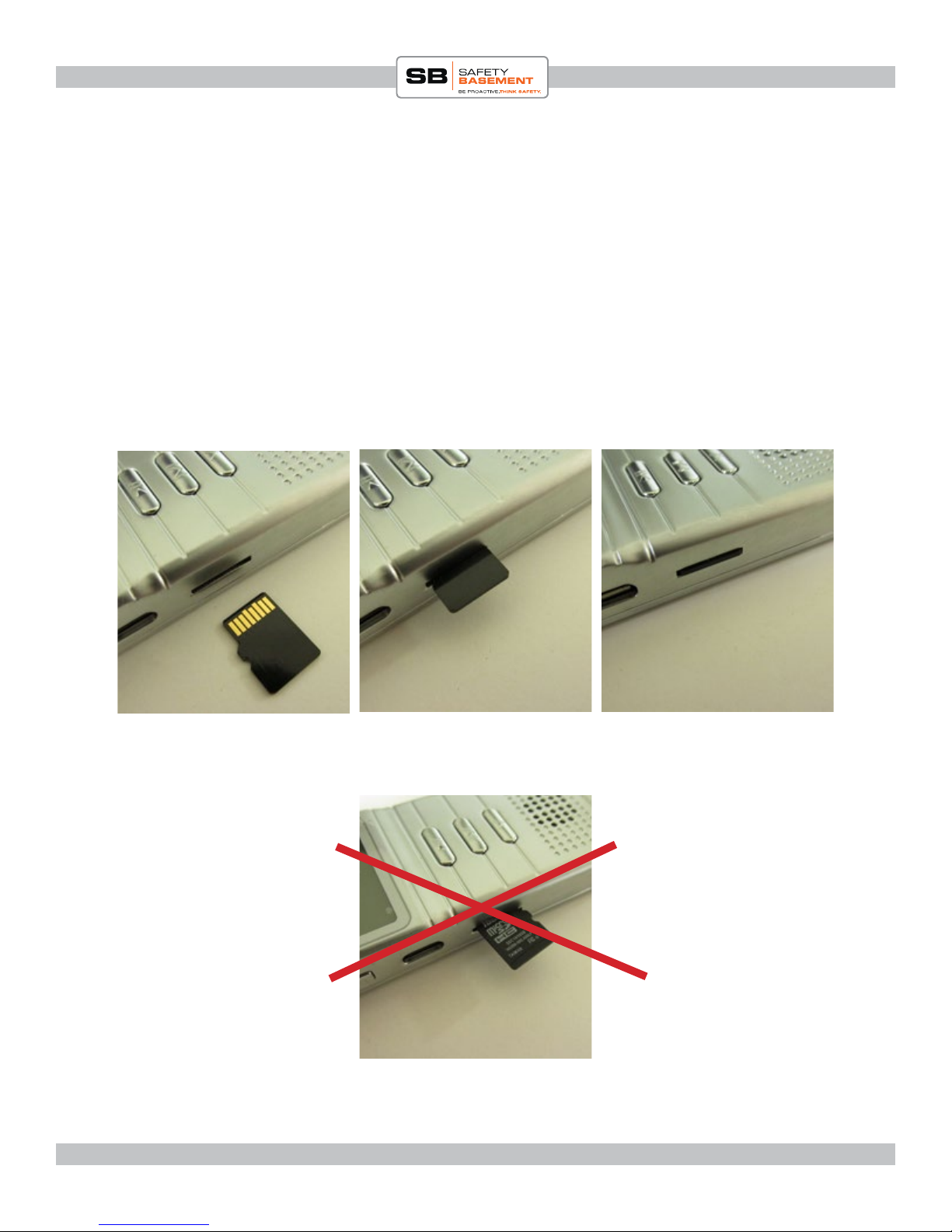
1. Please note the proper positioning of the SD card for insertion. With the LCD screen of the
Mi4 facing UP, the SD card will be inserted with the Gold connectors facing UP. See the
photo below.
2. Gently place the SD card, Gold connectors UP, into the SD card slot.
3. Gently push the SD card into place. e card will click into place when properly inserted. If
there is any resistance, remove the card and try again.
4. To remove the card, press gently on the card, and it will click out.
BEFORE FIRST USE - SD CARD
Step 1 - Gold connectors
should be UP
Step 2 - Card is partially
inserted, click into place
Step 3 - SD card is properly
inserted
Wrong! is card is being
inserted upside-down.

Page 6
PRODUCT MANUAL “Mi4” Voice Recorder : SB-VR8000
www.SafetyBasement.com Phone: 877-345-2336 Fax: 888-236-2524
Please charge fully before use. Please use only the adapter that was included with your device.
Do not use other adapters, as they may damange your device.
1. Be sure that the device is OFF.
2. Plug USB cable into device rst.
3. Plug the other end into the wall adapter.
4. Plug the adapter into your power outlet. Please let the device charge for several hours before
your rst use.
BEFORE YOUR FIRST USE
No other les are needed to use this device. No device drivers are needed for Windows or Mac
use.
NEEDED FILES

PRODUCT MANUAL “Mi4” Voice Recorder : SB-VR8000
Page 7
www.SafetyBasement.com Phone: 877-345-2336 Fax: 888-236-2524
Before you start recording, you’ll want to make sure the time and date
are set properly on your Mi4.
1. Set the Record Switch to SAVE.
2. Set the Power Switch to ON. is will let the system Power On.
3. Press the PLAY button and the recorder will initialize.
4. You should see MUSIC MODE appear on your screen. If not, hold
the M button until the MODES menu appears.
5. Use the Up and Down buttons on the le side to cycle through the
menu until you see SETTING MODE.
6. At SETTING MODE, press M. You will now see the dierent
settings that can be adjusted.
7. With the Up and Down buttons, cycle until you see the SYSTEM
TIME option.
8. Press the M button to show the system time.
9. Press the V button, and the Year will start to blink.
10. Use the UP DOWN arrows to set the year.
11. Press V to move to the Month and use the UP DOWN arrows
to adjust. Press V to move to the day, and so on, until you have
changed the Date and Time.
12. To nish, press the M button.
13. Your recorder is now set to the correct Date and Time.
STEP 5
STEP 7
STEP 7
SETTING TIME & DATE
NOTE: You must press M to save your new Time Settings, or the
recorder will use the previous system time.
e menu will go back to a previous screen if you do not press a
button within a few seconds.
When you press a button, if the device light comes on but nothing else
happens, press that same button again. Your rst press just turned on
the light.

Page 8
PRODUCT MANUAL “Mi4” Voice Recorder : SB-VR8000
www.SafetyBasement.com Phone: 877-345-2336 Fax: 888-236-2524
Voice Activation Recording can be turned on and o.
1. In PLAY mode, press the M button until you see SETTING
MODE.
2. Press M to enter Setting Mode.
3. Cycle over to Select VOR. Press M.
4. You can now turn Voice Activation ON (OPEN) or OFF
(CLOSE).
5. Cycle to your choice, and Press M.
6. Your next recording with use that setting.
STEP 2
STEP 3
STEP 4
VOICE ACTIVATION MODE

PRODUCT MANUAL “Mi4” Voice Recorder : SB-VR8000
Page 9
www.SafetyBasement.com Phone: 877-345-2336 Fax: 888-236-2524
You can monitor your recordings live by using earphones. You can
turn this feature on and o in the Settings.
1. In PLAY mode, press the M button until you see SETTING
MODE.
2. Press M to enter Setting Mode.
3. Cycle over to Cotrol Monitor. Press M.
4. You can now turn the Control Monitor ON (OPEN) or OFF
(CLOSE).
5. Cycle to your choice, and Press M.
6. Your next recording with use that setting.
STEP 2
STEP 3
STEP 4
CONTROL MONITOR

Page 10
PRODUCT MANUAL “Mi4” Voice Recorder : SB-VR8000
www.SafetyBasement.com Phone: 877-345-2336 Fax: 888-236-2524
Your Mi4 comes preset to the highest quality setting for your
recordings. However, you can change this setting if you need more
recording time.
A lower setting will record a lower quality le - but will give you extra
recording time.
A higher setting will use the most memory, but has the best recording
quality. Your Mi4 default is the highest setting - 384K.
1. In PLAY mode, press the M button until you see SETTING
MODE.
2. Press M to enter Setting Mode.
3. Cycle over to Cotrol Monitor. Press M.
4. You can now turn the Control Monitor ON (OPEN) or OFF
(CLOSE).
5. Cycle to your choice, and Press M.
6. Your next recording with use that setting.
STEP 2
STEP 3
STEP 4
RECORD TYPE / QUALITY SETTING
This manual suits for next models
1
Table of contents
Other SB Voice Recorder manuals