
Ricoh THETA Z1 User manual

youtube.com/c/RICOHTHETA
facebook.com/ricoh.theta
@theta360official
*L8561971BQ*
*L8561971B*
Kurzanleitung
Quick Start Guide
Guide de démarrage rapide

English 1
Deutsch 13
Français 25
日本語 37
中文繁體 49
Model / 型號︰R02020

1
Facebook, the Facebook logo, and “f” logo are trademarks or
registered trademarks of Facebook, Inc.
Twitter, the Twitter logo, Twitter “t” logo, and Twitter blue bird are
registered trademarks of Twitter, Inc. in the United States and other
countries.
Wi-Fi is a registered trademark of Wi-Fi Alliance.
Bluetooth is a registered trademark of Bluetooth SIG, Inc.
USB Type-C is a trademark of USB Implementers Forum.
The images, illustrations, and screen captures used in this guide may
differ from those of the actual device.
English
A New Way to Enjoy
Photography
Product Website
For the latest product information and useful hints and
tips on using this product, see the following website.
https://theta360.com/en/
Support Information
For support information and the entire warranty
provisions, see the following website.
https://support.theta360.com/en/
User Guide
For details on how to use this product, access the user
guide on the following website.
https://support.theta360.com/en/manual/
2
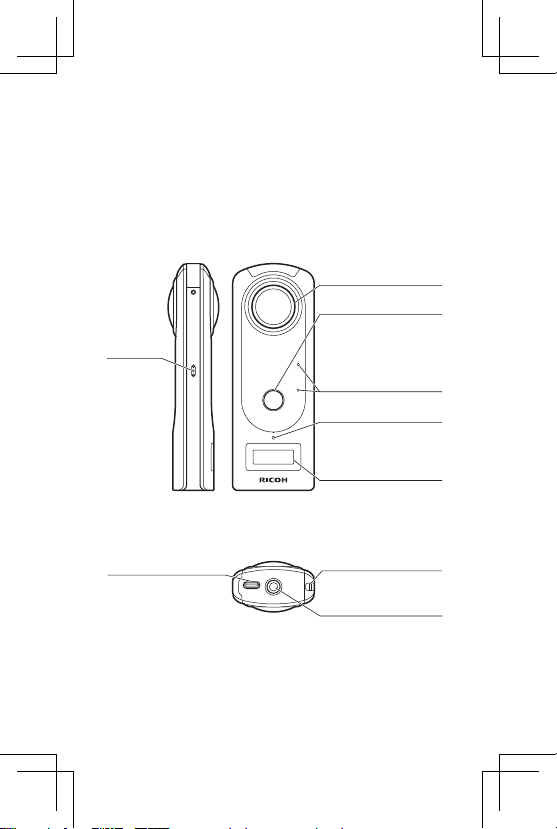
Names of Parts
This camera has a simple design that is easy to
handle, and that enables you to capture images of your
surroundings with the simplest operations.
First, familiarize yourself with the names and uses of the
parts.
Speaker
Camera status lamp
Lights when shooting can
be performed.
Before using the camera, charge the battery by connecting it to a
computer using the provided USB cable. The battery level can be
checked on the OLED panel.
Be careful when handling the lens section. Always store the camera
in the provided soft case when the camera is not used.
Lens
Microphone
Shutter button
Press to shoot still images
or videos.
OLED panel
Displays the shooting
information, battery level,
etc.
Tripod mount hole
Strap lug
USB terminal
(USB Type-C)
Used to connect with
other devices via the
provided USB cable.
3
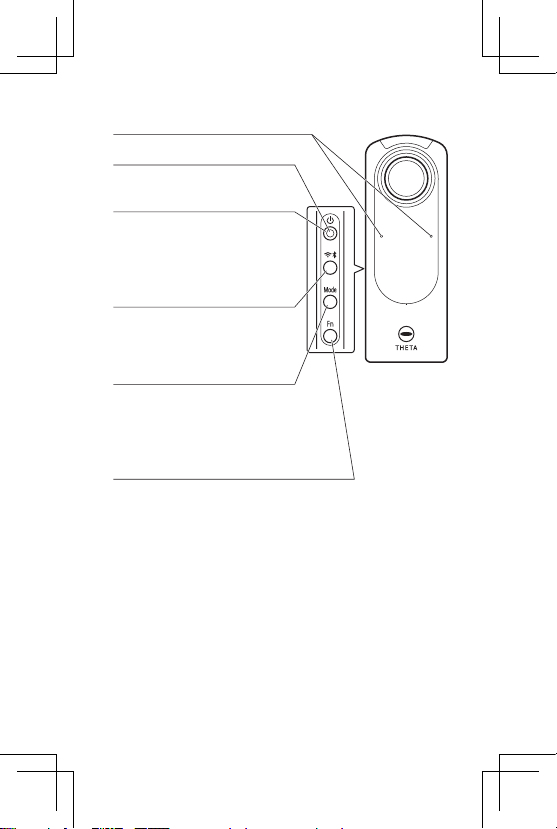
Power lamp
Microphone
Wireless button
Power button
Mode button
Lights blue when the power is on.
Switches the wireless LAN mode.
Turns the Bluetooth®function on and off
when the button is pressed and held.
Turns the power on and off when the
button is pressed and held.
Puts the camera to sleep when the
button is pressed.
Switches the shooting mode.
Runs and terminates the plug-ins
installed in the camera when the button
is pressed and held.
Pressing and holding the mode button and Fn button simultaneously
turns off the OLED panel and lamps and mutes the shutter sound.
When a button other than the power button and shutter button is
pressed, this state is canceled.
Pressing and holding the wireless button and Fn button
simultaneously displays the camera firmware version on the OLED
panel. When a button other than the power button and shutter button
is pressed, the OLED panel display returns to the normal display.
Fn button
Switches the shooting function between the normal
shooting and the self-timer shooting. When the My
Settings are registered with the basic app, you can
also switch the shooting function to the My Settings
shooting.
Switches the information displayed on the OLED
panel when the button is pressed and held.

4
Turning the Camera On
Press and hold the power button for approx. 1 second.
Each lamp starts to flash. When the lamps become lit,
you can perform shooting.
Information Displayed on the OLED Panel
You can switch the information displayed on the OLED
panel between the basic display and the shooting
information display by pressing and holding the Fn
button.
In the shooting information display, shooting settings
such as exposure mode can be checked.
Communication
status
Shooting
mode
Basic display example:
Still image
shooting
Video shooting
Live streaming
Shooting information display example:
Number of
recordable still
images/Video
recordable time
Battery level
Self-timer/
plug-in status
5
Downloading the App
This camera captures great images. You can also use
a smartphone app for shooting, viewing, and sharing
images from your smartphone.
Download the basic app that is compatible with your
smartphone.
The app for editing captured still images and videos is
also available.
https://support.theta360.com/en/download/

6
Connecting to a Smartphone
via Wireless LAN
When the camera is connected to a smartphone via a
wireless LAN, you can use the smartphone to shoot and
view still images and videos remotely, and make function
settings.
Turn the camera on, and then press the wireless button to
turn the wireless LAN function on. ( is animated on the
OLED panel.)
Then, turn on the Wi-Fi™ function of the smartphone.
Start the basic app for smartphone, tap , and follow
the instructions on the screen. (When the wireless LAN
connection is complete, becomes lit.)
When establishing the connection manually, select the
SSID of the camera in the network list of the Wi-Fi™
settings on the smartphone and enter the password.
Password (00001017 in this case)
The serial number printed on the bottom of the
camera is the same as the SSID and password.
You can change the password from the
smartphone.
The password is initialized by pressing and
holding the wireless button and mode button
simultaneously while the power is on.
SSID THETA + Serial number + .OSC
(THETAYN00001017.OSC in this case)
00
YN
001017

7
Connecting to a
Smartphone via Bluetooth®
When the camera is connected to a smartphone
supporting Bluetooth®, you can use the smartphone to
shoot still images and videos remotely, and make function
settings.
Turn on the Bluetooth®function of the smartphone, and
connect the camera to the smartphone via a wireless
LAN.
Then, start the basic app for smartphone, and select
[Settings] [Cam Bluetooth settings] [Turns on
camera Bluetooth].

8
Shooting and Viewing Still
Images and Videos
Switching the Shooting Mode
Press the mode button to switch the shooting mode.
On the OLED panel, and are displayed for the
still image shooting mode and video shooting mode,
respectively.
Shooting Still Images and Videos
You can shoot still images and videos from the camera or
your smartphone.
To shoot still images and videos using the camera, press
the shutter button.
To shoot still images and videos using the smartphone,
tap the shutter button on the shooting screen of the basic
app for smartphone.
Viewing Still Images and Videos
You can send captured still images and videos to
the smartphone for viewing, using the basic app for
smartphone. You can also view the still images and
videos already saved on the smartphone.
Other manuals for THETA Z1
1
This manual suits for next models
1
Table of contents
Languages:
Other Ricoh Action Camera manuals


