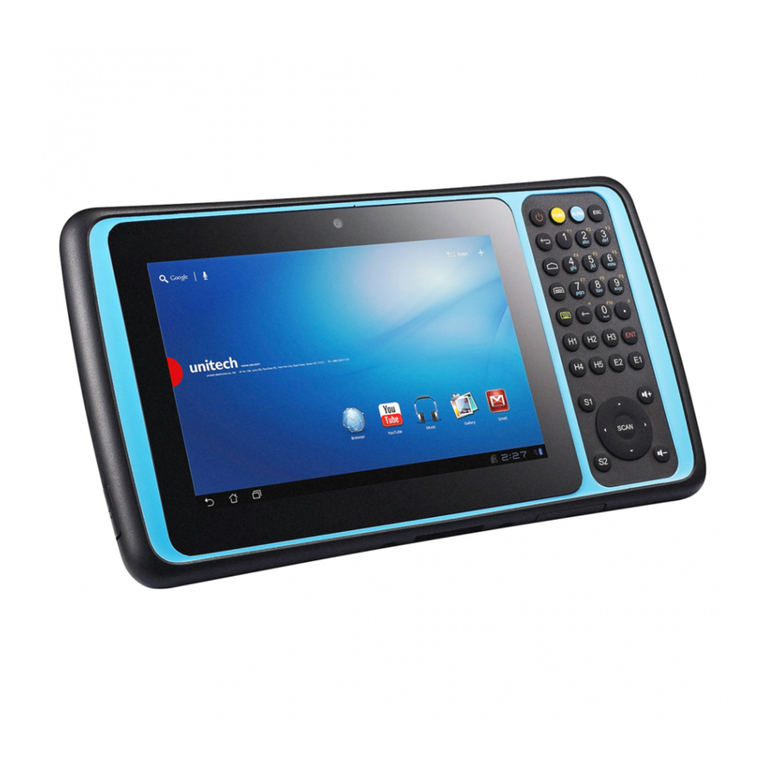
RBR CncGcoder HD User manual

CncGcoder® Models HD & HDx Manual

Table of Contents
CncGcoder® HD Manual 1
WELCOME........................................................................................................................... 3
IN THE BOX ......................................................................................................................... 4
Optional Accessories........................................................................................................................... 4
HANDHELD OVERVIEW ..................................................................................................... 5
Overview................................................................................................................................................ 5
Charging the Battery ............................................................................................................................ 6
Turning On and Off............................................................................................................................... 6
Plugging in Cable ................................................................................................................................. 7
Inserting SD Cards ............................................................................................................................... 7
USING THE HANDHELD ..................................................................................................... 8
Using the Stylus.................................................................................................................................... 8
Using the Keypad ................................................................................................................................. 8
Using File Explorer............................................................................................................................... 9
Important Directory Icons ................................................................................................... 9
Navigation Icons ................................................................................................................. 9
Device Desktop................................................................................................................................... 10
Desktop Icons ...................................................................................................................10
Device Preferences ............................................................................................................................ 10
Setting Date and Time...................................................................................................... 10
Setting Backlight and Contrast ......................................................................................... 11
Configuring Stylus ............................................................................................................ 11
Setting the power.............................................................................................................. 12
USING THE CNCGCODER®.............................................................................................. 13
Opening the Program......................................................................................................................... 13
Viewing On-Screen Keyboard ........................................................................................................... 13
Setting up Machines........................................................................................................................... 13
Adding a New Machine..................................................................................................... 14
Selecting a Machine ......................................................................................................... 14
Editing an Existing Machine ............................................................................................. 14
Deleting a Machine........................................................................................................... 14
Setting the Advanced Settings ......................................................................................... 15
Managing CNC Programs .................................................................................................................. 15
Navigating the File Screen ............................................................................................... 16
Loading a G-Code File ..................................................................................................... 16
Saving a G-Code File ....................................................................................................... 17

Deleting a G-Code File ..................................................................................................... 17

Table of Contents
CncGcoder® HD Manual 2
File Transfer between Computer....................................................................................................... 17
Transferring using the SD Card........................................................................................ 17
Transferring using ActiveSync®........................................................................................ 17
File Transfer between CNC................................................................................................................ 18
Sending a Program to the CNC........................................................................................ 18
Receiving a Program from the CNC ................................................................................. 18
On-Screen Help................................................................................................................................... 19
About CncGcoder®Screen ................................................................................................................ 19
Exit Program ....................................................................................................................................... 19
BATTERY PRECAUTIONS................................................................................................ 20
Disposing of the Battery ................................................................................................... 20
TROUBLESHOOTING ....................................................................................................... 21
Resetting the Device .......................................................................................................................... 21
Soft Reset ......................................................................................................................... 21
Hard Reset........................................................................................................................ 21
Blank Screen ....................................................................................................................................... 21
Recalibrate Screen ............................................................................................................................. 21
Trouble Communicating with the CNC.............................................................................................22
REVISIONS ........................................................................................................................ 23
Version 1.1.0.2..................................................................................................................................... 23
TECH NOTE 1: CNCGCODER®HD TO COMPUTER FILE TRANSFER.......................... 24
Recommended Setups....................................................................................................................... 24
Option A: Transfer from Newer Computer using SD Card .............................................. 24
Option B: Transfer from Older Computer using SD Card................................................ 25
Option C: Transfer using Microsoft®ActiveSync® Cable ................................................. 26
Option E: Transfer using DNC Software ......................................................................... 26

Welcome
CncGcoder® HD Manual 3
Welcome
Thank you for purchasing the CncGcoder®HD or the CncGcoder®HDx . You are
now able to easily communicate with you Machine Tool CNCs right on the shop floor.
Review the following manual for information on how to set-up and use the CncGcoder®.
New products, software, and updates will be available at www.CncGcoder.com.

In the Box
CncGcoder® HD Manual 4
In the Box
The CncGcoder®HD package includes
¾CncGcoder®HD Shop-Hardened Handheld Unit
¾AC Power Adapter Cord
¾Heavy Duty CncGcoder®HD RS-232 Serial Cable
¾Setup Sheet
The CncGcoder®HDx package includes
¾CncGcoder®HD Shop-Hardened Handheld Unit
¾AC Power Adapter Cord
¾Extreme duty CncGcoder®HD RS-232 Serial Cable W/ USB Jack
¾Setup Sheet
Optional Accessories
USB SD Card Reader and SD Cards (available at electronics stores)
¾Adds storage capabilities to the CncGcoder®HD
¾Adds ability to transfer files between computer and CncGcoder®HD
USB Microsoft®ActiveSync Cable (available through RBR)
(Not recommended for HDx Users)
¾Mounts the CncGcoder®to the computer as a drive
¾Adds ability to transfer files between computer and CncGcoder®HD

Setting Up
CncGcoder® HD Manual 5
Handheld Overview
Overview

Setting Up
CncGcoder® HD Manual 6
Charging the Battery
Connect the AC power adapter to the DC jack located on the top of the unit. When
connected to the AC power adapter, the battery will recharge in four hours. The LED will
flash orange while the battery is charging.
Turning On and Off
Press the Power key to turn the unit on and off. When the Power key is pressed to turn the
unit off, the unit actually enters Suspend mode. In Suspend mode, the unit continues to
supply power to all memory, but turns off power to most hardware. This feature is designed
to prolong battery life. When the Power key is pressed to turn the unit back on, the unit exits
Suspend mode.

Setting Up
CncGcoder® HD Manual 7
Plugging in Cable
Plug the CncGcoder®HD RS-232 serial cable into the base of the unit with the arrows facing
up. Tighten the two screws to ensure a secure connection. Connect the 25-pin end into the
serial port on the machine tool CNC. (HD cable shown, HDx cable similar)
Inserting SD Cards
Insert the SD Card with the connectors down into the SDIO slot located at the top of the
device. Press down on the top of the SD card to eject and remove the card.

Using the Handheld
Using the Handheld
Using the Stylus
The stylus replaces a computer’s mouse and is used as follows:
Tap Touch the screen once with the stylus to select options, close
applications, or launch menus from the taskbar.
Double
Tap
Touch the screen twice with the stylus to launch applications, open
files, and view the contents of folders.
Drag Hold the stylus on the screen and drag across the screen to select
text and images.
Using the Keypad
The CNC-style keypad was designed for easier typing and screen maneuverability.
¾Use the four arrow keys to navigate and scroll through screens
¾Press the keys to type the white numbers
¾Press Shift and the keys to type the yellow letters
¾Press the Enter key to select OK to dialog boxes and to move to the next line of text.
CncGcoder® HD Manual 8

Using the Handheld
Using File Explorer
File Explorer lets you browse the contents of folders on your handheld.
To activate an application, open a folder, or open a file:
¾Use the stylus to double-tap on the icon
¾Use the four arrows on the keypad to highlight the icon and then
press Enter on the keypad to select the item
Important Directory Icons
The root folder on your handheld. Open My Device to view all the
directories available on the handheld.
On-Board Flash is the handheld’s flash drive. Files saved to this
location are non-volatile and will not be lost if the device loses
power or is reset.
An SD Card inserted into the handheld will display as a folder called
Storage Card. . Files saved to this location are also non-volatile
and will not be lost if the device loses power or is reset. Navigate to
this folder to view the contents of the SD Card.
Navigation Icons
Navigate Backward and Forward through previously viewed folders
Go up one directory level
Delete file or folder
View file or folder properties
View the items as large icons, small icons, or a detailed list
CncGcoder® HD Manual 9
This manual suits for next models
1
Table of contents