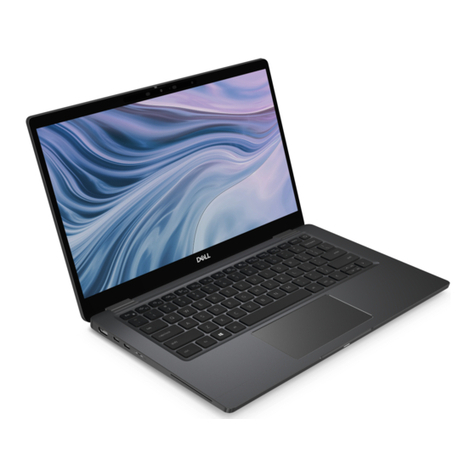
Razer RZ09-0368 User manual

F O R G A M ER S . B Y G A M E R S .™
1
.
User Manual
RZ09-0368

F O R G A M ER S . B Y G A M E R S .™
2
WHAT’S INSIDE
Razer Blade Pro 17
(Model number: RZ09-0368)
A. Array microphone
B. Infrared sensor
C. Built-in webcam
D. Webcam indicator light
E. 300Hz FHD or 120Hz 4K Touch, 17.3”
Display
F. Stereo speakers
G. Per-Key RGB powered by Razer
Chroma™ N-Key rollover backlit
keyboard
H. Power button
I. Precision glass touchpad
J. Power indicator
K. UHS-III SD card reader
L. Thunderbolt™ 3 port (USB Type-C)
M. USB Type-A ports
N. HDMI 2.0b port
O. Lock slot
P. Power port
Q. 2.5Gb Ethernet port
R. USB Type-C port
S. 3.5 mm headphone / microphone
combo port
Power adapter + regional power cord
Micro-fiber cleaning cloth
Important Product Information Guide

F O R G A M ER S . B Y G A M E R S .™
3
LET’S GET YOU COVERED
You’ve got a great laptop in your hands, complete with a 1-year limited manufacturer’s warranty* and
a 1-year limited battery warranty coverage. Now maximize its potential and score exclusive Razer
benefits by registering at razerid.razer.com
*Warranty may vary by region and is subject to applicable local law.
Got a question? Ask the Razer Support Team at support.razer.com
Your product’s serial number can be
found here.

F O R G A M ER S . B Y G A M E R S .™
4
SETTING UP YOUR LAPTOP
1. With the appropriate power cord connected to the power adapter, insert its AC plug into a
power outlet, and then connect it to the power port of your Razer Blade Pro 17.
Use the appropriate power cord for your region. For first time use, please fully charge your
laptop first or make sure to connect it to a power outlet before turning it on. It takes at
least 2 hours to fully charge your Razer Blade Pro 17.
2. Power on your Razer Blade Pro 17. The power indicator will show the status of your laptop.
Sleep
On
Low battery
(10% left)
Low battery
(3% left)
Power
indicator
AC power cord
Power adapter

F O R G A M ER S . B Y G A M E R S .™
5
3. Follow the onscreen instructions to complete the Windows 10 setup.
When prompted, it is recommended that you connect your laptop to a wireless network
with an active internet connection.
INSTALLING DRIVERS
Aside from allowing you to download drivers or firmware updates for your Razer Blade Pro 17 and
other supported Razer peripherals, Razer Synapse also enables you to customize all your Razer
devices’ advanced settings and lighting effects. When logged in, these custom settings are
automatically stored to the cloud so that they can be accessed from any computer.
1. Make sure your laptop has an active internet connection.
2. By default, Razer Synapse will start automatically once you
enter Windows 10. Simply sign up for a Razer ID or log in with
an existing account.
You may also continue as a guest; however, you won’t be
able to store any of your settings to the cloud.
3. Wait until Razer Synapse automatically downloads and installs
the necessary drivers.

F O R G A M ER S . B Y G A M E R S .™
6
USING YOUR RAZER BLADE PRO 17
KEYBOARD FEATURES
Pressing the “fn” key in combination with the function keys will activate their secondary functions.
Function
keys
Secondary function description
The audio volume controls allow you to mute ( ), decrease ( ) and increase
( ) the audio output.
Toggles the monitor output.
The media keys allow you to play/pause ( ) the current track, return to the
previous track ( ) or skip to the next track ( ).
The screen brightness keys allow you to decrease ( ) or increase ( ) the
brightness of the Razer Blade Pro 17’s screen.
The LED control keys allow you to decrease ( ) or increase ( ) the
brightness of your keyboard’s LEDs.

F O R G A M ER S . B Y G A M E R S .™
7
SAFETY AND MAINTENANCE
SAFETY GUIDELINES
In order to achieve maximum safety while using your Razer Blade Pro 17, we suggest that you adopt
the following guidelines:
1. Should you have trouble operating the device properly and troubleshooting does not work,
unplug the device and contact the Razer hotline or go to support.razer.com for assistance.
2. Do not take apart the device (doing so may void your warranty) and do not attempt to operate
it under abnormal current loads.
3. Keep the device away from liquid, humidity or moisture. Operate the device only within the
specific temperature range of 0°C (32°F) to 40°C (104°F). Should the temperature exceed this
range, unplug and/or switch off the device in order to let the temperature stabilize to an
optimal level.
COMFORT
Research has shown that long periods of repetitive motion, improper positioning of your computer
peripherals, incorrect body position, and poor habits may be associated with physical discomfort and
injury to nerves, tendons, and muscles. Below are some guidelines to avoid injury and ensure
optimum comfort while using your Razer Blade Pro 17.

F O R G A M ER S . B Y G A M E R S .™
8
1. Position your laptop directly in front of you. If you have an external mouse, position it next to
the laptop. Place your elbows next to your side, not too far away and your mouse within easy
reach.
2. Adjust the height of your chair and table so that the laptop is at or below elbow height.
3. Keep your feet well supported, posture straight and your shoulders relaxed.
4. During gameplay, relax your wrist and keep it straight. If you do the same tasks with your
hands repeatedly, try not to bend, extend or twist your hands for long periods.
5. Do not rest your wrists on hard surfaces for long periods. When using an external mouse, use a
wrist rest to support your wrist while gaming.
6. Do not sit in the same position all day. Get up, step away from your desk and do exercises to
stretch your arms, shoulders, neck and legs.
7. If you should experience any physical discomfort while using your laptop, such as pain,
numbness, or tingling in your hands, wrists, elbows, shoulders, neck or back, please consult a
qualified medical doctor immediately.
BATTERY WARNING
The Razer Blade Pro 17 contains an internal, lithium-ion rechargeable battery. In general, the life
expectancy of such battery is dependent upon usage. If you suspect that the lithium-ion rechargeable
battery inside the Razer Blade Pro 17 may be drained (has a low charge), try charging it. If the battery
does not recharge after several attempts, it may be non-operational.
Do not open, mutilate, or expose to conducting materials (metal), moisture, liquid, fire, or heat. Doing
so may cause the battery to leak or explode, resulting in personal injury. Do not use or charge the
battery if leaking, discolored, or deformed. Do not leave the rechargeable battery discharged or
unused for extended periods. When not using your Razer Blade Pro 17 battery for more than 30 days,
be sure to store the battery in a fully charged state. Do not tamper with the battery. Dispose of the
used battery according to local regulations.
FCC DECLARATION OF CONFORMANCE
This equipment has been tested and found to comply with the limits for a Class B digital device,
pursuant to part 15 of the FCC Rules. These limits are designed to provide reasonable protection
against harmful interference in a residential installation. This equipment generates, uses and can
radiate radio frequency energy and, if not installed and used in accordance with the instructions, may
cause harmful interference to radio communications. However, there is no guarantee that
interference will not occur in a particular installation. If this equipment does cause harmful

F O R G A M ER S . B Y G A M E R S .™
9
interference to radio or television reception, which can be determined by turning the equipment off
and on, the user is encouraged to try to correct the interference by one or more of the following
measures:
Reorient or relocate the receiving antenna.
Increase the separation between the equipment and the receiver.
Connect the equipment into an outlet on a circuit different from that to which the receiver is
connected.
Consult the dealer or an experienced radio TV technician for help.
For more information, refer to the online help system on razer.com.
FCC CAUTION STATEMENT
Any changes or modifications not expressly approved by the party responsible for compliance could
void the user's authority to operate this equipment.
This device complies with Part 15 of the FCC Rules. Operation is subject to the following two
conditions:
This device may not cause harmful interference, and
This device must accept any interference received, including interference that may cause
undesired operation.
IMPORTANT NOTE:
FCC Radiation Exposure Statement:
This equipment complies with FCC radiation exposure limits set forth for an uncontrolled
environment. End users must follow the specific operating instructions for satisfying RF exposure
compliance. This transmitter must not be co-located or operating in conjunction with any other
antenna or transmitter.
USAGE RESTRICTIONS
This Razer device was developed and designed to comply with the various wireless and telecom
agency requirements throughout the world. This ensures that the device do not cause any harm to
Public Switching Telecommunication Networks (PSTN) and do not violate any power and frequency
spectrum allocations on a country by country basis. This device was also designed to be compliant
with regulatory agency limits for Electromagnetic Compatibility (EMC).

F O R G A M ER S . B Y G A M E R S .™
10
IMPORTANT NOTICE FOR USE IN HEALTHCARE ENVIRONMENTS
This Razer device is not a medical device and is not listed under UL or IEC 60601 (or equivalent). This
device should be kept at a certain distance to avoid harmful effects to patients or medical equipment.
AVIATION USAGE RESTRICTIONS
Certain restrictions apply to this device while on-board an aircraft. Razer encourages you to
understand these restrictions to ensure the flight’s safety and security.
LEGALESE
COPYRIGHT AND INTELLECTUAL PROPERTY INFORMATION
© 2021 Razer Inc. All rights reserved. Razer, the triple-headed snake logo, Razer logo, “For Gamers. By
Gamers.”, and "Powered by Razer Chroma” logo are trademarks or registered trademarks of Razer
Inc. and/or affiliated companies in the United States or other countries.
Manufactured under license from Dolby Laboratories. Dolby, Dolby Atmos, and the double-D symbol
are registered trademarks of Dolby Laboratories.
NVIDIA, the NVIDIA Logo and Optimus are registered trademarks and/or trademarks of NVIDIA
Corporation in the United States and/or other countries.
The terms HDMI and HDMI High-Definition Multimedia Interface, and the HDMI Logo are trademarks
or registered trademarks of HDMI Licensing LLC in the United States and other countries.
Thunderbolt and the Thunderbolt logo are trademarks of Intel Corporation in the U.S. and/or other
countries.
Windows and the Windows logo are trademarks of the Microsoft group of companies.Razer Inc.
(“Razer”) may have copyright, trademarks, trade secrets, patents, patent applications, or other
Table of contents
Other Razer Laptop manuals

Razer
Razer RZ09-0391 User manual

Razer
Razer BLADE User manual

Razer
Razer Blade RZ09-0288 User manual

Razer
Razer RZ09-0165 User manual

Razer
Razer RZ09-0166 User manual

Razer
Razer ELADE Manual

Razer
Razer RZ09-0196 User manual

Razer
Razer Blade Pro 14 User manual

Razer
Razer BLADE PRO 17 User manual

Razer
Razer Blade Pro RZ09-0287 User manual

Razer
Razer RZ09-0330 User manual

Razer
Razer Blade RZ09-02385 User manual

Razer
Razer RZ09-0270 User manual

Razer
Razer Blade RZ09-0301 User manual

Razer
Razer RZ09-0485 User manual

Razer
Razer RZ09-0184 User manual

Razer
Razer RZ09-0369 User manual

Razer
Razer RZ09-0239 User manual

Razer
Razer Blade 15 User manual

Razer
Razer Blade 15 User manual