QNAP QHora-321 User manual

QHora-321
User Guide
Document Version: 2
30/08/2022

Contents
1. Product Overview
About the QHora-321................................................................................................................................................ 4
Hardware Specications............................................................................................................................................4
Software Specications............................................................................................................................................. 5
Package Contents...................................................................................................................................................... 6
Components............................................................................................................................................................... 6
Front Panel.............................................................................................................................................................7
Rear Panel.............................................................................................................................................................. 7
Safety Information.....................................................................................................................................................8
2. Installation and Access
Installation Requirements........................................................................................................................................ 9
Setting Up the Router................................................................................................................................................9
Connecting the Router to the Internet....................................................................................................................9
Router Access........................................................................................................................................................... 11
Default Router IP Addresses..............................................................................................................................11
Accessing the Router Using a Browser.............................................................................................................11
Accessing the Router Using Qnder Pro..........................................................................................................12
3. Basic Operations
LEDs...........................................................................................................................................................................13
Reset Button.............................................................................................................................................................14
4. QuRouter
About QuRouter.......................................................................................................................................................15
System Requirements............................................................................................................................................. 15
Getting Started.........................................................................................................................................................15
Conguring QuRouter.............................................................................................................................................16
Binding the Router with a QNAP ID..................................................................................................................17
Unbinding the Router from a QNAP ID............................................................................................................ 18
5. QuRouter Navigation
Taskbar......................................................................................................................................................................19
Dashboard................................................................................................................................................................ 20
6. System Conguration
System.......................................................................................................................................................................21
System Settings...................................................................................................................................................21
Managing Event Logs......................................................................................................................................... 23
Firmware...................................................................................................................................................................24
Checking for Live Updates................................................................................................................................. 24
Updating the Firmware Manually..................................................................................................................... 24
7. Network Settings
Network.................................................................................................................................................................... 26
Conguring Wide Area Network (WAN) Interface Settings............................................................................26
Conguring Local Area Network (LAN) Interface Settings.............................................................................28
Locating Other QNAP Devices on the Network...............................................................................................30
VLAN..................................................................................................................................................................... 30
Conguring the Bridge Connection Settings...................................................................................................36
QHora-321 User Guide
1

Managing DHCP IP Address Reservations....................................................................................................... 38
Static Route..........................................................................................................................................................38
Clients........................................................................................................................................................................40
Adding a Device to the Blocked List..................................................................................................................41
Conguring a Device in the Blocked List..........................................................................................................41
Deleting a Device from the Blocked List...........................................................................................................41
SD-WAN..................................................................................................................................................................... 42
About QuWAN......................................................................................................................................................42
Conguring QuWAN Settings............................................................................................................................ 42
Accessing QuWAN Orchestrator........................................................................................................................43
Conguring the QuWAN QBelt VPN Server Settings...................................................................................... 44
QVPN......................................................................................................................................................................... 45
QVPN Server Settings......................................................................................................................................... 45
QVPN Client Settings.......................................................................................................................................... 49
Managing QVPN Logs.........................................................................................................................................51
Service Port Management...................................................................................................................................... 51
Adding a Custom Service Port........................................................................................................................... 51
Deleting a Custom Service Port.........................................................................................................................52
DDNS Settings.......................................................................................................................................................... 52
Conguring DDNS (My DDNS) Settings............................................................................................................52
Modifying the DDNS Domain Name.................................................................................................................53
8. Security Settings
Firewall...................................................................................................................................................................... 54
Adding a Firewall Rule........................................................................................................................................ 54
Conguring a Firewall Rule................................................................................................................................55
Deleting a Firewall Rule......................................................................................................................................56
Network Address Translation (NAT).......................................................................................................................56
Application Layer Gateway (ALG)...................................................................................................................... 56
Port Forwarding.................................................................................................................................................. 56
Demilitarized Zone (DMZ).................................................................................................................................. 57
Web Content Filtering............................................................................................................................................. 58
Adding a Web Content Filtering Role................................................................................................................58
Conguring a Web Content Filtering Role....................................................................................................... 59
Deleting a Web Content Filtering Rule............................................................................................................. 59
Adding a Device to a Web Content Filtering Role........................................................................................... 60
Deleting a Device from a Web Content Filtering Role.................................................................................... 60
Quality of Service (QoS)...........................................................................................................................................60
Conguring QoS Settings on QuWAN Orchestrator....................................................................................... 60
9. Troubleshooting
Support and Other Resources................................................................................................................................63
Testing Network Connectivity with the Ping Utility............................................................................................. 63
Testing Network Connectivity with the Traceroute Utility.................................................................................. 63
Using QNAP Remote Support to Resolve Router Issues.....................................................................................64
10. Glossary
myQNAPcloud.......................................................................................................................................................... 66
QNAP ID.................................................................................................................................................................... 66
Qnder Pro............................................................................................................................................................... 66
QuRouter.................................................................................................................................................................. 66
QuWAN......................................................................................................................................................................66
QuWAN Orchestrator.............................................................................................................................................. 66
11. Notices
Limited Warranty..................................................................................................................................................... 67
2

Disclaimer................................................................................................................................................................. 67
CE Notice...................................................................................................................................................................67
FCC Notice.................................................................................................................................................................68
Radio Equipment Directive (RED) 2014/53/EU Article 10.....................................................................................68
EU RoHS Statement................................................................................................................................................. 69
ISED Compliance Statement...................................................................................................................................69
Radiation Exposure Statement...............................................................................................................................69
UKCA Notice..............................................................................................................................................................69
QHora-321 User Guide
3

1. Product Overview
This chapter provides basic information about the QNAP device.
About the QHora-321
The QHora-321 provides wired connectivity with six 2.5 GbE ports that allow you to congure enterprise-level
mesh VPN networks. Equip your QNAP device with the router to provide secure data transmission and
and reduce the risk of cyber attacks. The router features built-in SD-WAN technology to support VPN
deployment. You can deploy the router as a hub or edge using QuWAN, QNAP's software dened-WAN
(SD-WAN) technology.
Hardware Specications
Warning
If your QNAP product has hardware defects, return the product to QNAP or a QNAP-
authorized service center for maintenance or replacement. Any attempt to repair or
perform maintenance procedures on the product by you or an unauthorized third party
invalidates the warranty.
QNAP is not responsible for any damage or data loss caused by unauthorized
modications and installation of unsupported third-party applications.
For details, see the QNAP Warranty Terms and Conditions.
Tip
Model specications are subject to change without prior notice. To see the latest
specications, go to https://www.qnap.com.
Component QHora-321
Processor
CPU Marvell® CN9130
Frequency 4-core 2.2 GHz
Architecture Armv8 Cortex-A72
Memory 4GB DDR4
Flash memory 4 GB eMMC
Network
Gigabit network interface 6 x 2.5 GbE RJ45 (100M/1G/2.5G)
Maximum power consumption 36 W
Interface
Buttons Reset
Dimensions
Dimensions (H x W x D) 166.4 x 145.7 x 29.85 mm
(6.55 x 5.73 x 1.17 in)
Net weight 0.81 kg (1.78 lbs)
Other
Operating temperature 0˚C to 40˚C (32˚F to 104˚F)
Relative humidity Non-condensing relative humidity: 5% to 95%
QHora-321 User Guide
Product Overview 4

Software Specications
Specication Description
System Status and Management • Connected devices
• Device connection status
• WAN status
• Firmware schedule management
Wired Network Management • Physical interface management
• WAN interface conguration
• WAN ports
• VLAN
• LAN interface conguration
• LAN ports
• VLAN
• Bridge
• Network port connection status
• VLAN conguration
• DHCP server conguration
• IPv4/IPv6 routing and static route tables
• Dynamic DNS (DDNS) conguration
Security • Protocol-based rewall (TCP, UDP, ICMP, TCP+UDP)
• Firewall rules based on domain names and IP addresses
• IP address-based rewall rule conguration
• Network Address Translation (NAT) and port forwarding
• Supports FTP Application-level gateway (ALG), PPTP ALG, and SIP
ALG
• Demilitarized zone (DMZ)
QHora-321 User Guide
Product Overview 5

Specication Description
VPN • Remote access support using L2TP, OpenVPN, QBelt (QNAP
proprietary VPN), and WireGuard protocols
• Client IP pool management
• VPN client management
• Connection logs
• Maximum VPN tunnels: 30 (including QuWAN and QVPN
connections)
• Secure remote access as VPN clients using OpenVPN protocol
Access Control Domain Name System (DNS) ltering and content ltering
System Settings • Backup and restore settings
• Reset and restart settings
• Audio alert management
• Local account, QNAP ID, and remote management
• Event logs
QuWAN • Automatic multi-site VPN conguration
• WAN optimization
• WAN aggregation
• Failover
• Load balance
• SD-WAN management and trac monitoring using QuWAN
Orchestrator
• Quality of Service (QoS) management
• Maximum VPN tunnels: 30 (including QuWAN and QVPN
connections)
• 50,000 concurrent connections
Package Contents
Item Quantity
QHora-321 router 1
Power cord 1
Quick Installation Guide (QIG) 1
Components
QHora-321 User Guide
Product Overview 6

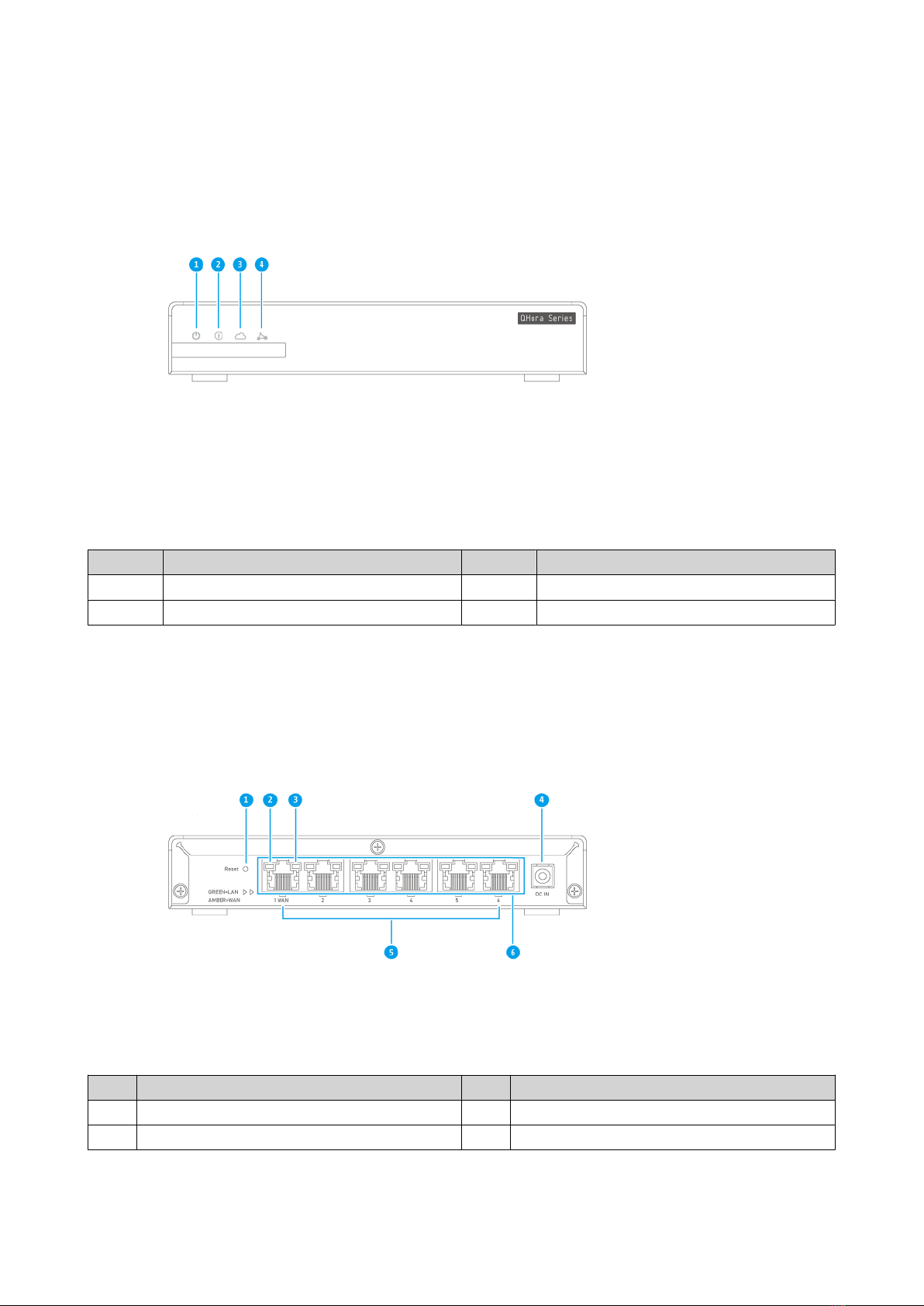
Front Panel
No. Component No. Component
1 Power LED 3 QuWAN Orchestrator status
2 System status LED 4 Auto-mesh Connection Status
Rear Panel
No. Component No. Component
1 Reset button 4 Power input
2 2.5 Gigabit Ethernet LED (2.5 Gbps speed) 5 2.5 Gigabit Ethernet ports (RJ45)
QHora-321 User Guide
Product Overview 7

No. Component No. Component
3 2.5 Gigabit Ethernet LED (1 Gbps or 100 Mbps
speed)
6 WAN and LAN LEDs
Safety Information
The following instructions help ensure personal safety and environmental safety. Read these instructions
carefully before performing any operations.
General Instructions
• The device should be stored in a secure location with restricted access, controlled through the use of a
tool, lock and key, or any means of security.
• Only qualied, skilled, and authorized persons with knowledge of all restrictions, safety precautions,
and installation and maintenance procedures should have physical access to the device.
• To avoid potential injury or damage to components, ensure that the drives and other internal system
components have cooled before touching them.
• Observe electrostatic discharge (ESD) procedures to avoid potential injury or damage to components.
Power
• To reduce the risk of re or electric shock, ensure that you only connect the power cord to a properly
grounded electrical outlet.
•
Devices with redundant power supply may have one or more power supply unit (PSU) cords. To avoid
serious injuries, a trained service technician must disconnect all PSU cords from the device before
installing or replacing system components.
QHora-321 User Guide
Product Overview 8

2. Installation and Access
This chapter provides specic hardware installation and router access steps.
Installation Requirements
Category Item
Environment • Room temperature: 0˚C to 40˚C (32˚F to 104˚F)
• Non-condensing relative humidity: 5% to 95%
• Wet-bulb temperature: 27˚C (80.6˚F)
• Flat, anti-static surface without exposure to direct sunlight, liquids,
or chemicals
Hardware and peripherals Network cable
Tools Anti-static wrist strap
Setting Up the Router
1. Place your router in an environment that meets the requirements.
For details, see Installation Requirements.
2. Power on the router.
For details, see Rear Panel.
3. Verify that the power LED is yellow-green and the system status LED is orange.
For details, see LEDs.
4. Connect the router to the network and the computer.
For details, see Connecting the Router to the Internet.
5. Verify that the WAN interface LED is orange and the LAN interface LED is green.
For details, see LEDs.
6. Log on to QuRouter with the local account credentials or QNAP ID.
For details, see Binding the Router with a QNAP ID.
Connecting the Router to the Internet
1. Connect the router to the power source.
a. Connect the power cord to the router.
b. Connect the power adapter to the electrical outlet.
The router powers on.
2. Connect the router to the internet.
a. Connect an Ethernet cable to the WAN port of the router.
b. Connect the other end of the Ethernet cable to the ISP gateway or the modem.
3. Connect the router to the computer.
QHora-321 User Guide
Installation and Access 9
Other manuals for QHora-321
1
Table of contents
Other QNAP Network Router manuals