PROLiNK PV-CX881P User manual

User’s Manual
For
PV-CX881P
DOC NO: 54-0881P-01 Rev.A
02/01/21

I
FCC Requirement
This device has been certified to comply with the limits for a Class B computing device pursuant to Subpart J of Part 15 of
the FCC Rules. See instructions if interference to radio reception is suspected.
WARNING: This equipment generates and uses radio frequency energy and, if not installed or used properly,
that is, in strict accordance with the manufacturer's instructions, may cause interference to radio or
television reception.
It has been tested and found to comply with the limits for a Class B compliant device in accordance with the specifications
in Subpart J of Part 15 of FCC Rules, which are designed to provide reasonable protection against such interference in a
residential installation.
However, there is no guarantee that interference-will not occur in a particular installation.
If this equipment does cause interference to radio or television reception, which can be determined by turning the
equipment off and on, the user is encouraged to try to correct the interference by one or more of the following measures:
˙Reorient the receiving antenna
˙Relocate the computer away from the receiver
˙Move the computer away from the receiver
˙Plug the computer into a different outlet so that the computer and the receiver are on different branch
circuits
˙Ensure that the card's mounting screws, attachment connector screws, and ground wires are tightly
secured
˙Ensure that slot covers are installed in all unused slots
If necessary, consult your dealer, service representative, or an experienced radio/television Technician for additional
suggestions.
The manufacturer is not responsible for any radio or TV interference caused by unauthorized modifications to this
equipment. It is the responsibility of the user to correct such interference.
The user may find the following booklet prepared by the Federal Communications Commission helpful:
How to Identify and Resolve Radio-TV Interference Problems.
This booklet is available from the Government Printing Office, Washington, D.C. 20402, Stock No. 004-000-00345-4.
NOTE: You must use shielded interface cables with a ferrite bead in order to maintain compliance
with the limits for a Class B device.
CAUTION: CHANGES OR MODIFICATIONS NOT EXPRESSLY APPROVED BY THE PARTY
RESPONSIBLE FOR COMPLIANCE COULD VOID THE USER'S AUTHORITY TO OPERATE
THE EQUIPMENT

II
Notice
The information in this document is subject to change in order to improve reliability, design, or function
without prior notice and does not represent a commitment on the part of this company.
In no event will we be liable for direct, indirect, special, incidental, or consequential damages arising out
of the use or the inability to use the product or documentation, even if advised of the possibility of such
damages.
No part of this reference manual may be reproduced or transmitted in any form or by any means without
the prior written permission of this company.
2002
Trademark Acknowledgements
All brand names and trademarks are the property of their owners.
Limited Warranty
Our company warrants this product against defects in materials and workmanship for a period of one (1)
year from the date of purchase. During the warranty period, a product determined by us to be defective in
form or function will be repaired or at our option, to be replaced at no charge. This warranty does not
apply if the product has been damaged by accident, abuse, misuse, or as a result of service or
modification other than by us.
This warranty is in lieu of any other warranty expressed or implied. In no event shall we be held liable for
incidental or consequential damages, such as lost revenue or lost business opportunities arising from the
purchase of a this product.

III
TABLE OF CONTENTS
1Feature .........................................................................................................1
2Hardware Configuration.............................................................................2
3Hardware Installation..................................................................................2
4Software Installation...................................................................................3
4.1 Windows 98SE/ME driver Installation......................................................... 3
4.2 Windows 2000/XP driver Installation........................................................... 5
4.3 DirectX Installation.......................................................................................7
4.4 Capture Tool ................................................................................................. 7
4.5 Preview Pin Function..................................................................................10
4.6 Capture Pin Function and Playback............................................................ 13
5FAQ.............................................................................................................16

1
1 Feature
□Supports NTSC/PAL/SECAM video decoding.
□Zero wait state PCI burst writes.
□Multiple YCrCb and RGB pixel formats supported on output.
□Multiple composite and S-Video inputs.
□Supports planner YUV data format.
□VBI data capture for closed caption data decoding.
□Only support Windows 98SE / WindowsME / Winsows2000/ WindowsXP
□Fully PCI Rev 2.1 compliant.

2
2 Hardware Configuration
Standard type is featured with two ports, one is for composite video and the
other is for S-Video.
3 Hardware Installation
1. Turn off your computer first. Open the case and insert this PV-CX881P into
your computer’s PCI slot. Make sure the adapter is well seated in the slot
then fasten it with screws. Put the outer case back afterwards.
2. Connect the desired image output device to the input port of adapter. For
instance, you may connect VCR, camera.
S-Video video input
Composite
video in
p
ut

3
4 Software Installation
4.1 Windows 98SE/ME driver Installation
Notice After hardware installation, power on your computer, and then system
will detect a new hardware. Please set the new hardware to
“Unknown Device”.
1.
A
fter turn on your computer, the
Windows 98SE/ME will detect the
newly added hardware and will show
the following message on your monitor.
Click ‘NEXT’ on every message box.
2. The operating system will automatically detect the TV card as a new device
and display the Add New Hardware Wizard dialog box. Click-on the ‘Next’
button to continue.
3. The next dialog box will ask how would
you like to install the driver. Click-on
‘Search for the best driver for your
device. (Recommended)’ option and
Click-on the ‘Next’ button to continue.
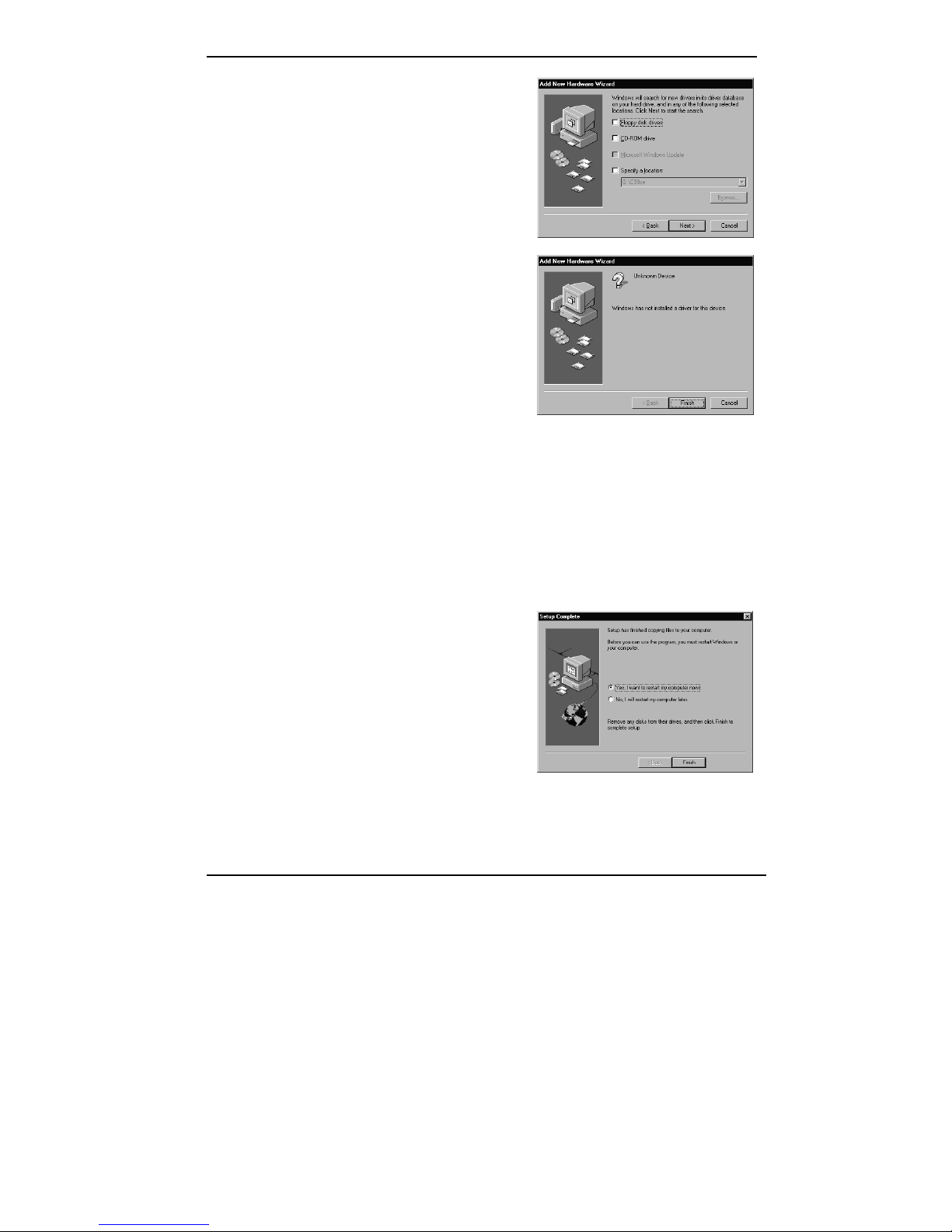
4
4. Please DO NOT select any item,
chick-on “Next”.
5. Click-on the “Finish”button.
6. Insert the AutoRun CD-ROM driver (wait a few seconds). You will see ‘TV
Card Series’ and choose ‘PV-CX881P’ window that will be shown on the
screen. If it does not display, please brow CD and double click
‘AutoRun.exe’.
7. Put the AutoRun driver into CD-ROM (waiting for a few seconds).
Click on ‘TV Card Series’ and choose ‘PV-CX881P’ to install.
8. Click ‘NEXT’ on every message box.
9. Chose ‘Yes, I want to restart my
computer now’ and click ‘Finish’to
restart Windows.

5
4.2 Windows 2000/XP driver Installation
Notice
A
fter hardware installation, power on your computer, and then system
will detect a new hardware. Please set the new hardware to “Unknown
Device”.
1.
A
fter turn on your computer, the
Windows 2000 will detect the newly
added hardware and will show the
following message on your monitor.
Click ‘NEXT’ on every message box.
2. Click ‘NEXT’.
3. Click ‘Finish’.
4. Insert the AutoRun CD-ROM driver (wait a few seconds). You will see ‘TV
Card Series’ and choose ‘PV-CX881P’ window that will be shown on the
screen. If it does not display, please brow CD and double click
‘AutoRun.exe’.

6
5. Put the AutoRun driver into CD-ROM (waiting for a few seconds).
Click on ‘TV Card Series’ and choose ‘PV-CX881P’ to install.
6. If you see any ‘Digital Signature Not
Found’ this dialog box please click
‘Yes’.
7. Click ‘Yes’.
8. Click ‘Yes’.
Table of contents
Popular Video Card manuals by other brands

Gainward
Gainward GeForce GTX 690 4GB brochure

ATI Technologies
ATI Technologies RADEON 137-40225-20 user guide

MSI
MSI N220GT series user manual

ATI Technologies
ATI Technologies RADEON 7000 MAC EDITION user guide

SIIG
SIIG aurora Quick installation guide
ClearSpeed
ClearSpeed ClearSpeed Advance e720 user guide