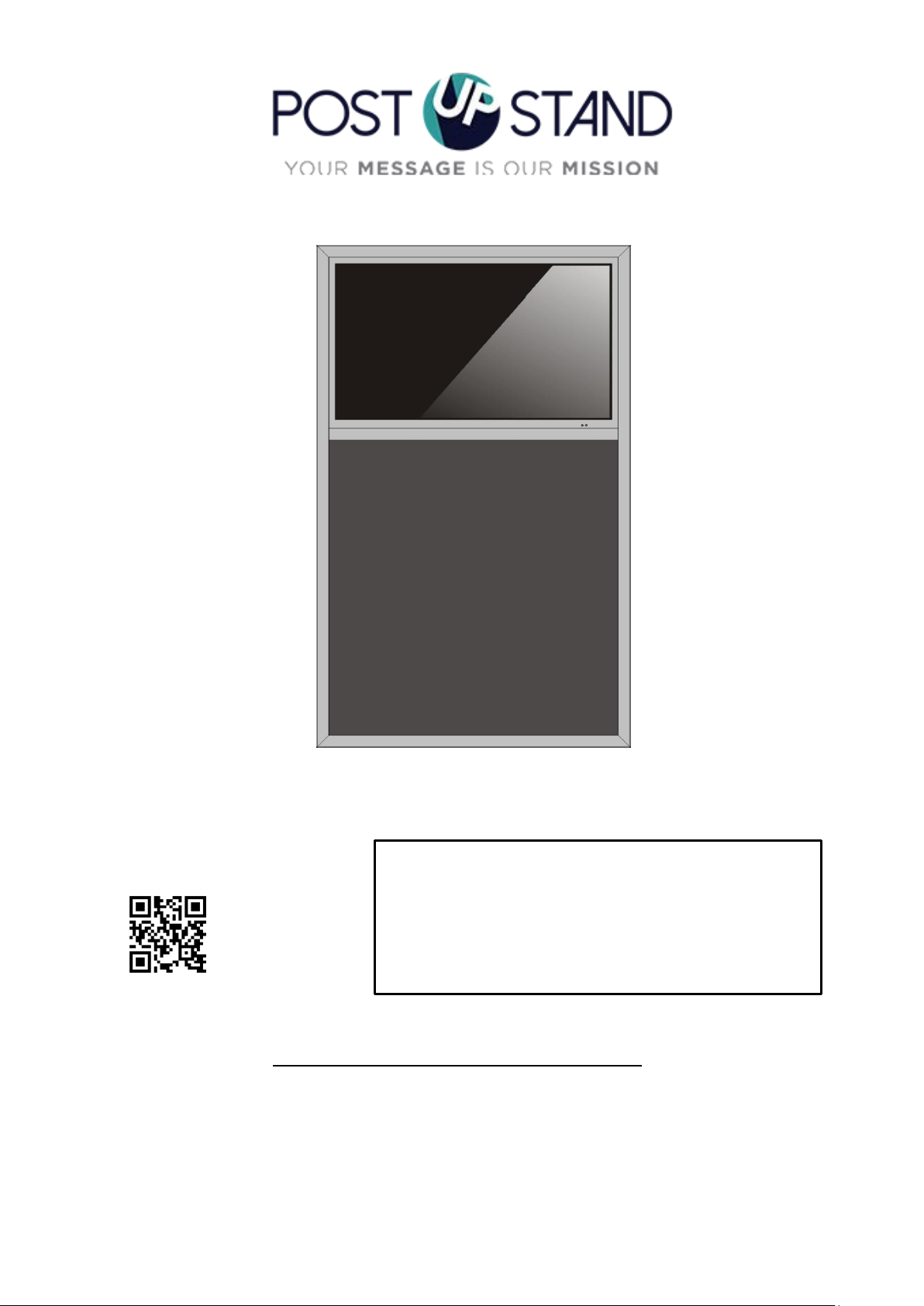
Post Up Stand DGLEDCBD27 User manual
1
User Manual Rev 21.01
Model: DGLEDCBD27
Description: 27 inch Digital LED Liquid Chalk Board
Scan QR code to visit
the product page:
Operating Instructions for Digital Signage
Note: Before using the product, please read the instructions carefully!
Do not attempt to disassemble this product. If the product does not work
properly, please call our Customer Service Department
FCC ID: 2ASCB- DGLEDCBD27
This device complies with Part 15 of the FCC Rules. Operation is
subject to the following two conditions:
(1) this device may not cause harmful interference, and
(2) this device must accept any interference received, including
interference that may cause undesired operation.
Any changes/modifications to this equipment not approved by the
party responsible for compliance could void the user’s authority to
operate the equipment.

2
Contents
Features................................................................................................................................ 3
Safety Warnings and Precautions ........................................................................................... 3
Assembly and Connection...................................................................................................... 5
Packing List....................................................................................................................................5
Instructions of the Remote Control for the LED Chalk Board .....................................................6
Description of Parts.......................................................................................................................6
Installation Instructions ................................................................................................................7
Remote Control of LCD Screen.............................................................................................. 11
Description of Basic Operation ............................................................................................. 12
Power on/Standby ......................................................................................................................12
About Launch Desktop................................................................................................................12
Description of Wallpaper Switch.................................................................................................13
File Manager ...............................................................................................................................13
Local Settings ..............................................................................................................................14
Status of Menu bar .....................................................................................................................15
DiViEx APP Introduction……….…………………………………………………………………………………………………15
System requirements ..................................................................................................................15
How to upload media files..........................................................................................................15
Settings........................................................................................................................................17
Edit picture..................................................................................................................................17
Music...........................................................................................................................................19
Factory Reset...............................................................................................................................19
Choose System Language............................................................................................................20
Technical Specifications…………………………………………………………………………………………………………21
Troubleshooting……………………………………………………………….……………………………………………………23
Cleaning and Maintenance……………………………………………….……………………………………………………25
Names and Contents of Toxic and Hazardous Substances or Elements in the Product…….………26
FCC Statement…….…………….…………….…………….…………….…………….…………….…………….…….………27

3
Features
1. Embedded with Android 7.1 smart operating system and unique UI design, bringing you a more
convenient operation and better visual experience.
2. Support USB mouse and keyboard, realizing easy manipulation like a computer. Using a mouse for set
up is recommended.
3. Built-in Wi-Fi module, high capacity memory and high capacity cache, making it smoother to watch
1080P HD movies and play big games.
4. High-quality LCD screen as the display, no flicker, low radiation, greatly reducing eye fatigue, eye
protection, high brightness, high contrast, and wide viewing angle; ultra-fast response time greatly
reduces ghosting of fast moving images.
5. Progressive image processing and industry-leading motion compensation technology improve the
flickering and blurring in the edges of motion picture.
6. Dynamic contrast technology can significantly improve the clarity and contrast of various screens.
7. Multi-channel USB interfaces, supporting HD media streaming.
Safety Warnings and Precautions
Thank you for purchasing the high-performance multi-functional LED backlight Digital Signage from
Displays2go. We have considered the factors to ensure personal safety in product design and have tested
rigorously at the factory. However, improper installation and use may result in electric shock and fire.
In order to safely use, maximize performance of the unit and extend the life of the product, please read
and follow all instructions carefully before using the product.
Keep the instructions for future reference.
We strongly recommend using a surge protector, or a power strip with internal circuit breaker to prevent
damages to the digital signage.
Symbol Legends:
Warning: May cause personal injury or death
The operation is prohibited
Caution: May cause damage or property loss
The operation must be executed
If any of the following occurs:
Power outage or instable voltage.
Abnormal sound or smell from the unit.
AC power cord is damaged.
Digital Signage is damaged due to drop, knock or impact.
Any liquid or foreign matters fall into the enclosure.
Turn off the Digital Signage immediately, pull out the plug from the power outlet, and ask the
authorized personnel for maintenance timely.
If coal gas or other flammable gas leaks, do not pull out the plug of the LCD Digital Signage or other
electrical appliances; instead, turn off the gas valve immediately, and open the doors and windows quickly.

4
⚫Do not use power supply other than AC 110V, 60Hz.
⚫Cut off the power supply before connecting or disconnecting any cables.
⚫Do not place the Digital Signage on any instable positions, or else it may be damaged or cause fire.
⚫Do not place the Digital Signage in the positions such as:
1. The environment subject to direct strong sunlight, moisture, extreme temperature or too much
dust;
2. The environment with flammable or explosive materials;
3. The environment with flammable or corrosive gases;
⚫Do not use damaged or inappropriate power outlets, and ensure that the plugs and outlets contact
properly.
⚫Do not let dust or metal deposits adhere to the plugs and outlets.
⚫Do not damage the power cords:
1. Do not modify the power cords;
2. Do not place heavy objects on the power cords;
3. Keep the power cords away from heat source;
4. Do not pull the cord to remove the plug.
⚫Do not connect too many plugs to one outlet in parallel, or else it may cause fire due to excessive
power consumption.
⚫Do not approach the Digital Signage with open flame (e.g. a lighted candle), or else it may cause
electric shock or fire.
⚫Do not put any sharp objects, metal or liquid into the vents or let them touch the signal terminals
to avoid short circuit, product damage, and electric shock.
⚫The openings in the enclosure are designed for ventilation and cooling, to ensure long time reliable
running of components inside the enclosure and prevent overheating. Do not block the openings
when place the unit.
Do not touch the plugs with wet fingers, or else it will cause electric shock.
Do not use the Digital Signage in stormy weather, especially when there is lightning; instead, please
disconnect the power and antenna plugs to avoid lightning strike.
Do not disassemble the Digital Signage without permission, or else it may cause electric shock or fire.
Please ask qualified technician for repair.
WARNING

5
⚫Do not let children climb onto the Digital Signage.
⚫Keep the small parts away from children to prevent them from swallowing.
⚫If the Digital Signage won’t be used for a long time, please turn it off and pull out the power plug.
⚫To adjust the position of the Digital Signage, please disconnect all power cords and move slowly to
avoid tip over.
⚫Do not scratch or knock the LCD with hard object, or twist and squeeze the LCD.
⚫Do not turn on the unit immediately when it is moved from a place with low temperature to high
temperature, or else it will cause condensation and malfunction.
⚫Before cleaning the Digital Signage, please pull out the power plug; wipe with soft cloth; do not use
industrial chemicals; prevent foreign matters from entering the machine. Improper cleaning (such
as cleaning solution, water) may damage the product, erase the printed information, and even cause
damage of the components if fluid flows in, resulting in machine failure.
⚫If the unit displays the same screen for a long time or the moving picture has fixed text or icon, it
will leave ghosting on the screen and won’t disappear when the unit is turned off; it is normal and
isn’t covered by the warranty.
⚫The power of the Digital Signage can be cut off by pulling out the plug.
⚫If the LCD screen ruptures and the liquid splashes on the skin, please rinse for 15 minutes with clean
water immediately, and consult your doctor.
⚫To carry the Digital Signage with hands, please grab and hold the edges; do not apply pressure on
the panel.
⚫Use the Digital Signage properly: Use in proper lighting conditions; insufficient lighting or long time
watching will impair your eyesight.
⚫When the plug or coupler is used as disconnection device, it should be easy to operate the device.
⚫Insert the plug into the outlet properly, or else it may cause sparks and fire.
⚫The technical specifications printed herein and on the packaging are subject to change without prior
notice. The Manual may be slightly different from actual operation, and the latter is applicable.
CAUTION
6
Assembly and Connection
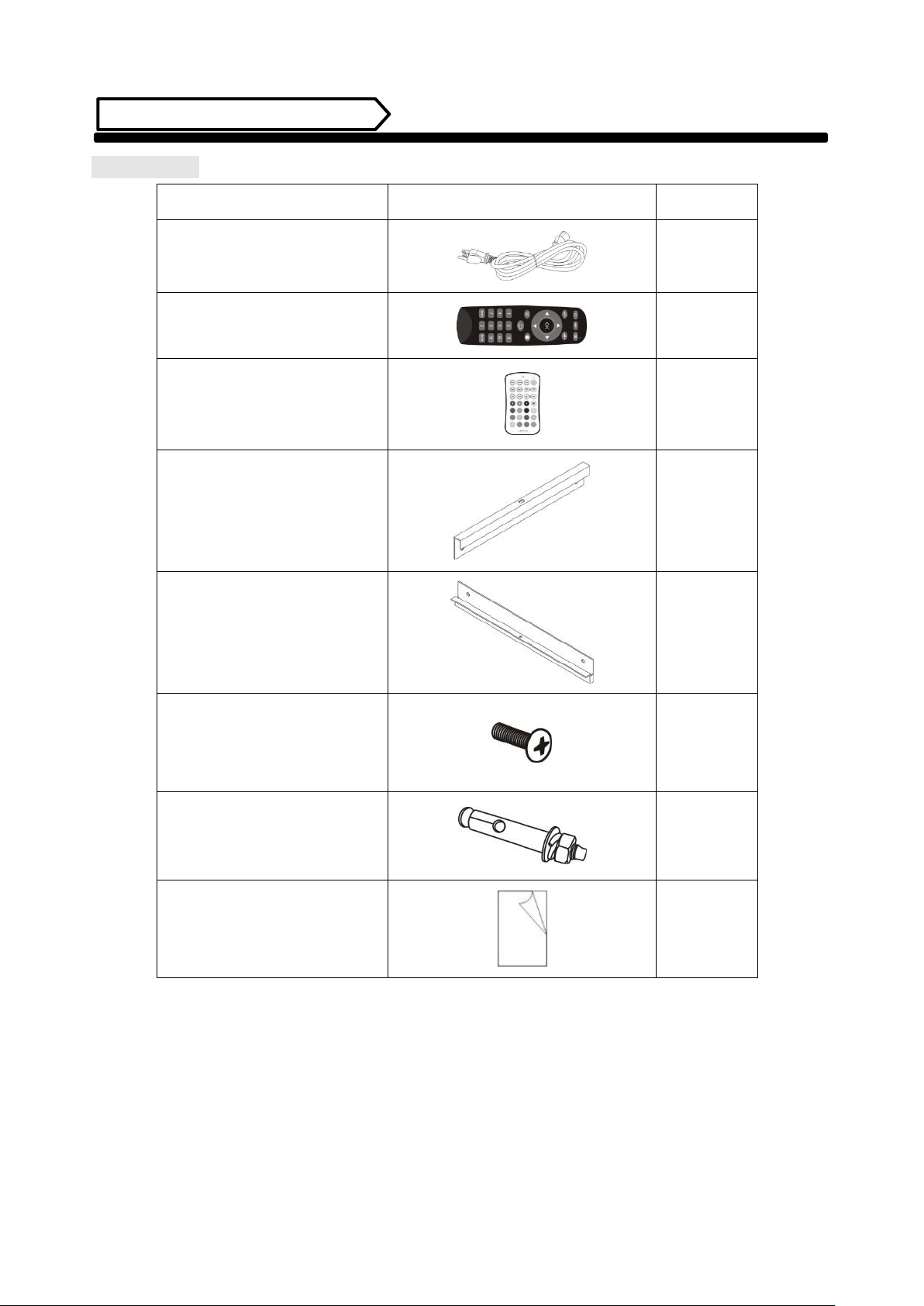
Packing List
Accessory
Photo
Qty
AC Power cord
1
Remote Control
for LCD Screen
1
Remote Control
for LED Writing Board
1
Wall mounting bracket A
(On the backside of product)
2
Wall mounting bracket B
(On the wall)
2
M6x16 Pan Head Screw
8
M6x50 Expansion Wall Anchor
(for Concrete Wall ONLY)
6
User manual
1
7
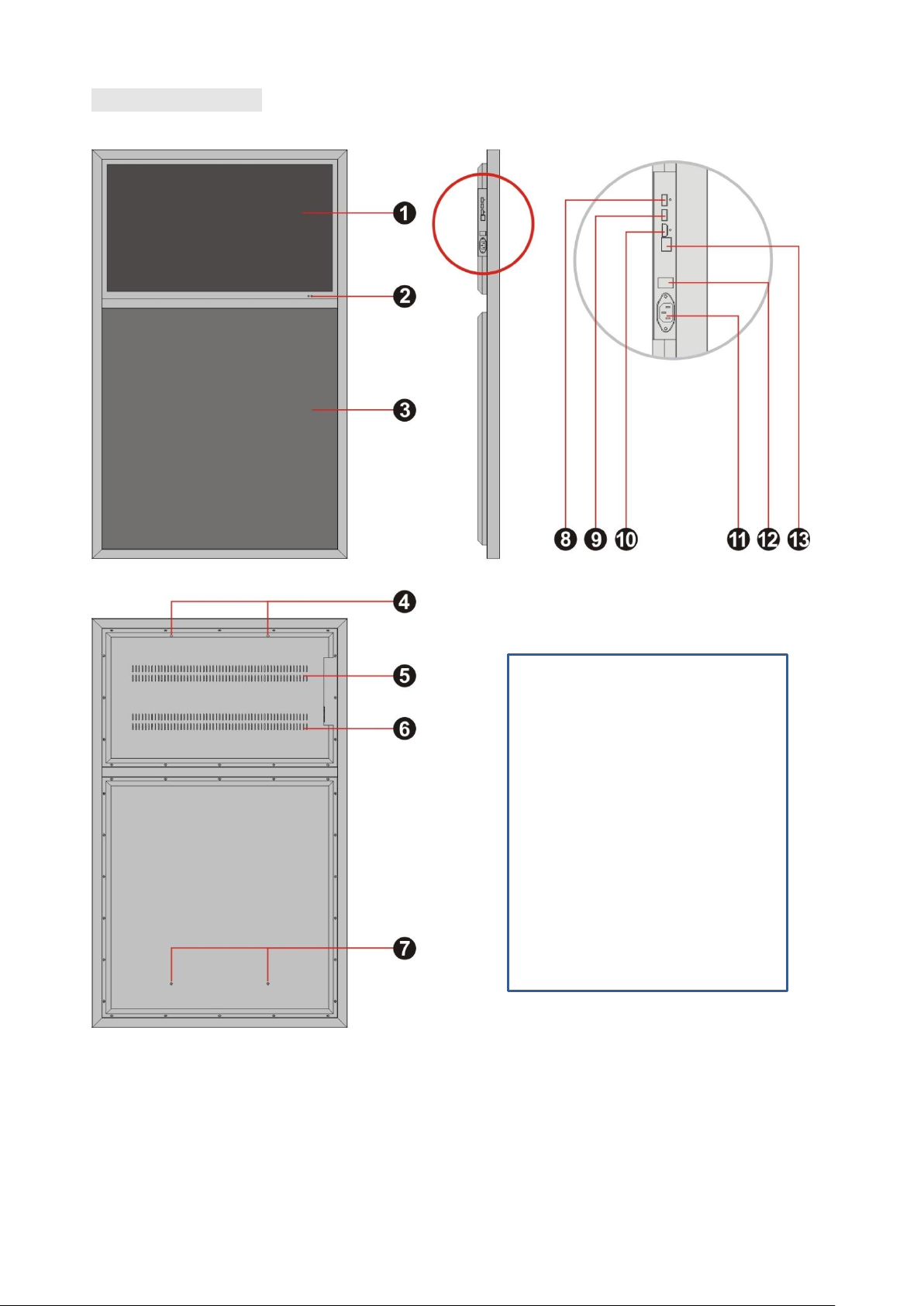
Description of Parts
CAUTION: Disconnect the power plug before assembling or disassembling the unit!
1 - LCD Screen
2 - IR indicator
3 - LED Chalk Board
4 - Mounting Holes
5 - Heat Dissipation Holes
6 - Heat Dissipation Holes
7 - Mounting Holes
8 - USB port
9 - USB port
10 - HDMI port
11 - AC power socket
12 - Power switch
13 - Ethernet port (RJ45 socket)
8
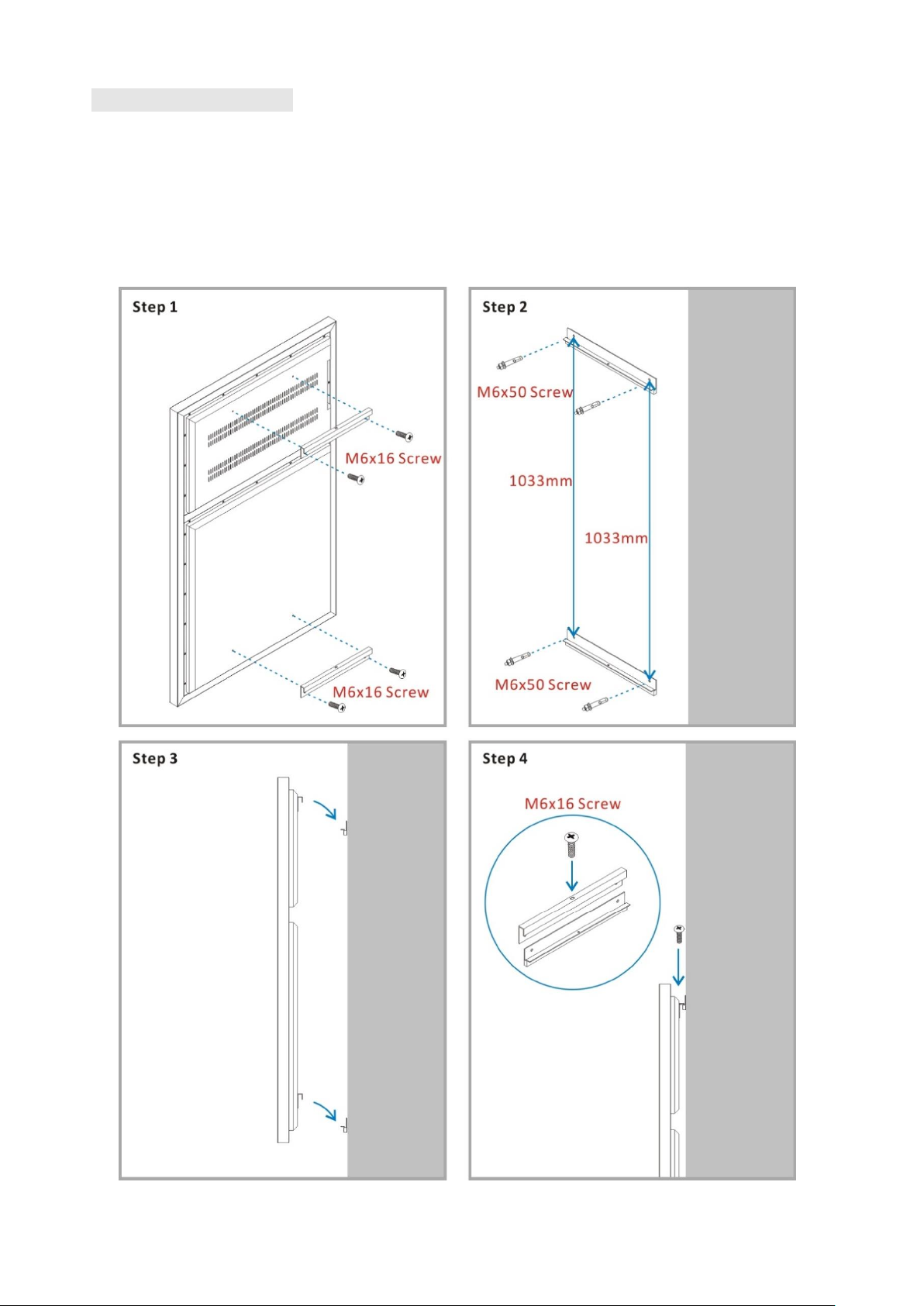
Installation Instructions
Step 1: Fix the bracket A onto the back of the product using M6x16 screws.
Step 2: Use the brackets as template and a bubble level to keep the bracket level. Secure the bracket B onto
the wall with enclosed M6x50 wall anchors.
NOTE: 1. The vertical center distance is 1033mm.
2. The included hardware can ONLY be used on concrete wall.
Step 3: Carefully lift the unit up and slowly lower it onto the bracket on the wall.
Step 4: Align holes at the middle of the top brackets and fasten a M6x16 screw into the holes.
9
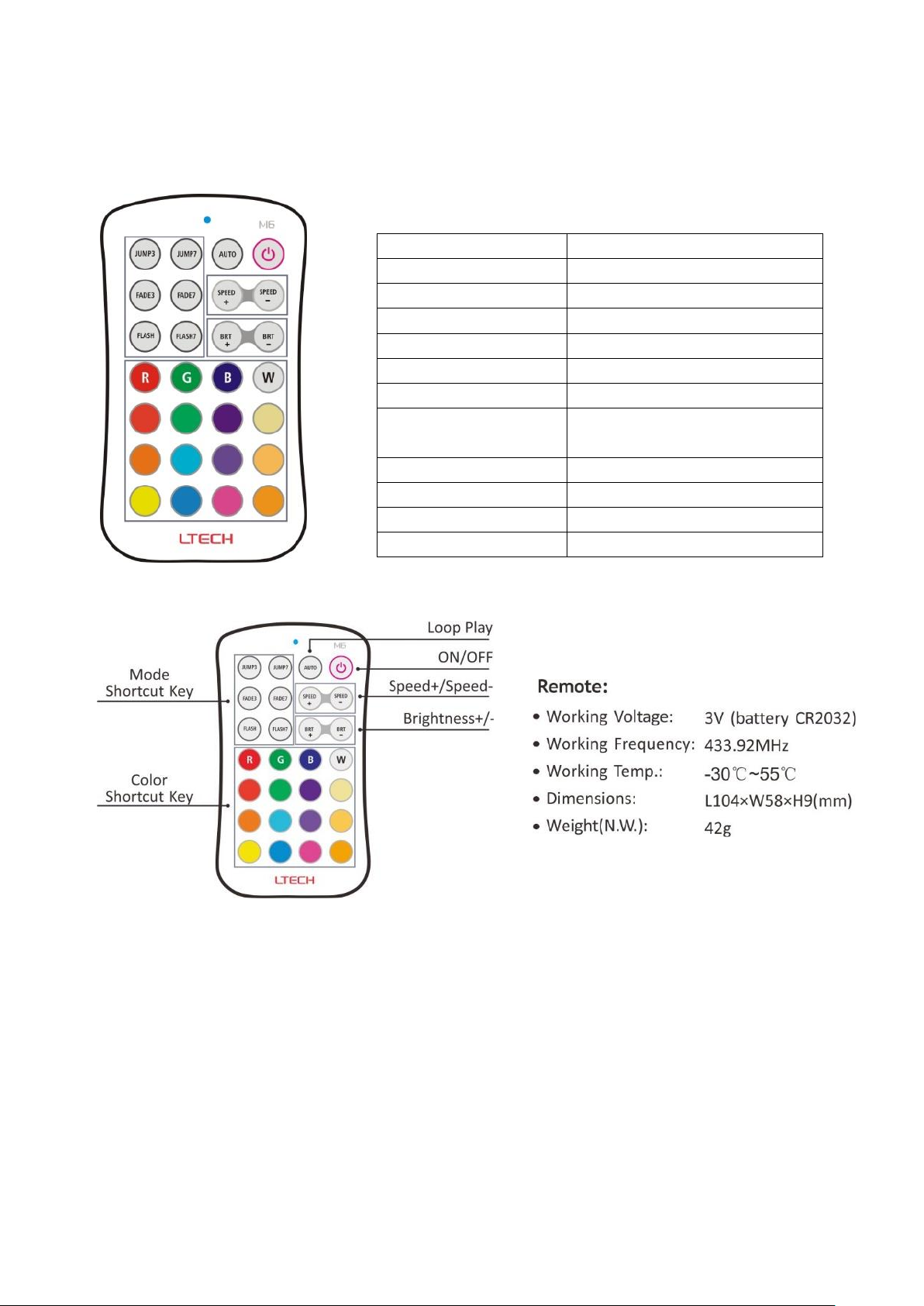
LED Writing Board Introduction
Description
Writing Board with Neon LED Lights
Material
Aluminum+ glass
Display Area
748x732mm
Light Source
RGB SMD3535 LED
Input Voltage
100-240V AC
Output Voltage
12V DC
Power Consumption
8.5W
Display mode
Static mode, Dynamic mode
Single color, Multicolor
Brightness
Dimmable
Speed
variable
Control
Remote control
Cleaning
Wet Cloth
Product Features:
⚫You can use liquid chalk marker to create content on the chalkboard and wipe off by using damp cloth.
⚫The RGB LED lights of this product can be set as static/dynamic mode, single-color or multi-color mode.
⚫The brightness and fade-in and fade-out effects can be adjusted with remote control.
NOTE: Only use erasable liquid chalk markers that are safe to use on the glass board.
10
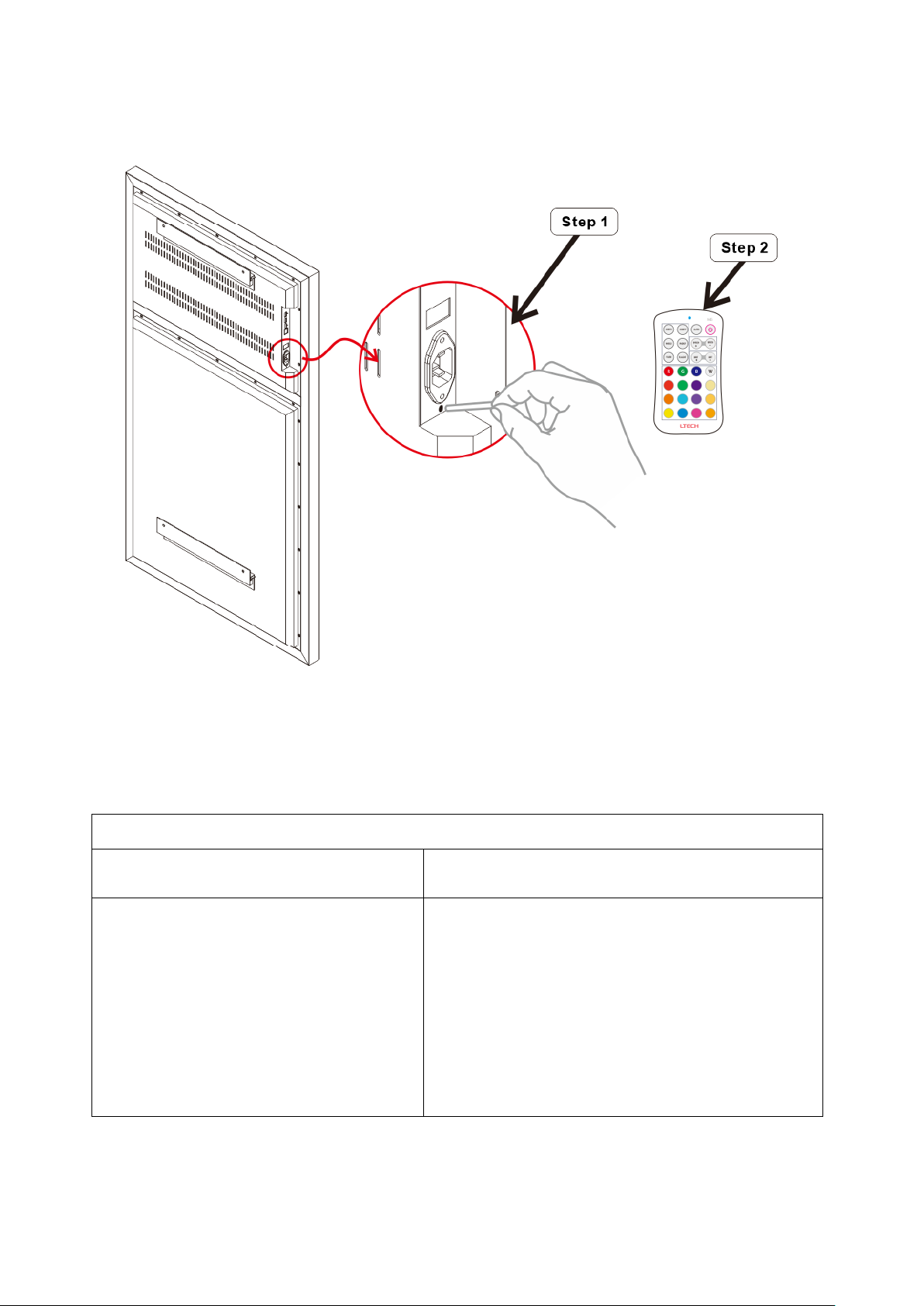
Troubleshooting of the LED Remote Control
NOTE: The remote control has been paired with the product before shipping.
Please refer the solution below if the remote control doesn’t work properly.
Make sure the battery is inserted properly and the unit is powered on.
Issue
Solution
⚫The remote control is not working
Step 1
Use a tiny pin that can fit into the hole as shown in the
detailed view above. Press and hold ID button to reset the
device.
Step 2
Press any key on the remote.
Table of contents