
Posh S700A User manual
1
Your Tablet
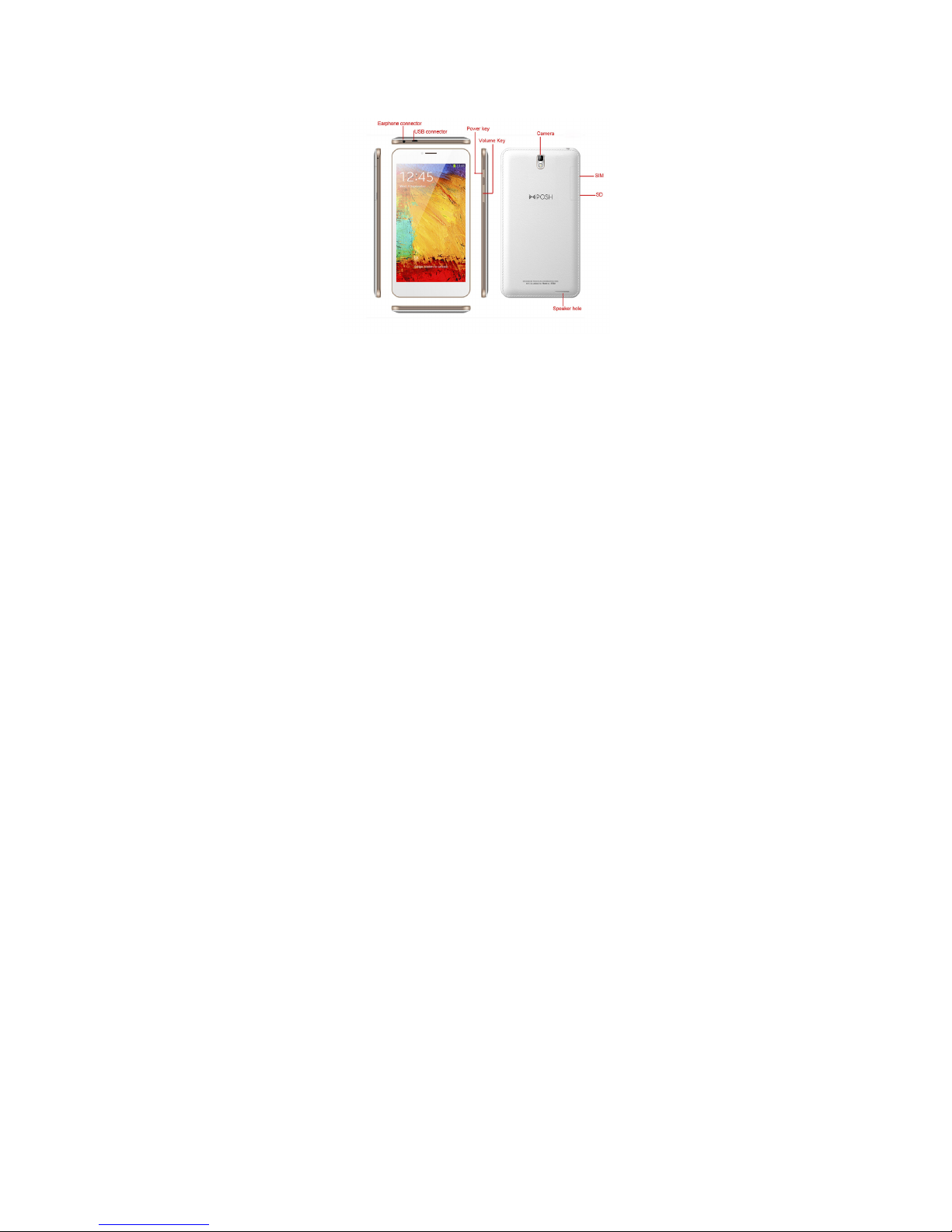
Important keys & connectors
I

2
Contents
Your Tablet
Contents
Let’s go
Touchscreen & keys
Home screen
Calls
Web
Latitude
Manage your life
Contacts
Messaging
Text entry
Tips & tricks
Personalize
Photos & videos
Music
WHT wireless
Wireless Connection
USB & memory card
Tools
Management
Security
Troubleshooting

3
Let’s go
Let’s get you up and running
Assemble & charge
Note: Your device is always on when being charged.
Turning the Tablet on & off
To turn on your Tablet, press and hold the Power
button
To turn off your Tablet, press and hold Power then
touch Power off on the screen.
Wireless Connection
If you want to use a Wireless Connection computer
network for even faster Internet access, touch Menu >
Settings > Wireless & networks > Wireless
Connection settings.
4
Touchscreen & keys
A few essentials
Touch tips
Here are some tips on how to navigate around your
Tablet.
Touch
To choose an
icon or option,
touch it.
Touch & hold
To open special options, touch and hold an icon or
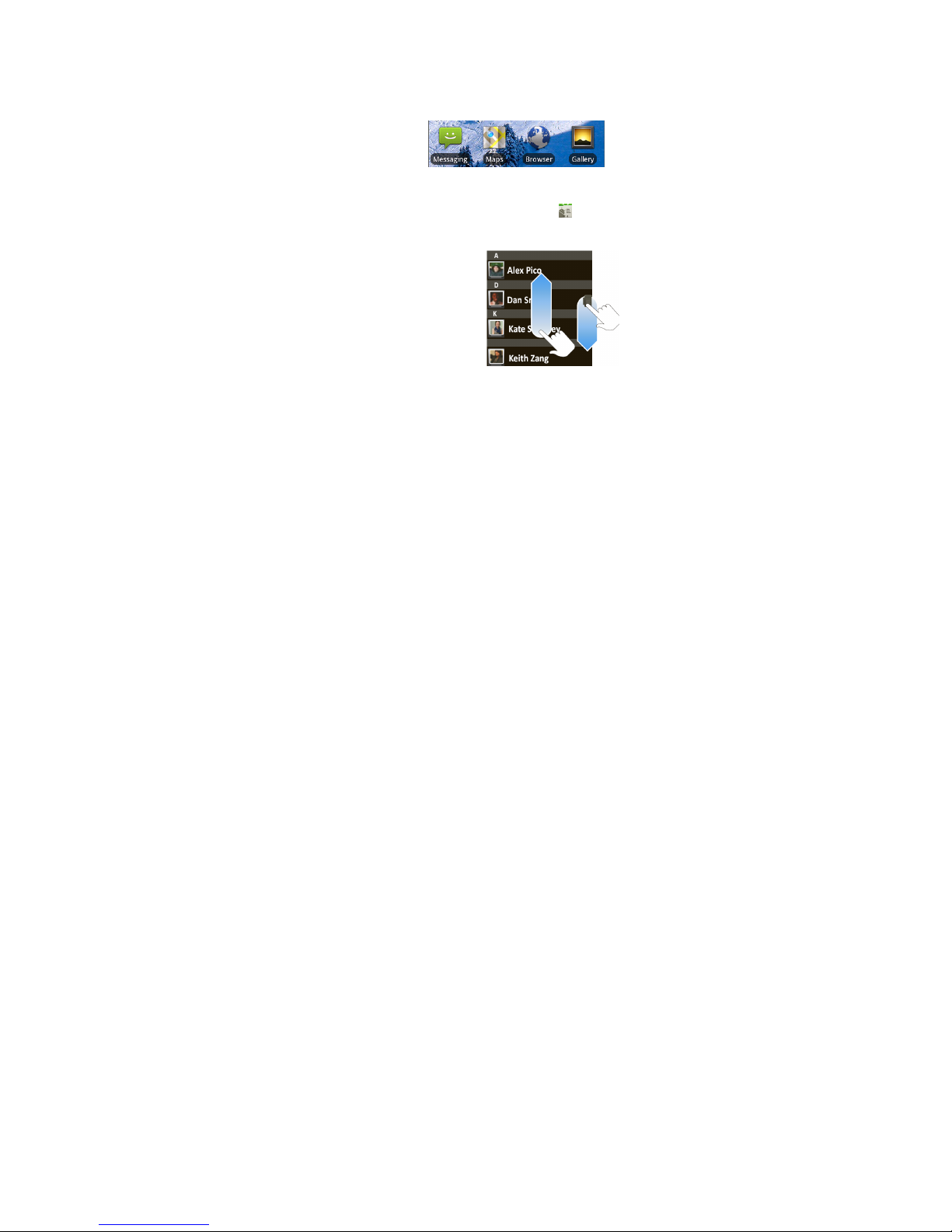
other item. Try it: In the home screen, touch
Contacts, then touch and hold a contact to open
options.
Drag
To scroll through a list or
move slowly, drag across
the touchscreen. Try it: In
the home screen, touch
Contacts, and then drag
your Contacts list up or
down.
5
Flick
To scroll through a list or move quickly, flick across the
touchscreen (drag quickly and release).
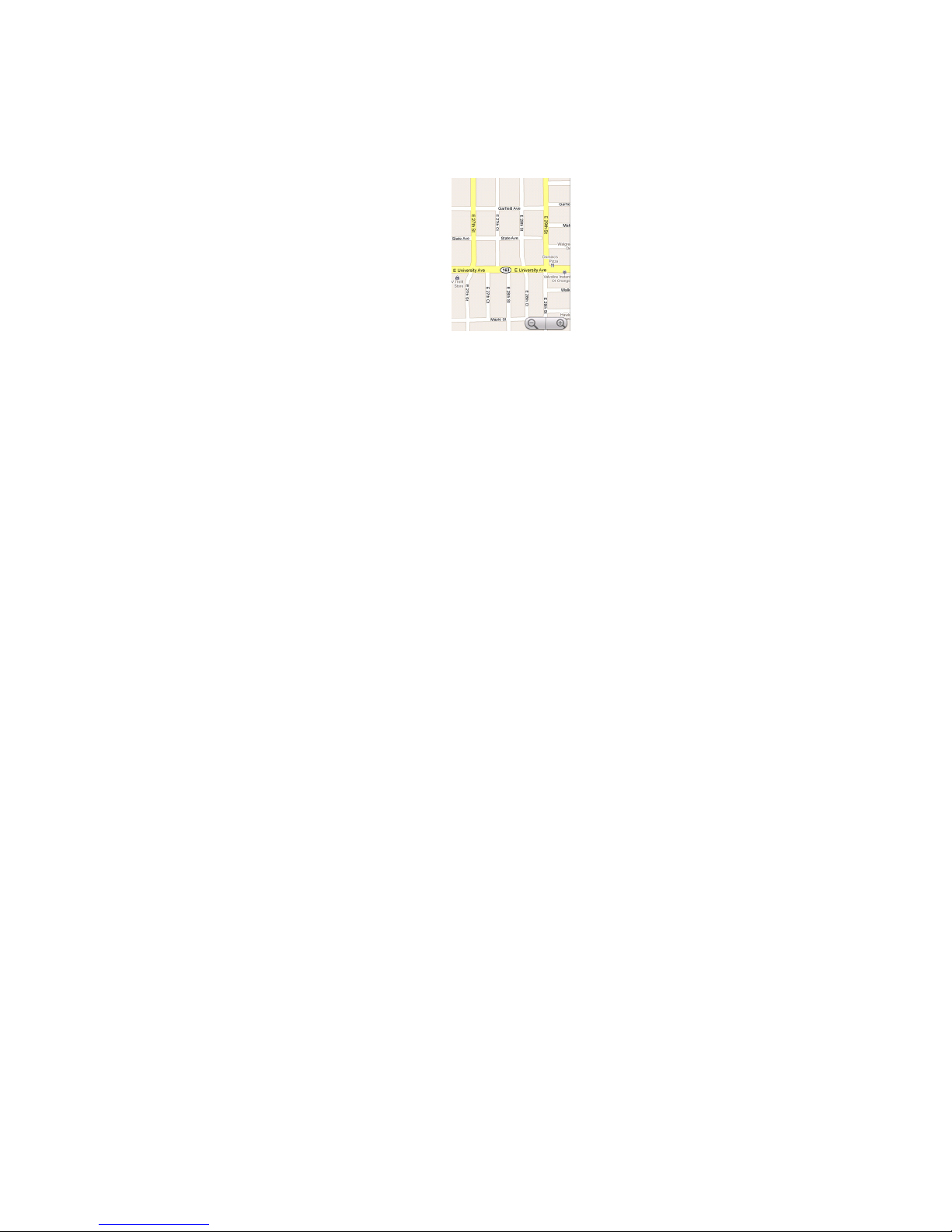
Zoom
Get a closer look at maps or web pages. To zoom in,
double touch the screen. To zoom out, double touch,
the screen again.
You can also zoom in or out by pinching your fingers
together or moving them apart on the screen.
Touch to Zoom

6
Key tips
Power key
• In power off mode, press this key to turn on your
Tablet.
• In power on mode and screen-off mode, press this
key to turn on the screen.
• In power on and screen-on mode, press this key to
turn the screen off.
Touch Home /to close any menu or App and
return to the home screen. From the home screen,
touch and hold Home /to show the last few
Apps you used, then touch an App to open the
selected App.
Touch Menu to open menu options, or touch Back
to go back.
Sleep & wake up
To save your battery, prevent accidental touches, or
when you want to wipe smudges off your touchscreen,
put the touchscreen to sleep by pressing Power. To
wake up the touchscreen, press Power again, or open
the Tablet.
To change how long your Tablet waits before the
screen goes to sleep automatically, touch Menu >
Settings > Sound & display > Screen timeout.

7
Power key menu
Press and hold Power to open the power key menu,
where you can turn off the Tablet (Power off), or turn
Airplane mode or Silent mode on or off.
Adjust volume
Press the volume keys to change the ring volume (from
the home screen), or the earpiece volume (during a
call).
Rotate the screen
When you rotate the Tablet 90 degrees anticlockwise,
the touchscreen can rotate to stay right-side up:
Find it: Menu > Settings > Sound & display
> Orientation
8
Home screen
Quick access to the things you need most
Quick start: Home screen
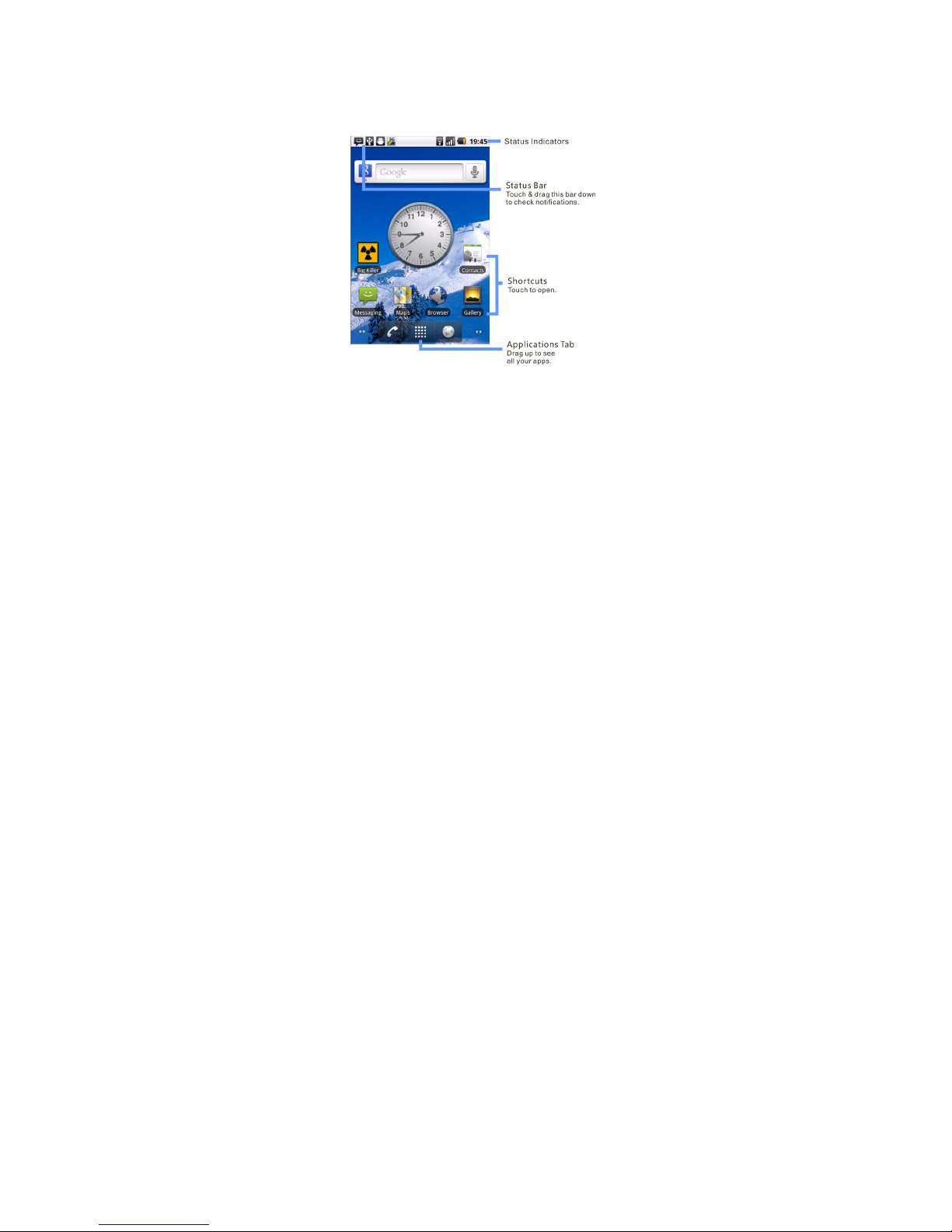
The home screen gives you all your latest information
in one place. It’s what you see when you turn on the
Tablet or touch Home from a menu. It will appear
basically like this:
Note: Your home screen might look a little different.

9
The home screen extends beyond what you see on the
screen to give you more room for adding shortcuts,
widgets, and more. Flick the home screen left and right
to see more panels or to add widgets or shortcuts.
Widgets
Add a widget, such as a clock, music player, or a
calendar that shows upcoming appointments.
To open a widget, touch it. To add widgets, touch
Menu > Add >Widgets. If your home screen is full,
you won’t see the add option. You’ll have to delete
widgets or shortcuts to make room.
Note: If you install Apps from Android Market that have
widgets, touch and hold the home screen, then select a
widget to add to the home screen.

10
Shortcuts
To add shortcuts to the home screen, open the App
menu (see below), then touch and hold the shortcut
you wish to add. It will be added to the home screen.
Alternatively, access Menu > Add > Shortcuts.
Apps
Your Tablet comes with a few Apps already installed,
and you can download and install more. To open an
App, touch it.
App menu
All the Apps on your Tablet, including the Apps that
came with your Tablet and the ones you download and
install, are listed in alphabetical order in your App
(application) menu. To open the App menu, touch
and drag up.
Running multiple Apps
There is no need to close an App before opening
another one.
Your Tablet can run multiple Apps, all at once.
You can open a new App by touching Home /to
return to the home screen, then opening the App menu
and touching the App you want. To switch from one
running App to another, touch and hold Home /
Table of contents
Popular Tablet manuals by other brands

Laser
Laser MID-1060 Quick operation guide

MUNBYN
MUNBYN IRT09J Easy setup guide

Motorola
Motorola MC3090R - Win CE 5.0 Professional 520 MHz quick start guide

Dell
Dell Latitude ST Setup and features information

Lenovo
Lenovo IdeaTab S6000L Hardware Maintenance Manual

Venturer
Venturer WT9L11 quick start guide






