
Paxton Ins-30085 User manual
Page 1
3m 15m 20m 30m
0
Ins-30085 Net2Air Ethernet bridge
18/04/2013
Technical Support
Technical help is available: Monday - Friday from 07:00 - 19:00 (GMT)
Saturday from 09:00 - 13:00 (GMT)
Software - Requires Net2 v4.14 or later.
Documentation on all Paxton products can be found on our website - http://www.paxton.co.uk/
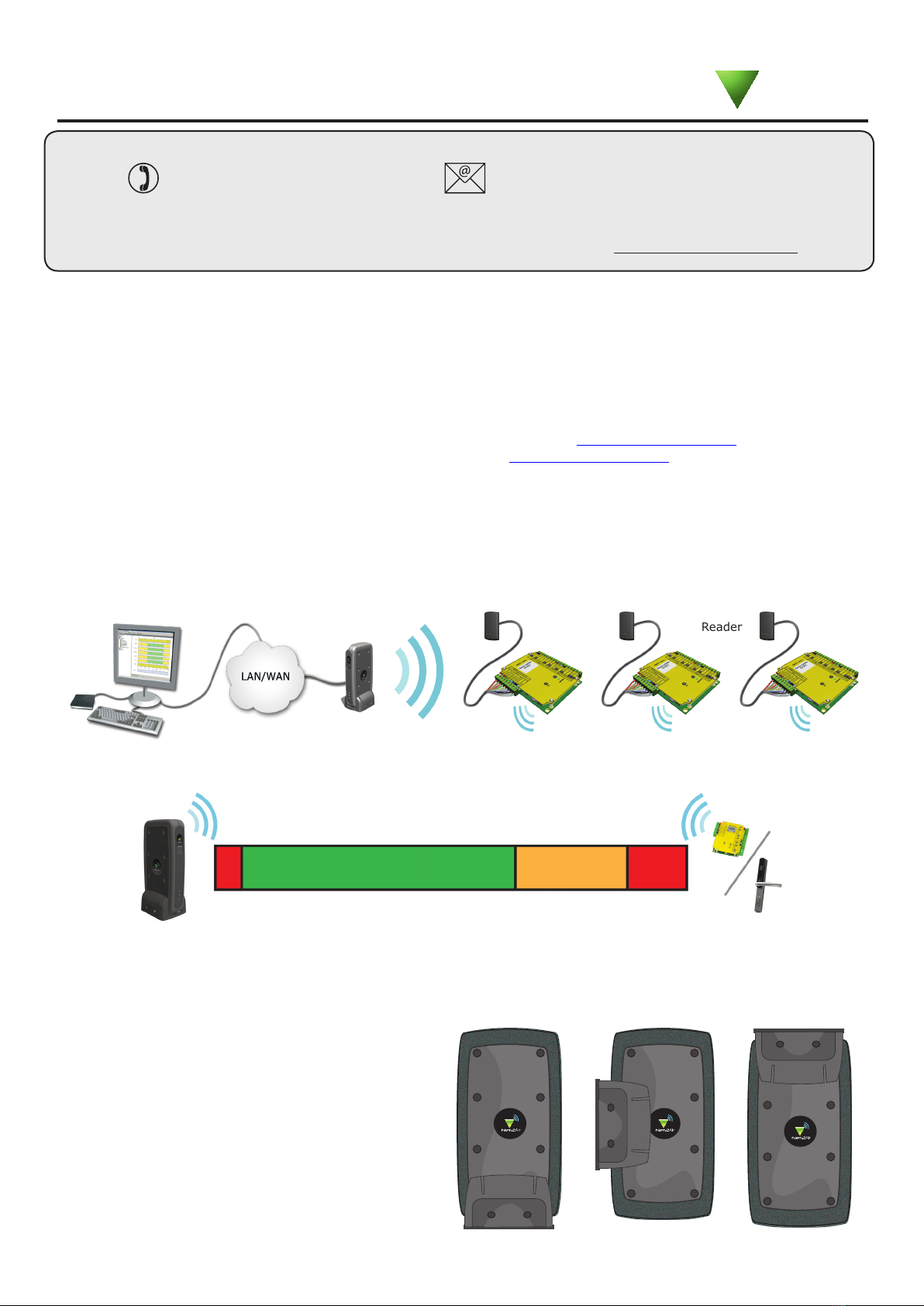
The access control unit connects to the Net2 system using Paxton Net2Air proprietary wireless technology through
a Net2Air bridge.
Radio signals do not always behave as you might expect. For example, a mobile phone that displays a full signal
on one part of the site will lose signal completely only a few metres away.
See also: XAN1095 - Net2 wireless access control - How does it work? < http://paxton.info/974 >
XAN1096 - How to plan a Net2 wireless installation < http://paxton.info/975 >
Net2Air wireless communication
Reader
Control unit
Net2Air Ethernet bridge
Net2 Server
Paxton
Radio frequency
This product should not be installed within 3 metres of other wireless equipment operating on a 2.4Ghz frequency.
To ensure optimum performance other wireless networks should avoid WiFi channels 11, 12 and 13 to reduce the
possibility of interference.
Enclosure
The unit should be mounted vertically in the
supplied base to achieve the optimum range.
Power over Ethernet.
This unit can be powered over the ethernet
link with POE compatible hardware.
Range
With reference to the diagram, the unit should be located at a distance as shown within the Green area.
Performance may be reduced with an increase in distance as shown by the Amber area.
The unit should not be used at distances shown by the Red areas.
Page 2
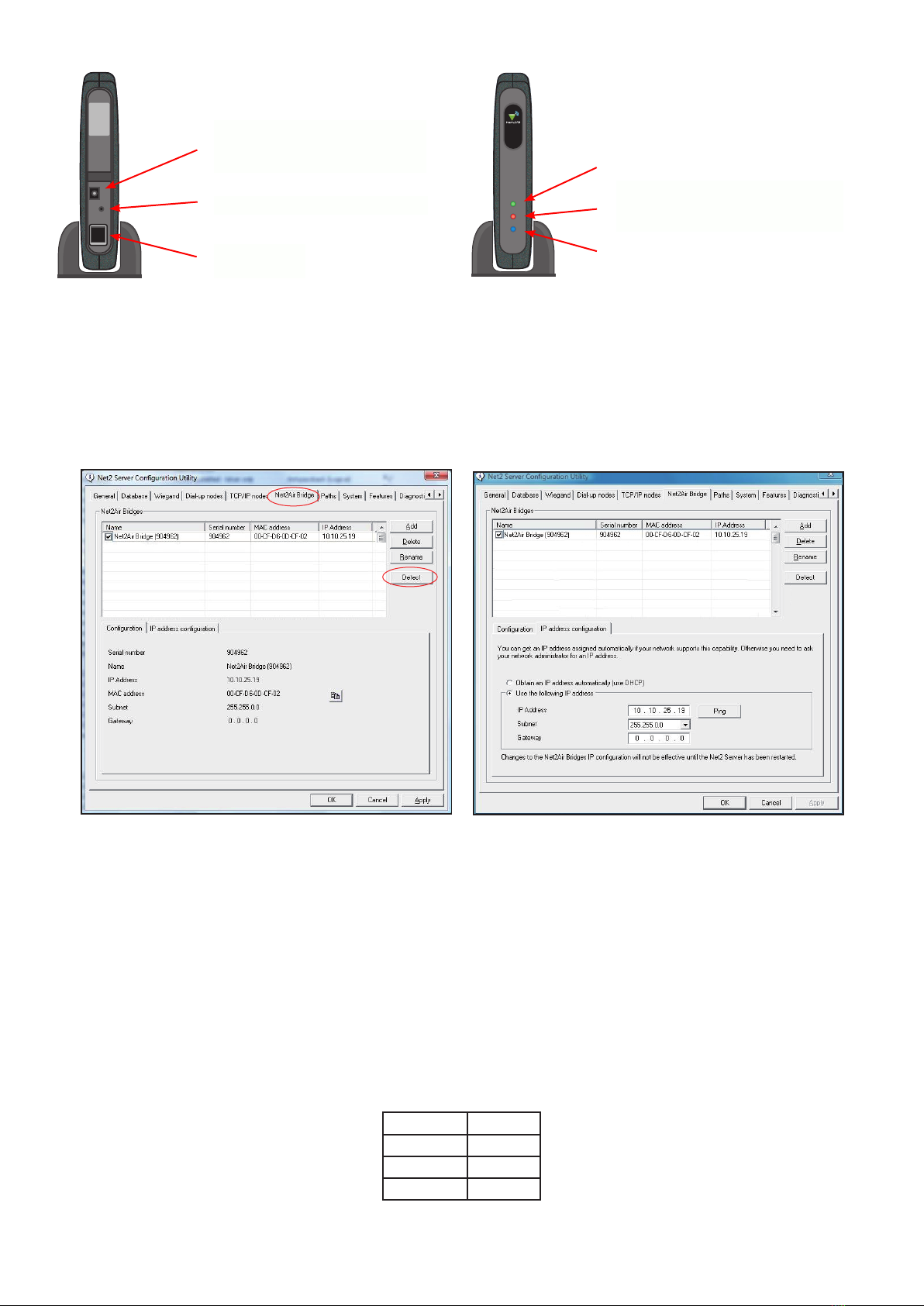
Click on;Detect and the MAC address of the device(s) will appear in the table. You must then use the "IP address
conguration" tab to manually assign the IP address, subnet mask and gateway.
Be aware that if the IP address that you give the device is not in the same IP range as the PC, the device will no
longer respond until you connect to it with a PC that is in the same IP range.
Some rewall/virus protection software and other wireless hardware can block the IP detection process. Disable
these and try to detect the device again. Please contact Technical Support if you require further advice.
If you detect the MAC address but the device now shows 'Not Responding', you must check the IP address, to
make sure it is still in range with the PC or network. If it is not, you should either change the IP address of the
PC or the IP address of the device so they are both again in the same range. Our Technical team can talk you
through this if you need help.
If the MAC address does not appear when you click;Detect, ensure that the following ports are open on all devices
between this unit and the Net2 PC:-
69 UDP
6486 TCP
6488 UDP
6489 UDP
Connecting to the PC via the Ethernet port
The IP address should be assigned a xed value, or should be given a DHCP reservation. Unreserved IP addresses
issued by DHCP servers are not guaranteed to be constant, leading to potential failure of communication between
Net2 software and the bridge.
Run the Net2 Server Conguration Utility (Start/Programs/Net2) and Click on Net2Air Bridge.
If you still cannot detect the MAC address of the device, connect it directly to your PC via a network cable
and call our Technical Help line.
Power
Net2Air activity
TCP/IP LAN
connection
The unit is powered from a
supplied mains power adaptor
via a plug connection.
Ethernet
Mac Address:
00-01-02-03-04
Access hole for reset button
Paxton
Access
Server Connected - The TCP/IP
interface is communicating with
the PC Net2 server

Page 3
1 10
1
200
2.405 GHz
3m 20 m
100V AC 240V AC
10V DC 14V DC
150 mA
0.4 W 3.8 W
-20 °C 55 °C
70 mm 195 mm 100 mm
Specications
Carrier frequency
Environment
Dimensions
Min Max
Width Height Length
System Specication
DC supply voltage
Electrical
DC supply current
Waterproof
Min Max
Min Max
ACU's per Net2Air bridge - Recommended
No
Net2Air USB bridge per system
Operating temperature
Net2Air wireless range
Connecting to a WAN or different subnet mask
If you are connecting this device to a remote subnet which is different from the Net2 software PC, the standard
detect mechanism cannot work across the network routers between them. The IP address, along with the correct
subnet mask and gateway for the remote subnet have to be set. Either do this on the local subnet with the
existing Net2 PC, or use a PC on the remote subnet once the device is installed.
The PC that has the Net2 server installed must be able to access the IP address range on the WAN/remote site.
This may require the routers and gateways to be congured between the networks. Again, this would be done by
the Network administrator of that site. Make sure the ports listed above are open on all intermediate routers.
Once installed, create a record with the;Add button (if none was created during initial set up) and you should then
be able to detect its MAC by entering the IP address in the Conguration screen Ping box.
Net2Air Ethernet bridge per system
Power over Ethernet (PoE) power rating
Mains supply voltage
IEEE 802.3af
The declaration of conformity is available on request. Contact details are provided at:
http://paxton.info/596
This product is not suitable for retail sale. All warranties are invalid if this product is not installed by a competent person.
Data Reset
To clear all settings back to their factory default, including clearing the current IP address and setting the bridge
to acquire new addresses using DHCP, power on the unit with the reset button held down for 3 seconds. This is
located at the rear of the unit through a small hole beneath the power connection.
The unit will beep to acknowledge once the reset is complete.
Sounder
The device will 'beep' when detected by the Net2 Server Conguration Utility or when new IP settings are applied.
The sounder will also respond to a direct 'Ping' over the network. This is a feature to assist with nding devices
hidden from view.
Table of contents
Other Paxton Network Router manuals





