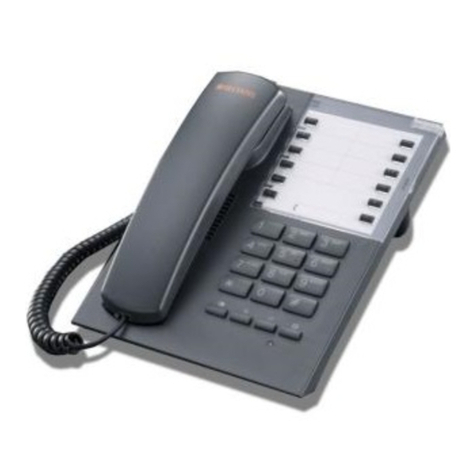
Parrot MINIKIT SLIM User manual

Quick start guide
Guide d’utilisation rapide
Guía de instalación rápida
PARROT
MINIKIT SLIM


www.parrot.com
Parrot Minikit Slim
English.............................................
Français...........................................
Español............................................
General Information.........................
p.7
p.13
p.19
p.25

4
PIN code :
1234
- Charging the Parrot MINIKIT SLIM
- Chargement du Parrot MINIKIT SLIM
- Cargar el Parrot MINIKIT SLIM
- Connecting a phone by Bluetooth
- Connecter un téléphone par Bluetooth
- Conectar un teléfono mediante Bluetooth

5
- Installing the Parrot MINIKIT SLIM
- Installation du Parrot MINIKIT SLIM
- Instalar el Parrot MINIKIT SLIM
PIN code :
1234
- Charging the Parrot MINIKIT SLIM
- Chargement du Parrot MINIKIT SLIM
- Cargar el Parrot MINIKIT SLIM
- Connecting a phone by Bluetooth
- Connecter un téléphone par Bluetooth
- Conectar un teléfono mediante Bluetooth

6

If your Parrot MINIKIT SLIM gets out of reach while
driving, stop the vehicle in a safe location before
picking or hanging up a call.
7
This simplified guide of the Parrot MINIKIT SLIM gives you
the main instructions to easily use this product. For more
information, refer to our website www.parrot.com.
The availability of some functionality only depends on your
mobile phone. Refer to our website www.parrot.com, in the
Compatibility section, for more information.
Charging the PARROT MINIKIT SLIM
• The Parrot MINIKIT SLIM must be charged before being
used for the first time. To do so, plug the charger into your
vehicle’s cigar lighter or connect the Parrot MINIKIT SLIM
to your computer using the USB/mini USB cable
(provided). Refer to the diagrams p.4.
> The LED located next to the mini-USB port turns red to
indicate that the battery is being charged.
> The LED turns off once the battery is fully charged.
• When the battery level is low, the Parrot MINIKIT SLIM
emits a series of beeps.
Installing the Parrot MINIKIT SLIM
Use the clip located on the back of the Parrot MINIKIT SLIM
to fix it to the sun visor of your vehicle. Refer to the diagrams
p.5. You can also use your Parrot MINIKIT SLIM at home by
simply placing it on a stable surface.
Using the PARROT MINIKIT SLIM for the 1st time
Content
English
Usig the Parrot MINIKIT SLIM for the 1st time..................
Charging the Parrot MINIKIT SLIM..............................
Installing the Parrot MINIKIT SLIM..............................
Accessing the Parrot MINIKIT SLIM menu..................
Connecting a phone / PDA by Bluetooth....................
Using the telephony function.............................................
Synchronising the phonebook....................................
Recording voice tags..................................................
Commands..................................................................
Receiving a call............................................................
Making a call................................................................
Making a call via voice recognition.............................
Updating the Parrot MINIKIT SLIM.....................................
p.07
p.07
p.07
p.08
p.08
p.08
p.08
p.09
p.09
p.09
p.10
p.10
p.15

Using the telephony function
8
Accessing the Parrot MINIKIT SLIM menu
Press the button for 2 seconds to turn on the Parrot
MINIKIT SLIM.
• Press the jog dial to access the main menu.
> The Parrot MINIKIT SLIM says the name of the
current menu.
• Browse through the menus by turning the jog dial and
conrm with the green button or by pressing the jog dial.
• To exit the menu, press the red button or wait for a few
seconds.
Connecting a phone / PDA by Bluetooth
Before using the Parrot MINIKIT SLIM with your phone,
you first have to connect both devices. If you are using this
device for the first time, you will have to pair both devices
before connecting them. The pairing process is only required
once.
1. From your Bluetooth ® phone, search for Bluetooth
peripherals (refer to your phone user guide for more
information).
> The list of the available Bluetooth peripherals is
displayed.
2. Select “MINIKIT SLIM”.
3. Enter the “1234” PIN code and validate.
> The Parrot MINIKIT SLIM says « Pairing successful »
when both devices are paired.
Before using your Parrot MINIKIT SLIM telephony function,
you first have to connect both devices.
►Refer to the “Connecting a phone via Bluetooth” section
for more information.
Synchronising the phonebook
With some Bluetooth phones, the phonebook is automati-
cally synchronized in the kit’s memory. If your phone doesn’t
support automatic synchronization, you can also use the
Object Push function of your phone to send contacts from
your mobile to the car kit via Bluetooth. To do so:
1. From the main menu, select Phone > Receive contacts.
> The kit says Waiting for contact.
You can pair up to five devices. If you attempt to
pair a sixth phone, the kit says «memory full». You
must clear the memory by holding down both the
red and green buttons for three seconds. Doing
so also clears all the contacts and the associated
voiceprints.

2. Refer to your phones’ user guide for more information
about sending contacts via Object Push.
Recording voice tags
All your contacts, after automatic synchronization or Object
Push process, are directly provided with a voice tag in the
Parrot MINIKIT SLIM. Consequently, you don’t have to
record your own voice tag on each contact to make a call via
the voice recognition process.
However, if the Parrot MINIKIT SLIM doesn’t understand the
name of one of your contacts, you can record a new voice
tag. To do so, press the jog dial and select Add voice tags.
Commands
Receiving a call
An incoming call is indicated by a ringtone.
The name of the caller is announced if his number
is known by the kit.
9
Buttons Functions
- adjust the communication volume
- short press during a call : use the DTMF
function (to manage interactive vocal servers)
- answer an incoming call
- use the voice recongnition function
- long press : call the last dialled number
- short press during a call :
transfer a call on the mobile phone
- reject an incoming call
- hang up
• If you want to answer the call, press the green button.
Then press the red button to end the call.
• If you want to refuse this call, press the red button.
Making a call
• If the contact you want to call is in the phonebook of the
phone connected to the Parrot MINIKIT SLIM:
1. Press the jog dial to enter the main menu and
select Phonebook.
> You access the phonebook of the connected phone.
2. Select a letter and push the jog dial;
> Once the contact chosen:
- Press the green key to call this contact;
- Use the jog dial to choose between different numbers
of the same contact.
• If the contact you want to call is not in the phonebook
of the phone connected to the Parrot MINIKIT SLIM, stop
your vehicle in a safe location and use your phone to make
the call.
Making a call via voice recognition
1. Press the green button to launch the voice recognition
feature.
> A beep is emitted.
2. Say the « Call » keyword and the name of the contact you
want to call.
> The call is automatically launched if the voice tag is
correctly understood. If it is not the case, a confirmation
message is asked by the kit.
3. Confirm by saying « yes » or « call ».
> The call is initiated.
This functionality is only available if your contacts
have already been recorded in the kit.
You can make a call via voice recognition using se-
veral combinations of keywords. For example, « call
‘Paul’» or simply « ‘Paul’ ». You can also associate
the type of number you want to call: «call ‘Paul’ at
home», «’Paul’ home », etc.
10
Other manuals for MINIKIT SLIM
5
Table of contents
Languages:
Other Parrot Telephone manuals