
Pacific Sun CalcFeeder PRO User manual

CalcFeeder PRO
Controller for Calcium reactor
with stepper motor feeding pump
User Manual
ver. 3.0
www.Pacific-Sun.eu
IOcloud

Page 2
CalcFeeder PRO Calcium Reactor
Table of Contents
1. Introduction ........................................................................................ 3
2. CalcFeeder PRO Controller ................................................................ 4
2.1. Controller Touch-Screen Operations..........................................................................5
2.2. Controller Maintenance ...............................................................................................6
3. Controller Wi-Fi Pacific Sun Cloud setup ...........................................7
3.1. Connecting Controller to your home Wi-Fi network..................................................7
3.2. Adding Controller to Pacific Sun Cloud ......................................................................9
3.3. Linking CalcFeeder Controller Pro with Kore 7th kHLab.........................................13
4. CalcFeeder Controller Firmware Upgrade........................................14

Page 3
CalcFeeder PRO Calcium Reactor
1. Introduction
Dear Customer,
Thank you for purchasing the Pacific Sun CalcFeeder PRO Controller.
With the purchase of this unit, you have selected a top quality product. It has been
specifically designed for aquaristic purposes and has been tested by experts. With this
unit and CalcFeeder PRO calcium reactor, you are able to adjust the calcium level as well
as the carbonate hardness in your seawater tank simply and efficiently in order to achieve
optimum levels.
For best results, please read through this instruction manual before installing the
CalcFeeder PRO Controller on your system.
During or after installation, please do not hesitate to contact our technical support team
at
service@pacific-sun.eu
if you have any questions about your new CalcFeeder PRO
Controller.

Page 4
CalcFeeder PRO Calcium Reactor
2. CalcFeeder PRO Controller
Solenoid Valve Port
Optical Sensor Port
Water Output
TO
Reactor
Water Input
FROM
Aquarium
LCD Touch Screen
Step Motor Pump
Wi-Fi Antena
Power
SupplyUSB Port

Page 5
CalcFeeder PRO Calcium Reactor
Main screen
Decreasing flow effluent button.
Increasing flow effluent button.
Dosing pump “Pause” button.
“Settings menu” button.
Optical sensor status indicator.
Solenoid valve status indicator.
The Controller unit was designed to work with CalcFeeder PRO calcium reactor but can
be used also as a very precise feeding pump for any other Calcium Reactor brand (require
turning the “Standalone” mode to ON).
The CalcFeeder PRO controller is equipped with an ultra-precise Stepper Motor pump
with four rollers. Built-in LCD touch-screen allows for very easy flow adjustments and
controller operations. The Controller firmware updates can be performed by the internal
USB port.
2.1. Controller Touch-Screen Operations
Settings menu
Reset controller button.
ON/OFF automatic “Degassing” button.
Automatic “Degassing menu” settings button.
ON/OFF automatic “Alarm CO” tank button.
ON/OFF “Standalone” working mode button
(when turn ON pump is running without
connected optical sensor).
Reactor water refill manual mode enable
button.
WiFi IP address when connected to the network
Degass Menu
Manual enable degassing button.
Degassing setting once per week.
Degassing setting twice per week.
Degassing setting every day.
Degass Menu Exit button.
123
5
64
5
6
4
3
7
2
1
4
31
2
5
1
2
3
4
5
6
1
2
3
4
5
6
1
2
3
4
5
7

Page 6
CalcFeeder PRO Calcium Reactor
Manual degassing screen
The controller pump work cycles are counted in
the upper left corner. The degassing process takes
200 cycles.
Reactor manual water refills screen
In order to Turn OFF the refilling process, press
and hold the „Turn off refill mode” button for 3
seconds.
Pump cycles
2.2. Controller Maintenance
Stepper motor allows for heavy-duty work 24/7 without any limits. The controller allows
setting the rate at which calcium and carbonate are dosed in the tank from 100 ml/h to
7200 ml/h.
Please remember about regular tubing inspections and maintenance. Used Pharmed
BPT tubing has an MTBF (Mean Time Before Failure) of an average of 2000 hours and
needs to be replaced after that time. Regular lubrication by using silicone grease will extend
tubing lifespan and protect the device against leaking and damage.
Stepper Motor Pump Cover
Pharmed BPT tubing
Stepper Motor Pump Cover

Page 7
CalcFeeder PRO Calcium Reactor
1.Connect power to CalcFeeder
Controller.
Find your CalcFeeder Controller
on you Wi-Fi network list devices.
Click Connect directly to the
CalcFeeder Controller Wi-Fi
Network.
2.Find a sticker on the CalcFeeder
Controller with a Wi-Fi network
password:
CALC####
Note:
#### - it's your unique number
3. Controller Wi-Fi Pacific Sun Cloud setup
3.1. Connecting Controller to your home Wi-Fi network
3.Enter your CALCFEEDER###
Wi-Fi network password.
Next Click Join
4.Make sure you are connected to
CALCFEEDER#### Hotspot.
Connected
Controller is ready for
the PS Cloud setup
1
1

Page 8
CalcFeeder PRO Calcium Reactor
5.Open the Controller WiFi
network setup.
Open your Internet Browser
and type the Controller
WiFi network IP address
192.168.4.1 into the address
field.
http://192.168.4.1
Switch to STA+AP mode
Under WiFi Association you
should see Scanning for available
home Wi-Fi networks.
6.Connect Controller to Home
WiFi network.
Select your Home WiFi
network under Network
SSID.
Type in your Home WiFi
network password, if
applicable.
Next Click: Connect!
After this step Controller will be
available under your Home WiFi
network usually with IP address
format:
192.168.#.###
1
1
1
1
2
3
2
3
1
7.Restart Controller.
Power OFF and ON the Controller.
Disconnect power and Connect
back.
On the controller “Setting
menu“ screen, see and take
a note of the IP Address in a
similar format.
1

Page 9
CalcFeeder PRO Calcium Reactor
3.2. Adding Controller to Pacific Sun Cloud
1Connect to your home
Wi-Fi internet network,
open Internet Browser, and
go to the following address:
https://cloud.pacific-sun.eu
Click Create an account
2Create Cloud Pacific Sun
account.
Enter Email address
Enter Password
Enter Password Again
Next Click Submit
1
2
3
1
1
2
3
1
3After login, on the
Dashboards:
+
Click Add new tank
1
1
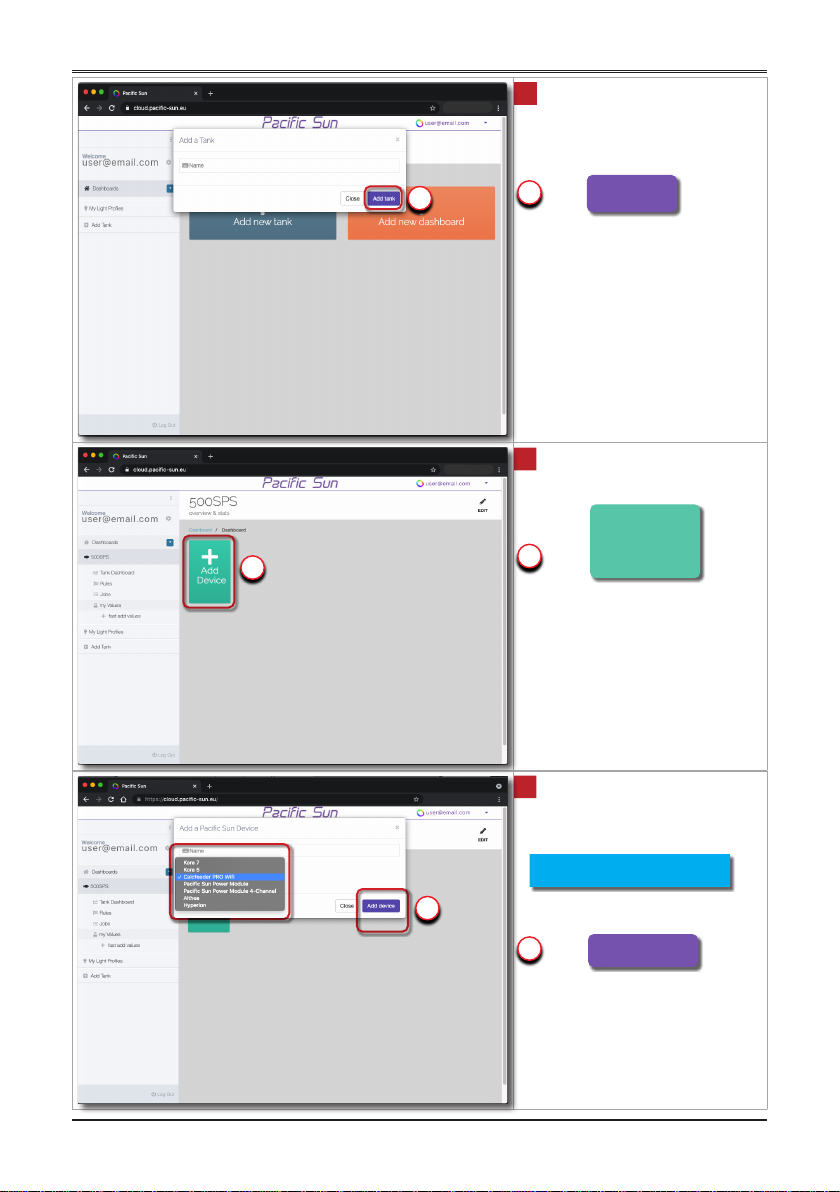
Page 10
CalcFeeder PRO Calcium Reactor
4Add a Tank:
Type in your preferred Name
Click Add tank
1
1
5Under your tank Name:
+
Click Add Device
1
1
6Type In your preferred
Name and select the
device from the list:
Calcfeeder PRO WiFi
Click Add Device
1
1
Other manuals for CalcFeeder PRO
3
Table of contents
Other Pacific Sun Aquarium manuals

Popular Aquarium manuals by other brands



Royal Exclusiv
Royal Exclusiv Bubble King DeLuxe 300 datasheet

Sera
Sera Marin Precision Biotop LED Cube 130 Instructions for installation and use

Commodity Axis
Commodity Axis ViaAqua Titanium Heater manual

Sander
Sander Ozonizer P 2000 Instructions for use

Hagen
Hagen HALF MOON instructions

CPR
CPR CS150 manual