OrthoSensor Knee Balancer User manual

TM
USER GUIDE
Device Activation and LinkStation™ Operation
LB-03000-003 Rev A

1
The OrthoSensor™ Knee Balancer is an intelligent tibial trial that provides intraoperative data to help determine and
achieve optimal soft tissue balance and component position during total knee arthroplasty (TKA).
The Knee Balancer is capable of sensing dynamic loads and center of load* in the medial and lateral compartments of the
operated knee through a full range of motion with the patella reduced.
When utilized in the trialing phase of TKA the Knee Balancer will sense intercompartmental loads, center of load* as a
reference for tibial-femoral contact, tibial tray rotation and exion angle of the leg*. Data is displayed on a 27”monitor on the
OrthoSensor LinkStation™ depicted below.
The OrthoSensor Knee Balancer enables the surgeon to make evidence based decisions regarding soft tissue releases and
component position to achieve true balance and stability through a full range of motion.
INTRODUCTION
Key Features
•Provides dynamic intraoperative loads and
center of load* in the medial and lateral
compartments through full range of motion
with the patella reduced.
•
Kinetic Tracking™
feature provides dynamic
kinematic tracking in conjunction with load
data.
•Displays Tibial Tray Rotation and Knee Flexion
Angle*.
•Requires no change to surgical workow.
• Low cost, single use disposable device.
•Enables data capture in still images or video
that may be added to the patient record.
*For Reference Only
Key Clinical Benets
•Addresses the leading causes of early
implant failure in TKA: instability,
malrotation and loosening
•Dynamic intercompartmental load data
and Kinetic Tracking enable evidence
based soft tissue releases to improve
stability.
•Provides intraoperative feedback on
tibial component rotation*, center of
load* and femoral articulation to
facilitate optimal component position.
•Enables reproducible, teachable surgical
technique.
•Captures intraoperative data for inclusion
in patient record and registries.

2
STEP 1
Activate LinkStation
Press and hold power button on back of computer to
activate.
Conrm surgeon visualization of LinkStation.
Position Transceiver
Ensure Transceiver is connected directly to USB port on
back of computer.
Transceiver CANNOT be connected through a peripheral
USB hub.
Transceiver should point toward the operating table
with antennae oriented in opposite directions at
approximately 45º to the Transceiver.
This position promotes optimal communication
between the Transceiver and the OrthoSensor Knee
Balancer.
Four (4) blue LED lights on the top of the transceiver
FIGURE I indicate power and communication link with
the OrthoSensor Knee Balancer.
LED #1 and LED #2 indicate communication link between
Transceiver and the OrthoSensor Knee Balancer. These
LEDs will illuminate only after device is activated.
LED #4 indicates that Transceiver is active.
LED #3 is inactive and will not illuminate. FIGURE I
LINKSTATION SETUP
Optimal Transceiver position with antennae at 45º
Power switch on back of computer
LED #4
LED #1
LED #3
LED #2

3
STEP 2
Launch Application
Double click the OrthoSensor icon to launch
application.
Activate Device
A. Remove appropriate size OrthoSensor Knee
Balancer and Shims from box.
Do not remove from sterile pack.
Remove outer box labels and ax to patient
documentation as required.
B. Place device directly over round silver magnet
on LinkStation with articulating surface facing up.
The LED will illuminate on the articulating surface of
the device after approximately one second.
DO NOT MOVE THE DEVICE until you observe the
following:
i) LED turns o after approximately four (4) seconds.
ii) Graphic User Interface (GUI) launches.
iii) Load Sensor initialization progress bar appears
and completes.
Initialization takes up to 10 seconds.
Device may now be removed from magnet.
DEVICE ACTIVATION
Initialization in progress
LED illuminated
OrthoSensor Icon & Application Start Screen

4
LEG SELECTION
LED illuminated
STEP 3
Select LEFT or RIGHT leg
The GUI will automatically prompt leg selection.

5
“ZERO” DEVICE
FIGURE I
STEP 4
Zero Device
The OrthoSensor Knee Balancer utilizes an accelerometer to assess component position* and leg
exion angle*.
The “zero” process calibrates the accelerometers to enable these functions and is accomplished in
three steps.
Note that the GUI prompts user to execute each step in the “Zero” process.
A. Horizontal Zero, step 1
Place sterile packed device at on LinkStation shelf
Gently secure medial and lateral edges to ensure device
is at. (FIGURE I)
Click the “Zero” button (now ashing red) in the lower
left corner of the GUI.
Load Sensor initialization progress bar will appear and
complete. Initialization takes up to 10 seconds
B. Horizontal Zero, step 2
Rotate device 180º and repeat previous step.
*For Reference Only
180º

6
FIGURE I
STEP 4 continued)
“ZERO” DEVICE
Place sterile packed device at against LinkStation post.
Underside (non-articulating surface) of device should be
placed against post with posterior edge pointing toward oor.
Hold device in place and click the “Zero” button.
“Device is Ready for Use” will appear on the GUI indicating
completion of the “Zero”process.
NOTE: This step is instantaneous and has no progress bar.
C. Vertical Zero, step 3

7
STEP 5
The OrthoSensor Knee Balancer is now ready for
use.
Verify Device Activation
While still in sterile packaging, apply pressure on
the device to verify that loads are registering on
the GUI. (FIGURE I)
NOTE: If loads do not register then the device may
not be fully active and the following steps are
recommended:
i) Deactivate device by clicking the Power button
in the lower right corner of the GUI.
ii) If device does not shut down, click“OK”to exit or
manually quit the GUI (hold Command key down
and press the letter Q key). Unplug the transceiver
USB cable and re-connect. Re-launch GUI and
follow on-screen prompt to shut down active
device (if necessary).
Repeat device activation and “zero” process
detailed steps 2-4 again to fully activate device.
Open Sterile Packaging
Once activation is conrmed, open sterile packed
device and shims and pass into the operative eld
using standard sterile technique. (FIGURE II)
DEVICE READY FOR USE
FIGURE I
FIGURE II

8
STEP 6
The OrthoSensor Knee Balancer is packaged with four (4) shims to enable use of trial inserts with
9mm, 11mm, 13mm and 16mm thickness.
A shim must be axed to the underside of the device prior to insertion into the tibial tray.
ATTACH SHIMS
Ax Shim
Ax appropriate size shim to underside of device
by sliding it posterior to anterior. (FIGURE I)
Shim Exchange
To exchange shim size, unsnap it from anterior
portion of the device and replace with desired
size. (FIGURE II) FIGURE I
FIGURE II
9
SET TIBIAL ROTATION
STEP 7
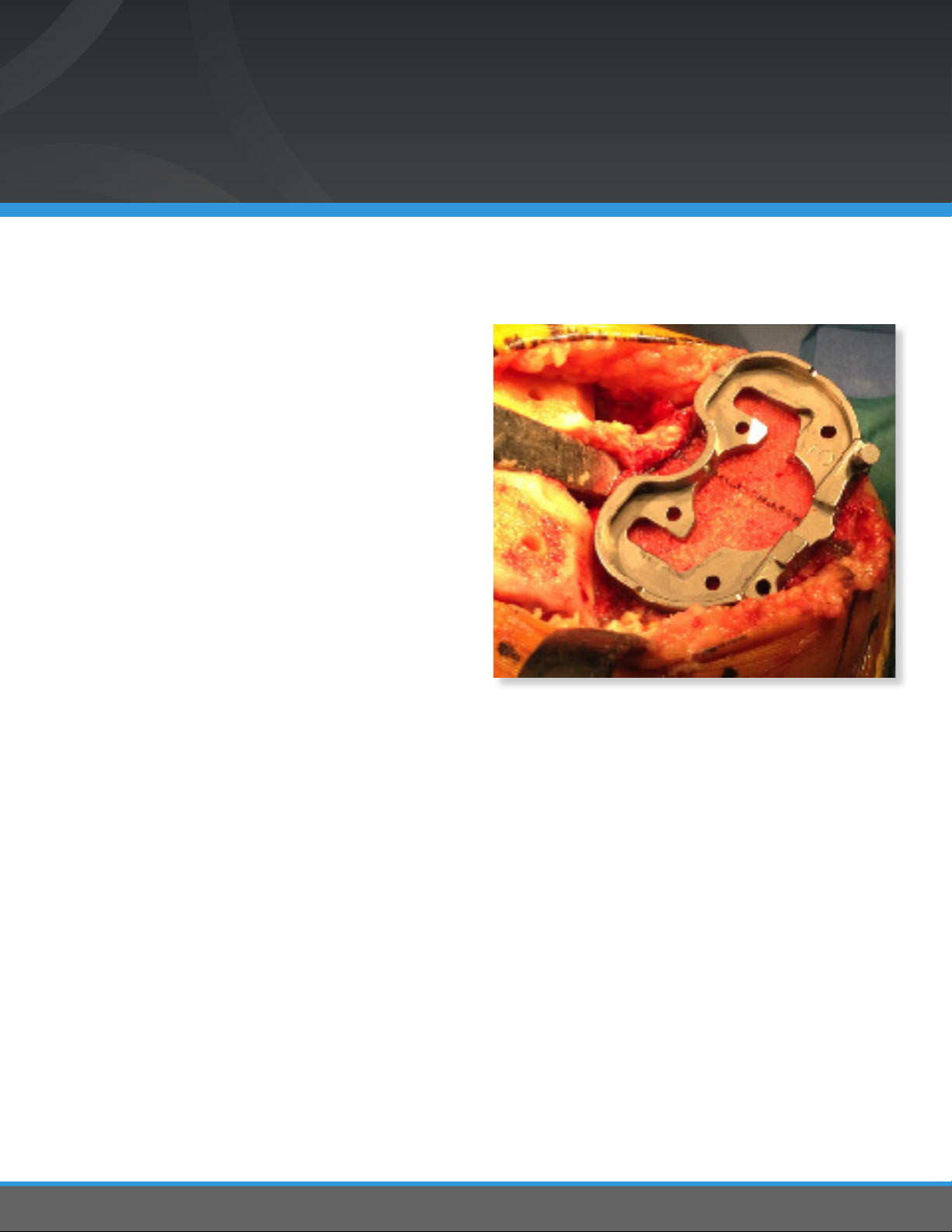
Select and position appropriate size Trial
Tibial Tray to achieve maximum tibial plateau
coverage. The tibial tubercle mid-middle 1/3
is marked and a single anterior pin is inserted
to allow rotational adjustments and maintain
medial-lateral position.
Tibial trial with anterior medial pin inserted, PCL to medial
1/3 tibial tubercle is marked
Other manuals for Knee Balancer
1
Table of contents
Other OrthoSensor Medical Equipment manuals