
Orcam MyEye 2.0 User manual

Welcome to OrCam.
This guide will show you how to use your OrCam MyEye to maximize your
independence.

User Guide | MyEye 2.0 | Page 2
© 2017 OrCam Technologies Ltd. All rights reserved.
OrCam® is the trademark and brand name of OrCam
Technologies Ltd. (“OrCam”) and OrCam is the sole
proprietor of all the rights and all the intellectual property
rights in this guide and/or any other document produced
by OrCam relating thereto. The documents are protected by
applicable intellectual property laws including and without
limitation copyrights, patents, trademarks, know how, trade
secrets, and international treaties. No license or rights are
hereby transferred to the user of this guide and said guide
shall remain the sole and exclusive property of OrCam.
No part of this guide shall be used, reproduced, translated,
converted, modied, adapted, displayed, stored in a retrieval
system, communicated, or transmitted by any means, for
any commercial purpose, including and without limitation,
sale, resale, distribution, reproduction, license, rental, or
lease without receiving written permission from OrCam.
OrCam makes no expressed or implied representation or
warranty as to the accuracy or completeness of the contents
of this guide, which is provided “as is”, and assumes no
responsibility or liability for any errors or inaccuracies that
may appear in this document or for any product that may be
provided in association with this document.
OrCam devices are intended to enhance the day-to-day
lives of individuals with visual impairments. They are not
substitutes for existing methods or forms of assistance
and should not be relied upon in circumstances which are
potentially life- or health-threatening or which could lead to
nancial loss. OrCam devices should especially never be
relied upon to drive vehicles or operate heavy machinery of
any kind.
United States and Canada
OrCam Inc.
1350 Broadway, Suite 1600
New York, NY 10018
1.800.713.3741
Corporate Headquarters
OrCam Technologies
5 Kiryat HaMada St.
Jerusalem 9777513
Israel
+972.2.591.7800
Print Date: OrCam MyEye 2.0, Software Version 8.1-EN, Dec 2017
DOC000056
United Kingdom
OrCam UK.
60 Gresham Street
London EC2V 7BB
0800.358.5323
| www.orcam.com | info@orcam.com

User Guide | MyEye 2.0 | Page 3
Table of contents.
Get Prepared
Get Started
Get Comfortable
Terms & Safety
OrCam Customer Support.
United States & Canada.
1.800.713.3741
United Kingdom.
0800.358.5323
suppor[email protected]
This user guide is also available for online
viewing and download in PDF and audio formats
at: www.orcam.com/userguide
04
09
20
25

Get Prepared.
User Guide | MyEye 2.0 | Page 5
What’s in the Box.
• OrCam MyEye 2.0 and charger
• Glasses frame with mount
• Mount kit with scissors/clippers
• Leather carrying case and lanyard
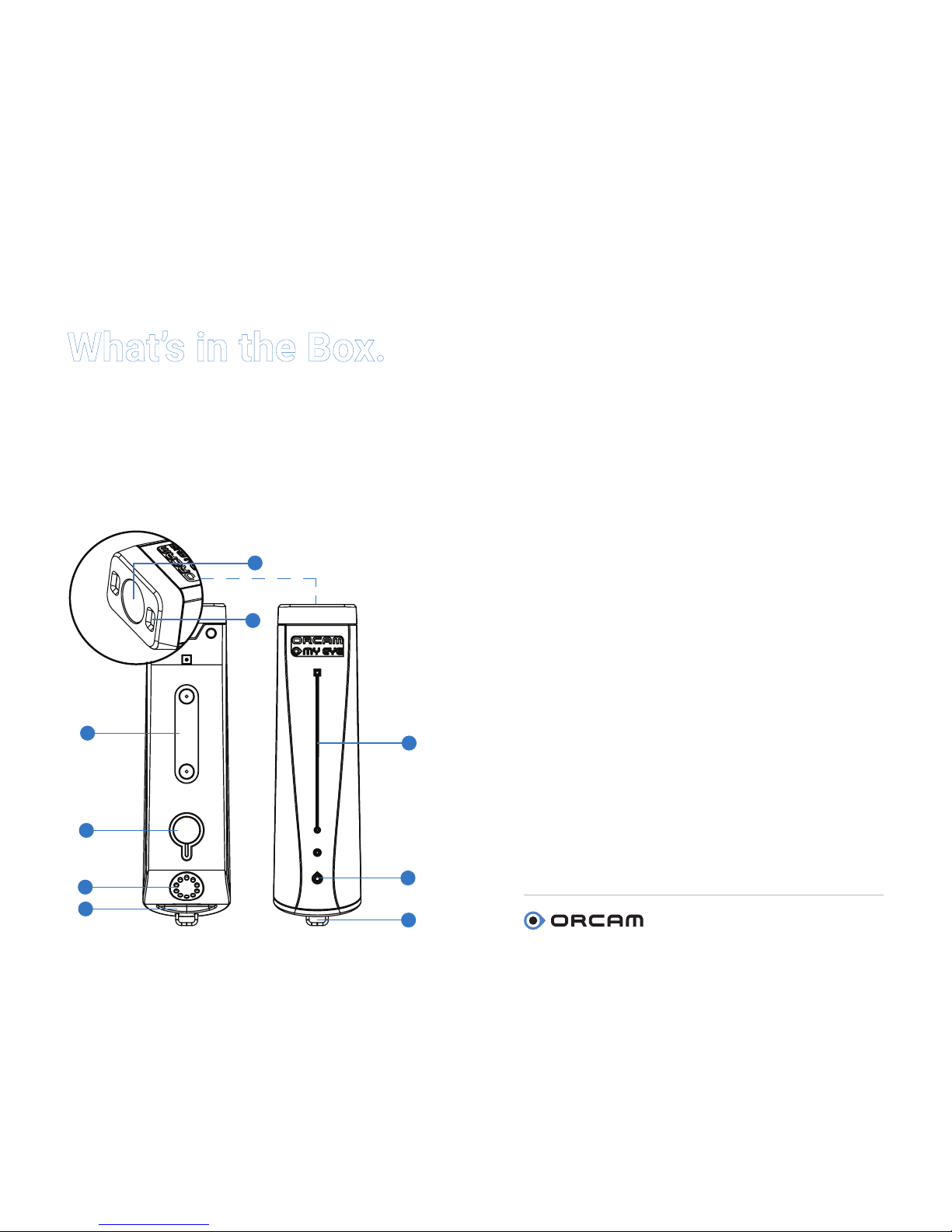
The OrCam MyEye’s parts and
buttons.
Outside (long side, facing outwards):
1. Touch bar
2. LED indicator
Inside (long side, facing glasses frame):
3. Magnets that attach to mount
4. Power button and LED indicator
Front:
5. Camera
6. LED lights for low light situations
Back:
7. Speaker
8. Charger port
9. Eyelet loop for attaching to lanyard
1
2
4
3
7
8
9
5
6

User Guide | MyEye 2.0 | Page 6
Attaching the mount.
To wear the OrCam MyEye, you need to install a
small mount with magnets on a glasses frame.
We recommend using thicker frames to better
support the device.
Choose whether you want to install the mount
on the right or left arm of your glasses frame.
You will require:
1. Your glasses frame
2. Your OrCam MyEye, powered off
3. The partially-assembled plastic mount
4. Pair of small scissors (provided in the box)
To assemble on the right arm of the glasses
frame, using the partially-assembled mount:
• Place the OrCam MyEye on the mount.
• Insert the right glasses arm through the
mount straps, ensuring the tab is towards the
back and camera is facing forwards.
• Align the front end of the OrCam camera
with the front of the glasses frame to position
the mount correctly on the glasses arm.
• Remove tab from back side of the mount.
• Press the mount onto the arm of the glasses
frame. Ensure the OrCam MyEye is still parallel
to the glasses frame’s arm and that the camera
is facing forward.
• Remove the OrCam MyEye from the mount.
• Push each strap around arm and through
the hole on the mount. Pull tightly to secure
mount.
• Carefully cut off the excess strap close to
the mount.
User Guide | MyEye 2.0 | Page 7
The mount is now attached to the glasses
frame and can be left there permanently. The
glasses can be folded with the mount in place.
See www.orcam.com/tutorials for a video
tutorial to help you attach the mount.
Note: If you prefer to attach the OrCam MyEye
to the left arm of the glasses frame, the mount
tab must face forwards during assembly, to
ensure the magnets are properly aligned.
Charging your OrCam MyEye.
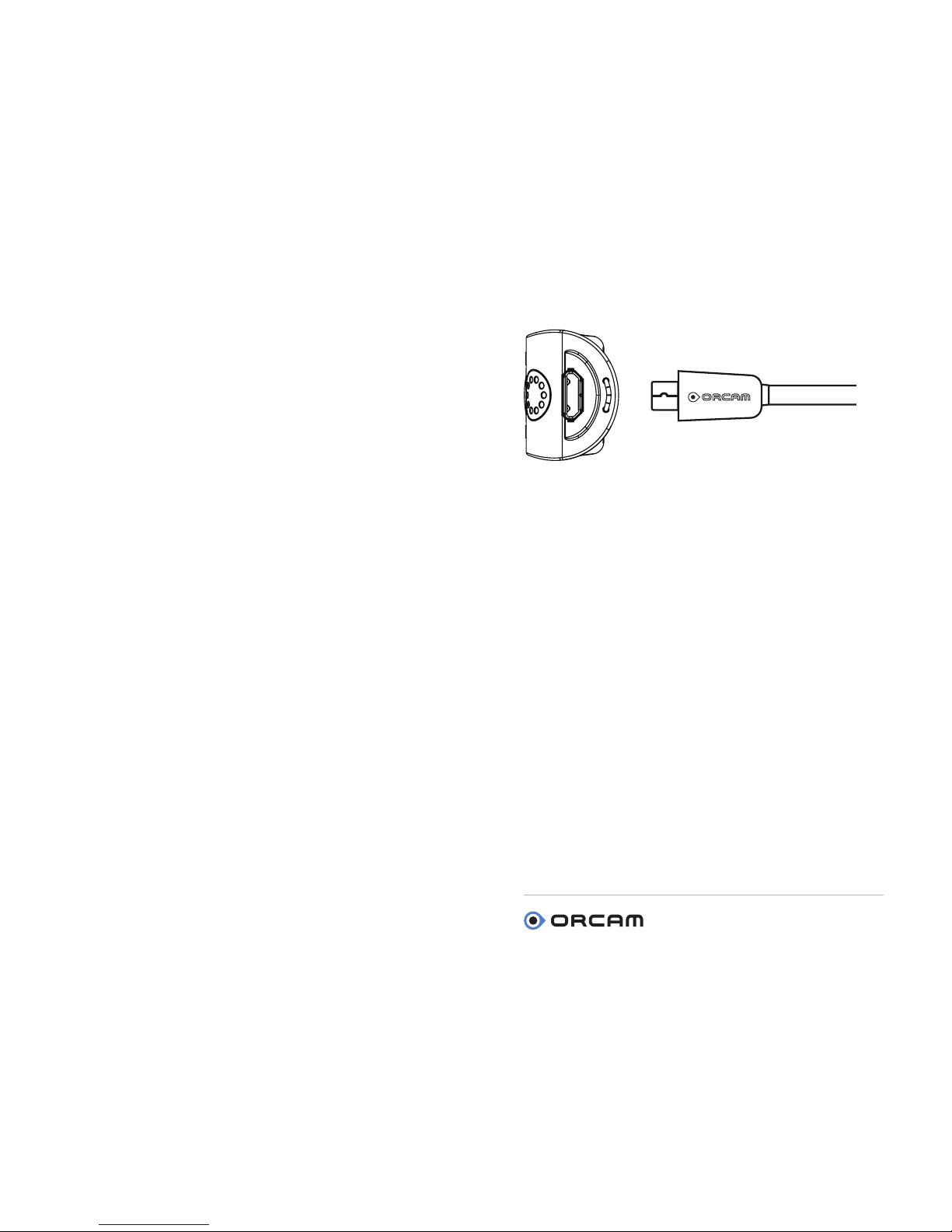
• Attach the OrCam charger cable to the USB
outlet on the back of the OrCam MyEye.
• Plug the charger into an electrical socket.
The OrCam MyEye fully charges in 40 minutes.
Charge the device when not in use so it is
ready when you are.
OrCam strongly recommends using only the
original OrCam charger provided.
Turn on your OrCam device.
• Press the Power button on the inside of the
OrCam MyEye for about 2 seconds.
• The LED light on the inside of the device will
turn green.
• After about one minute you will hear, “OrCam
Version 8 is ready. Battery is [this many] percent
charged.”
If you did not hear the phrase, “OrCam is ready,”
or you are not sure that the OrCam MyEye is on,
touch the touch bar. If the device is on, you will
hear a response.

User Guide | MyEye 2.0 | Page 8
Turn off your OrCam device.
• Press the Power button once. You will hear
“Suspending. Press again to shut down.”
• Press the power button again. You will hear,
“Shutting down, please wait.”
• Just before the unit shuts down, you will hear,
“Power off. Bye Bye.”
When you turn the OrCam MyEye on or off, it is
recommended to listen to the system messages.
Enter Suspend mode.
• Press the Power button once.
• You will hear, “Suspending. Press again to
shut down”, and then “Suspending” as the device
enters Suspend Mode.
Exit Suspend mode.
• Double tap the touch bar or press the power
button while the device is horizontal.
• You will hear, “Waking up. Battery is [this
many] percent charged.”
Automatic Suspend and Power Off.
• The OrCam MyEye automatically enters
suspend mode after three minutes of inactivity.
This time can be adjusted in the setup menu.
• The OrCam MyEye powers itself off after
three hours in suspend mode.

Get Started.
User Guide | MyEye 2.0 | Page 10
Gestures.
You can activate your OrCam MyEye using
simple and intuitive hand gestures.
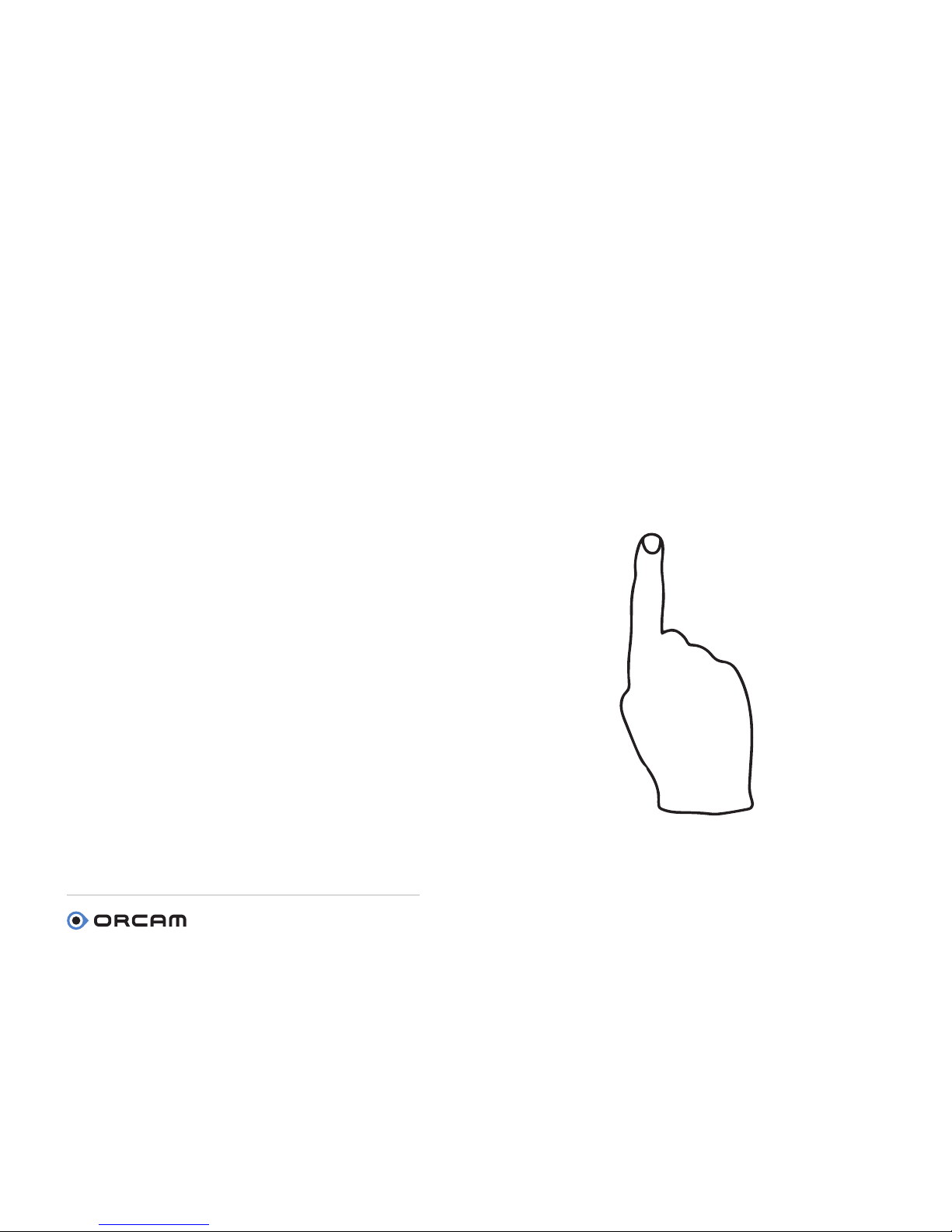
Pointing Gesture.
OrCam MyEye can recognize text, products,
barcodes and banknotes through a simple
point of your nger. When the camera sees
your ngertip, it knows you want it to read or
recognize something.
• Raise the index nger of your hand, with the
tip of your nger pointed up and the ngernail
facing the camera.
• Extend your arm outward, in front of you, with
your nger at eye level, and point at the area you
want to read or recognize.
• When the camera detects your nger, you will
hear a double-beep.
• Remove your nger away from the camera’s
eld of view. The camera will take a picture
of what it sees and make several beeps as it
processes the picture.
Table of contents
Other Orcam Smart Glasses manuals


