ORBYS TAB F21 NEO User manual

User’s manual
Please read this manual before using
the device and keep it for future
purposes.
EN

Read first
Support
Legal warning
•
•
•
•
•
•
•
•
•
•
•
•
•
•
•
+34 961 002 841 www.orbys.eu
From ORBYS we want to thank you for the acquision of your new tablet F21 NEO. To ensure the
most appropriate use of your tablet, please consult this User Manual before using the device.
Please keep this documentaon for future reference.
Your ORBYS F21 NEO has a Support Service from which you will be aended to in order to solve
all the doubts and problems that may arise with your tablet.
When you contact the Support Service, you will be asked for full contact details and the device's
serial number (find it on the back of the tablet just above the CE logos).
When mobile data is acvated to use data and/or voice services (web browsing, downloads, email,
etc.), the operator may apply fees. Please check your contracted data plan before using the mobile
data feature.
The device can be connected to 4G/LTE mobile networks. The use of these networks depends on
the availability of the operator and the region. When connected to 4G/LTE networks, the
browsing speed is faster, but baery performance may be reduced.
The features/images shown in this manual may not exactly match your purchased tablet due to
possible soware, hardware and/or firmware updates.
The company is not responsible for loss of data or personal harm caused by improper use of the
device, including soware, hardware, replacement of incorrect baeries, etc.
The owner will be responsible for backup of his documents, files, images, applicaons and all types
of informaon stored on the device. It is strongly recommended that backups are made
periodically and acve policies should be applied to prevent loss of informaon.
The company cannot control any user discussion, misunderstanding or misuse of this manual. The
company assumes no responsibility for any relevant, accidental or potenal losses incurred in the
process of using this manual.
The device is a sealed unit. There are no parts inside that can be repaired and/or replaced by the
end user. Aempng to open or modify the device will void the warranty.
The company is not responsible for performance problems or incompabilies caused by
third-party applicaons.
The company is not responsible for performance problems caused by the changes of configuraon
parameters, as well as incompabilies of some third party applicaons.
The logo of Android, Google™, Google Maps™, Google Mail™, YouTube™, Google Play™ Store,
Google Latude™, and Google Talk™ are registered trademarks of Google, Inc.
Wi-Fi®, Wi-Fi Protected Setup™, Wi-Fi Direct™, Wi-Fi CERTIFIED™, and the logo of Wi-Fi are
registered trademarks of Wi-Fi Alliance, Bluetooth® is a registered trademark of Bluetooth SIG,
Inc.
MicroSDTM is a registered trademark of SD-3D, LLC.
All other trademarks are property of their respecve owners. All rights reserved.
The company reserves the right to provide a final explanaon of this manual.
If you are in a foreign country, check the use of mobile data while roaming to avoid extra costs due
to the use of other operators' networks.

Safety Information
•
•
•
•
•
•
•
•
•
•
•
•
•
•
•
•
•
•
•
•
•
•
To avoid major loss or damage to the product, please read all the informaon in this secon before
you use it:
Do not drop, hit, punch, drill or crush the device, it could cause damage to the screen surface,
hardware problems and loss of data stored on the tablet.
The screen of the device is made of glass. It could break due to a fall, heavy objects placed on it or
a strong impact. In case of breakage, do not touch the screen or try to replace it or remove it. Stop
using the device immediately aer breakage and contact the Technical Service.
Do not leave the device exposed to liquids or environments with high humidity. Leakage of these
could result in soware and/or hardware failure.
Do not aempt to replace or repair the device's baery. You may damage it and/or cause
overheang and/or injury. The baery should only be repaired and/or replaced by the offcial
Technical Service.
The device has a headphone socket. Please adjust the volume of the headphones before you use
it to a suitable and safe level. Excessive use of headphones for a long period of me at high volume
can be harmful.
Do not disconnect the device from the power source during soware and/or firmware updates or
downloads. This could result in loss of data or problems with the device.
Do not connect the device to the power supply during a thunderstorm.
Do not connect the device to damaged or faulty electrical sockets.
Do not use the device in places that are not permied (hospitals, petrol staons, chemical stores
and similar). Always respect the rules, instrucons and warning signs of the different places.
Respect signs and warnings that do not permit or restrict the use of mobile devices.
Do not use incompable accessories. Only original accessories and baeries may be used.
Do not use the device while driving or operang machinery
If you suffer from any illness or have any symptoms that you think could be affected by the use of
the device, please consult your doctor before using it.
Do not use the device to call while it is charging.
Turn the device off when you are on a plane.
Turn off and disconnect all cables from the device before cleaning. Do not use chemical liquids
and/or detergents to clean the device. Only clean the screen and the casing with a so, clean,
slightly humidified cloth.
Plasc bags can be dangerous. Keep them out of the reach of children to avoid the danger of
asphyxiaon.
The device contains radios that emit electromagnec fields. Do not use it near medical devices
such as pacemakers, defibrillators or other medical devices, because the device may interfere with
them.
Do not force a connector into the port or apply excessive pressure, as this may cause damage to
the hardware.
Do not use the device when it is exposed to high temperatures or if it is exposed to direct sunlight
for long periods, it may overheat and cause hardware failure.
Do not press the buons on the device too hard, as this could cause damage to the hardware.
If you use applicaons, games, funcons, coverage, etc... that need more performance (CPU, RAM,
Baery, 4G/LTE) or if they are used for long periods of me, you can cause your device to heat up
temporarily.

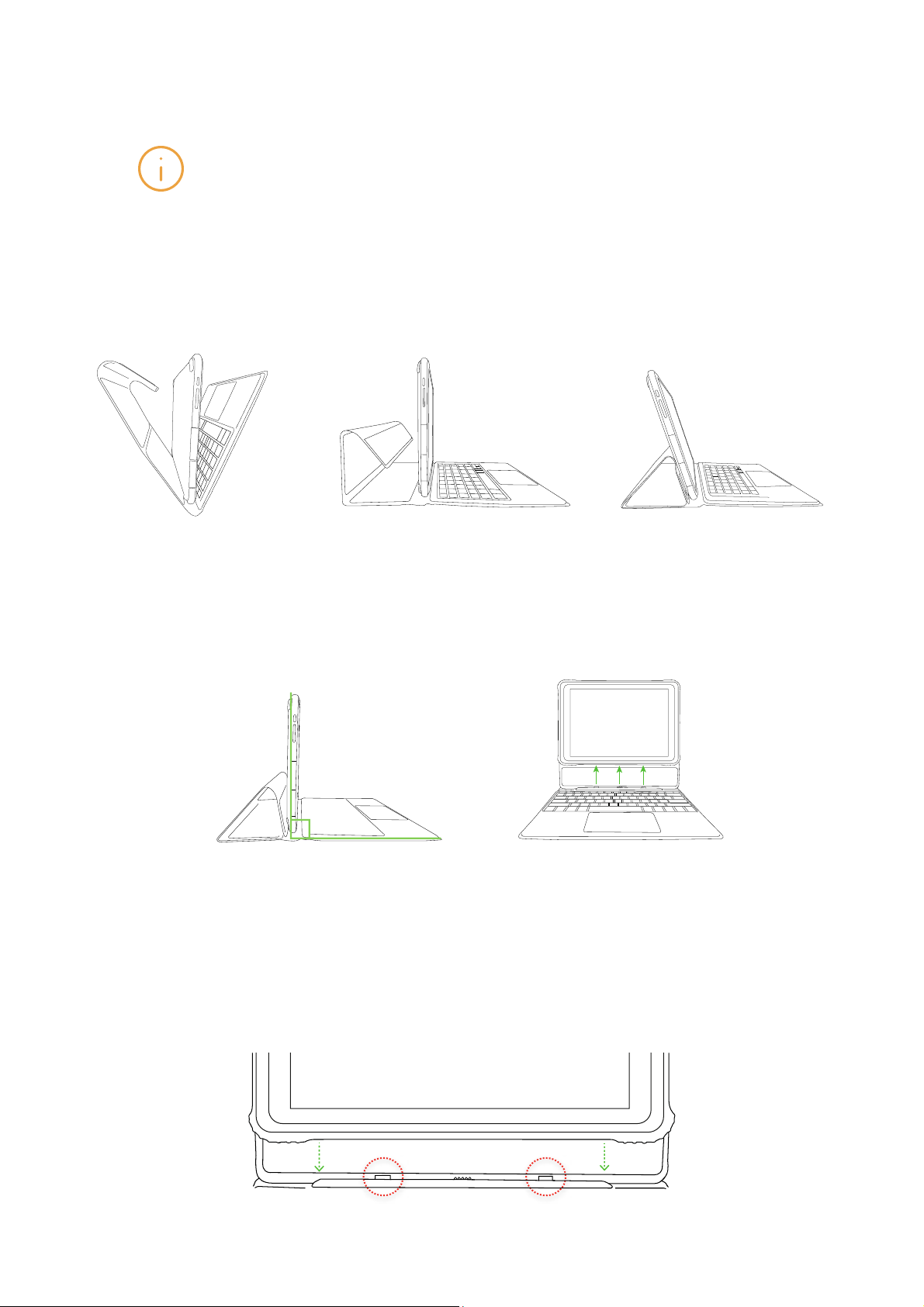
How to fit your tablet in keyboard/case
Your ORBYS F21 NEO includes a keyboard that serves as a stand in the lectern posion. It is very
important to follow the instrucons for correct opening and fastening of the device in order to
avoid breakage. You must not force or exceed its maximum opening to avoid breaking the
fasteners and/or keypad.
To remove the tablet/keyboard, always do so with the device at a 90° angle, holding the keyboard
and pulling it up smoothly.
The connecon between tablet/keyboard must always be made with the device at a 90° angle,
docking the device to the keyboard holder. The keyboard holder can only be posioned in one
posion, and the device is aached to it due to its two fasteners and the magnec connectors.

Box content
•
•
•
•
•
•
General view of the product
1.
2.
3.
4.
5.
6.
7.
8.
9.
10.
11.
12.
13.
14.
Take the components out of the original box with care. Check all the content of the package to
make sure everything is in there:
ORBYS F21 NEO.
USB cable (type A) <> (type C).
USB power adapter.
Welcome card.
NanoSIM/microSD removal tool.
*Warning: The accessories of this product may change without prior noce.
Keyboard (Oponal).
On/off buon and screen lock.
Volume buon + (Increase).
Volume buon - (Decrease).
USB type C connector with OTG funcon and charging.
Audio jack for headphones.
Reset buon.
Slot for NanoSIM/MicroSD™.
DC connector 3.5mm for charging.
Electromagnec keyboard connector.
Rear camera.
Front charging LED.
Front camera.
Front brightness sensor.
Speakers.
S/N 138XXX1AU20

Turning on the device
Turning off the device
Unlocking screen
Locking screen
Forced shutdown
Forced restart
When the device is off, press buon 1 (On/Off) for a few seconds to start the device.
When the device is on, press buon 1 (On/Off) for a few seconds so that our device shows the
shutdown opons.
This will be your method of proceeding with the unlocking of the device.
You must pay aenon when seng up and remembering this. If you forget
any of these methods, you will not be able to use the device unless you
reset it. This acon will result in the loss of all data, sengs, applicaons,
etc. The company is not responsible for any losses this process may cause.
These processes will result in the complete cessaon of all running
applicaons and documents. It is not recommended to proceed with these
kind of operaons in order to avoid the loss of data that has not been saved
previously.
Slide up the lock icon to unlock the screen. From this point on, you will need to proceed with the
unlocking method you have set before.
Manually: When your device is switched on, briefly press buon 1 (On/Off) to lock the screen.
Automacally: You can set your device to lock the screen at a certain me automacally. Justo go
to:
To unlock the screen: You can choose between several methods of screen unlocking (slide,
paern, PIN, password)
You can force the device to turn off by pressing buon 1 (On/Off) for more than 10 seconds.
You can force the restart of the device by pressing the buon 6 (you will need the tool to press).
Applicaons > Sengs > Display > Standby me for display
Applicaons > Sengs > Security > Screen Lock

Services of mobile data network
A.
B.
C.
D.
Install nanoSIM card
1.
2.
3.
4.
5.
The device includes 4G/LTE modules for mobile data network operaon. To connect to a mobile
network you will need to insert an acvated SIM card from a compable operator. When acva-
ng mobile data to use data and/or voice services (web browsing, downloads, email, etc.), the
operator may apply fees. Please check your contracted data plan before using the mobile data
feature.
The slot (7) has a single tray to insert nanoSIM and microSD cards. This tray shares the possibilies
of inserng both cards according to the following combinaons:
Insert one nanoSIM.
Insert the removal tool(included) into the small hole in the tray and gently push out the tray.
Take out the tray.
Insert the nanoSIM in the right posion on the tray (one or two depending on whether you want
to use a microSD card). One of the corners determines the correct orientaon.
Replace the tray to the original posion.
The Tablet F21 NEO will request the nanoSIM access code (PIN).
Insert one microSD.
Insert two nanoSIM.
Insert one nanoSIM and one microSD.

Charging the device
1.
2.
3.
Precautions and advices about the charging
•
•
•
•
•
•
•
The device contains a rechargeable Li-ion baery (not removable) which can be charged by
performing the following process:
Connect the USB power adapter to a standard electrical outlet (220V / 50Hz) that you
are sure it is in a good condion.
Plug in the male connector USB-A of the cable into the adapter.
Plug in the male connector USB-C of the cable into port 4 (USB-C) of the device.
The device also has an auxiliary charge port (8) of the DC type 3.5mm. To charge using this port,
a DC 3.5mm 5V 2A charger is required (not included).
The device cannot be charged using both charging ports (4) and (8) at the same me. It could cause
serious damage.
The device does not need to reach 0% (completely discharged baery) to charge it. In fact, to
extend the life of your baery, it is recommended to charge it when the level is between 15% and
30% of its total capacity. By default, your ORBYS F21 NEO will alert you that it needs to be char-
ged when the baery is at 15%.
It is recommended not to drain the baery completely as this may cause the tablet not to turn on.
If your ORBYS F21 NEO is completely discharged, put it on charge and wait about 10 minutes to
start it (to acquire sufficient charge). The baery logo will appear on the screen when it is ready.
You can then turn your device on.
The charging me will depend on whether it is charged via a power adapter or via a USB port on
a PC.
The use of non-original power cables or adapters may cause serious damage to the device and
their use may result in the loss of warranty.
The baery is not removable and must not be touched under any circumstances. Any removal or
modificaon of the baery may result in the loss of the warranty.
The baery level is shown on the main screen of the device with this symbol.
You can monitor the baery usage, view the percentage and acvate the saving opons from the
menu:
It is not recommended to use the device while it is charging. This will cause the charging to be
much slower.
Use only original adapters with the following requirements:
INPUT: AC 100V~240V, 50/60 Hz <> OUTPUT: 5V - 2A
The use of other types of adapters could cause serious damage to the device
and pose risks to people.
Applicaons > Sengs > Baery
Adapter and cable included.

Opening and closing applications
Navigation icons
Connecting the device to a computer
•
•
•
You can open any installed applicaon from the main screen or from the Applicaons screen.
Select the icon of the desired applicaon to proceed with its opening.
You can close an applicaon by pressing the Multask buon and dragging the window of the
applicaon to be closed upwards. You can also close all acve applicaons by using the Close All
opon.
There are several icons on the screen that allow us to perform different funcons and navigaon:
We can transfer data between our device and a connected computer using the supplied USB
cable.
There are several methods of transferring files between the PC and the device. You can set the
transfer method from the " Charging this device by USB " noficaon that will appear when you
connect the device to the PC. The main opons to choose from are:
To transfer files with computers running Mac OSX, you must install Android File
Transfer on your computer. Android File Transfer is compable with Mac OS X
10.7 or later and Android 3.0 or later. It can be obtained from the following URL:
hps://www.android.com/ filetransfer
Transfer files (MTP): The PC Operang System recognises the device as a Mulmedia Device.
PTP: Picture Transfer Protocol, this protocol is not used oen. The PC Operang System recog-
nises the device as if it were a camera. This mode is only recommended if the user wants to
transfer photos easily as it allows us to pass photos from the device to the computer without the
need to use any addional soware.
Charging: This method cancels the data transfer and thus improves the loading speed.
Return to the previous screen.
Return to the main screen.
This icon indicates that the split screen is acve.
Multasking: Opens a list of thumbnails of the applicaons that are
running. You can access an applicaon by clicking on it or close it by
clicking on the X.
Please note that when you exit an applicaon, for example from the Back buon, the
applicaon may be running in the background and consuming resources (RAM, Baery,
CPU), so it is recommended to close the applicaon completely if you are not going to
use it.

Splitting screen
Opening applications in split-screen
1.
2.
3.
4.
Closing split screen
Your device has a new feature that allows you to use several applicaons at the same me in split
screen.
You must choose which applicaons we want to use in the split screen. To do this, we proceed
with the following way:
Click on the buon to access the list of recently executed applicaons.
Keep pressed on the applicaon you want to run in the split screen. The opons will appear
and if the applicaon is compable with this funconality, "Split screen" will appear.
Once the first applicaon has been posioned on the split screen, we can choose the second
applicaon to be run in the remaining window.
While your device is working in Mulscreen, the Multask buon will change and a double
buon will appear to indicate that we are using the split screen.
We can return to work in a single full window by pressing twice the double buon unl only one
applicaon appears.
The first applicaon that we have selected will always be running on the selected
screen, however, when we press the double buon again the “applicaon carou-
sel” will be displayed again to open it on the split screen.
You can change the size of each window, just slide the bar that divides them
according to the desired size.
Some applicaons may not be adapted to this funconality. Please consult your
applicaon developer to check for correct compability.
Table of contents
Other ORBYS Tablet manuals
Popular Tablet manuals by other brands

Laser
Laser MID-1060 Quick operation guide

MUNBYN
MUNBYN IRT09J Easy setup guide

Motorola
Motorola MC3090R - Win CE 5.0 Professional 520 MHz quick start guide

Dell
Dell Latitude ST Setup and features information

Lenovo
Lenovo IdeaTab S6000L Hardware Maintenance Manual

Venturer
Venturer WT9L11 quick start guide