Nitho DRIVE PRO User manual

QUICK START GUIDE
Model: MLT-DP20-K
EN

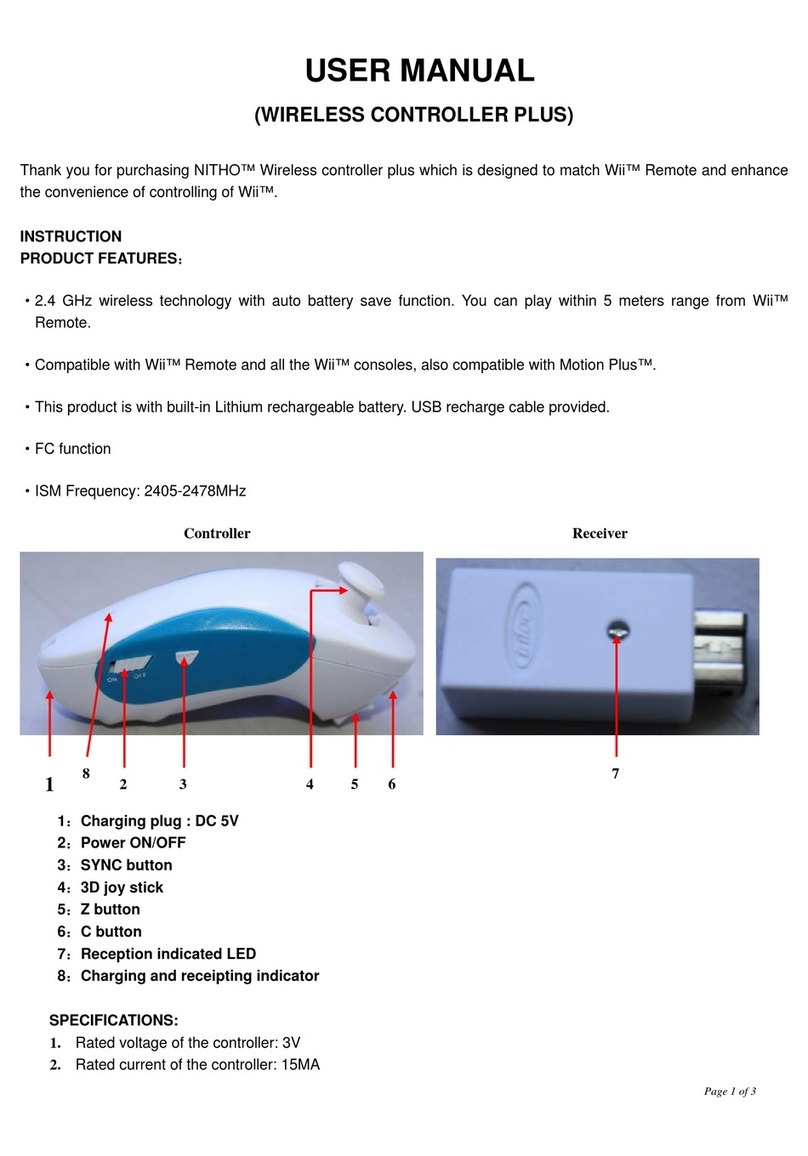
SPECIFICATIONS
THANK YOU FOR CHOSING NITHO DRIVE PRO WHEEL.
WE WOULD LIKE TO INTRODUCE ITS SPECIFICATIONS :
A、Compatible with Windows® 10, PS3®, PS4®, XBOX ONE®,
SWITCH® and supports US, EU, Japan versions` consoles
B、Home button to enter into Settings on PS3®, PS4®, XBOX ONE® consoles
C、It`s provided with 2 axis a D-pad and 12 action buttons
D、6 programmable buttons:
Le Wing ,Right Wing ,Accelerator Pedal ,
Brake Pedal ,L3,R3
E
、
4 suction cups to keep the wheel stable
F
、
180 degrees wheel rotation, lock to lock
G
、
Three selectable sensibility levels
H、Spring loaded pedals
I
、
X-INPUT & D-INPUT modes selector (X-INPUT mode as default)
J、Table clamps

BUTTON LAYOUT
Red LED:
MODE indicator
Pedals port
L-wing
gear shi
D-PAD
R-Wing
gear shi
Channels LED
Controller
sync port
Green LED:
Program indicator
Programmable
buttons
Brake (
□
/1/LT) Accelerator (X/2/RT)

FUNCTION KEYS
Mode PS3® PS4® XBOX
ONE®
PC
(X-INPUT) (D-INPUT)
X X A A 2 B
○ ○ B B 3 A
□ □ X X 1 Y
△ △ Y Y 4 X
R1 R1 RB RB 6 R
L1 L1 LB LB 5 L
R2 R2 RT RT 8 ZR
L2 L2 LT LT 7 ZL
R3 R3 SR SR 12 R3
L3 L3 SL SL 11 L3
UP UP UP UP UP UP
DOWN DOWN DOWN DOWN DOWN DOWN
LEFT LEFT LEFT LEFT LEFT LEFT
RIGHT RIGHT RIGHT RIGHT RIGHT RIGHT
START OPTIONS Menu START 10 +
SELECT SHARE View BACK 9 -
Direction LX LX ←/→ ←/→ ←/→
L-Wing L2 L1 LB LB 7 ZL
R-WING R2 R1 RB RB 8 ZR
L-Pedal □L2 LT LT 1 B
R-Pedal X R2 RT RT 2 Y
Mode HOME HOME X-Guide X-Guide 13 HOME
D-PAD
Function Key
Action Key
PC SWITCH®
LX

FUNCTION INTRODUCTION
1、The DEFAULT buttons are :
□/X, ○/B, △/Y, X/A, L1/LB, L2/LT, R1/RB, R2/RT
2、The PROGRAMMABLE buttons are :
L-Paddle , R-Paddle , Accelerator pedal , Brake pedal, L3/SL, R3/SR, Gear-shi
· · INTRODUCTION TO THE SETUP
1、 Press & hold “SHARE” + “OPTIONS” for 3 seconds until
the LED change colour
2、Press the PROGRAMMABLE button until the LED starts blinking
3、Press the DEFAULT button until the LED stops blinking
· HOW TO CUSTOMIZE YOUR SETUP
1、 Press & hold “SHARE” + “OPTIONS” for 3 seconds until
the LED changes colour
2、Press the programmed button until the LED starts blinking
3、Press the programmed button until the LED stops blinking
· HOW TO RESET TO DEFAULT A PROGRAMMATION
1、 Press & hold “SHARE” + “OPTIONS” for 3 seconds until the
LED changes colour
2、Press & hold “OPTIONS” for 4 seconds until the LED changes colour again
All the programmed buttons are cleared
Note:
All settings will NOT be cleared when the wheel is powered o
· HOW TO RESET TO DEFAULT ALL THE PROGRAMMATIONS
PROGRAM FUNCTIONS
You can assign to the (PROGRAMMABLE) buttons the functions of the (DEFAULT) buttons

1、 Press & hold “SHARE” + “OPTIONS” for 3 seconds until the
LED changes colour
2、Press D-PAD RIGHT until the LED changes colour again
L-Paddle and R-Paddle will be programmed as Y-AXIS ( Accelerator & Brake )
· HOW TO PROGRAM THE L-PADDLE & R-PADDLE
AS ACCELERATOR & BRAKE
1、 Press & hold “SHARE” + “OPTIONS” for 3 sec until the LED changes colour
2、Press the L/R-Paddle or pedal , the LED will start to blink
3、Press the L/R-Paddle or pedal until the LED turn o
To change the sensitivity the path is as below:
· HOW TO CLEAR THE PROGRAMMATION OF
L/R-WING OR PEDALS
* Press D-PAD UP to conrm and quit
Middle
(Green LED is ashing)
High
(Green LED ashes quickly)
Low
(Green LED ashes slowly)

PLATFORMS
1、Connect the wheel to PS4® console then connect the pedal to the wheel
2、Connect the wheel to original PS4® controller with the original USB cable (or a
cable with data function)
3、Aer the connection has been established, the RED LED on the wheel will turn on
then press the HOME button on the wheel to start the game
4、During PS4® gameplay, press the HOME button once to enter the XBM window
PS3® GUIDE
PS4® GUIDE
XBOX ONE® GUIDE
1、 Connect the wheel to PS3® console and connect the pedal to the wheel
2、During PS3® gameplay, press the HOME button once to enter the XBM window
3、Press & hold the HOME button to enter in the MENU setup window
1、 Connect the wheel to XBOX ONE® console then connect the pedal to the wheel
2、Connect the wheel to original XBOX ONE® controller with the original USB cable
(or a cable with data function)
3、Aer the connection has been established, the RED LED on wheel will be on
4、During XBOX ONE® gameplay, press the HOME button to enter the main menu
SWITCH® GUIDE
1.、Connect the wheel to SWITCH® console then connect the pedal to the wheel.
2、Aer the connection has been established, the RED LED on the wheel will turn on
3、Follow the route to activate the wheel : System Settings -> Controllers and
sensors -> Pro Controller Wired Communication -> Set to "ON"
To screenshot :
Press“SELECT/SHARE/9/VIEW/-” and “START/OPTIONS/10/MENU/+”

1、 Start→Control Panel→programs/Function
2、Find the driver you want to remove in the Interface ”current installed programs”
Click “Remove” and follow the instructions to get the successful uninstall
· DRIVER UNINSTALL
PC GUIDE
1、 The wheel is set on X-INPUT as default
2、Press & hold HOME for 3seconds to switch to D-input then the LED will switch
o and switch on again aer 0.5seconds
· X-INPUT
1、 Enter Test interface to check buttons and axis functions
2、Enter Calibration interface to calibrate the axis
· TEST
1.、Connect the wheel to SWITCH® console then connect the pedal to the wheel.
2、Aer the connection has been established, the RED LED on the wheel will turn on
3、Follow the route to activate the wheel : System Settings -> Controllers and
sensors -> Pro Controller Wired Communication -> Set to "ON"
To screenshot :
Press“SELECT/SHARE/9/VIEW/-” and “START/OPTIONS/10/MENU/+”

TROUBLE SHOOTING
PRECAUTIONS
1、If the connection LED is not on, please re-connect to the controller again and
retry.
2、If the wheel do not give any response, turn o and on again the console and
procees the wheel setup once again
1、Read carefully the user manual before using the wheel
2、Do not disassemble or modify
3、Avoid to store in a smoky, humid or dusty place

SERVICE & SUPPORT
For any question and support request, contact us on
www.nitho.com
WWW.NITHO.COM NITHOGAMES
NITHOGAMES
www.nitho.com
NiTHO GmbH – Victoriastrasse 3b – 86150 Augsburg – Germany
Other manuals for DRIVE PRO
3
This manual suits for next models
2
Table of contents
Other Nitho Video Game Controllers manuals