Nexotek NT-P500 User manual


TABLE OF CONTENTS i
Table of Contents
Chapter 1: Introduction 1
o What is Skype? 1
o What about my NexoTek phone? 1
o Product Features 1
o Package Contents 2
o System Requirements 2
Chapter 2: Setting Up Skype 3
o Download and Installation 3
o Creating a New Skype Account 7
o Making a Test Call 10
Chapter 3: Installing SkyMagic 12
o Installing the Software 12
Chapter 4: Connecting Your Phone 17
Chapter 5: Getting to Know Your Phone 18
o Keypad Buttons 18
o Screen Icons 19
Chapter 6: Using Your Phone 20
o General Operation 20
Viewing Your Contact List & Contact Info 20
Viewing Your Call History 21
Choosing Your Ring Tone 21
Hands-Free Operation 21
o Making And Receiving Calls 22
Answering and Refusing Calls 22
Calling From Your Contacts List 22
Calling From Your Call History 23
Calling Using Speed Dial 23
Making SkypeOut Calls 24
o Advanced Features 25
The Hold Function 25
The Call Waiting Function 25
The Mute Function 25

Chapter 7: Troubleshooting 26
o SkyMagic Icon Indicators 26
Enabling SkyMagic to use Skype 27
o Your Computer Audio Settings 29
o Contacting NexoTek 32
Appendices 33
o Appendix A: Managing Skype Contacts 33
Adding a Skype Contact 33
Removing a Skype Contact 36
o Appendix B: Assigning a Speed Dial Number 37
o Appendix C: Purchasing Skype Credit 39
o Appendix D: Updating SkyMagic 43

CHAPTER 1: INTRODUCTION 1
What is Skype?
Skype is a program that essentially turns your computer into a phone and allows you to
make calls over the Internet to other Skype users. Because the connection is established
over the Web, Skype-to-Skype calls are completely free of charge, and this is why phone
companies do not want you to know about Skype. You can use Skype to call people as
close by as your neighbors or as far away as someone on the opposite side of the globe.
It’s simple, efficient, and gets rid of long-distance calling costs.
What about my NexoTek phone?
Your NexoTek phone has been designed to be used with Skype for a more convenient
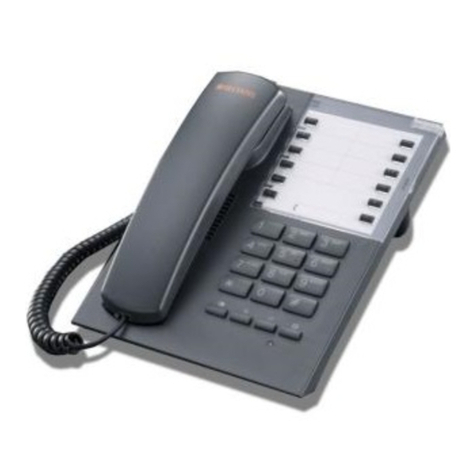
Internet calling experience. The NT-P500 USB Skype Smart Phone provides you with the
ease and style of a mobile phone when making Skype calls. Its graphic LCD display with
blue backlight allows you to view your Skype contacts and call history right on the
phone. Depending on your operating system, your NT-P500 displays your own language
characters. It also has caller ID, mute, hold, and call waiting functions. For hands-free
use, you can also use the headset jack. The phone rings for all incoming calls, and it
includes five different ring styles each at two volume levels. NexoTek’s noise reduction
and echo cancellation technology ensure that you will have only the best quality calls.
Product Features
• Large graphic LCD display screen with bright blue backlight
• Skype contacts and call history easily viewable right on the phone
• Displays your own operating system’s language characters
• Caller ID, mute, hold, and call waiting functions
• Headset jack to give you the option of hands-free use
• Rings for all incoming calls
• Five different ring styles each at two volume levels
• Noise reduction and echo cancellation technology deliver clear, high-quality calls

CHAPTER 1: INTRODUCTION 2
Package Contents
Your NT-P500 box contains the following items:
One (1) NexoTek NT-P500 USB Skype Smart Phone
One (1) SkyMagic installation CD
One (1) User Manual
System Requirements
In order to use your phone and the necessary software that accompanies it, your computer
must have the following:
One (1) of the following compatible platforms:
o Windows 2000
o Windows XP
Minimum 400 MHz processor
128 MB RAM
15 MB free disk space
One (1) of the following compatible USB ports:
o USB 1.1
o USB 2.0
Broadband Internet connection: cable, DSL

CHAPTER 2: SETTING UP SKYPE 3
How do I set up Skype?
In order to use your phone, you will need the Skype program installed on your computer.
If you already have Skype installed, please skip to Chapter 3.
There are three main parts of the Skype setup process. First, you must download the
program for free from the Internet and install it to your computer. Then you will create a
Skype account by picking out a user name and password. Finally, you will make a test
call to ensure that Skype is running successfully on your computer.
Download and Installation
The first part of setting up Skype involves downloading the program from the Skype Web
site and installing it on your computer. You must be connected to the Internet to do this.
1. To begin, open your Web browser. In the address bar, type in the URL for the
Skype home page: http://www.skype.com and press your Enter key.
2. When the Skype Web page has fully loaded, click on the link that says
Download Skype.

CHAPTER 2: SETTING UP SKYPE 4
3. On the next page that loads, press the Download button.
4. Another page will load. Press the Download button once again.
5. When the download window opens, choose the Run option.

CHAPTER 2: SETTING UP SKYPE 5
6. Your computer will now download a file called SkypeSetup.exe. This may
take a few seconds.
7. When the download finishes, you will see a window asking what you want to do
with the file. Again, press the button that says Run.

CHAPTER 2: SETTING UP SKYPE 6
8. A window containing the Skype End User License Agreement will
appear. Check the box that says Yes, I accept the EULA and I have
read the Privacy Statement. Then click Install. The Skype files
will now be copied to your computer.
9. You will now see the sign-in window, signifying that you have completed the
download and installation of the program. If you already have a Skype account,
sign in and skip to Chapter 3. If you do not, continue to the next part of the setup,
creating a new account.

CHAPTER 2: SETTING UP SKYPE 7
Creating a New Skype Account
1. Now you will begin the second part of setting up Skype, creating a new account.
You will make a user name and a password to log in and use the program. This is
the name exclusive to you that you will use to talk to other people in the Skype
community. To set up a new account, begin by clicking on the link in the sign-in
window that says Don’t have a Skype Name?
2. When you do this, a new window titled Create a New Skype Account
will appear. Enter the required information, taking note to remember what you
choose to put in Choose Skype Name and Password. This is the account
name you will use to talk to other Skype users, and you need the password to sign
into your account. Check the box indicating that you accept the Skype End User
License Agreement and the Skype Privacy Statement. Then hit Next>.
Other manuals for NT-P500
2
Table of contents
Other Nexotek Telephone manuals