Netgate Wireless Multi-Client Bridge User manual

Wireless Multi-Client
Bridge / Access Point / Repeater
User’s Manual
Version: 1.2

Wireless Multi-Client Bridge / Access Point / Repeater Version 1.2
Page 2 of 2
Table of Contents
1 INTRODUCTION .................................................................................................................... 5
1.1 FEATURES & BENEFITS ..................................................................................................... 5
1.2 PACKAGE CONTENTS ........................................................................................................ 5
1.3 APPLICATIONS .................................................................................................................. 6
1.4 NETWORK CONFIGURATION............................................................................................... 7
2 UNDERSTANDING THE HARDWARE .................................................................................. 9
2.1 HARDWARE CONFIGURATION............................................................................................. 9
2.2 HARDWARE INSTALLATION ................................................................................................. 9
2.3 DEFAULT IP ADDRESS ....................................................................................................... 9
3 PC CONFIGURATION.......................................................................................................... 10
3.1 TCP/IP CONFIGURATION ................................................................................................ 10
4 SWITCH BETWEEN BRIDGE & ACCESS POINT ...............................................................11
4.1 BRIDGE TO ACCESS POINT ...............................................................................................11
4.2 ACCESS POINT TO BRIDGE .............................................................................................. 12
5 BRIDGE MODE – WEB CONFIGURATION ........................................................................ 14
5.1 LOGGING IN.................................................................................................................... 14
5.2 SYSTEM ......................................................................................................................... 15
5.2.1 Administrator Settings ......................................................................................... 16
5.2.2 Firmware Upgrade............................................................................................... 16
5.2.3 Configuration Tools.............................................................................................. 17
5.2.4 Status................................................................................................................... 17
5.2.5 Operation............................................................................................................. 18
5.2.6 Reset ................................................................................................................... 19
5.3 LAN .............................................................................................................................. 19
5.3.1 LAN Settings........................................................................................................ 19
5.3.2 DHCP Settings..................................................................................................... 20
5.4 WIRELESS...................................................................................................................... 20
5.4.1 General................................................................................................................ 20
5.4.2 Advanced............................................................................................................. 21
5.4.3 WPA..................................................................................................................... 22
5.4.4 WEP..................................................................................................................... 23
6 ACCESS POINT MODE – WEB CONFIGURATION ........................................................... 24
6.1 LOGGING IN.................................................................................................................... 24
6.2 SYSTEM ......................................................................................................................... 25
6.2.1 Administrator Settings ......................................................................................... 25
6.2.2 Firmware Upgrade............................................................................................... 26
6.2.3 Configuration Tools.............................................................................................. 26
6.2.4 Status................................................................................................................... 26
6.2.5 Operation............................................................................................................. 27
6.3 LAN .............................................................................................................................. 28
6.3.1 LAN Settings........................................................................................................ 29
6.3.2 DHCP Settings..................................................................................................... 29
6.4 FILTERING ...................................................................................................................... 30
6.4.1 MAC Filtering....................................................................................................... 30
6.5 WIRELESS...................................................................................................................... 31
6.5.1 General................................................................................................................ 31

Wireless Multi-Client Bridge / Access Point / Repeater Version 1.2
Page 3 of 3
Table of Contents
6.5.2 Advanced............................................................................................................. 32
6.5.3 WPA..................................................................................................................... 32
6.5.4 802.1x .................................................................................................................. 33
6.5.5 WEP..................................................................................................................... 34
6.5.6 WDS .................................................................................................................... 34
APPENDIX A – SPECIFICATIONS............................................................................................... 36
APPENDIX B – FCC INTERFERENCE STATEMENT ................................................................. 38

Wireless Multi-Client Bridge / Access Point / Repeater Version 1.2
Page 4 of 4
Revision History
Version Date Notes
1.0 September 15, 2003 Initial Version
1.1 October 1, 2003 Updated GUI
1.2 January 29, 2004 Modified System, Status, WPA screen captures

Wireless Multi-Client Bridge / Access Point / Repeater Version 1.2
Page 5 of 5
1 Introduction
This chapter describes the features & benefits, package contents, applications, and
network configuration.
1.1 Features & Benefits
Features Benefits
High RF Output Power More coverage of regular Multi-Client Bridge.
IEEE 802.11b/g Compliant Fully Interoperable with IEEE 802.11b/
IEEE802.11g compliant.
Point-to-point, Point-to-multipoint
Wireless Connectivity
Allows users to transfer data between multiple
buildings.
Plug and Play No driver needed, quickly and easily connects
your Ethernet device to Wireless.
Power-over-Ethernet Flexible Access Point locations and cost savings.
64 /128-bit WEP data encryption Powerful data security.
Hide SSIDʳ(AP Mode) Avoids unauthorized users from sharing the
bandwidth and increases efficiency of the network.
DHCP Client/ Server Simplifies network administration.
WDS (Wireless Distribution System) Configures wireless AP and Bridge mode
simultaneously as a wireless repeater.
MAC address filteringʳ(AP Mode) Ensures secure network connections.
Seamless Roaming Allows users to roam between APs without losing
their network connection.
1.2 Package Contents
h One Client Bridge/Access Point/Repeater
h One Power Adapter
h One CAT 5 UTP Cable
h One Fast Start Guide
h One CD-ROM with User’s Manual Included

Wireless Multi-Client Bridge / Access Point / Repeater Version 1.2
Page 6 of 6
1.3 Applications
The wireless LAN products are easy to install and highly efficient. The following
list describes some of the many applications made possible through the power
and flexibility of wireless LANs:
a) Difficult-to-wire environments
There are many situations where wires cannot be laid easily. Historic
buildings, older buildings, open areas and across busy streets make
the installation of LANs either impossible or very expensive.
b) Temporary workgroups
Consider situations in parks, athletic arenas, exhibition centers,
disaster-recovery, temporary offices and construction sites where one
wants a temporary WLAN established and removed.
c) The ability to access real-time information
Doctors/nurses, point-of-sale employees, and warehouse workers can
access real-time information while dealing with patients, serving
customers and processing information.
d) Frequently changed environments
Show rooms, meeting rooms, retail stores, and manufacturing sites
where frequently rearrange the workplace.
e) Small Office and Home Office (SOHO) networks
SOHO users need a cost-effective, easy and quick installation of a
small network.
f) Wireless extensions to Ethernet networks
Network managers in dynamic environments can minimize the
overhead caused by moves, extensions to networks, and other
changes with wireless LANs.
g) Wired LAN backup
Network managers implement wireless LANs to provide backup for
mission-critical applications running on wired networks.
h) Training/Educational facilities
Training sites at corporations and students at universities use wireless
connectivity to ease access to information, information exchanges,
and learning.

Wireless Multi-Client Bridge / Access Point / Repeater Version 1.2
Page 7 of 7
1.4 Network Configuration
To better understand how the wireless LAN products work together to create a
wireless network, it might be helpful to depict a few of the possible wireless LAN
PC card network configurations. The wireless LAN products can be configured
as:
a) Ad-hoc (or peer-to-peer) for departmental or SOHO LANs.
b) Infrastructure for enterprise LANs.
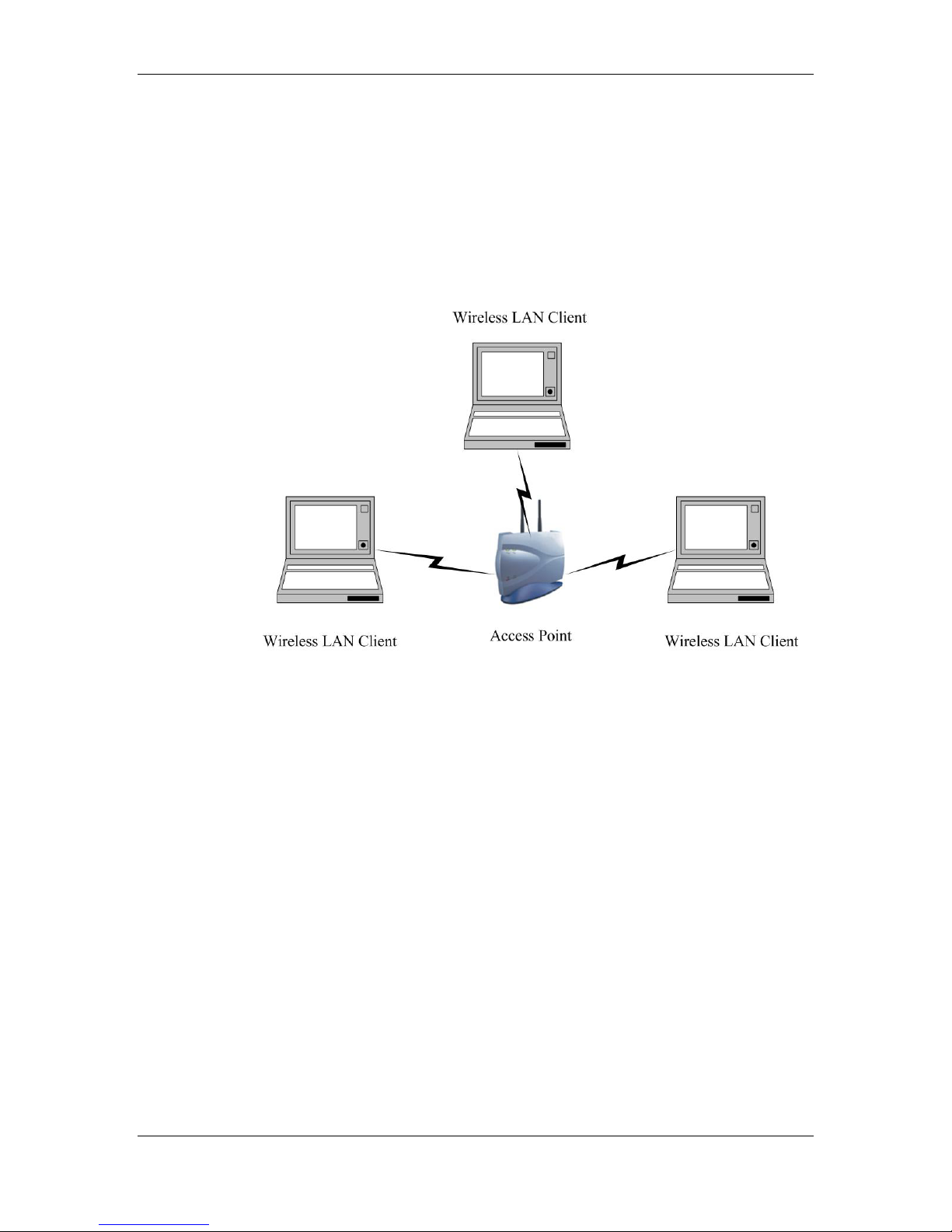
a) Ad-Hoc (peer-to-peer) Mode
This is the simplest network configuration with several computers
equipped with the PC Cards that form a wireless network whenever they
are within range of one another. In ad-hoc mode, each client is peer-to-
peer, would only have access to the resources of the other client and
does not require an access point. This is the easiest and least expensive
way for the SOHO to set up a wireless network. The image below depicts
a network in ad-hoc mode.
Wireless Multi-Client Bridge / Access Point / Repeater Version 1.2
Page 8 of 8
b) Infrastructure Mode
The infrastructure mode requires the use of an access point (AP). In this
mode, all wireless communication between two computers has to be via
the AP. It doesn’t matter if the AP is stand-alone or wired to an Ethernet
network. If used in stand-alone, the AP can extend the range of
independent wireless LANs by acting as a repeater, which effectively
doubles the distance between wireless stations. The image below
depicts a network in infrastructure mode.

Wireless Multi-Client Bridge / Access Point / Repeater Version 1.2
Page 9 of 9
2 Understanding the Hardware
2.1 Hardware Configuration
h RJ-45 Ethernet Connector – Provides 10/100 Mbps connectivity to a
wired Ethernet LAN.
h Reset Button – By holding this down for more than five seconds, the AP
will reset to its factory default settings.
h Power Supply Connector – Connects to the power adapter.
2.2 Hardware Installation
A. Configure your notebook or PC with a wireless LAN card.
B. For a wired LAN, connect your PC’s Ethernet port to the AP’s LAN port via an
Ethernet cable.
C. For WLAN, position the Access Point in a proper location.
D. Plug in the power cord into the power outlet.
2.3 Default IP address
This device can be configured as a Bridge or an Access Point. By default, this
device is configured as a Bridge, and the default IP address in Bridge mode is:
192.168.1.1. The default IP address for Access Point mode is: 192.168.1.2.
In order to switch between Bridge and Access Point modes refer to Chapter 4 –
Switch Between Bridge & Access Point.
Wireless Multi-Client Bridge / Access Point / Repeater Version 1.2
Page 10 of 10
3 PC Configuration
3.1 TCP/IP Configuration
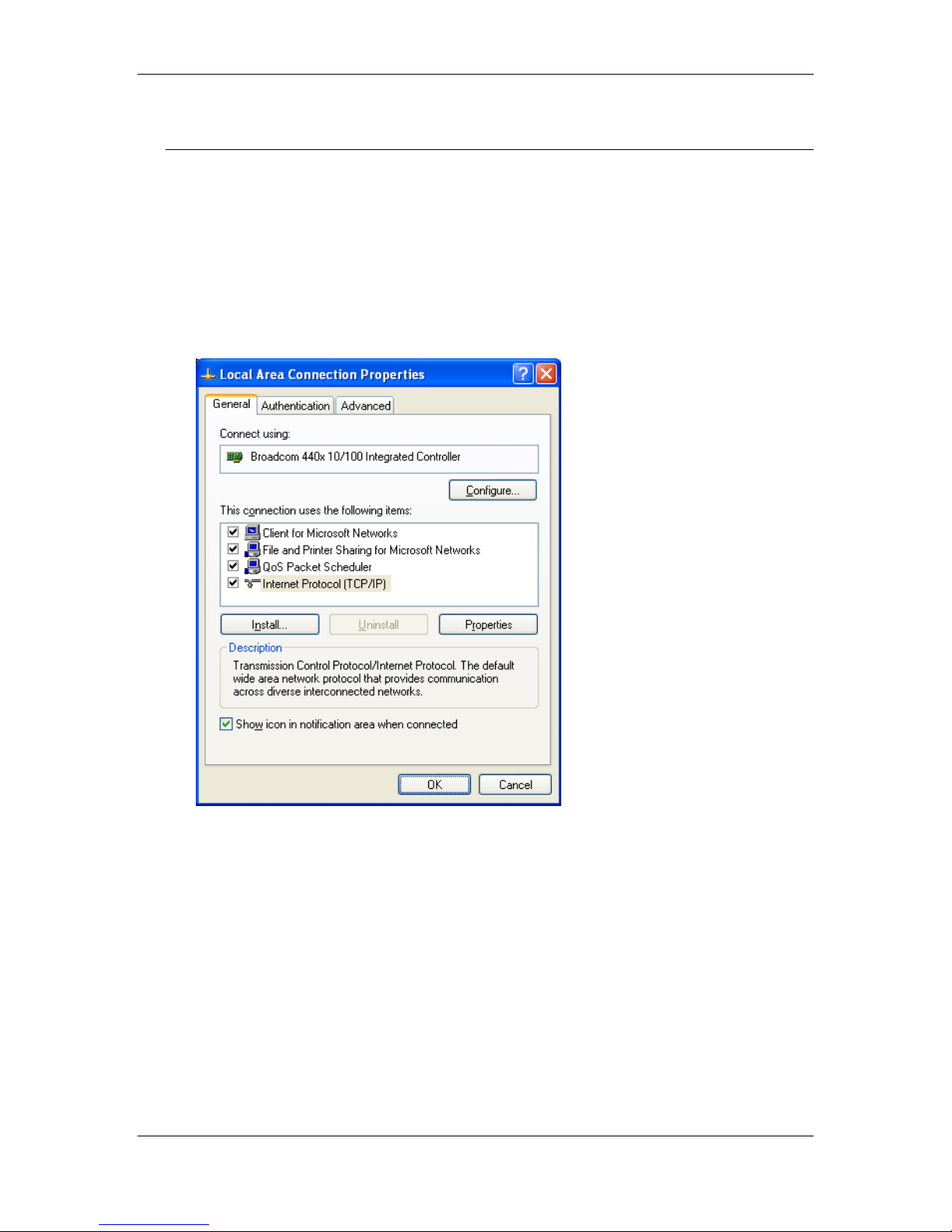
Follow the steps below in order to configure the TCP/IP settings of your PC.
A. In the Control Panel double click Network Connections, and then double
click on the connection of your Network Interface Card (NIC). You will then
see the following screen.
B. Select Internet Protocol (TCP/IP) and then click on the Properties button.
This will allow you to configure the IP address of your PC. You will then see
the following screen.
This manual suits for next models
1
Table of contents