NetComm NP5430 User manual


www.netcomm.com.au Rev. 1 - YML669
Page 2 NP5430 11g Wireless PC Card User Guide
Contents
Chapter 1 - Introduction................................................................................................. 3
Features........................................................................................................... 3
What is Wireless LAN?.................................................................................... 3
Wireless LAN Modes ....................................................................................... 4
Chapter 2 - Hardware Installation................................................................................. 5
Package Contents ........................................................................................... 5
System Requirements for the Adapter ............................................................ 5
Hardware description ...................................................................................... 5
Inserting the Wireless LAN PC Card............................................................... 5
LED Indicators ................................................................................................. 6
Ejecting the Wireless LAN PC Card ................................................................ 6
Chapter 3 - Driver Installation for Windows .................................................................. 7
Driver installation for Windows 98................................................................... 7
Driver installation for Windows 2000 .............................................................. 8
Driver installation for Windows ME.................................................................. 8
Driver installation for Windows XP .................................................................. 9
Chapter 4 - Installing and Using the Wireless Utility.................................................. 10
Installation in Windows ................................................................................. 10
Configuring the Wireless LAN PC Card ........................................................ 10
Using the Wireless LAN PC Card ................................................................. 12
Chapter 5 - Installing Network Protocols .................................................................... 14
Installing the Network Protocols for Windows 98 and Millennium ............... 14
Appendix A: Troubleshooting ...................................................................................... 15
Common Problems and Solutions ............................................................... 15
Frequently Asked Questions ......................................................................... 16
Appendix B: Glossary .................................................................................................. 18
Specifications .............................................................................................................. 23
Registering your NetComm Product........................................................................... 24
Trademarks and Notices ............................................................................................ 24
Warranty Registration Form .......................................................................... 25
Product Warranty............................................................................................ 27
Limitations of Warranty .................................................................................. 27

Rev. 1 - YML669 www.netcomm.com.au
NP5430 11g Wireless PC Card User Guide Page 3
Chapter 1 - Introduction
Thank you for purchasing the NetComm Wireless LAN PC Card. This high-speed Wireless
LAN PC Card provides you with an innovative wireless networking solution. The Adapter is
easy to set up and use and, with innovative wireless technology of 11G, you can share files and
printers on the network-without wires!
Wireless-G (802.11g) is the 54Mbps wireless networking standard that's almost five times faster
than the widely deployed Wireless-B (802.11b) products found in homes, businesses, and
public wireless hotspots around the country - but since they share the same 2.4GHz radio band,
Wireless-G devices can also work with existing 11Mbps Wireless-B equipment. The new
NetComm 11g PC Card Adapter from NetComm has both standards built in, so you can connect
your notebook to existing 802.11b infrastructure, and also the new screaming fast Wireless-G
networks.
Along with the device Drivers for Windows Operating Systems, your are also provided with a
utility for the configuration of the Adapter. The Utility, as well as the installation steps of the
plug-and-play procedure for the Windows operating systems, is described in this document.
Features
The NetComm Wireless LAN PC Card offers compliance with the IEEE 802.11g specification.
This feature allows them to communicate with other wireless devices that support the standard.
Features of the Adapter are:
■High-speed Wireless-G (802.11g) networking for your notebook computer
■Data rates up to 54Mbps -- 5 times faster than Wireless-B (802.11b)
■Also interoperates with Wireless-B networks (at 11Mbps)
■Wireless security -- up to 128-bit WEP encryption
What is Wireless LAN?
Wireless Local Area Network (WLAN) systems offer a great number of advantages over
traditional wired systems. WLAN is flexible and easy to setup and manage. They are also more
economical than wired LAN systems.
Using radio frequency (RF) technology, WLAN transmit and receive data through the air.
WLAN combine data connectivity with user mobility. For example, users can roam from a
conference room to their office without being disconnected from the LAN.
Using WLAN, users can conveniently access-shared information, and network administrators
can configure and augment networks without installing or moving network cables.
WLAN technology provides users with many convenient and cost saving features:
■Mobility: WLAN provide LAN users with access to real-time information anywhere in their
organization, providing service opportunities that are impossible with wired networks.

www.netcomm.com.au Rev. 1 - YML669
Page 4 NP5430 11g Wireless PC Card User Guide
■Ease of Installation: Installing is easy for novice and expert users alike, eliminating the need
to install network cables in walls and ceilings.
■Scalability: WLAN can be configured in a variety of topologies to adapt to specific
applications and installations. Configurations are easily changed and range from peer-to-peer
networks suitable for a small number of users to full infrastructure networks of thousands of
users roaming over a broad area.
Wireless LAN Modes
Wireless LANs can be configured in one of two ways:
Ad-hoc Networking
Also known as a peer-to-peer network, an ad-hoc network is one that allows all workstations
and computers in the network to act as servers to all other users on the network. Users on the
network can share files, print to a shared printer, and access the Internet with a shared modem.
However, with ad-hoc networking, users can only communicate with other wireless LAN
computers that are in the wireless ad-hoc workgroup, and are within range.
Infrastructure Networking
Infrastructure networking differs from ad-hoc networking in that it requires an access point.
Unlike the ad-hoc structure where users on the LAN contend the shared bandwidth, on an
infrastructure network the access point can manage the bandwidth to maximize bandwidth
utilization. Additionally, the access point enables users on a wireless LAN to access an existing
wired network, allowing wireless users to take advantage of the wired networks resources, such
as Internet, email, file transfer, and printer sharing. Infrastructure networking has the following
advantages over ad-hoc networking:
■Extended range: each wireless LAN computer within the range of the access point can
communicate with other wireless LAN computers within range of the access point.
■Roaming: the access point enables a wireless LAN computer to move through a building and
still be connected to the LAN.
■Wired to wireless LAN connectivity: the access point bridges the gap between wireless
LANs and their wired counterparts.
Notes on Wireless LAN Configuration
When configuring a wireless LAN (WLAN), be sure to note the following points:
■Optimize the performance of the WLAN by ensuring that the distance between access
points is not too far. In most buildings, WLAN Adapters operate within a range of 30 - 100
meters, depending on the thickness and structure of the walls.
■Radio waves can pass through walls and glass but not metal. If there is interference in
transmitting through a wall, it may be that the wall has reinforcing metal in its structure.
Install another access point to circumvent this problem.
■Floors usually have metal girders and metal reinforcing struts that interfere with WLAN
transmission.

Rev. 1 - YML669 www.netcomm.com.au
NP5430 11g Wireless PC Card User Guide Page 5
Chapter 2 - Hardware Installation
This chapter covers installing your NetComm Wireless LAN PC Card into a CardBus slot in
your notebook.
Package Contents
Please make sure that items below are included on package.
■One NetComm Wireless LAN PC Card
■One CD containing drivers and documentation
■One User Guide
System Requirements for the Adapter
■Operating System: Microsoft Windows 98/ME/2000/XP
■Notebook with CD-ROM drive
■One free CardBus slot
■Pentium-Class 90MHz or higher
Hardware description
The Wireless LAN PC Card is encased in a stainless compact frame and has a 68-pin connector
for attaching to the CardBus port of notebook.
Inserting the Wireless LAN PC Card
Note! These instructions apply to most notebook computers. For detailed information on
inserting PC cards into your notebook, consult the notebook manual.
Follow the procedure below to install the Wireless LAN PC Card.
1. With 68-pin connector of the card facing the CardBus slots on notebook, slide the card all
the way into an empty slot.
2. If this is the first time the card has been inserted you will be prompted to install drivers. See
Chapter 3 for details.

www.netcomm.com.au Rev. 1 - YML669
Page 6 NP5430 11g Wireless PC Card User Guide
LED Indicators
The following table describes the meaning of LED indicators:
LED MEANING
POWER Indicates that the Adapter is powered on (solid green).
LINK Indicates link status. It is normally blinking. When blinking,
indicates that the card is scanning the channels, and the link is
not active. When lit, indicates that the card is locked to a channel,
and the link is active.
Ejecting the Wireless LAN PC Card
After disconnecting from the LAN, you can eject the Wireless LAN PC Card from the PC Card
slot of notebook.
Note! In Windows XP/2000/ME/98 operating systems, you do not have to power down the
notebook to remove the card. The card is hot-swappable - you can remove the card
when the notebook is powered on. However, Microsoft recommends that you stop
the card. Refer to your Windows 2000/ME/98 online help for information on
stopping the Wireless LAN PC Card.
Most notebooks have an eject lever or button for ejecting PC cards from the PC slots. Consult
your notebook manual for details.
Warning! To prevent data loss, do not eject the Wireless LAN PC Card when a data
transmission is taking place. Exit your communications program normally, stop the
card if necessary, and then remove the card.
After hardware installation is completed, please go to Chapter 3 to install driver on different
Operating System.

Rev. 1 - YML669 www.netcomm.com.au
NP5430 11g Wireless PC Card User Guide Page 7
Chapter 3 - Driver Installation for Windows
The following sections cover NetComm Wireless LAN PC Card driver installation in the
Windows Operating Systems.
Note! You have to install your hardware first before you begin to install the drivers.
Driver installation for Windows 98
Follow the steps below to install the NetComm Wireless LAN PC Card drivers for Windows
98.
1. Insert the NetComm Wireless LAN PC Card into a CardBus slot in the notebook. (Refer to
Chapter 2 - Hardware installation.)
2. After Windows 98 detects the NetComm Wireless LAN PC Card, the Add New Hardware
Wizard window appears. Clicks Next to continue the installation.
3. A screen appears prompting you to select an installation method. Select Search for the best
driver for your device. (Recommended) and click Next to continue.
4. Ensure that the CD-ROM drive is selected. Insert the driver CD-ROM into your CD-ROM
drive and click Next to continue.
5. Click Next to continue the installation.
6. Windows 98 copies files to your hard disk. Click Finish to finish the installation.
7. You will be instructed to restart your computer to complete the installation. Click Yes to
reboot the system. After a system reboot, the Wireless LAN Utility will be installed
automatically. Please go to Chapter 4 to install the utility.
Note! In most cases, Windows will automatically copy all of the files needed for
networking. If Windows asks you for the files and prompts you to input the path to
the files. Follow the instructions on your screen, and then click OK to continue.

www.netcomm.com.au Rev. 1 - YML669
Page 8 NP5430 11g Wireless PC Card User Guide
Driver installation for Windows 2000
Follow the steps below to install the NetComm Wireless LAN PC Card drivers for Windows
2000.
1. Insert the NetComm Wireless LAN PC Card into a CardBus slot in the notebook. (Refer to
Chapter 2 - Hardware installation.)
2. After Windows 2000 detects the NetComm Wireless LAN PC Card, the Found New
Hardware Wizard window appears. Click Next to start the installation.
3. A screen appears prompting you to select an installation method. Select Search for a suitable
driver for my device (recommended) and click Next to continue.
4. Ensure that the CD-ROM driver is selected and insert the driver CD-ROM into your CD-
ROM drive and click Next to continue.
5. Follow the on screen instructions to complete the driver installation
Then system will start to install Wireless LAN Utility. Please refer to procedures at Chapter 4.
Driver installation for Windows ME
Follow the steps below to install the NetComm Wireless LAN PC Card drivers for Windows
ME.
1. Insert the NetComm Wireless LAN PC Card into a CardBus slot in the notebook. (Refer to
Chapter 2 - Hardware installation.)
2. After Windows ME detects the NetComm Wireless LAN PC Card, the Add New Hardware
Wizard window appears. Select Automatic search for a better driver (Recommended) and
insert the driver CD-ROM into CD-ROM drive and click Next to continue.
3. The system will find the setup files and follow the instruction to copy files to your hard
disk. Click Finish to finish the installation.
4. You will be instructed to restart your computer to complete the installation. Click Yes to
reboot the system. After a system reboot, the Wireless LAN Utility will be installed
automatically. Please go to Chapter 4 to install the utility.
Note! In most cases, Windows will automatically copy all of the files needed for
networking. If Windows asks you for the files and prompts you to input the path to
the files. Follow the instructions on your screen, and then click OK to continue.

Rev. 1 - YML669 www.netcomm.com.au
NP5430 11g Wireless PC Card User Guide Page 9
Driver installation for Windows XP
Follow the steps below to install the NetComm Wireless LAN PC Card drivers for Windows
XP.
1. Insert the NetComm Wireless LAN PC Card into a CardBus slot in the notebook. (Refer to
Chapter 2 - Hardware installation.)
2. After Windows XP detects the NetComm Wireless LAN PC Card, the Found New
Hardware Wizard window appears. Select Install the software automatically
[Recommended] and insert the driver CD-ROM into CD-ROM drive and click Next to
continue.
3. Windows will warn you that the driver is not signed. Click Continue Anyway to continue
the installation.
4. When Windows has finished installing software for the device, click Finish to finish the
installation.
Then system will start to install Wireless utility automatically. Please refer to procedures in
Chapter 4.

www.netcomm.com.au Rev. 1 - YML669
Page 10 NP5430 11g Wireless PC Card User Guide
Chapter 4 - Installing and Using the Wireless Utility
The following sections cover the NetComm Wireless LAN PC Card utility installation and
configuration.
Installation in Windows
After you have installed driver, your system will start to install Wireless LAN Utility. Please
follow the steps below to install the utility.
1. When the InstallShield begins, click Next to continue.
2. The screen will show you the default destination chosen by the utility. Click Next to
continue or click the Browse button to select an alternate destination.
3. The InstallShield will add program icons to the Program Folder. You may type a new folder
name or select one from the existing folders list. Click Next to continue or click Back to
review or change any settings.
4. The settings of the Wireless LAN PC Card will be displayed. Click Next to continue or click
Back to change the Destination Folder in step 3.
5. Once Windows has finished installing Wireless LAN Utility a screen will be displayed
advising you to restart your computer to finish the installation. Click Finish to reboot the
system.
After you have installed the utility, you will see the Wireless LAN Utility icon in the Windows
taskbar.
Configuring the Wireless LAN PC Card
There are two ways to configure the NetComm Wireless LAN PC Card. One is via the Wireless
LAN Utility; and the other is via the Windows Wireless Network Configuration (Windows XP
only).
Using the Windows Wireless Network Configuration (Windows XP only)
1. Click the right key of the mouse and Exit Wireless LAN Utility.
2. Click Windows Wireless Network Configuration icon.
3. Click Advanced… button.
4. Make sure "Use Windows to configure my wireless network settings" is checked and click
OK.
5. Click the Windows Wireless Network Configuration icon again to open the Windows
Wireless Network Configuration.
6. Select an available network and click Connect button.
7. The Windows Wireless Network Configuration will be enabled. Click the Windows Wireless
Configure icon. Windows Wireless Network Configuration is enabled
8. Click Properties to start Windows Wireless Network Configuration.
Other manuals for NP5430
1
Table of contents
Other NetComm Computer Hardware manuals
Popular Computer Hardware manuals by other brands

EMC2
EMC2 VNX Series Hardware Information Guide

Panasonic
Panasonic DV0PM20105 Operation manual

Mitsubishi Electric
Mitsubishi Electric Q81BD-J61BT11 user manual

Gigabyte
Gigabyte B660M DS3H AX DDR4 user manual

Raidon
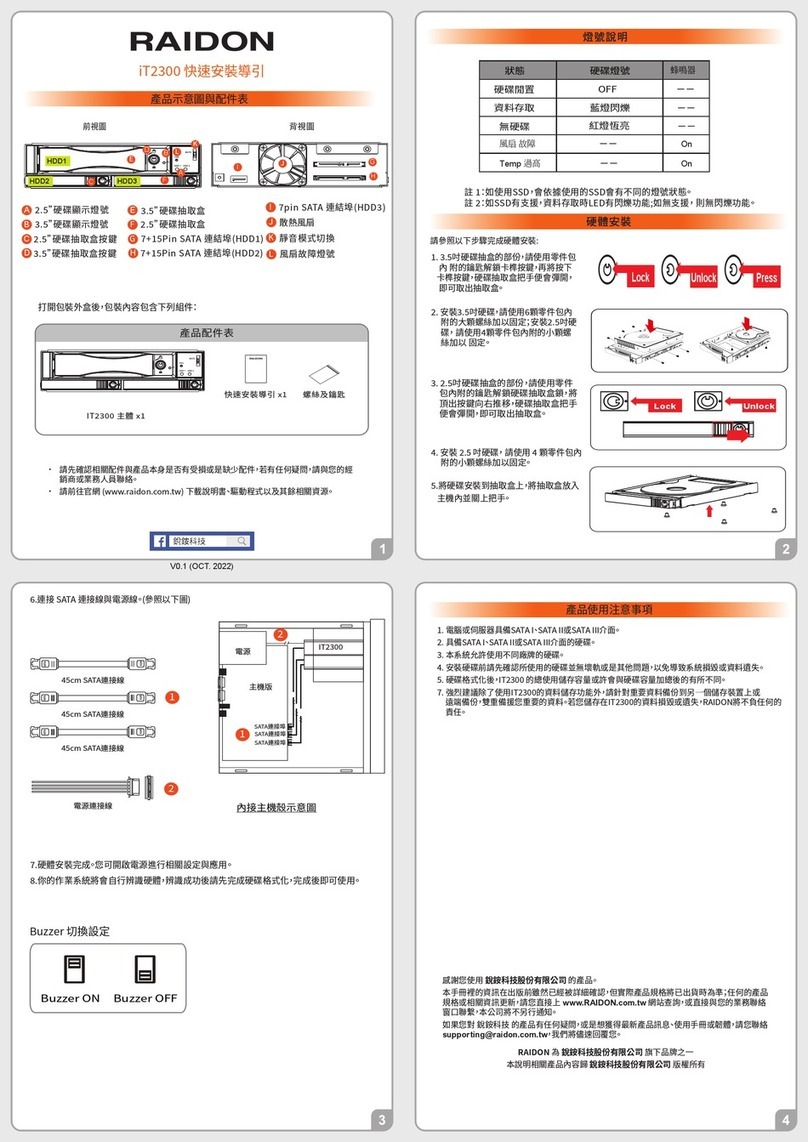
Raidon iT2300 Quick installation guide

National Instruments
National Instruments PXI-8186 user manual