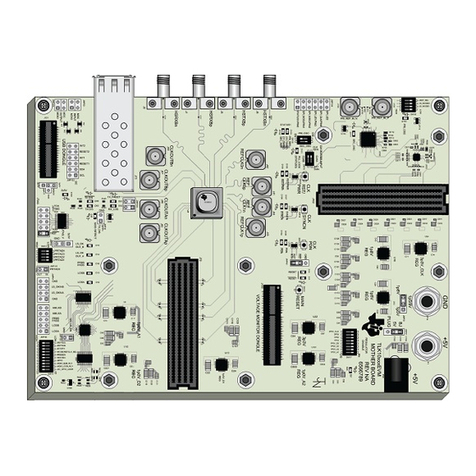
National Instruments PCIe-5785 User manual

GETTING STARTED GUIDE
PCIe-5785
12-Bit, 6.4 GS/s, 2-Channel FlexRIO IF Transceiver Device
This document explains how to install, configure, test, and use the PCIe-5785. You can
program the PCIe-5785 with the following software options.
• FlexRIO driver software
• NI LabVIEW Instrument Design Libraries for FlexRIO (instrument design libraries)
Note Adapter modules are not installable or interchangeable on the PCIe-5785.
Contents
FlexRIO Documentation and Resources...................................................................................2
Verifying the System Requirements..........................................................................................2
Unpacking the Kit..................................................................................................................... 3
PCIe-5785 Kit Contents............................................................................................................ 3
Preparing the Environment....................................................................................................... 3
Installing the Application Software and Driver........................................................................ 4
Installing the PCIe-5785........................................................................................................... 4
PCIe-5785 Front Panel..............................................................................................................5
Configuring the PCIe-5785 in MAX........................................................................................ 7
FlexRIO Examples....................................................................................................................8
Accessing FlexRIO Examples.......................................................................................... 8
Block Diagram.......................................................................................................................... 8
Component-Level Intellectual Property (CLIP)......................................................................11
Making a Measurement with LabVIEW.................................................................................12
Synchronization...................................................................................................................... 12
Sharing Signals and Triggers with Another PCI Express FlexRIO Device....................13
Sharing Signals and Triggers with PCI Express Devices Using RTSI........................... 13
Troubleshooting...................................................................................................................... 14
What Should I Do if the PCIe-5785 Doesn't Appear in MAX?......................................14
What Should I Do if the PCIe-5785 Fails the Self-Test?................................................ 14
Where to Go Next................................................................................................................... 14
Worldwide Support and Services............................................................................................ 15

FlexRIO Documentation and Resources
Table 1. FlexRIO Documentation and Resources
Document/Resource Location Description
PCIe-5785 Getting
Started Guide (this
document)
Available from the Start menu
and at ni.com/manuals.
Contains installation instructions
and basic programming instructions
for your PCIe-5785.
PCIe-5785
Specifications
Available from the Start menu
and at ni.com/manuals.
Contains specifications for your
PCIe-5785.
LabVIEW FPGA
Module Help
Embedded in LabVIEW Help
and at ni.com/manuals.
Contains information about the
basic functionality of the LabVIEW
FPGA Module.
FlexRIO Help Available from the Start menu
and at ni.com/manuals.
Contains information about the
FPGA module front panel
connectors and I/O, programming
instructions, and I/O component-
level IP (CLIP).
LabVIEW Examples Available in NI Example
Finder. In LabVIEW, click
Help»Find Examples»
Hardware Input and
Output»FlexRIO.
Contains examples of how to run
FPGA VIs and Host VIs on your
device.
IPNet Located at ni.com/ipnet. Contains LabVIEW FPGA
functions and intellectual property
to share.
FlexRIO product page Located at ni.com/flexrio. Contains product information and
data sheets for FlexRIO devices.
Verifying the System Requirements
To use the PCIe-5785, your system must meet certain requirements. For more information
about minimum system requirements, recommended system, and supported application
development environments (ADEs), refer to the readme, which is available on the software
media or online at ni.com/updates.
2| ni.com | PCIe-5785 Getting Started Guide

Unpacking the Kit
Notice To prevent electrostatic discharge (ESD) from damaging the device, ground
yourself using a grounding strap or by holding a grounded object, such as your
computer chassis.
1. Touch the antistatic package to a metal part of the computer chassis.
2. Remove the device from the package and inspect the device for loose components or any
other sign of damage.
Notice Never touch the exposed pins of connectors.
Note Do not install a device if it appears damaged in any way.
3. Unpack any other items and documentation from the kit.
Store the device in the antistatic package when the device is not in use.
PCIe-5785 Kit Contents
The following items are included in the device kit:
• The PCIe-5785
• The FlexRIO Support driver software media
• Documentation:
–Maintain Forced-Air Cooling Note to Users
–PCIe-5785 Getting Started Guide (this document)
Preparing the Environment
Ensure the environment in which you are using the PCIe-5785 meets the following
specifications.
Operating environment
Ambient temperature range 0 °C to 45 °C (Tested in accordance with
IEC-60068-2-1 and IEC-60068-2-2. Meets
MIL-PRF-28800F Class 3 low temperature
limit and MIL-PRF-28800F Class 4 high
temperature limit.)
Relative humidity range 10% to 90%, noncondensing (Tested in
accordance with IEC 60068-2-56.)
Pollution Degree 2
PCIe-5785 Getting Started Guide | © National Instruments | 3

Indoor use only.
Note For complete specifications, refer to the specifications document for your
device at ni.com/manuals.
Installing the Application Software and Driver
Before installing your hardware, you must install the application software and instrument
driver. Visit NI FlexRIO Driver Supported Versions for FlexRIO Adapters and Modules to
determine which minimum software versions you need for your device. Install the software in
the following order:
1. Install LabVIEW.
Refer to the LabVIEW Installation Guide for installation instructions for LabVIEW and
system requirements for the LabVIEW software. Refer to the LabVIEW Upgrade Notes
for additional information about upgrading to the most recent version of LabVIEW for
Windows. Documentation for LabVIEW is available at ni.com/manuals and by selecting
Start»All Programs»National Instruments»LabVIEW»LabVIEW Manuals.
2. Install the LabVIEW FPGA Module.
Refer to the LabVIEW FPGA Module Release and Upgrade Notes for installation
instructions and information about getting started with the LabVIEW FPGA Module.
Documentation for the LabVIEW FPGA Module is available at ni.com/manuals and by
selecting Start»All Programs»National Instruments»LabVIEW»LabVIEW
Manuals.
3. (Optional) Install the LabVIEW Real-Time Module.
Refer to the LabVIEW Real-Time Module Release and Upgrade Notes for system
requirements, installation instructions, and additional information about using the
LabVIEW Real-Time Module.
4. Install FlexRIO Support.
Refer to the FlexRIO Readme on the FlexRIO installation media for system requirements
and installation instructions for FlexRIO Support. Documentation for FlexRIO Support is
available at ni.com/manuals and by selecting Start»All Programs»National
Instruments»NI FlexRIO.
Installing the PCIe-5785
1. Power off and unplug the computer.
2. Access the computer system expansion slots. This step might require you to remove one
or more access panels on the computer case.
3. Locate a compatible slot and remove the corresponding slot cover on the computer back
panel.
4. Touch any metal part of the computer to discharge any static electricity.
5. Insert the module into the slot you selected. Gently rock the module in to place without
forcing it.
4| ni.com | PCIe-5785 Getting Started Guide

Figure 1. Module Installation
1
2
3
1. Module
2. System Expansion Slot
3. PC
6. Secure the module PCI Express mounting bracket to the computer chassis with two
bracket screws.
Note Because of the high mass of the PCIe-5785, installing the bracket
screws is recommended. Installing the bracket screws increases mechanical
stability and electrically connects the front panel to the chassis, which can
improve the signal quality and electromagnetic performance.
7. Connect the 6-pin PCI Express power connector from the power supply to the PCIe-5785.
8. Replace any access panels on the computer case.
9. Power on your computer.
PCIe-5785 Front Panel
The following figure shows the PCIe-5785 front panel.
PCIe-5785 Getting Started Guide | © National Instruments | 5

Figure 2. PCIe-5785 Front Panel
PCIe-5785
AI0
DIO
4Vpp MAX
AI1
AO0
AO1
REF/
CLK IN
4Vpp MAX
The following table describes the signal connections for the PCIe-5785.
6| ni.com | PCIe-5785 Getting Started Guide

Connector Description Function
DIO Molex Nano-Pitch DIO
connector
Multi-signal DIO connector that provides
access to FPGA multi-gigabit transceivers
(MGTs) and general-purpose LVCMOS
signals.
AI 0:1 Standard SMA female
connector
Analog input connection.
AO 0:1 Standard SMA female
connector
Analog output connection.
REF/CLK IN Standard SMA female
connector
Input for an external Reference Clock or
Sample Clock.
The following table lists the available pins on the DIO connector.
Signal Type Direction
MGT Tx± <3..0> 1Xilinx UltraScale GTH Output
MGT Rx± <3..0>1Xilinx UltraScale GTH Input
DIO <7..0> Single-ended Bidirectional
5.0 V DC Output
GND Ground —
Notice The maximum input signal levels are valid only when the module is
powered on. To avoid permanent damage to the PCIe-5785, do not apply a signal to
the device when the module is powered down.
Notice Connections that exceed any of the maximum ratings of any connector on
the PCIe-5785 can damage the device and the chassis. NI is not liable for any
damage resulting from such connections.
Configuring the PCIe-5785 in MAX
Use Measurement & Automation Explorer (MAX) to configure your NI hardware. MAX
informs other programs about which NI hardware products are in the system and how they are
configured. MAX is automatically installed with FlexRIO Support.
1. Launch MAX.
1MGTs are available only on devices with KU040 and KU060 FPGAs.
PCIe-5785 Getting Started Guide | © National Instruments | 7

2. In the configuration tree, expand Devices and Interfaces to see the list of installed NI
hardware.
Note If you do not see your module listed, press <F5> to refresh the list of
installed modules. If the module is still not listed, power off the system, ensure
the module is correctly installed, and restart.
3. Record the identifier MAX assigns to the hardware. Use this identifier when
programming the PCIe-5785.
4. Self-test the hardware by selecting the item in the configuration tree and clicking Self-
Test in the MAX toolbar.
The MAX self-test performs a basic verification of hardware resources.
FlexRIO Examples
FlexRIO includes several example applications for LabVIEW. These examples serve as
interactive tools, programming models, and as building blocks in your own applications.
Accessing FlexRIO Examples
FlexRIO examples are available in LabVIEW's NI Example Finder. Complete the following
steps to access the examples by task.
1. In LabVIEW, click Help»Find Examples.
2. In the NI Example Finder window that appears, click Hardware Input and Output»
FlexRIO.
The examples are sorted by task. Click on an example and refer to the Information
window for a description of the example. Refer the Requirements window for a list of
hardware devices that can run the example.
You can also click the Search tab to search all installed examples by keyword. For
example, search for FlexRIO to locate all FlexRIO examples.
Examples also are available online that demonstrate FlexRIO basics, such as using DRAM,
acquiring data from adapter modules, and performing high throughput streaming. Refer to
ni.com/examples for these examples and for more information.
Block Diagram
The following figure shows a block diagram of the carrier portion of the PCIe-5785 (KU035
FPGA version).
8| ni.com | PCIe-5785 Getting Started Guide

Figure 3. Carrier Block Diagram (KU035)
DIO Connector
(Front Panel)
Adapter Module
Connector
+5 V
+1.8 V
+12 V
GPIO
Configuration, GPIO
MGTs
Reference Clock
Power Supplies
Flash
FPGA
Triggers
Clk 100
Gen3 x8 PCIe
+12 V, +3.3 V
+12 V
Clk 10
Module Clocking
Synchronization
PLL
DRAM Bank 0
(2 GB)
DRAM Bank 1
(2 GB)
Synchronization
Connector
PCIe
Connectors
The following figure shows a block diagram of the carrier portion of the PCIe-5785 (KU040
and KU060 FPGA versions).
PCIe-5785 Getting Started Guide | © National Instruments | 9

Figure 4. Carrier Block Diagram (KU040 and KU060)
DIO Connector
(Front Panel)
Adapter Module
Connector
+5 V
+1.8 V
+12 V
GPIO
Configuration, GPIO
MGTs
Reference Clock
Power Supplies
Flash
FPGA
Triggers
Clk 100
Gen3 x8 PCIe
+12 V, +3.3 V
+12 V
Clk 10
Module Clocking
Synchronization
PLL
DRAM Bank 0
(2 GB)
DRAM Bank 1
(2 GB)
Synchronization
Connector
PCIe
Connectors
MGTs
The following figure shows a block diagram of the I/O portion of the PCIe-5785.
10 | ni.com | PCIe-5785 Getting Started Guide
Table of contents
Other National Instruments Transceiver manuals

National Instruments
National Instruments PXIe-5830 User manual

National Instruments
National Instruments PXIe-5841 User manual

National Instruments
National Instruments PXIe-5820 User manual

National Instruments
National Instruments PXIe-5785 User manual

National Instruments
National Instruments USRP-2950 User manual

National Instruments
National Instruments USRP-2900 User manual

National Instruments
National Instruments NI PXIe-5645R User manual

National Instruments
National Instruments USRP-2950 User manual

National Instruments
National Instruments USRP-2920 User manual

National Instruments
National Instruments PXIe-3610 User manual