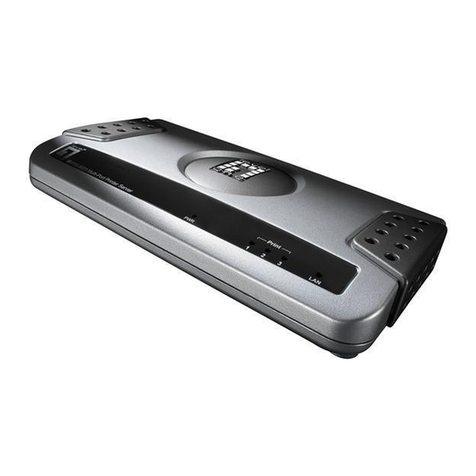
Monarch 7411 User manual

Monarch
9825
Printers
®
®
Operating Instructions
7411™ Print Server
802.11b/g Wired/Wireless
7411™ Print Server
802.11b/g Wired/Wireless
TC7411ENOI Rev. AD 5/08 ©2006 Paxar Americas, Inc. All rights reserved.a subsidiary of Avery Dennison Corp.

Each product and program carries a respective written warranty, the only warranty
on which the customer can rely. Paxar reserves the right to make changes in the
product, the programs, and their availability at any time and without notice.
Although Paxar has made every effort to provide complete and accurate information
in this manual, Paxar shall not be liable for any omissions or inaccuracies. Any
update will be incorporated in a later edition of this manual.
2006 Paxar Americas, Inc. a subsidiary of Avery Dennison Corp. All rights
reserved. No part of this publication may be reproduced, transmitted, stored in a
retrieval system, or translated into any language in any form by any means, without
the prior written permission of Paxar Americas, Inc.
Trademarks
Paxar® is a trademark of Paxar Corporation.
Monarch®, 9825®, 7411, and 9860 are trademarks of Paxar Americas, Inc.
Avery Dennison® is a trademark of Avery Dennison Corp.
Centronics is a trademark of Centronics Data Computer Corporation.
Microsoft and MS-DOS are trademarks of Microsoft Corporation.
The Bluetooth trademarks are owned by Bluetooth SIG, Inc.
Windows and NT are trademarks of Microsoft in the U.S. and other countries.
Hewlett-Packard is a trademark of Hewlett-Packard Company.
Firefox is a trademark of Mozilla Corporation.
HP Jet Admin, HP JetDirect, and HP Web Jet Admin are trademarks of Hewlett-
Packard Company.
Novell and NetWare are trademarks of Novell, Inc., in the United States and other
countries.
Avery Dennison Printer Systems Division
170 Monarch Lane
Miamisburg, OH 45342

i
TABLE OF CONTENTS
GETTING STARTED 1-1
Overview ................................................................................................1-1
System Requirements ..............................................................................1-2
Network Protocols Supported....................................................................1-2
Checking the Print Server Hardware ..........................................................1-3
Verifying Successful Installation ...............................................................1-3
Verifying Successful Installation ...............................................................1-4
Sample Test Page ................................................................................1-5
CONFIGURING THE 802.11b/g AND IP SETTINGS 2-1
Configuring the Print Server .....................................................................2-1
Before You Begin ....................................................................................2-1
Installing the Software .............................................................................2-2
MANAGEMENT METHODS 3-1
MonarchNet Console................................................................................3-1
HP JetAdmin Utility..................................................................................3-1
HP Web JetAdmin Utility ..........................................................................3-1
MicrosoftWindowsNetwork Configuration ............................................3-2
Additional Windows Configuration Methods ................................................3-2
UNIX Network Configuration .....................................................................3-2
Berkeley UNIX Host Configuration.............................................................3-3
Sun Solaris Configuration .....................................................................3-4
HP/UX Configuration................................................................................3-6
IBM AIX Configuration..............................................................................3-7
Web Browser...........................................................................................3-8
Configuration on Other Systems................................................................3-8

ii
USING THE WEB INTERFACE 4-1
Logging In ..............................................................................................4-2
Configuring the Printer.............................................................................4-3
Configuring the Print Port Settings ............................................................4-5
Configuring Print Services ........................................................................4-6
Setting NetWare Parameters.....................................................................4-7
Changing TCP/IP Settings ........................................................................4-8
Configuring PrintraNet .............................................................................4-9
Changing Wireless Settings ....................................................................4-10
Configuring Alerts and Traps ..................................................................4-11
Receiving An Alert..............................................................................4-13
SNMP IP Traps ..................................................................................4-14
SNMP Netware Traps .........................................................................4-15
Changing the Passwords ........................................................................4-16
Setting the Network Card Access Password ..........................................4-16
Setting the Network Card Update Password ..........................................4-18
Configuring Network Protocols................................................................4-19
Controlling IP Access.............................................................................4-20
To Add Hosts:....................................................................................4-20
To Remove Hosts...............................................................................4-21
Configuring Network Security..................................................................4-21
Printing a Test Page ..............................................................................4-22
Using the Console .................................................................................4-23
Updating Firmware ................................................................................4-24
Basic Security Configurations .................................................................4-25

iii
TROUBLESHOOTING 5-1
General Troubleshooting Information.........................................................5-1
Troubleshooting Wireless Configuration Problems.......................................5-4
Troubleshooting Network Configuration......................................................5-5
Loading the Firmware ..............................................................................5-5
Technical Support....................................................................................5-5
TELNET CONSOLE COMMANDS 6-1
Help Commands ......................................................................................6-3
General Commands .................................................................................6-5
802.11b/g Wireless Commands .................................................................6-8
TCP/IP Commands ................................................................................6-13
SNMP Commands..................................................................................6-15
SPECIFICATIONS A-1
802.3 Specifications ............................................................................... A-1
Optional 802.11b/g Specifications ............................................................ A-1
Options ................................................................................................. A-2
GLOSSARY G-1
INDEX I-i

iv

Getting Started 1-1
GETTING STARTED
The Monarch7411Print Server lets you communicate with the
Monarch9825 printer on a wired Ethernet 802.3 network, or on an 802.11b
or 802.11g wireless network. 802.11b/g refers to 802.11b and 802.11g in this
manual.
Information in this document supercedes information in previous versions.
Check our Web site (www.monarch.com) for the latest documentation and
release information.
Overview
You can use the print server in Ad-Hoc (peer-to-peer) or infrastructure
(access point) wireless mode. The print server operates at speeds of up to
11 Mbps on any IEEE 802.11b and 54 Mbps on any IEEE 802.11g wireless
compatible networks.
The wireless print server includes a dual-mode built-in wired Ethernet
(802.3) connection so the print server automatically switches between
wireless and wired Ethernet mode within the same subnet address. When
switching between wired and wireless mode on different subnets, turn off the
printer and then turn it back on to reinitialize the print server.
Follow the instructions in this manual to configure the wireless print server
for your printer. For more information and software downloads, see Chapter
5, “Troubleshooting.”
1

1-2 Ethernet Operating Instructions
System Requirements
To use the print server for printing from a wireless network, you need an
802.11b/g wireless network. The wireless network consists of either of the
following:
♦ An 802.11b/g wireless enabled PC printing straight to the printer (Ad-Hoc
or Peer-to-Peer Mode).
♦ An 802.11b/g wireless access point allowing wireless and wired Ethernet
enabled computers to print to the print server (Infrastructure Mode).
To configure and print, you need the following:
1. The MAC address from the label of the print server (for example:
004017023F96).
2. The following information from your wireless network administrator:
♦ Wireless Mode (Infrastructure or Ad-Hoc)
♦ The SSID (service set identifier) for your wireless network.
♦ If you are using TCP/IP (recommended for Windows Networks) and are
not connected to a server that automatically assigns your IP address, you
need to set the printer in Static mode and assign a unique IP Address for
the wireless print server (for example: 192.168.1.14) and a subnet mask.
A router (default gateway) address is optional.
Network Protocols Supported
♦ TCP/IP:
LPD/LPR, FTP, or IPP
Raw TCP/IP (port 9100 or any chosen port)
NetBIOS over IP (with SMB)
NetWare (NEST)
NetBEUI
DLC
♦ Telnet
♦ WINS
♦ DHCP

Getting Started 1-3
Checking the Print Server Hardware
The print server comes preinstalled and tested in your printer. Do not plug
any cables into the parallel port when using the print server. A printer with
this print server cannot use the parallel port. However, the serial port is still
active.
Test/Reset Button
Antenna
Serial
Port

1-4 Ethernet Operating Instructions
Verifying Successful Installation
When the print server is turned on, it goes through the following startup
sequence:
♦ It runs through a set of power-up diagnostics for a few seconds. The top
orange light comes on when the unit is turned on. The middle light
comes on solid yellow when an Ethernet link (wired 10baseT) is
established. The bottom comes on solid green when an Ethernet (wired
100baseTX) link is established. Both the yellow and green lights will
come on solid when a wireless link is established. The yellow and green
lights blink during network activity. The top light blinks orange if there is
an error.
Test/Reset Button
Press this button down for less than 5 seconds to
print a test page on the printer. The test page
shows the current wireless and network settings of
the print server. See “Sample Test Page” for more
information. If the test page does not print, see
Chapter 5, “Troubleshooting.”
Press this button down for more than 5 seconds
while turned on to reset the print server to its
factory default parameters. The print server re-
initializes automatically.
LED Status Indicators
The top orange light comes on when the unit is
turned on. The middle light comes on solid yellow
when an Ethernet link (wired 10baseT) is
established. The bottom comes on solid green
when an Ethernet (wired 100baseTX) link is
established. Both the yellow and green lights come
on solid when a wireless link is established. The
yellow and green lights blink during network
activity. The top light blinks orange if there is an
error.
Antenna A rugged 802.11b/g compatible antenna, mounted
on the back of plastic-cover printers or on the top
of metal-cover printers.
Other manuals for 7411
1
Table of contents
Other Monarch Print Server manuals