Momax SL13S User manual

Smart Gateway 2.0
SL13S
INSTRUCTION MANUAL
有線智能網關
使用說明 / 使用說明
有線智能網關
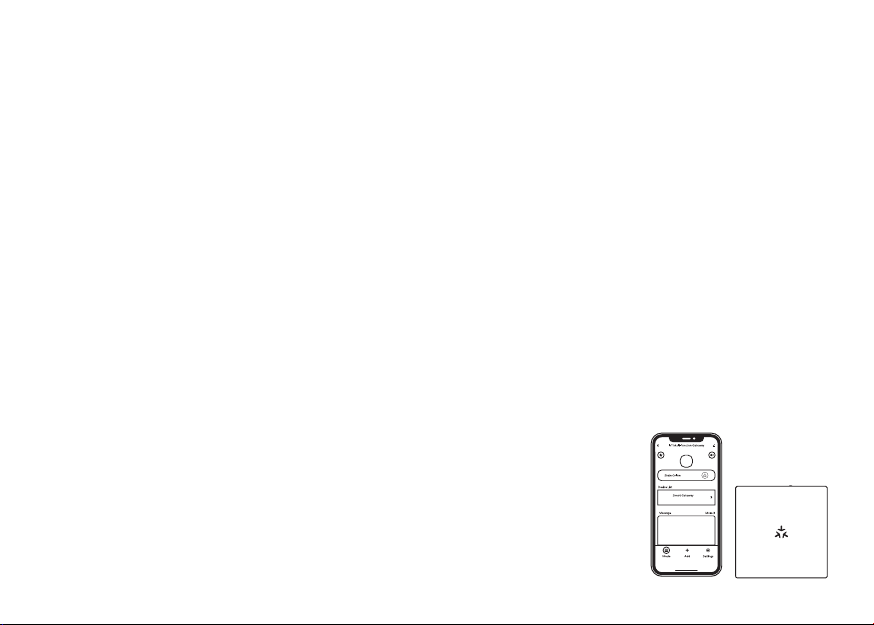
Product Information p.2 - 13
產品資料 p.14 - 25
產品資料 p.26 - 37
1
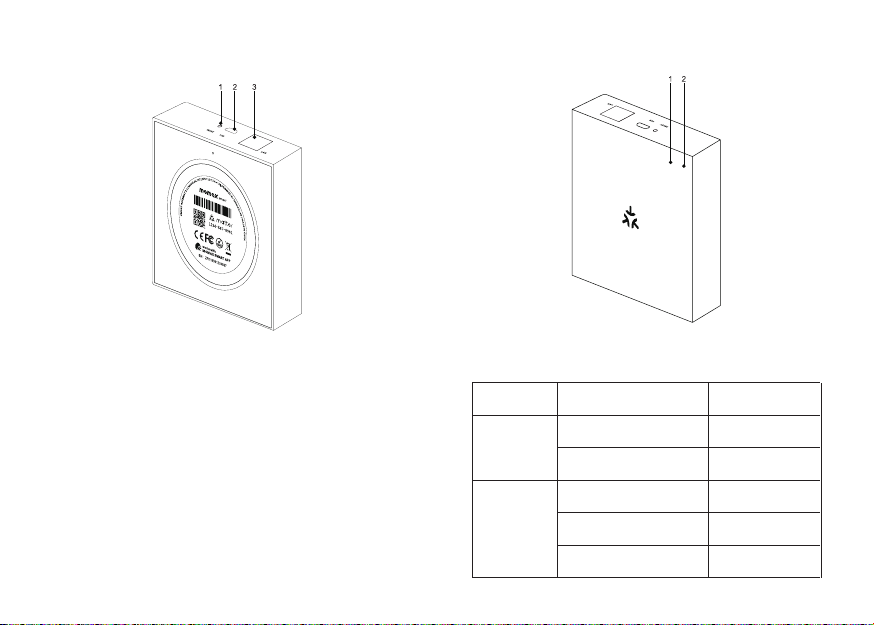
PRODUCT OVERVIEW Indicator Light Operating Status:
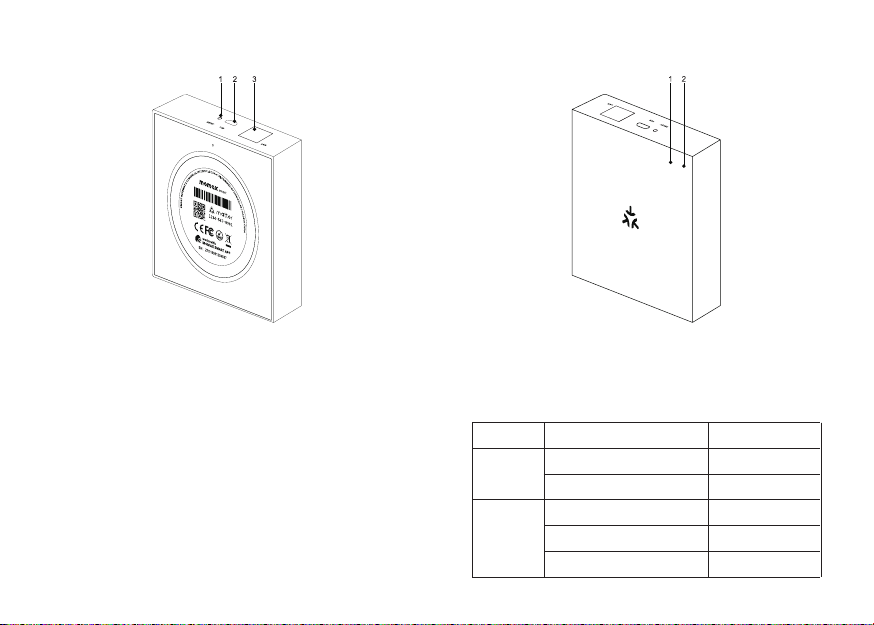
1. Reset Button
2. Micro-USB Power input
3. RJ45 LAN port
1. Network pairing indicator
2. Status indicator
Connected Router
Router not connected
Paired-Up with network
Waiting Pair-Up with
network
Pairing with sub-device(s)/
System Startup
Indicator on
Indicator off
Indicator off
Indicator on
Indicator flashing
Product status
Network
pairing
indicator
Status
indicator
Indicator status
2 3
INTRODUCTION
IoT Smart Gateway 2.0
Introducing the Momax Smart Gateway 2.0—As a Matter-supported
gateway , it could be seamless control of multiple devices and a
smarter home automation experience .
It offers powerful local management capabilities and supports both
Zigbee and Thread protocols for downlink access. With an uplink
Ethernet connecting it to the cloud, the smart gateway simplifies
device networking and enables users to control and manage Zigbee
and Thread sub-devices remotely. Additionally, the gateway's cloud-
side scenes and automation settings let users link sub-devices with
other smart devices for the ultimate execution or trigger conditions.
Quick Start Guide
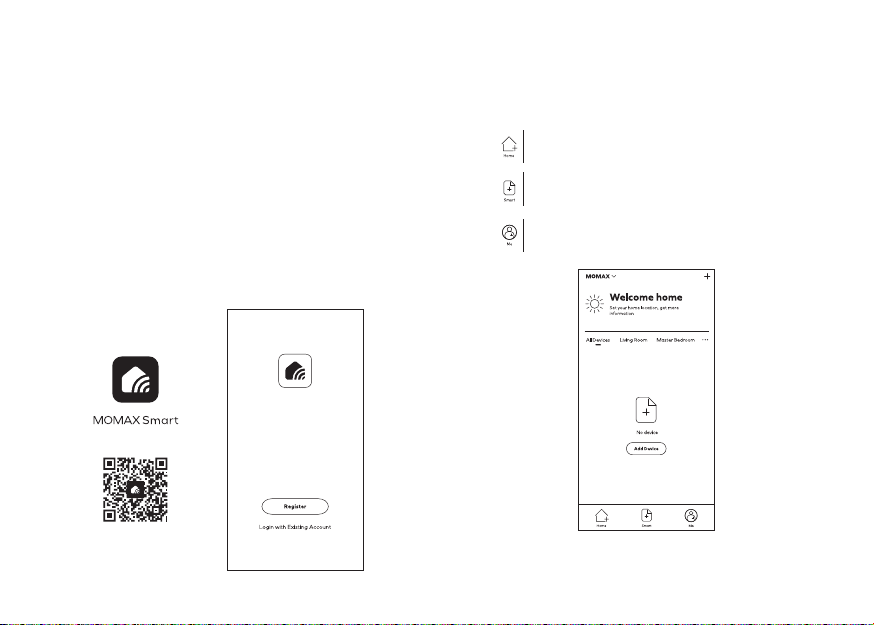
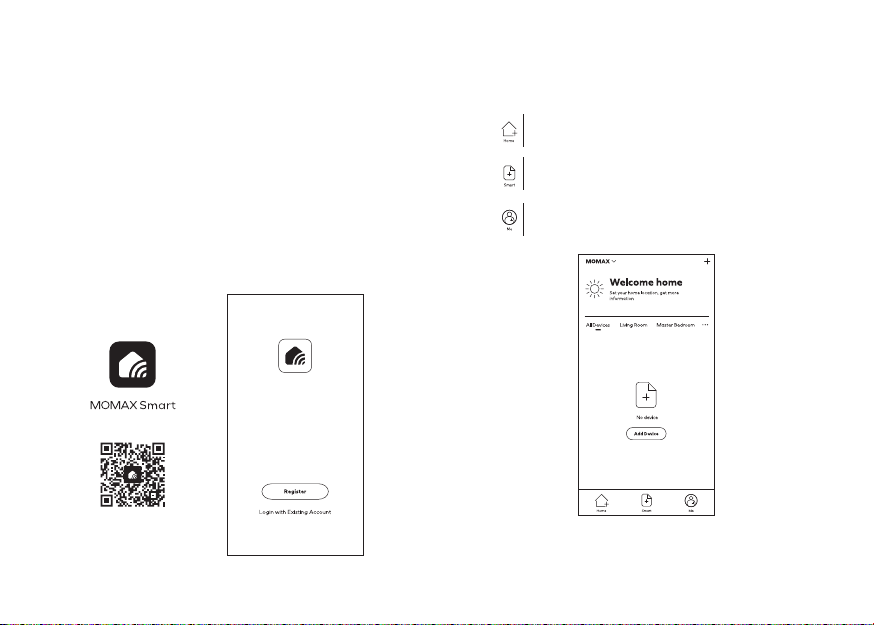
1. Download 'Momax Smart' APP
Search ''Momax Smart'' app on iOS or Android or any platform.
2. Register
Register an account and log in using your mobile number or email
address.
The Home page of all connected devices.
To set scenarios or conditions and respective
actions of the new smart device.
Profile management, FAQ, setting, etc.
4 5
3. Product Pairing
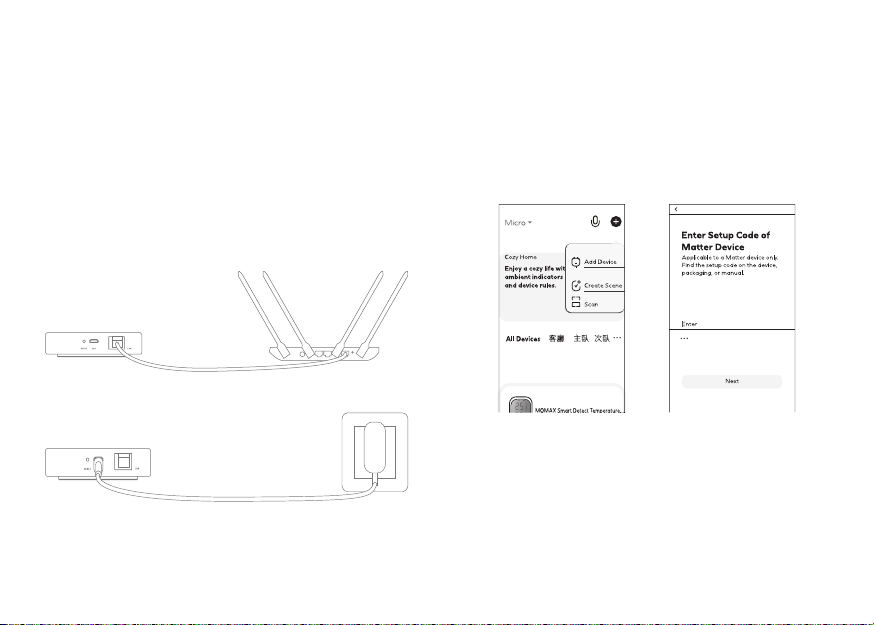
Mobile:T
urn on the Bluetooth and connect with 2.4Ghz Wi-Fi network
from mobile.
Device: Install (both Ethernet and power) and switch on the Smart
Gateway, User should connect the Ethernet cable to the router
with same network as mobile.
Please make sure the light of Network pairing indicator and Status
indicator are "on", if not, please and hold reset button for 5 second
to factory reset.
APP: Click "+" to add new device on APP, Select Scan to add
the new product.For pairing , User can scan the QR code on the
product/Label , or Enter Setup code under the QR code,
• This product cannot be paired directly through the Bluetooth list
of the mobile phone.
• The pairing process may take 2 minutes, please do not perform
other operation.
6 7
4.
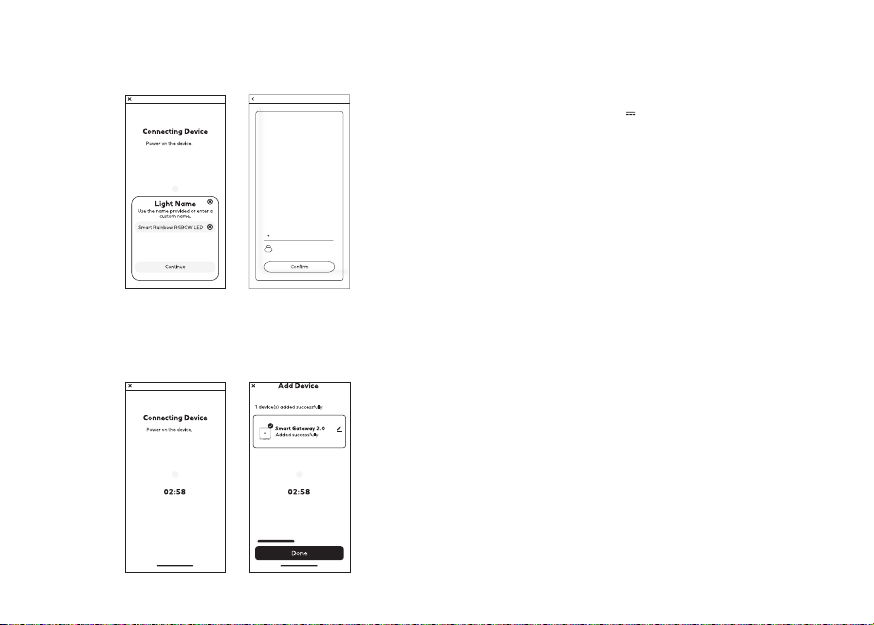
Successfully Connected
Once the connection is completed, you can edit the name of the
product.
5. Adding sub-device
After the gateway is successfully added,enter the gateway page in
MOMAX Smart APP. Click "Add" to start the pairing process, select
your wanted sub-device and follow the prompts. Each sub-device
has its process to initiate network access mode. Please refer to
individual sub-device user manual.
Model
: SL13S
Micro-USB input
: 5V 1A
Network connectivity
: RJ45 LAN
Wireless protocol
: Zigbee 3.0 / Matter over thread
Material
: ABS
Dimension
: 90 x 90 x 22 mm
Weight
: 71g ± 10g
CONTAINS:
1. Smart Gateway 2.0
2. Micro-USB to USB-A cable (1m)
3. LAN cable (0.5m)
4. Instruction manual and warranty card
SPECIFICATIONS
Enter Wi-Fi Password
8 9

FUNCTIONS
Support Matter
The product supports Matter technology, which is a new connectivity
standard for smart home devices.
Matter is a common protocol between your desired smart home
platforms and different smart home devices ( no matter what brand
it is), it would be worked after the device to be Matter-certified).
Matter solutions will be interoperable with the major smart home
ecosystems like Apple Homekit, Google Assistant, Amazon Alexa,
and Samsung SmartThings...etc.
Steps:
For Momax's Ecosystem:Follow our "Quick start guide" to pair up device
with Momax APP.
Click the device's setup page > Share Device >
Share over matter.It will generate a QR code for matter sharing, user
can copy it and share with other smart home platform with Matter
support's ecosystem.Or
For other Smart home Ecosystem:Follow the setup guideline in
particular smart home platform. Scan the device's QR code for
paring. ( P.S. for details, please refer to the matter setup guideline
in this platform).
Q&A
1.
Is there Smart gateway that supports Wi-Fi connectivity?
Ans: The Smart gateway only supports Ethernet connections.
2.
Does the product support mobile in 5GHz Wi-Fi connection?
Ans: The product can only successfully complete the networking
built-up process when the mobile phone is connected to a 2.4GHz
WiFi under the same router.
3.
How many sub devices can be connected to this gateway?
Ans: Up to 128 sub-devices.
4.
What's the longest distance between sub devices and gateway at
the stable controlling?
Ans: The stable control distance is approximately 35m indoors
and 200m outdoors.
5.
Can the Smart Gateway add other brand's Matter devices?
Ans:
For Third-party "Matter over Thread" devices can be connected
to Smart Gateway, but are limited to the product categories and
basic functions specified in the protocol.
Please find "SL13S" in MOMAX's channel helpdesk
momaxsmart.
com to watch the quick start tutorial.
10 11

SERVICE AGREEMENT OF SMART MOBILE
APPLICATION PLATFORM
Please reference Mobile Apps content: Before accepting the
Agreement, you are supposed to thoroughly read all contents
of the Agreement, and fully know its terms, especially restrictive
clauses or exceptions and Privacy Notice. Restrictive clauses or
exceptions are bold or highlighted in other forms to catch your
attention. In case of any doubt for the terms of the Agreement,
please contact relevant business department of Tuya. You are not
allowed to use the service before you have read and accepted
all terms of the Agreement, relevant agreements and rules, etc.
Once you select "agree and submit the Agreement" (see
registration page for detailed wordings) and complete the
registration procedure, or you use the service in any form, it will
be deemed that you have read and agreed with the restriction
of the Agreement and rules above. In case of any breach of the
Agreement, Tuya has the right to unilaterally restrict, suspend or
terminate the service for you, and has the right to investigate your
relevant responsibilities.
WARNING
1. Do not dismantle or modify the product;
2. Do not store the product in wet conditions;
3. Do not keep or use the product near heat sources;
4. Do not let water or any other liquid flows into the inside part of the
product's interface. This would cause damages to the product.
DISPOSAL OF ELECTRONIC PRODUCTS
1. Do not place the product as household waste;
2. Please dispose of discarded electronic products properly according
to local regulations.
3. MOMAX encourages you to participate in electronics recycling
program.
WARRANTY CONDITIONS
1.
For any defect, in the judgment of our technician,caused under
normal
use, we are responsible for repairing free of charges 12
months commencing from the date of purchase at the discretion
of our company;
2.
A valid warranty card and original purchase invoice must be
presented upon request of warranty service;
3. This warranty card shall not apply to the product if:
(a) it has explicitly modified or repaired in any way by persons other
than technicians of this company, or;
(b)
it has been damaged through misuse, malicious acts, negligence,
inflow of any liquid, or;
(c)
losses or damages are caused by force majeure or natural
disasters.
4. No alteration to this warranty card will be allowed;
5. The warranty terms and conditions are subject to change without
prior notice;
6. Please retain your proof of purchase for warranty service;
7. Please consult the dealer about the product compatibility with your
cell phone / PDA before purchase. Product specifications are
subject to change without prior notice;
8. Please visit www.momax.net for latest product information.
12 13
產品概覽 指示燈工作狀態
1. 重置按鍵
2. 電源輸入(Micro-USB)
3. RJ45 LAN 接口
1. 網絡配對指示燈
2. 狀態指示燈
已連接路由器
未連接路由器
與網絡配對
等待與網絡配對
與子設備配對中/系統啟動
指示燈亮
指示燈熄滅
指示燈熄滅
指示燈亮
指示燈閃爍
產品狀態
網絡配對
指示燈
狀態指
示燈
指示燈狀態
14 15
簡介
IoT 智能網關 2.0
介紹Momax Smart Gateway 2.0—作為支持Matter的網關,可以無
縫控制多台設備,帶來更智能的家居自動化體驗。
它提供強大的本地管理功能,並支持 Zigbee 和 Thread 協議進行
訪問。 通過以太網連接到雲端,智能網關簡化了設備聯網,使用
戶能夠遠程控制和管理 Zigbee 和 Thread 子設備。 此外,網關的
雲端場景和自動化設置可以讓用戶將子設備與其他智能設備鏈接起
來,最終執行或觸發條件。
快速操作指南
1. 下載 'Momax Smart' 應用程序
在iOS或Android或任何平台上搜尋''Momax Smart''。
2. 註冊
註冊帳戶後使用您的手機號碼或電子郵件地址登錄。
連接的設置清單。
設定某個環境或條件下,讓自動執行你的預設模式。
個人資料管理,常見問題解答,設置等 。
16 17
Table of contents
Languages:
Popular Gateway manuals by other brands

LST
LST M500RFE-AS Specification sheet

Kinnex
Kinnex Media Gateway quick start guide

2N Telekomunikace
2N Telekomunikace 2N StarGate user manual
Mitsubishi Heavy Industries
Mitsubishi Heavy Industries Superlink SC-WBGW256 Original instructions

ZyXEL Communications
ZyXEL Communications ZYWALL2 ET 2WE user guide

Telsey
Telsey CPVA 500 - SIP Technical manual