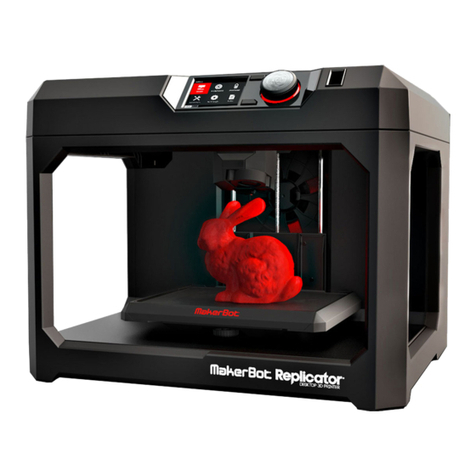
Mingda MD-600 Pro User manual

User Manual
【MD-600 Pro & MD-1000 Pro 3D Printer】
Shenzhen MINGDA TECHNOLOGY CO.,LTD
V1.7

Contents
Notice ……………………………………………………………………………………………...................................
1 Brief Introduction …………………………………………………………………………………………………............
User-Guide Instructions ……………………………………………………………………………………………………………….................….
Learn More Information …………………………………………………………………………………………………………………………..…….
Safety Precautions ……………………………………………………………………………………………………………………………...............
2 Overview ……………………………………………………………………………………………….............................
View of 3D Printer ………………………………………………………………………………………………..............................................
Tool box accessories ………………………………………………………………………………………………...........................................
3 Installation ………………………………………………………………………………………………...........................
Take out the tool box …………………………………………………………………………………………….....….....................................
Plugged in ……………………………………………………………………………………….....…............................................................
Turn on the power switch ……………………………………………………………….....…............................................................
Install the filament (Take PLA filament as an example ) ……………………………………………………………........................
4 Auto Bed Leveling …………………………………………….....…............................................................
Printing the Test Files ……………………………………………………………….....….......…………………………………….…………......…
5 Software .....….......….....….......….....….......….....….......….....….......….....….......…......…........…....
Install CURA ….....….......….....….......….....….......….....….......….............................….......….....….......…......…..............
Add Printer ….....….......….....….......….....….......….....….......….............................….......….....….......…......…...............
Import Configuration file ….....….......….....….......….....................................................….......….....…........….........….
Slicing …..... ….....….......….....….......….....….......….....….......….....….......….....….......….....…...........…......…..................
Printing Process ….....….......….....….......….....…..….....….......…....….....….......….....…….....….......….....….........…..….....
Pause and Continue to Print ….....….......….....….......….....….......….....….......…...….......…...….......…...….........….........
Dismantle the Model ……………………………………………………………….....…...................................................................
6 General Maintenance ...….......…...….......…...….......…...….......…...….......…...….......…...…........…
Daily Preventive Maintenance ...…...…...…...…...…...…...…...…...…...…...…...…...…...…...…...…...…...…...…....….......…..
500 Hours Maintenance …...…...…...…...…...…...……...…...…...…...…...…...……...…...…...…...…...…...……...….....…....…..
Switch Between High Temperature and Ordinary Hot End ..…......…...…...…...…...…...…...…............…........…...…...
7 Trouble Removal …...…...…...…...…...…...……...…...…...…...…...…...……...…...…....…...…...............
8 Support …...…...…...…...…...…...……...…...…...…...…...…...……...…...…...…...…...…....……...…...…...
Customer Support …...…...…...…...…...…...……...…...…...…...…...…...……...…...…...…...…...…...……...…...…...….....…......
Working Computer Specifications …...…...…...…...…...…...……...…...…...…...…...…...……...…...…....…...…...…...….......
MINGDA Limited Warranty Statement …...…...…...…...…...…...……...…...…...…...…...…...……...…....…...…...…...….......
9 Quality Assurance ..…..........……...............……...............……............……..............................…...
1
3
3
3
3
4
5
6
7
7
7
7
7
9
10
11
11
11
14
16
17
17
17
18
18
18
19
19
20
20
20
20
21

Notice
The printer is equipped with a high-temperature hot end, which can be replaced with a normal hot end
High-Temperature Hot End Normal Hot EndReplace the Hot End
This printer is suitable for printing filaments higher than 250 degrees (high temperature filament), and
filaments below 250 degrees.
1
high low
Filament
Print Temperature
Print Platform Temperature
1
PET-CF
280-320°C
60-80°C
2
PET-GF
3
PA12-CF
4
HtPA-GF
300-320°C
70-90°C
5
HtPA-CF
6
HtPA
280-320°C
70-80°C
7
ABS-GF25
250-270°C
90-110°C
8
ASA
250-270°C
90-110°C
9
S-Mulit
260-280°C
60-80°C
10
S-HtPA
270-280°C
60-80°C
11
ABS
240-260°C
80-100°C
12
PETG
230-250°C
80°C
13
TPU 95A
210-230°C
50°C
14
PVA
210-220°C
60-70°C
15
PLA
190°C
60°C
1-10 Recommend High Temperature 11-15 Recommend Normal

Reference video:
Operation video and after-sales video, please refer to the video in the SD card.
2
Note: Please put the high-temperature filaments in a dry box for printing, otherwise humidity
will affect the print quality.
Precautions for the Use of High Temperature Filament
If the high-temperature filament is not used up, put it in an aluminum foil bag in time. If
the filament is wet or the surface of the print has obvious drawing, it means that the
filament is damp, and it needs to be dried in an industrial oven before use.

1. Brief Introduction
MD Series Industrial 3D Printers adhere to the design concept of the simple to the extreme. It can print
product quickly and easily, even if you've never used a 3D Printer.
The printer prints the model with PLA, so the products will be strong and durable. You can make drilling,
tapping, grinding and painting on the PLA models. MD Series 3D Printers combine proprietary hardware,
software and filament technologies creatively.
Welcome to a new world of 3D printing!
User-Guide Instructions
This User Guide has been carefully organized into "Installation", "Operation", "Maintenance" and
"Troubleshooting" sections for client to read and understand. Be sure to read the sections carefully to get the
best use of your 3D printer.
Learn More Information
SD card provides the electronic user guide. This guide provides information as following topics:
1. Troubleshooting information
2. Important safety statements and regulatory information
3. Printing supplies related information
4. Detailed instructions for use
You can also find more information on the official website.
http://www.3dmingda.com
Safety Precautions
The following precautions ensure that the customer uses the printer correctly and protects the printer
from damage. Please always follow these precautions.
1. Use the specified power supply voltage. Do not connect multiple devices to the printer's power outlet
to avoid overload.
2. Make sure the printer is properly grounded, Or it may cause electric shock, fire or electromagnetic
interference.
3. Contact your after-sales or local service before disassembling or repairing the printer by yourself.
Check the "Support" section in the User Guide.
4. It is recommended to use the power cord that came with the printer. Do not damage, cut or repair
the power cord. Damaged power cords present a risk of fire or electric shock. Please replace the damaged
power cord with a quality-certified power cord. Do not allow metal or liquid to come into the printer and
contact with the internal parts of the printer. It may cause fire, electric shock or other serious accident.
5. Turn off the printer and unplug the power cord from the electrical outlet under the following
conditions:
1) The printer emits smoke or emits an abnormal smell.
2) The printer emits abnormal noise that has never occurred during normal operation.
3) Metal or liquid (not required for cleaning or routine maintenance) come into the printer.
4) Thunderstorm weather.
5) Power off
This guide contains the following categories.
Note: potentially dangerous situation, if not avoided, may result in minor or moderate injury.
Warning: potentially dangerous situation, if not avoided, may result in serious injury.
High temperature surface: The high temperature surface symbol indicates the presence of high
temperature equipment. When working near hot parts, be careful and wear safety gloves.
Gloves: When performing some maintenance procedures, the machine may be hot, so need to use
gloves to avoid burns.
Safety glasses: Please wear safety glasses to avoid eye injury.
Lifting hazard: Two or more people should cooperate when lifting, so as not to cause serious injury.
Recovery: Use the correct method for recovering materials and packaging materials.
ESD: Use standard electrostatic discharge (ESD) precautions when working with or near electronic
components.
3

2. Overview
The printing process of the MD series 3D printer is as follows: the slicing software CURA convert the .stl
document into a .gcode document, and 3D printer read the .gcode document and print the raw material into a 3D
product.
Cura is a slicing software that runs on Windows XP, Windows Vista, Windows 7, Windows 8, or Windows 10.
The product size and print size of MD series 3D printer are as follows. Each filament holder can hold at least
1kg of printed filament, 1 kg filament can continue to print for about 120 hours, you can also add a second roll of
filament for continuous printing.
Model
Product Size (W*D*H)mm
Printing Size(W*D*H)mm
MD-600 Pro
1212*932*1066
600*600*600
MD-1000 Pro
1612*1332*1465
1000*1000*1000
MD Series Industrial 3D Printers have Resume Printing Function and Filament sensor, which can greatly
save the client's losses.
Resume Printing Function: During the printing process, if the power is off, the machine will save the data.
After powering on, follow the on-screen prompts to continue unfinished print jobs.
Filament sensor: If the filament is not detected when printing, the machine will automatically pause
printing, install new filament, and click the Continue button on the screen to continue printing.
Below we will take MD-600 Pro as an example to introduce the function and use of the printer:
4

View of 3D Printer
Filament holder
Socket
In this 3D printer, the print head moves in the X-axis (left and right) and Y-axis (forward and backward) directions on the panel,
and the entire panel moves in the Z-axis (up and down) direction. The printing platform is fixed when the printer is working.
Touching screen
Printing head
Power switch
LED switch
Emergency stop button
Type-C
SD card port
Storage box
Platform
USB disk port
5

Tool Box Accessories
Diagonal pliers Power cable Sleeve SD card
Teflon tube Card ReaderNormal hot end wrench
If you choose high temperature filament,
we will provide a drying box
6
MD-600 Pro
Note: The picture is for reference only. When the real thing is inconsistent with the
picture, the actual object shall prevail.
Allen wrench

3. Installation
Take out the tool box Plugged in Turn on the power switch
Note: Tool boxes and other accessories
are in the cabinet storage room
7
Install the filament (Take PLA filament as an example )
1. Hung filament on the shelf, and insert the filament through the filament sensor.Then through
the auxiliary feeding gear and bearing, through the adjustment wrench with hand (red circle position),
and then through the square hole at the micro switch and the round hole on the middle baffle
2. Pull away the shrapnel at the filament inlet and insert the filament into the extruder inlet.

3.Click the heating button , select the nozzle, set the temperature to 200°C , and the nozzle will
automatically heat up to 200°C.
4. When the temperature rises to 200°C, insert the filament into the extruder, click "Menu" ,
"Extrude" , and click the extrude button to feed the filament.
8
This manual suits for next models
1
Table of contents
Other Mingda 3D Printer manuals

Mingda
Mingda MD Series User manual

Mingda
Mingda Glitar 4 User manual

Mingda
Mingda Magician Pro User manual

Mingda
Mingda Rock 3 Pro User manual

Mingda
Mingda Goldfish X User manual

Mingda
Mingda Magician X Assembly instructions

Mingda
Mingda MD-D01 User manual

Mingda
Mingda Magician X2 User manual

Mingda
Mingda MD-400D User manual

Mingda
Mingda MD-16 User manual