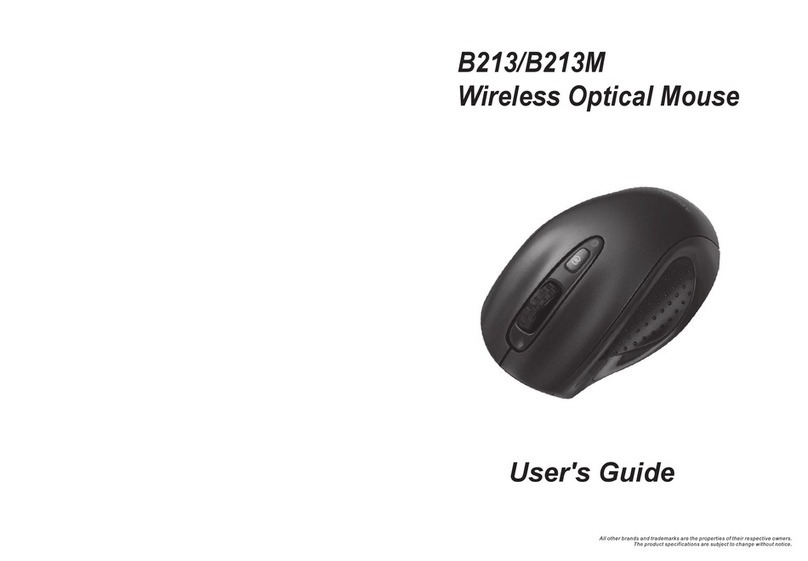
Microgem MG01X User manual

MicroGEM PEN TM
User’s Guide

Contents
1.General
1-1.Technical specifications
1-2.PC requirements
1-3.Operating environment
1-4.Measurements
1-5.Package contents
2. MicroGEM-PEN usage
2-1. Installation
2-2. Functions
2-3. How to grip
3. Caution for product
3-1. Caution to use MicroGEM-
PEN
3-2. Caution for MicroGEM-PEN
operation

1. General
1. Welcome
MicroGEM-PEN is even more flexible and easy to use than a
traditional mouse. It is perfectly multifunctional anywhere and
anytime. Use it with a notebook or a desktop PC. In addition to
the usual mouse features, MICROGEM-PEN makes hand writing
input convenient as well as fun and exciting.
1-1.Technical specifications
Optical sensor technology – 400 DPI resolutions
Scroll wheel for simple navigation
Works for both left and right hander.
Complies fully with the USB and HID specification version 1.1
Designed for both desktop computers and notebooks
Standard USB mouse drivers (not included)
USB port, PS/2 port supported with gender converting USB to
PS/2
1-2.PC requirements
IBM compatible PC/Pentium CPU above

USB, PS/2 required
Operation software: Windows®98/ME/ XP, Windows® 2000
(Other OS supporting USB and PS/2)
1-3.Operating environment
Operating temperature range from 5OC to 35OC (41F to 95F)
Storage temperature range –20OC to 60OC (-4F to 140F)
Operating and storage humidity range from 10% to
80% relative humidity non-condensing
1-4.Measurements
Dimension (HxWxD) : 80.0 x 45.0 x 43.0mm
Weight : approx. 38g (excluding cable)
Cable Length : 1.5M
Operating Voltage: DC +5V from USB port
1-5.Package contents
MICROGEM-PEN Mouse
Mouse PAD (optional)
User’s guide
2. MICROGEM-PEN usage

2-1. Installation
[PS/2]
Step 1
Plug MICROGEM-PEN mouse into
PS/2 port with gender
Step 2
Turn on computer power
[USB]
Method 1 (Cold Starting)
Step 1
Plug MICROGEM-PEN mouse into USB port
Step 2

Turn on computer power
Method 2 (Warm Starting)
Step 1
Turn on computer power and system booting
Step 2
Plug MICROGEM-PEN mouse into USB port
Step 3
Wait for MICROGEM-PEN mouse to be
Recognized automatically by Windows®XP
If you use Windows98 on your computer, you have to install an
USB driver for Windows® 98.
2. MICROGEM-PEN usage

2-2.Functions
Right Button
Left Button
Scroll Wheel
& Middle button
2-3. How to grip

3. Caution for MicroGEM-PEN
3-1. Cautions to use MicroGEM-PEN
- Do not use MICROGEM-PEN in places with high humidity.
- - Avoid use in areas of strong, direct sunlight–such as inside a
car. (The performance of the device may be affected by the high
temperature.)

- Do not bend or force the USB code.
- Do not drop, disassemble, and apply excessive force to the
MICROGEM-PEN.
- Do not hold the LED light of the MICROGEM-PEN near your
eyes.
- Keep the MICROGEM-PEN away from dust filled areas to
protect the sensitive lens of the unit.
- Do not let a children put the MICROGEM-PEN in his/her
mouth
3-2. Caution for MICROGEM-PEN Operation
- How to confirm the normal operation.
You must wait a few moments after connecting the
MICROGEM-PEN to the PC through the USB port for the device
to be recognized by the computer.
Once recognition is complete, a message indicating the device is
connected
will appear on the computer screen. During operation of
MICROGEM-PEN, the LED light will brighten. When not in use,
the LED light will dim. Although the MICROGEM-PEN will
operate on almost any surface, it is recommended that you use it

with a mouse pad for best possible results.
- What to do if the LED light does not come on after the mouse
has been connected to the USB port.
If the LED light does not come on after two or three attempts to
connect the device to the USB port, please call the toll free
maintenance phone number.
- What to do if the MICROGEM-PEN doesn’t work even though
the LED light is on.
If the MICROGEM-PEN does not function properly after two or
three attempts to connect the device to the USB port, please call
the toll free maintenance number.
Note: MICROGEM-PEN doesn’t have its own specific driver.
You just use it
as a normal optical mouse.
Manufacturer’s Limited Warranty
Thank you very much for your purchasing MICROGEM-PEN. MicroGEM
warrants the products to be free from defects in materials and workmanship
for a period of 1 year from the date of purchase. In case trouble is caused by
This manual suits for next models
1
Table of contents