
MEE connect AF-T1 User manual
Universal Dual Headphone
Bluetooth
®
Wireless Audio Transmier
Model: AF-T1
USER
MANUAL
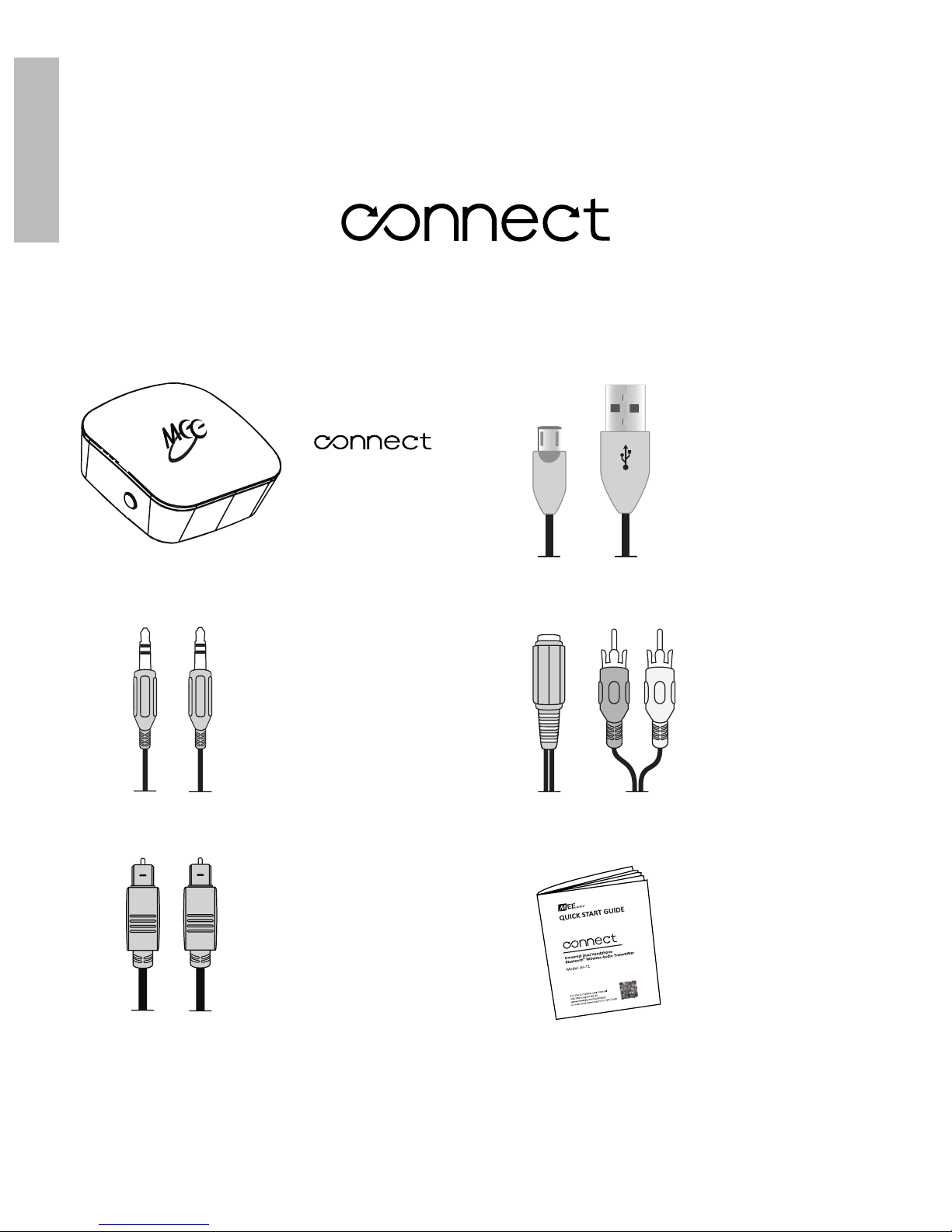
EN PACKAGE CONTENTS
Bluetooth
Transmitter
3.5mm
audio cable
TOSLINK
digital optical
S/PDIF audio
cable
Micro-USB
charging
cable
3.5mm to
RCA adapter
1
B
Quick
start
guide
Universal Dual Headphone
Bluetooth
®
Wireless Audio Transmier
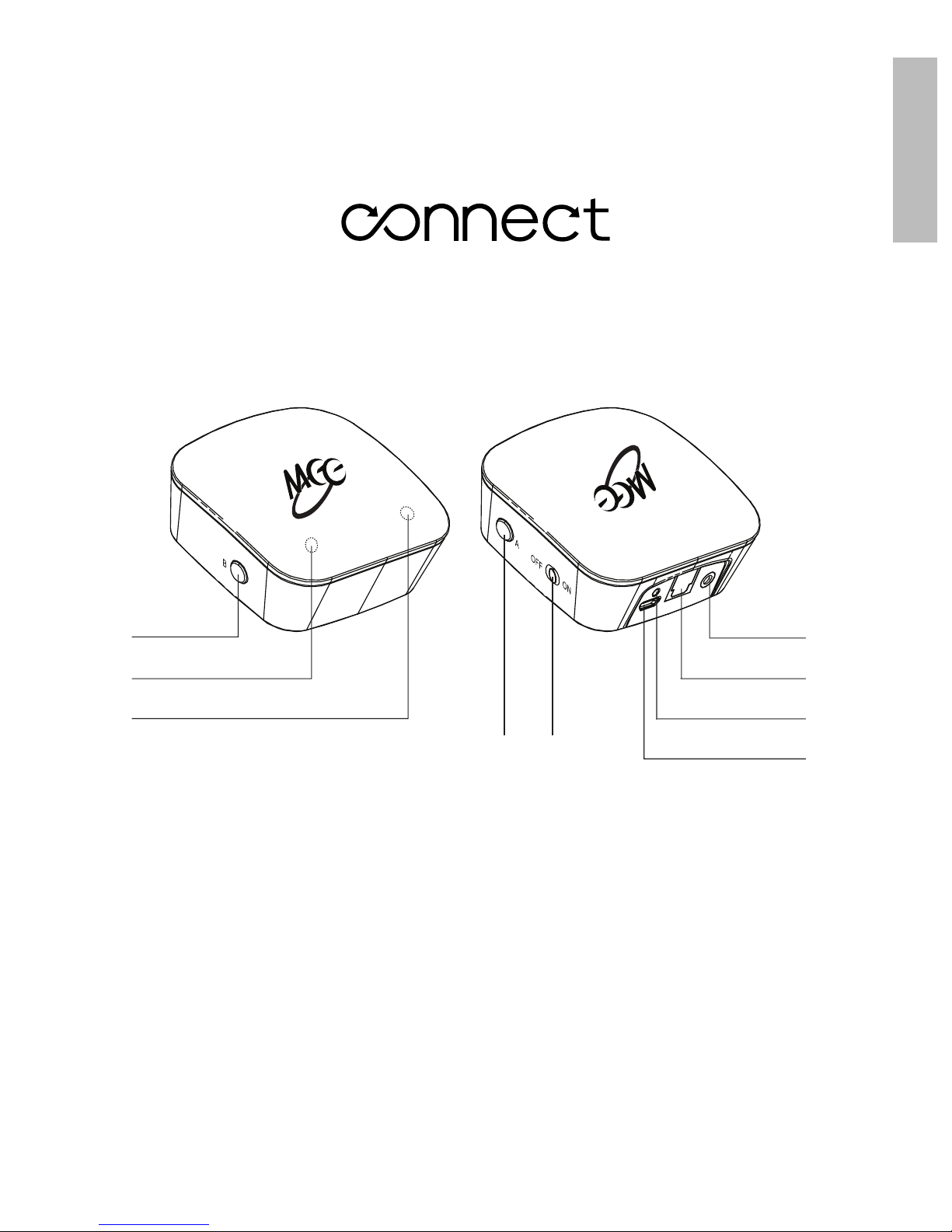
PRODUCT OVERVIEW EN
2
1
2
3
6
7
8
9
1
2
3
4
5
Pairing button “B”
Indicator light “B”
Indicator light “A”
Pairing button “A”
On/Off switch
6
7
8
9
Analog audio input (3.5mm)
Digital audio input (TOSLINK
optical S/PDIF)
Power/charging indicator light
Micro-USB power/charging port
4 5
Universal Dual Headphone
Bluetooth
®
Wireless Audio Transmier
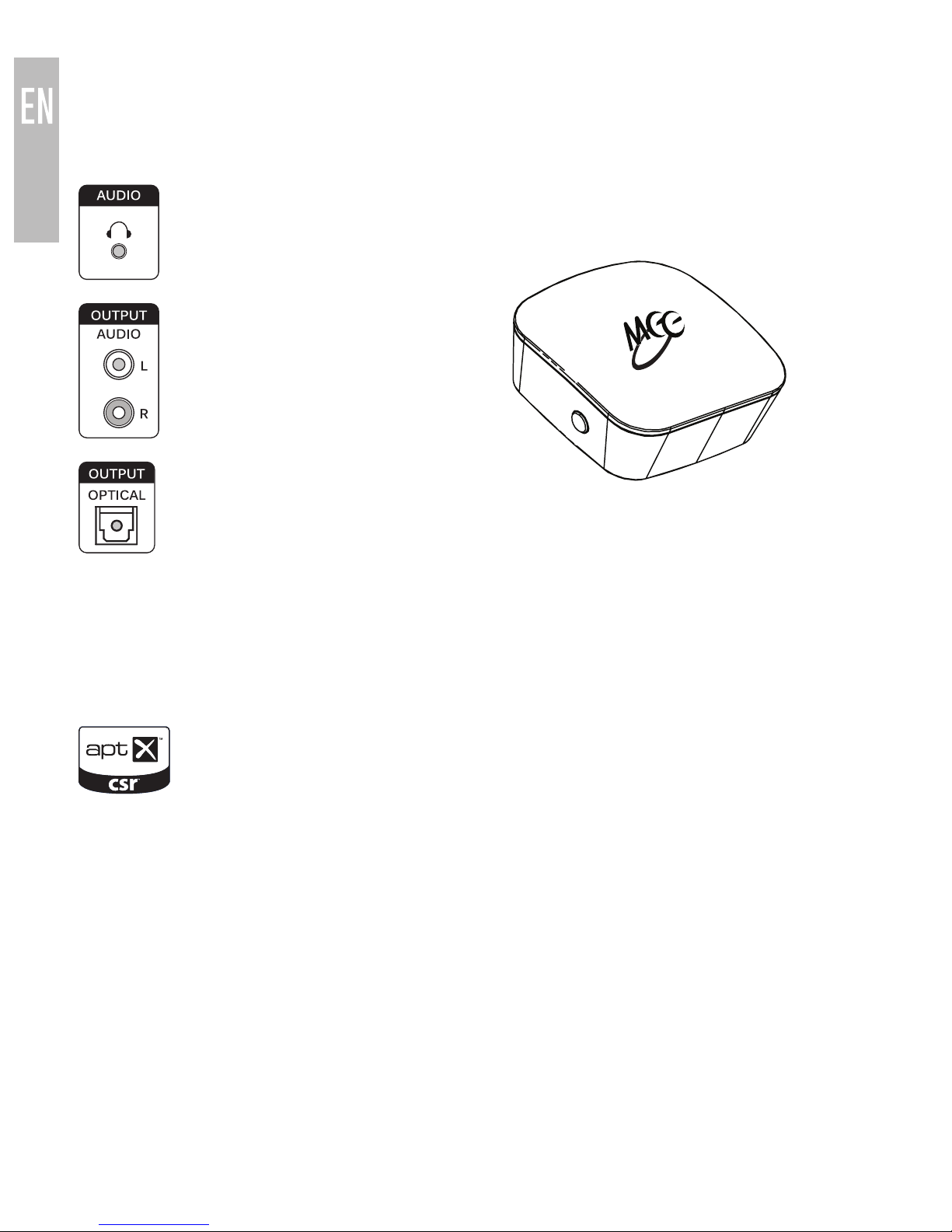
COMPATIBILITY
The
Connect
is compatible with any device that has one of the following
audio outputs:
1. 3.5mm (1/8”)
headphone
jack
2. RCA audio
jacks (red
and white
connectors)
3. TOSLINK
digital optical
(S/PDIF)
connector
The
Connect
can stream music to any Bluetooth audio receiver that
supports the A2DP Bluetooth profile, such as a Bluetooth headphone,
Bluetooth speaker, or dedicated A2DP receiver.
The
Connect
also supports aptX®and aptX Low Latency, more
efficient Bluetooth audio codecs capable of transmitting CD-quality
audio that also provide lower and much lower latency (smaller
delay), respectively, compared to regular Bluetooth audio (SBC).
Using the
Connect
with a headphone that supports aptX or aptX
Low Latency will provide the best possible audio quality and
minimize audio lag/latency.
The
Connect
will always default to the best codec that is also supported by
the headphones connected to it. If two headphones are connected, the best
codec supported by both will be used.
3
B
4
CHARGING
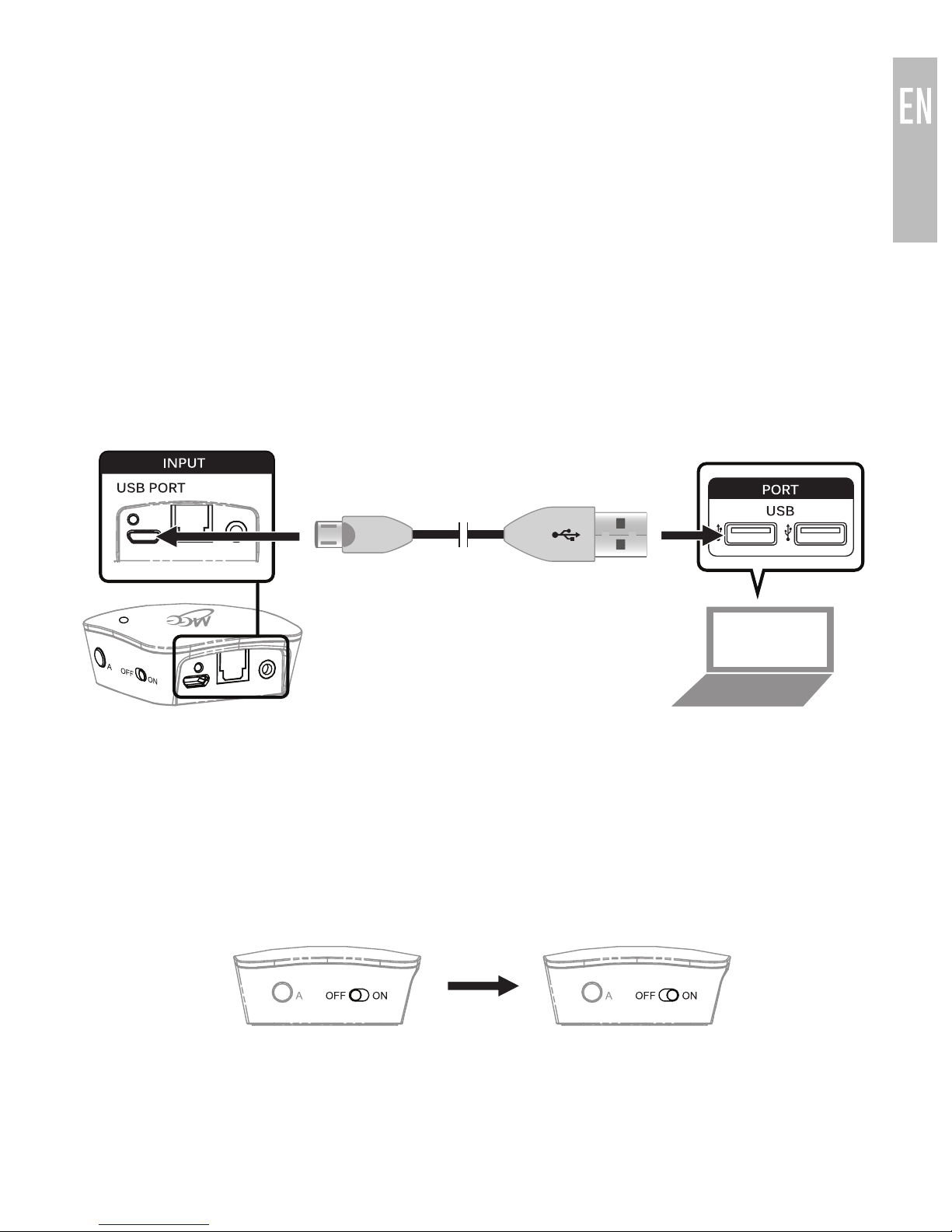
To charge the
Connect
, plug the included Micro-USB charging cable into
any powered USB port** and the charging port on the rear of the unit.
Charge time is approximately 90 minutes. The green charging indicator light
will pulse slowly while the
Connect
is charging.
Note: If you use the
Connect
while plugged in to USB power, it is not
necessary to charge the unit before using it, or to turn it off after each use.
When used while plugged in, the
Connect
will use USB power and the
internal battery will be charged. When unplugged from USB power, the
Connect
will use the internal battery. When battery is low, the green power
LED will blink once every second and a short alert tone will sound at 10
minute intervals.
**The USB outputs of some TVs do not provide a stable current.
It is recommended to use a computer or USB wall charger to charge the
Connect
.
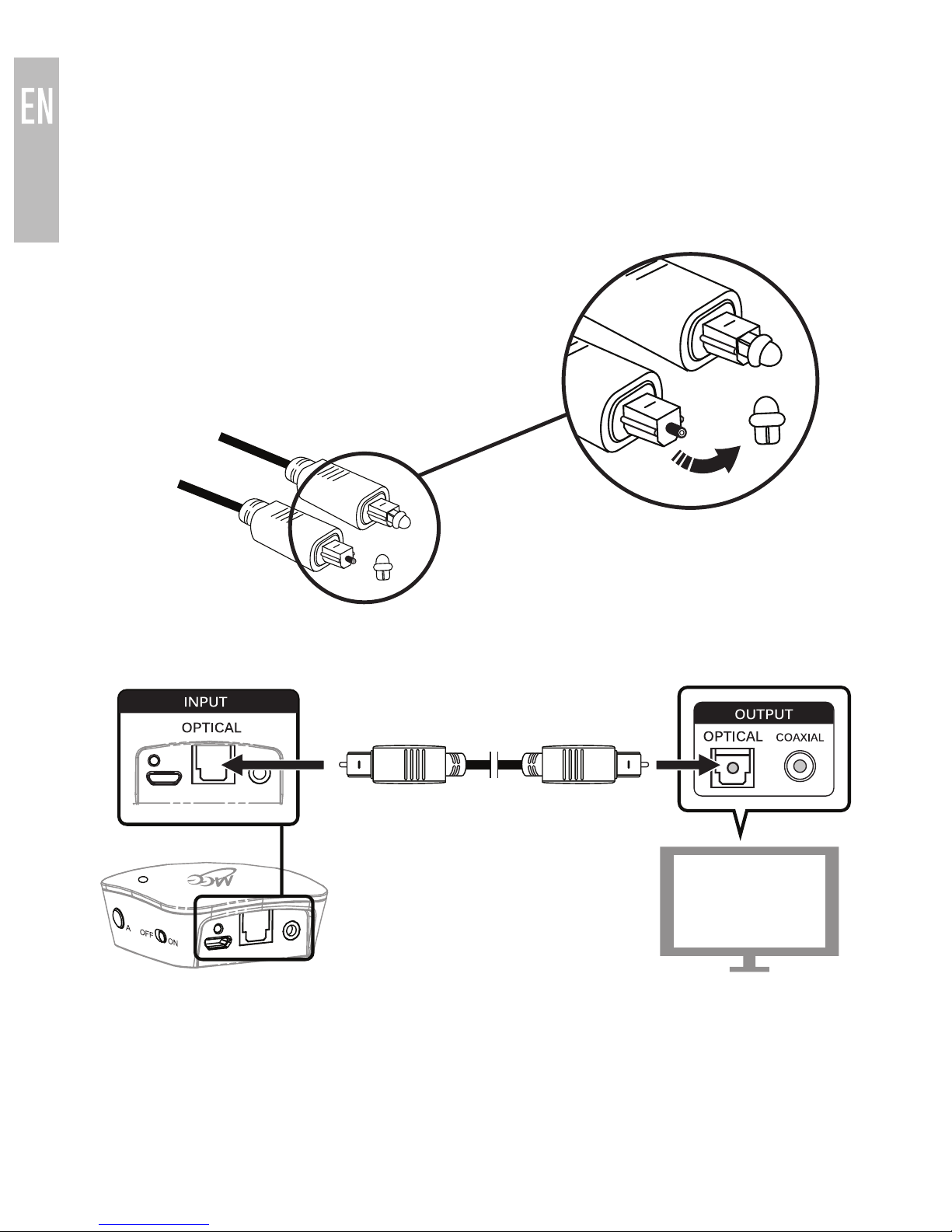
To turn on, slide the on/off switch on the right side of the
Connect
unit to the
“On” position.
To turn off, slide the switch to the “off” position.
SETUP:
CONNECTING TO TV OR OTHER AUDIO DEVICE
The
Connect
includes three connection options. Consult the user manual
for your television or other device to find the appropriate connector to use for
audio output (Audio Out).
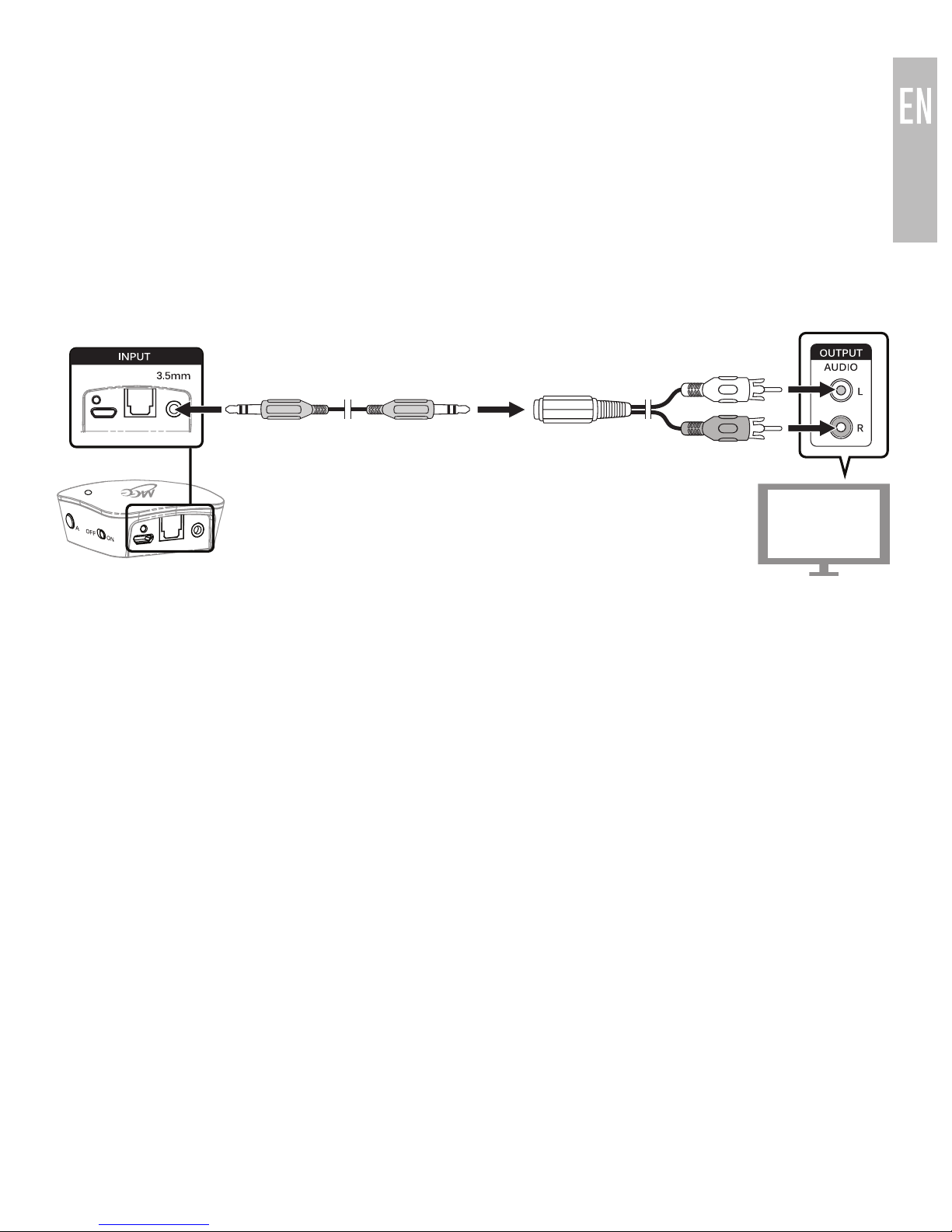
Option 1: Digital optical audio out (TOSLINK)
Newer TVs are usually outfitted with a TOSLINK
digital optical (SPDIF) connector.
A. Remove the protective
caps from the included
fiber optic TOSLINK cable
B. Plug the cable firmly into the optical audio output on the TV and the
optical input of the
Connect
.
The volume of optical output is typically fixed and TV speakers can be
controlled independently as necessary.
Note: If something is plugged into both the optical and 3.5mm input jacks of
the
Connect
, the analog (3.5mm) input will have priority and the optical input
will be muted. To use the optical input, unplug the 3.5mm connector from the
transmitter.
continue to next page
5
SETUP (Continued):
CONNECTING TO TV OR OTHER AUDIO DEVICE
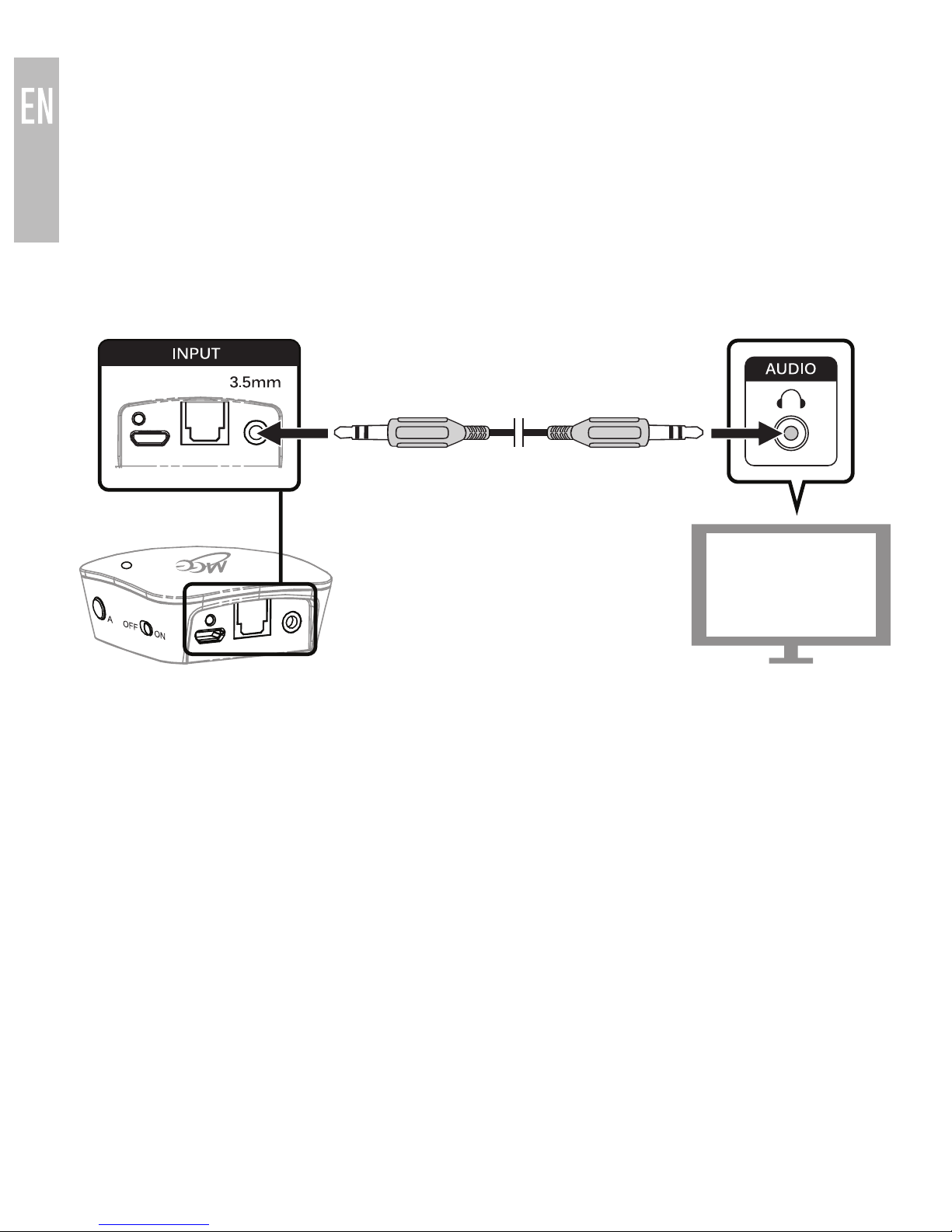
Option 2: RCA audio out (red and white connectors)
Older TVs usually have analog audio output with RCA (red and white)
connectors. To use the RCA output, attach the included RCA adapter to the
3.5mm stereo audio cable. Plug the connectors of the RCA adapter into the
matching-color RCA jacks on the TVs and plug the attached 3.5mm cable into
the 3.5mm input on the rear of the
Connect
.
The volume of RCA audio output is typically fixed and TV speakers can be
controlled independently of the
Connect
.
continue to next page
6
7
SETUP (Continued):
CONNECTING TO TV OR OTHER AUDIO DEVICE
Option 3: 3.5mm (1/8”) headphone jack
Some TVs and most standalone receivers have a headphone jack on the
front or side. To use the
Connect
with the headphone jack, plug the included
3.5mm stereo audio cable into the headphone jack on the TV and the 3.5mm
input on the rear of the transmitter. A ¼” adapter (not included) may be used
with receivers that have a ¼” jack.
TV speakers will typically be muted automatically when the headphone jack
is use. The volume of the headphone jack can be controlled using the TV or
receiver and will affect the volume of the
Connect
.
continue to next page
8
SETUP:
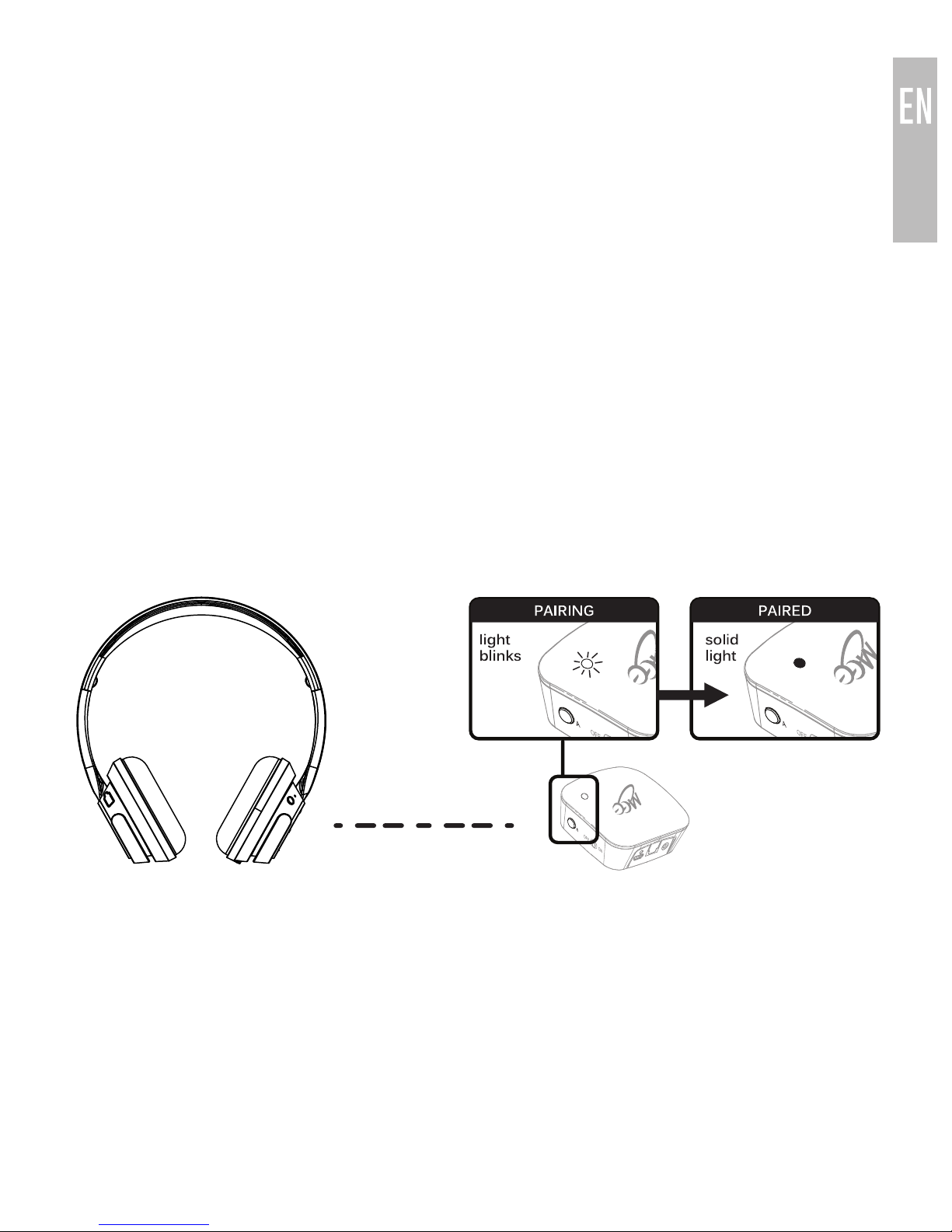
PAIRING WITH BLUETOOTH HEADPHONES
Before use, the
Connect
must be paired with at least one Bluetooth
headphone or other Bluetooth audio receiver.
Make sure your Bluetooth headphone or other device is turned off and
within 1 meter (3 feet) of
Connect
and put it in pairing mode. With most
headphones this is done by pressing and holding the Power/Multifunction
button until the status indicator lights (typically red and blue) flash in an
alternating pattern. If you are unsure of how to activate pairing mode,
consult the user manual of your headphone/device.
Once the headphone is in pairing mode, press pairing button “A” located on
the right side of the
Connect
. A blue light will blink rapidly on the top of the
unit to indicate that the
Connect
is ready to pair. It will pair automatically with
any headphone or other Bluetooth receiver that is also in pairing mode and
located within 1 meter (3 feet). The
Connect
and headphone have to be in
pairing mode simultaneously in order to pair.
The
Connect
will remain in pairing mode for 30 seconds or until successfully
paired. Once paired, the blue light will blink several times and turn solid Blue.
Note: The above procedure creates a pairing in slot A. To pair a single
headphone in slot B, simply use pairing button “B” instead. To pair two
headphones simultaneously, follow the instructions in the next section.
continue to next page
9
SETUP (Continued):
PAIRING WITH BLUETOOTH HEADPHONES
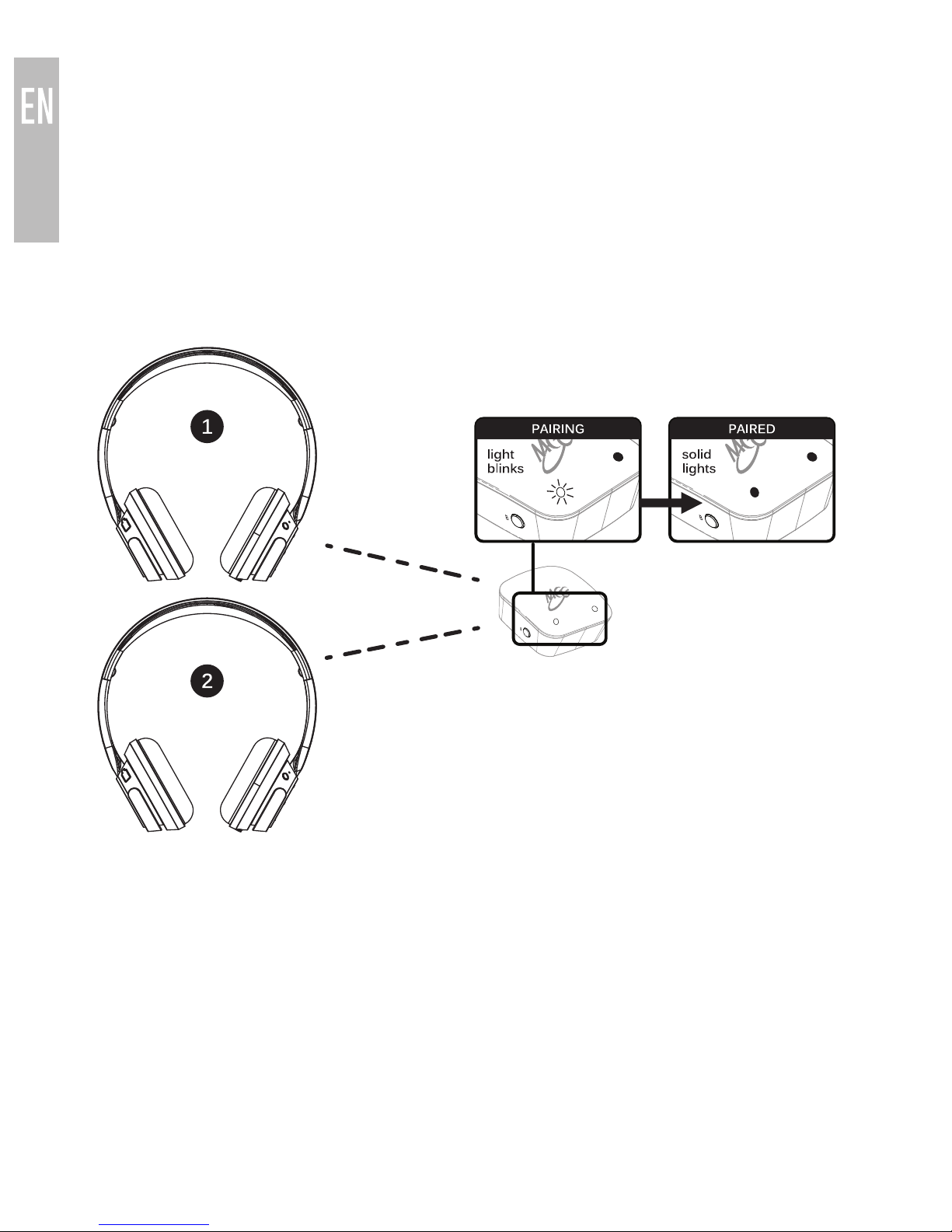
Optional: Pairing a 2nd Headphone
The
Connect
can stream audio to two Bluetooth headphones simultaneously.
A second headphone can be paired after one headphone is already connected
(as indicated by a solid blue light on top of the unit). To pair the second
headphone, put it in pairing mode and then press pairing button “B” on the
Connect
. A blue light will flash to indicate that the
Connect
is in pairing mode
and the second headphone will be paired.
Note: During the pairing process the sound may have a brief intermittent period.
Note: When streaming to two headphones, the
Connect
will always default to
the best available codec that is supported by both of the connected
headphones. For example, if one of the headphones supports aptX and the
other does not, regular Bluetooth audio streaming will be used with both
headphones.
continue to next page
Once both
headphones
are connected,
two solid blue
lights will be
shown.
Table of contents
Other MEE Headphones manuals


