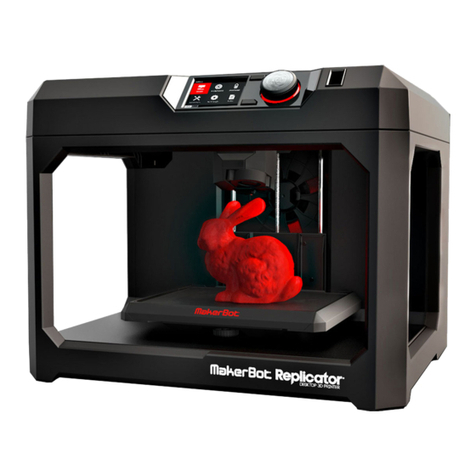
mbot 3d PLY User manual


2 Mbot Manual ~ Cube (PLY or PVC, Single or Dual)
Contents
1 Installing software
1.1 Installing Python....................................................................................................... …. 3
1.2 Installing ReplicatorG............................................................................................... …. 4
2 Pre-print checks
2.1 Power up.......................................................................................................................... 8
2.2 Connect to computer........................................................................................................ 9
2.3 etting up software...........................................................................................................10
3 Setting up model data
3.1 Importing model file into ReplicatorG.............................................................................. 13
3.2 Move, scale, rotate and estimated build time.......................................................... ….. 13
3.3 Generating GCode(licing).........................................................................................15
4 Test printing
(If plastic stop coming out t e nozzle during printing, please read t is c apter)
4.1 Using t e ReplicatorG Control Panel ..............................................................................18
5 Printing
5.1 Printing from computer................................................................................................... 20
5.2 Printing from D card..................................................................................................... 22
5.3 Finished Prints............................................................................................................... 24
5.4 Other Important Printing Information and tips
READ BEFORE PRINTING ANYTHING!!!! ………………………………………………. 25
Two-color (Dual) printing........................................................................................................ 28
T is manual was last updated 24 July 2013

For furt er Tec nical Support visit www.bilbycnc.com.au 3
To get a better printing experience, we suggest you to take time reading this manual.
It is designed to illustrate the procedures from the instalment of software to
operation , and get you up and running as quickly as possible.
1 Installing software
1.1 Installing Python
1) Go to http://www.mbot3d.com/pages/software, and download ReplicatorG and python2.6
IMPORTANT : You MUST use MBots modified ReplicatorG and not t e standard one available
at replicatorG.org
2) For Windows XP, double-click python2.6.5 to install. For Windows 7, run the installer with
administrator rights. (How? Right click on the installer to get the 'Run as Administrator' option.)
3) Keep clicking the “Next” button to finish installing.
NOTE: Use the default installation directory.

4 Mbot Manual ~ Cube (PLY or PVC, Single or Dual)
1.2 Installing ReplicatorG
1) Double-click ReplicatorG, and you’ll see the following window.
2) Click the “Next” button. Then on the following window, click the “Install” button.
uggest using the default destination folder.

For furt er Tec nical Support visit www.bilbycnc.com.au 5
3) On the following window click the “next” button
The driver installation wizard will pop up. Click the next button
4) Click the “Install” button on the “Window ecurity” pop-up to install the printer drivers. When another
“Windows security pop-up appears, click “always install the drive(i)”.

6 Mbot Manual ~ Cube (PLY or PVC, Single or Dual)
While on the ReplicatorG installer window, click the “Next” button to finish the installation of ReplicatorG
5) Click the “Finish” button to complete driver installation

For furt er Tec nical Support visit www.bilbycnc.com.au 7
6) A short cut icon for ReplicatorG is created on your desktop

8 Mbot Manual ~ Cube (PLY or PVC, Single or Dual)
2 Pre-Print Checks
2.1 Power up
1) Ensure the power cable is attached (see the picture below), and then switch on.
2)
The LCD screen reads “Heater Error!”, which can be fixed by heating up through software.
Press any button at the right hand and you’ll see the message changes on the LCD, which
means the machine is ok.
By default the firmware assumes there is a Heated Bed. As there is not you get the error.
imply use the LCD screen menu and navigate as follows:
Info and ettings -> General ettings -> Change “Heat Plate” to NO

For furt er Tec nical Support visit www.bilbycnc.com.au 9
2.2 Connect to computer
Make sure your computer is connected to your MBot with the supplied U B cable.

10 Mbot Manual ~ Cube (PLY or PVC, Single or Dual)
A) Click GCode -> GCoder Generator, and select “skeinforge(47)-Legacy”.
B) Click Machine -> Machine Type (Driver). If your printer is duel-extruder, select “The MBot Cube
Dual”. If it is a single select “The MBot Cube ingle”
2.3 Setting up software
1. Double-click the desktop icon to run ReplicatorG.
2. Choose extruder nozzle and connection serial port.
This manual suits for next models
1
Table of contents
Other mbot 3d 3D Printer manuals