Matrix Telecom SIMADO GFX44 User manual

SIMADO GFX44
Quick Start


SIMADO GFX44SIMADO GFX44
SIMADO GFX44SIMADO GFX44
SIMADO GFX44
Multi-port Mobile-FXS Gateway with LCR
Quick Start
Thank You for choosing Matrix SIMADO GFX44! Please read the instructions
given in this quick start before you install this feature rich gateway.
This quick start is meant to help you to install the basic features and parameters
of the system. For the detailed information on installing and configuring SIMADO
GFX44, please refer 'SIMADO GFX44 System Manual' provided to you on the
CD-ROM.
1. SIMADO GFX44 also supports SIMCOM 3G module for voice. When
3G module is installed in the system, it will have following effect:
a. RCOC-Busy and No Reply will not work.
b. Frequency Band Selection is not supported.
c. Call Waiting service must be disabled in the SIM Card inserted in
the Mobile Port else the current call will be disconnected if another
call is detected by the module.
Know your SIMADO GFX44
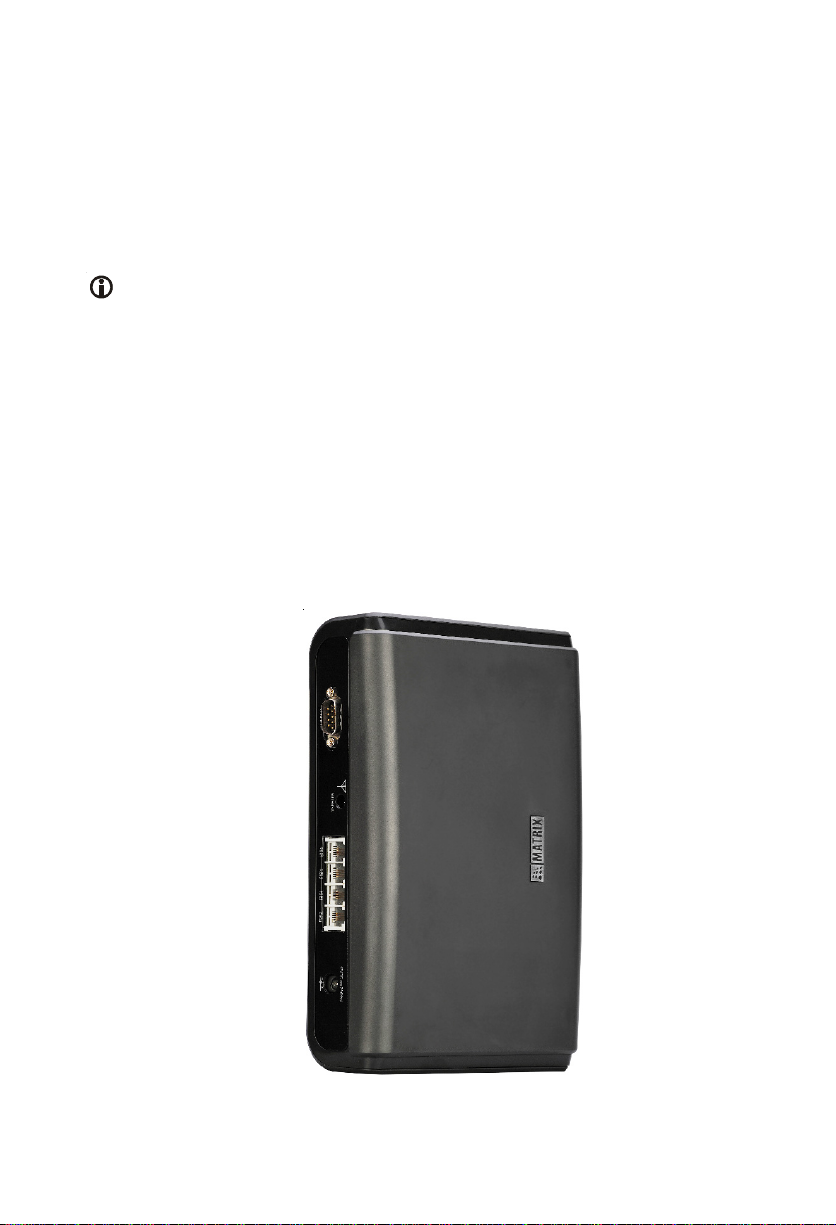
SIMADO GFX44 has 4 FXS Ports, a Communication Port, 4 Mobile Ports, an
Antenna Connecter, a Power Socket and 9 LEDs (8 Port LEDs + 1 Power LED).

LEDs
SIMADO GFX44 has total 9 LEDs:
• Four LEDs for FXS ports labeled as F1, F2, F3 and F4
• Four LEDs for Mobile ports labeled as G1, G2, G3 and G4
• One LED for Power labeled as PWR
M1
M2 M3 M4
PWR
F1
F2 F3 F4
Applications of SIMADO GFX44
SIMADO GFX44 finds its applications in corporate offices, factories, call centers,
hotels and such other establishments. SIMADO GFX44 can be used as stand-
alone system as well as it can also be interfaced with the PBX.
Case 1: SIMADO GFX44 as Stand-alone
GSM
Network
Mobile1 FXS1
Mobile2
Mobile3
Mobile4
FXS2
FXS3
FXS4
Trunk Interface
Station Interface
SIMADO GFX44

Case 2: SIMADO GFX44 interfaced with PBX
GSM
Network
Mobile1 FXS1
FXS2
FXS3
FXS4
PBX
PSTN
Network
FXS1
FXS2
FXSn
Mobile2
Mobile3
Mobile4
FXO1
FXO2
FXO3
FXO4
FXO5
FXO n
SIM
A
DO GFX44
Before you Start
• Verify the package contents
SIMADO GFX44
with Antenna (Rubber
ducky(SMA)
Quick Start
CD containing System
Manual, Quick Start and
Jeeves Software
Adaptor 12VDC, 2Amp.
(Country Specific)
Line Cord (RJ11)
(as per Configuration)
Two Screws M 7/30 with Grips
External Cable Antenna SMA
A Warranty Card set
A Mounting Template
Make sure that all the above mentioned components are present when you open
the Sales Kit of SIMADO GFX44. In case any of the part is damaged or is missing,
contact the Vendor/Service Provider from whom you have purchased the system.
You should have:
1. Minimum one (Maximum four) SIM card from GSM service provider.
2. Minimum one analog telephone instrument (Maximum four) with LCD display.
(For Stand-alone)
3. Connection to Mains power.

Installing SIMADO GFX44
Precautions and Safety Instructions:
Take proper precautions while installing SIMADO GFX44 to reduce the risk of
fire, electric shock and injury to the system as well as the person using it. (Refer
'Protecting SIMADO GFX44' topic in the System Manual for details)
Mounting SIMADO GFX44 on Wall:
• Select a suitable place on the wall for mounting SIMADO GFX44.
• Put the mounting template on the wall and mark the nail hole.
• Drill a hole of appropriate size.
• Insert the nail grip in the hole.
• Insert the screw and tighten it leaving the screw head a few millimeters
protruded of the wall.
• Check the strength of the nail.
• Hang SIMADO GFX44 on the wall.
Connecting SIMADO GFX44:
SIMADO GFX44 can be used as stand-alone system as well as it can also be
interfaced with the PBX. It should be installed at the airy, dust free and moisture
free place.
COM10101
ANTENNA
FXS1 FXS2 FXS3 FXS4
12VDC 2A(Max)
• Place SIMADO GFX44 at a place where it can get proper power supply and
network signals.
• Connect Antenna provided with the system to the antenna (TNC) connector,
labeled as 'ANTENNA', of GFX44.
• Open the top cover and insert SIM card/s into the GSM modules
of the system and close the cover properly.

LEDs
GSM Module GSM Module
Mobile 1 Mobile 2 Mobile 3 Mobile 4
When SIMCOM 3G module is used in SIMADO GFX44 then the call waiting
service must be disabled in the SIM Card inserted in the Mobile Port else it
will result in call disconnection in speech condition if another call is detected
by the module.
• Connect telephone instrument with CLI display to the FXS ports of GFX44
with the help of RJ11 cable.
• Connect COM Port of GFX44 to a computer using COM Port cable.
• Connect Power Socket of GFX44 to the power supply using 12V DC Adaptor
provided to you with the system and switch ON the power supply.
Switching ON SIMADO GFX44
After connecting the system as shown above, switch ON the power supply.
At power ON:
• Power LED glows green (continuously).
• After approximately 2 seconds all other LEDs pursue the following sequence:
Glow Red for 500ms Glow Green for 500ms GSM initialization starts.
• GSM initialization takes approximately 50-60 seconds.
• On successful completion of GSM initialization, system explores the network.
• System takes few seconds for establishing connection with the network.
After successful registration with the network, all LEDs will turn off.

The following table shows LED indications during various events and error
conditions:
Event Colour Cadence in ms
(1 Cadence = approx. 3000 ms.)
During GSM Initialization Orange 200ms ON-200ms Off
200ms ON-200ms Off
200ms ON-200ms Off
200ms ON-200ms Off
200ms ON-1200ms Off (5 Blinks)
If PUK Required Orange 200ms ON-200ms Off
200ms ON-200ms Off
200ms ON-200ms Off
200ms ON-1600ms Off (4 Blinks)
If SIM PIN Faulty Orange 200ms ON-200ms Off
200ms ON-200ms Off
200ms ON-2000ms Off (3 Blinks)
If SIM Absent Orange 200ms ON-200ms Off
200ms ON-2400ms Off (2 Blinks)
If Network Absent/GSM
Module could not
establish connection
with the network
Orange 200ms ON-2800ms Off (1 Blink)
During Normal Functioning:
Following table shows LED indications during various events occurring on FXS/
Mobile Ports of the system:
Event Color Cadence in ms (1 Cadence=approx. 3000 m s.)
Port Disable -- LED Off
Port Idle -- LED Off
Port Off-Hook Red Continuous ON
Ring Event Green 400ms ON-200 ms Off 400ms ON-2000ms Off
Port Active Red 68 ms ON-68 ms Off
Speech Green Continuous ON
Call Minutes* Red 1000 ms ON 1000 ms OFF
* Applicable for Mobile Ports only, when mobile port is idle. (Refer 'Call Minutes'
topic in system manual for details)

Programming SIMADO GFX44
Programming of SIMADO GFX44 can be done in the following ways:
• Using Serial Jeeves
• By issuing commands from FXS Port
• By issuing commands through Mobile Port
Programming SIMADO GFX44 using Serial Jeeves:
SIMADO GFX44 enables you to program the system through windows based
software, known as Jeeves. Jeeves is a flexible and friendly tool with mouse
operated GUI. To program the system using Jeeves, follow the steps given
below:
• Insert 'Matrix SIMADO GFX44' CD provided to you along with the product
in the CD Drive of your computer. It is an auto-run CD.
• CD drive window will open. It contains two folders viz. 'Documents' and
'SIMADO GFX44 Jeeves VxRy'. (If CD does not open by itself, click on 'My
Computer' ‘CD Drive’ to exaplore the CD.
• Open 'SIMADO GFX44 Jeeves VxRy' folder. Run set-up to install the Jeeves
into your computer.
• Connect your computer with the system using COM Port.
• Click on Start Programs Matrix SIMADO GFX44 Jeeves VxRy.
SIMADO GFX44 Serial Jeeves Home page will open .
Table of contents
Other Matrix Telecom Gateway manuals


Popular Gateway manuals by other brands

LST
LST M500RFE-AS Specification sheet

Kinnex
Kinnex Media Gateway quick start guide

2N Telekomunikace
2N Telekomunikace 2N StarGate user manual
Mitsubishi Heavy Industries
Mitsubishi Heavy Industries Superlink SC-WBGW256 Original instructions

ZyXEL Communications
ZyXEL Communications ZYWALL2 ET 2WE user guide

Telsey
Telsey CPVA 500 - SIP Technical manual