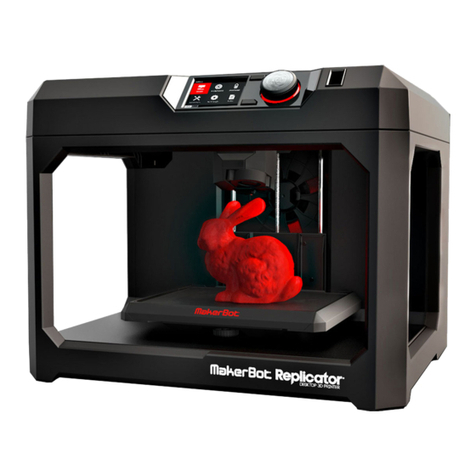
Markforged Metal X User manual

1
METAL X PRINTER USER GUIDE
METAL X PRINTER
USER GUIDE

Markforged
480 Pleasant St
Watertown MA 02472
USA
https://support.markforged.com
suppor[email protected]
For the latest PDF version of this document, visit our
support website.
Copyright © 2019 Markforged, Inc. All rights reserved.
Changes are periodically made to the information herein
which will be incorporated in revised editions of this
publication.
Markforged may make changes or improvements to
the product(s) described in this publication at any time
and without notice.

3
METAL X PRINTER USER GUIDE
TABLE OF CONTENTS
USER NOTES 4
SAFETY NOTES 5
CREATING EIGER ORGANIZATIONS 6
CONNECTING YOUR PRINTER 8
NETWORK REQUIREMENTS 13
SHUTDOWN PROCEDURE 14
UPDATING FIRMWARE 15
LEVELING THE PRINT BED 18
APPLYING A PRINT SHEET 22
TURN OFF VACUUM SEAL
LOADING METAL FILAMENT 25
METERED LOAD
QUICK LOAD
LOADING RELEASE FILAMENT 37
METERED LOAD
QUICK LOAD
UNLOADING METAL FILAMENT 47
UNLOADING RELEASE FILAMENT 50
MATERIAL STORAGE / DISPOSAL 52
PRINTING A METAL PART 54
SAFELY REMOVING METAL PARTS 59
CLEARING METAL MATERIAL JAMS 60
PRINT HEAD OBSTRUCTION 66
CLEANING YOUR METAL X PRINTER 67
REPLACING THE METAL NOZZLE 69
REPLACING THE RELEASE NOZZLE 79
REPLACING WIPING STATION
BRUSHES 88
ADJUSTING BELT TENSION 89
ADJUSTING RELEASE NOZZLE XY
OFFSET 91
CALIBRATING STEPPER ENCODERS 92
MANUAL CONTROL 94
NOZZLE TEMPERATURE
PRINT BED HEIGHT
EXTRUSION FLOW CHECK 97

METAL X PRINTER USER GUIDE
4
USER NOTES
FCC COMPL.IANCE
Note: This equipment has been tested and found to comply with the limits for a Class A digital device, pursuant
to part 15 of the FCC Rules. These limits are designed to provide reasonable protection against harmful
interference when the equipment is operated in a commercial environment. This equipment generates, uses,
and can radiate radio frequency energy and, if not installed and used in accordance with the instruction manual,
may cause harmful interference to radio communications. Operation of this equipment in a residential area is
likely to cause harmful interference in which case the user will be required to correct the interference at his or
her own expense.
authority to operate the equipment.
USER GUIDE

5
METAL X PRINTER USER GUIDE
SAFETY NOTES
TABLETOP USE ONLY
access on all sides (see the Facilities Guide
POWER DISCONNECT ACCESS
Take care to set up your Metal X printer so that the disconnecting device (power switch on the rear face of the
printer) is accessible at all times. Note that the power cord can be disconnected as a backup if the power switch
becomes inoperable or inaccessible.
The camera and print chamber interior can be wiped down using light mineral oil only. Follow instructions in
the next section (Reducing Burn Risks) when doing so. Do not use any other cleaning solvents or chemicals
on the inner or outer surfaces of the printer.
REDUCING BURN RISKS
●Do not touch the nozzles and print head when hot, unless explicitly instructed to do so in the user or
service manuals
●During a print run, leave all doors closed
●Do not touch the heating elements in the upper chamber when the Metal X is running
●Avoid touching the print bed when hot
●Note that newly printed parts can be hot. Handle with care
ALWAYS FOLLOW SAFETY INSTRUCTIONS
conditions. Follow all safety instructions posted on the unit and in the written documentation.
Note: Consult the Safety Sheet included with your device for an explanation of the safety icons used in
this manual.

METAL X PRINTER USER GUIDE
6
CREATING EIGER ORGANIZATIONS
Before you can print to your printer, you will need to create an organization in Eiger, our software for setting up
only be assigned to a single Eiger organization, and a user can only belong to a single organization.
CREATE NEW ORGANIZATION
1. Navigate to https://www.eiger.io/register in a Google Chrome browser.
2. Input all of the required information to create an Eiger organization.
3. You will receive an email from Eiger after creating your organization. Please click on the link within the
email to complete the sign-up process.
4.
screen by selecting the menu icon from the dashboard of your printer and navigating to Settings >
System Info.

7
METAL X PRINTER USER GUIDE
5. Register.
ADD PRINTER TO EXISTING ORGANIZATION
If you already have an existing organization, you can add a new printer to it at any time with the ID and access
Settings >
System Info.
1. Sign into your Eiger account in a Google Chrome browser.
2. Navigate to https://www.eiger.io/devices.
3. Select the Register Device button on the screen.
4.
Register.

METAL X PRINTER USER GUIDE
8
CONNECTING YOUR PRINTER
BEFORE YOU GET STARTED
If you powered up your printer before adding your printer to your Eiger account, you will need to power cycle the
printer before it can connect to your account.
1. Select the Wi-Fi icon from the dashboard.
2. Press the Wi-Fi tile.
3. Press the Configure button to enter your network information.

9
METAL X PRINTER USER GUIDE
4. Choose a network from the Network Name drop-down menu and enter your network password, if
necessary.
5. Press Save
1. Plug your Ethernet cable into the Ethernet port.
Note: Make sure your LAN (Local Area Network) uses DHCP.
2. Select the Ethernet icon from the dashboard.
for either Ethernet or Wi-Fi.

METAL X PRINTER USER GUIDE
10
1. Select the Wi-Fi icon from the dashboard.
2. Press either the Ethernet tile or the Wi-Fi
Note: Your printer will display the MAC address of whichever connection option is currently
enabled, even if the printer is unable to connect to the Internet. Only one MAC address can be
displayed at a time.
3. When the Network status reads Online, press the Done button.
4. Select the menu icon from the dashboard.
Other manuals for Metal X
2
Table of contents
Other Markforged 3D Printer manuals