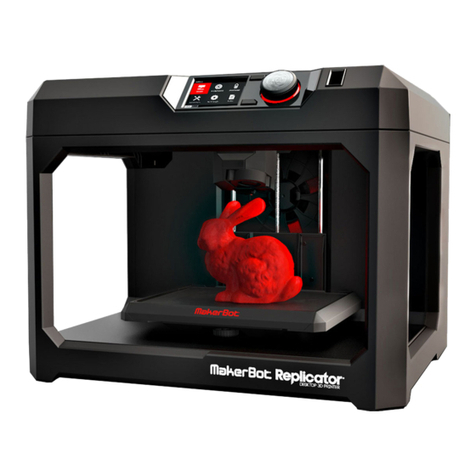
Makermade 300X User instructions

SETTING UP YOUR
300X 3D PRINTER
The complete assembly guide by
Last Updated 12.23.2020 v1.1

2
300X USER GUIDE
SETTING UP YOUR 300X
TABLE OF CONTENTS
SECTION 1. Introduction - 3
SECTION 2. What’s in the box - 4
SECTION 3. Assembling the 300x - 6
SECTION 4. Your First Print - 9
SECTION 5. About 3D Printing - 10
SECTION 5. Appendix - 21
This work is licensed under the creative commons Attribution
Non commercial-no Derivatives 4.0 International license. Last Updated 12.23.2020
Version v1.1

3
300X USER GUIDE
Thanks for buying the 300x 3D Printer by Maker Made, with practical features for creative
creatures! The following instructions are intended for beginners - with no prior 3D printing
experience.
Here are some notes on the layout:
1. First off, I’m Drew and I took the lead on creating this guide. My notes are tips and tricks to
help you along. They are in a different font, blue, and look like this:
They are meant to answer some of the “why” questions you might have and give you tips to get
started. We suggest printing the guide in color, if you want a paper copy to go along with the
quick start guide.
2. 300x setup can be broken down into two main parts: building the 300x and starting your first
print. There are a few steps involved, so let’s get started!
3. If you need any help, join us in one of our weekly 3D Printing videoconference Q&A sessions,
or send us an email at support@makermade.com.
Drew’s Note: Let us know how this guide can be improved. We love to hear from you!
SECTION 1. INTRODUCTION
This work is licensed under the creative commons Attribution
Non commercial-no Derivatives 4.0 International license. Last Updated 12.23.2020
Version v1.1

4
300X USER GUIDE
WHAT’S IN THE BOX?
X-AXIS GANTRY Y-AXIS BASE WITH MAGNETIC
BUILD SURFACE
SPOOL HOLDER (3 PARTS)
BLACK M3 SCREEN MOUNT BOLTS
(X2)
BLACK SPOOL HOLDER SCREWS
(X2)
SILVER M4 GANTRY BOLTS (X4)
SCREEN AND MOUNT ADJUSTABLE PHILLIPS/FLATHEAD
SCREWDRIVER
2mm, 2.5mm, 3mm ALLEN
WRENCHES
200g PLA ROLL PRINT REMOVAL SCRAPER USB A-B CORD FOR WIRED
COMPUTER CONNECTION
FILAMENT CLIPPERS POWER CORD EXTRA ZIP TIES FOR CORD
MAINTENANCE
This work is licensed under the creative commons Attribution
Non commercial-no Derivatives 4.0 International license. Last Updated 12.23.2020
Version v1.1

5
300X USER GUIDE
WHAT’S IN THE BOX?
NOZZLE UNCLOGGING TOOL MICROUSB FOR SCREEN POWER USB DRIVE
Drew’s Note: Also included is a welcome letter and a quick start
guide. We are so excited that you have chosen to 3D print with
us!
This work is licensed under the creative commons Attribution
Non commercial-no Derivatives 4.0 International license. Last Updated 12.23.2020
Version v1.1

6
300X USER GUIDE
The 300x 3D Printer comes in several pieces to assemble.
Drew’s Note: Here is a layout of the practical features of the 300x!
ASSEMBLING YOUR 300X
Touchscreen
BLTouch Print Bed
Leveling Sensor
X-Axis Stepper Motor
Y-Axis Stepper Motor
Z-Axis Stepper Motors
Print Bed
X-Axis Gantry
Nozzle
Base
Extruder Stepper
Motor
Filament Holder
Extruder
Power Switch
X-Axis Limit Switch
This work is licensed under the creative commons Attribution
Non commercial-no Derivatives 4.0 International license. Last Updated 12.23.2020
Version v1.1

7
300X USER GUIDE
1. Unbox 300x and remove all foam from the base. 2. Place X-axis gantry into ports on top of the base, with
the silver and black stepper motors toward the back and
the nozzle toward the front.
3. Use a 3mm Allen wrench (largest) to screw 2 long
silver M4 bolts into each side of base to secure the
gantry.
4. Plug in microUSB (into either port) and HDMI into
back of screen. It is a tight fit, so ensure that the HDMI
is plugged in completely. Plug the other end of the USB
into one of the Raspberry Pi USB ports.
5. Attach the screen mount to frame using 2.5mm Allen
wrench (middle sized) and two black M3 bolts.
6. Plug in print bed to base, with connector clip on top.
3D PRINTER ASSEMBLY
This work is licensed under the creative commons Attribution
Non commercial-no Derivatives 4.0 International license. Last Updated 12.23.2020
Version v1.1

8
300X USER GUIDE
7. Plug gantry into base, with connector clip on top. 8. Plug in both Z-axis stepper motors from the back of
the printer. The connection will only fit one way.
9. Plug in X-axis stepper motor and smaller limit switch.
The wires are labeled with an “X”.
10. Plug in extruder stepper motor, the wire labeled “E”.
11. Attach filament axel to mount by inserting axel
threads through the mounting hole. Hand thread to
tighten the nut on the opposite side of the slanted
L-bracket.
12. Use two long Phillips screws to attach filament
holder to the top left of the gantry. Face the axel toward
the back of the printer.
3D PRINTER ASSEMBLY
This work is licensed under the creative commons Attribution
Non commercial-no Derivatives 4.0 International license. Last Updated 12.23.2020
Version v1.1

9
300X USER GUIDE
13. Plug in the power in the back and flip the switch on
the right side to turn it on. It will take about a minute for
the internal Raspberry Pi computer to boot.
14. Choose Mode.
The 300x comes with two different modes:
Home/Office and Education.
One is for hobbyists and businesses, while the education
mode includes tutorials and extra on how to 3D print.
You can change your mode and other settings at any
time by tapping menu at the bottom of the screen.
15. Follow the on screen instructions for the initial
setup, Wi-Fi, and calibration settings for your new 3D
printer.
Follow the instructions to download the latest printer
firmware and update to the newest features.
The name you give to your printer will be used to
connect to it over a web browser.
The on screen tutorials will walk you through how to
calibrate and 3D print on the 300x.
No downloaded software is required to slice files or
operate the 300x!
16. To connect to the 300x wirelessly using a web
browser, either connect the printer to your Wi-Fi,
ethernet, or connect to the Wi-Fi network on your
computer named “Maker Made” that the printer
broadcasts until it connects to your network.
Then, open any web browser and go to:
http://[your-printer-name].local
Note: Bonjour Print Services must be installed for the
printer page to load on a Windows computer.
To install Bonjour, install any Apple program (such as
iTunes) on your computer or find the newest stand-alone
version at support.apple.com.
YOUR FIRST PRINT
This work is licensed under the creative commons Attribution
Non commercial-no Derivatives 4.0 International license. Last Updated 12.23.2020
Version v1.1

10
300X USER GUIDE
ABOUT 3D PRINTING
You built your 300x 3D printer! Now let’s learn how to print.
Drew’s Note: To better understand 3D printing, here is a brief overview of the process,
materials, and how to troubleshoot. More pictures coming soon!
THE 3D PRINTING PROCESS
The 3D printing process is usually split into three main parts: creating or finding a digital file, converting the
digital file for your printer, and printing!
PART 1: CREATE OR FIND A DIGITAL .STL FILE
You can create a 3D model—a digital geometry—using any CAD (computer- aided design) software program.
We recommend free programs, such as TinkerCAD and OnShape. Autodesk’s Fusion360 is my favorite and free
for education. These programs take some time to learn, and can be challenging. But they are also rewarding,
especially when you watch your own creation being printed on your 3D printer! There are also many websites with
premade file libraries. Check out the Maker Marketplace, to find and post your creations!
Every CAD program allows users to save or export digital files for 3D printing. You want to save your file as an STL
file (“filename.stl”). The STL file is the standard file format for 3D printing. In some programs, it’s as easy as the
Save command. In others, you need to select the File > Export option, and choose the STL format. OBJ files can
also be sliced and 3D printed. If your file is not designed properly or is corrupted, it will not print properly. If the
print fails, this is where digital troubleshooting will begin.
PART 2: CONVERT YOUR DIGITAL FILE FOR YOUR 3D PRINTER (SLICING)
Slicing is the process of converting your design to Gcode that the printer can read. On the 300x, slicing is easy,
because it includes Cura, a popular slicer engine! However, the 300x is pending as one of the pre-selected non-
networked machines in Cura, if you want to download it on your computer.
To print on your 300x, just tap on your STL file (or click it, if connected through a web browser). Then you need to
choose the physical properties of how your model will print. You can change the print profile to “High Quality” for
a smoother, higher quality part, although the build will take longer, or “Fast Quality” to print at a lower quality in
less time. You may also need to check “Generate Support” if your model needs to print with support, change the
infill if you want a stronger, more dense model.
The following is an introduction to Cura and how to set up your machine on your computer. When you are satisfied
with the slicing settings and have chosen the filament you are using, you are ready to begin printing!
This work is licensed under the creative commons Attribution
Non commercial-no Derivatives 4.0 International license. Last Updated 12.23.2020
Version v1.1