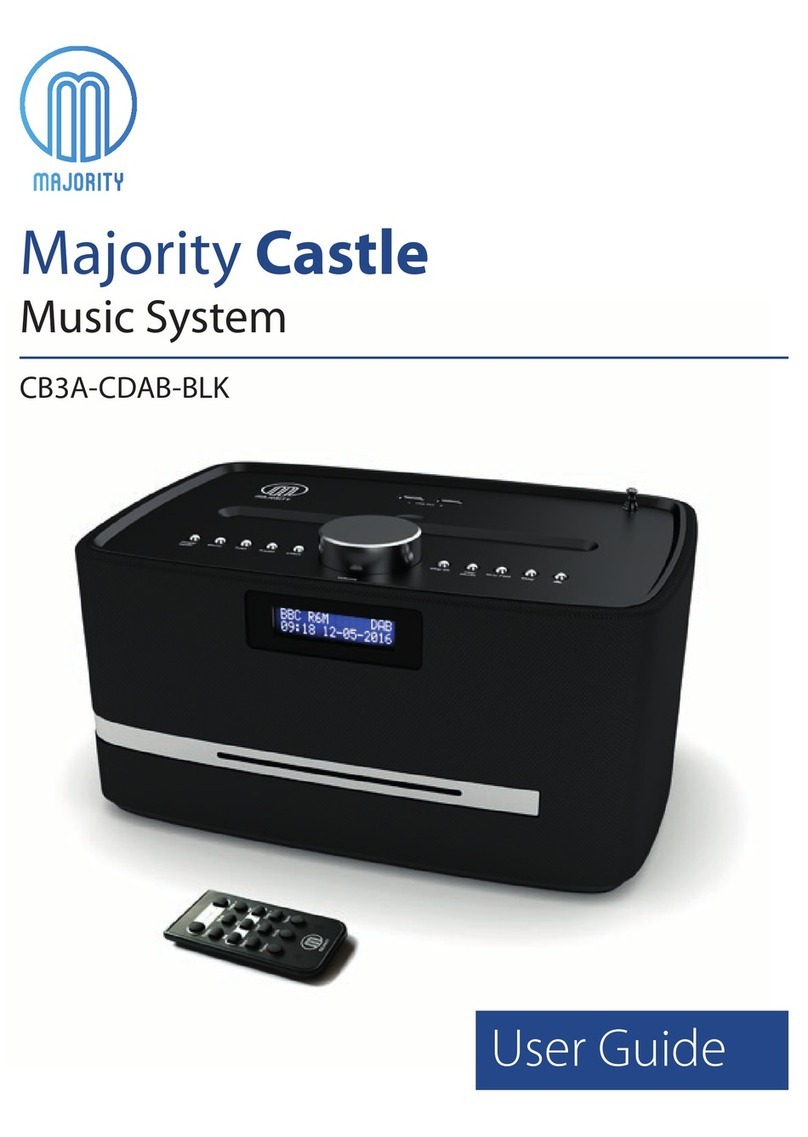
MAJORITY Castle Manual

CB3A-CDAB-BLK
MAJORITY
CASTLE
Compact Music System
Instrucons Guide

Controls And Funcons���������������������������������������������� 1
What’s In The Box?��������������������������������������������������� 4
Basic Operaon �������������������������������������������������������� 5
DAB/DAB+ Radio Funcons �������������������������������������� 7
FM Radio Funcons �������������������������������������������������� 9
CD Mode�������������������������������������������������������������������11
Bluetooth & Phone Connecon������������������������������� 12
Clock and Date Seng��������������������������������������������� 14
Sleep Seng ������������������������������������������������������������ 16
System Reset, Soware Version and Language ������� 17
Brightness and Alarm Seng ���������������������������������� 18
Other Funcons������������������������������������������������������ 20
Warranty ����������������������������������������������������������������� 22
Safety Informaon��������������������������������������������������� 23
Watch video tutorials and register
your product for a FREE 3-year warranty
at www.majorityradios.co.uk
Contents
YEAR
WARRANTY

1
Controls And Funcons
Top View
1. USB Out 1
2. USB Out 2
3. Antenna
4. Power/Mode
5. Menu
6. Scan
7. Preset
8. Eect
9. Volume/Select Snooze
10. Display (on front of music
system)
11. Skip Back
12. Play/Pause
13. Skip Forward
14. Stop
15. Eject CD

2
Rear View
Controls And Funcons
16. Aux-In Jack
17. Headphone jack
18. DC 9v in jack - wall plug
19. On/O switch
20. Phone stand

3
Remote Controller
Controls And Funcons
1. Volume Control
2. Reduce Treble
3. Mute
4. Increase Treble
5. Previous Track
6. Play/Pause
7. Next Track
8. Reduce Bass
9. Bass+ Loudness
Compensation*
10. Increase Bass
11. Power/Standby
12. Switch Mode
13. Reset Treble & Bass Levels
Bass Loud Compensation increases the level of low frequencies. Audio
at low frequencies can lose bass and treble. The loud button helps to
rectify this.

4
What’s In The Box?
1. Majority Castle Music System
2. Remote Control
3. Power Adapter
4. Phone Stand
5. Instructions Guide
Box Contents

5
Basic Operation
Instrucons Guide
Please note all (Ref.) refer to the Controls and Functions mapping guide on
Pages 1-2.
Plug the 9v adapter connector into the back of the system
labelled DC 9v (Ref.) and the power supply into the mains.
Follow by pressing the ON/OFF button at the back of the system
to turn the radio ON (Ref.).
Press the ‘Power/Mode’ button to turn the unit on (Ref.). On
rst use the radio will display“Sprache Deutsch” on the display
screen. To change the language to English, use the ‘Skip Bk’
(Ref.) or ‘Skip Fwd’ (Ref.) button to scroll through options.
Once you have chosen your desired language, press the
‘Volume/Select/Snooze’ button (Ref.) on the unit.
On rst use, the unit will automatically start up in DAB radio
mode and begin scanning for available DAB/DAB+ stations.
Once the scan is complete, you can browse through the
available stations or select a mode by pressing the ‘Power/Mode’
button (Ref.) until your required option displayed on the front
screen (Ref.).
There are four options:
• DAB - DAB Radio
• FM - FM Radio
• CD - CD Player
• BT-AUX - Phone connection

6
Instrucons Guide
Standby
To place the music system back on standby, press and hold the
‘Power’ Button (Ref.). The front display will show“Goodbye” and
then go into standby, showing the time and date.
To turn o fully, press the button on rear of the unit (Ref.) and
switch o at the mains. The cord must be kept out of reach of
children.
IMPORTANT: Please make sure you have extended the
antenna to its full length (Ref.3). This will then enable you to
rotate it to get the best signal.
!

7
Press ‘Power/Mode’ button (Ref.) and the unit will display
“Welcome to DAB”on the front display (Ref.).
Pull up the antenna (Ref.).
The music system will display “Searching”on the display or
“Tuning” if you have tuned previously (scanning may take a few
minutes).
Press ‘Scan’ (Ref.) to search for stations and use the ‘Skip Bk’
(Ref.) or ‘Skip Fwd’ (Ref.) button to ne tune the station.
How to store a preset radio station
You can store a station using the preset button (Ref.) and save
up to 10 stations.
First, tune to the station you want to store. Then press and hold
the ‘Preset’ button. The number “1” will ash on the front display
screen.
Use the ‘Skip Bk’ or ‘Skip Fwd’ button to select which preset
number you want to assign to that station.
Then press the large ‘Volume/Select/Snooze’ button on top of
the system (Ref.) once to select and store this.
The display screen will show “Preset [1] stored”. [1] and the
station will now be the preset number to which the station has
been saved.
DAB/DAB+ Radio Functions
Instrucons Guide

8
How to play a preset radio station
Once you have stored all your selected stations you can then just
press (do not hold) the preset button (Ref.) and scroll through
your choices using the ‘Skip Bk’ or ‘Skip Fwd’ button to browse
through to the preset number you would like to play.
Follow this by pressing the large ‘Volume/Select/Snooze’ button
on top of the system (Ref.) once to select.
To view information about the station, press the menu button
(Ref.) once and it will show any data on the front display.
Instrucons Guide
Other manuals for Castle
1
This manual suits for next models
1
Table of contents
Other MAJORITY Media Converter manuals