LifeTrak Brite R450 User manual

Quick Start Guide
Brite R450
®
Goal Progress Bar
Time / Date
Activity Value
Activity Type
sleep
distance
calories
steps
LightTrak Sensor
Notication Alert

Welcome to LifeTrak. Let’s take a quick tour of the basic features.
• To turn on your tness tracker, press and hold any button.
Learn more
• For support, tips, product information and full instructions, please visit:
www.lifetrakusa.com/support/help-center/
Copyright © 2015 LifeTrak, Inc. All rights reserved. Duplication or copying of all or part of this manual without
the express written consent of LifeTrak, Inc. is prohibited.
Website: www.LifeTrakUSA.com
Facebook: www.facebook.com/lifetrak
Twitter & Instagram: mylifetrak
Pinterest: pinterest.com/lifetrak
YouTube: www.youtube.com/lifetrakusa
NOTE: Actual model / screen images may vary from images shown.
NOTE: This is NOT a medical device. Please visit our website to view
cautions and warranty information in the full instruction manual.
CUSTOMER SERVICE
If you have questions about your
LifeTrak activity tracker, please
confact our customer service team
support@LifeTrakUSA.com

Table of Contents
Button Layout............................................................................................................................
Staying Connected....................................................................................................................
Pair Your Fitness Tracker & Smartphone / Tablet......................................................................
Sync Fitness Data.....................................................................................................................
Modes of Operation : Notications...........................................................................................
Modes of Operation : Hourly Display.....................................................................................
Modes of Operation : Weekly Display......................................................................................
Modes of Operation : Workouts............................................................................................
Taking Your Heart Rate.........................................................................................................
SleepTrak 2.0.......................................................................................................................
Intelligent Wake-Up..............................................................................................................
LightTrak Alerts....................................................................................................................
Inactivity Alert............................................................................................................................
User Info....................................................................................................................................
Time Setup................................................................................................................................
Goal Setup................................................................................................................................
FCC / IC Caution..................................................................................................................
Helpful Tips.................................................................................................................
1
2
3
4
5-8
9-10
11
12-14
15-16
17-18
19-20
21-22
23
24
25
26
27-28
Back Cover
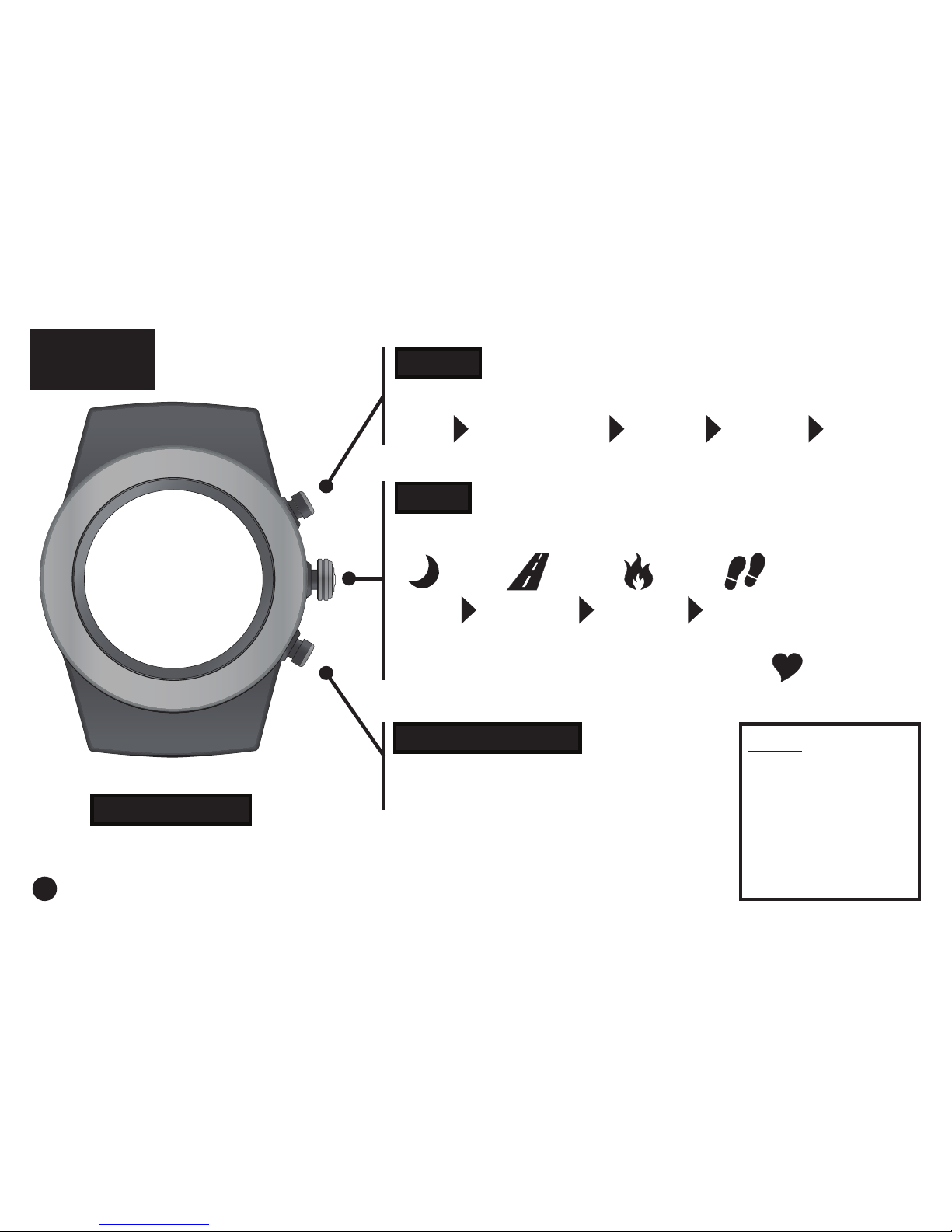
Press to view:
sleep distance calories steps
Press & hold to read your heart rate
MODE
Press to change modes:
Time Notications Hourly Weekly Workout
START / STOP
Press to start and stop in
Workout Mode
VIEW
BUTTON
LAYOUT
BACKLIGHT
To activate the backlight, double-click VIEW
If dark, pressing VIEW once will also activate light
NOTE:
The buttons are
NOT intended for
use under water.
If used, water
could leak in and
cause damage.
1

MODE
Press to change modes:
Time Notications Hourly Weekly Workout
Your LifeTrak Brite R450 can help you stay connected 24/7. To make the most of
your Brite R450, you will need to download the LifeTrak App from the App Store
in iTunes or Google Play.
Visit lifetrakusa.com for iOS and Android smartphone / tablet compatibility.
• Pair your Brite R450 with the LifeTrak app and automatically get notications
right on your wrist. Your Brite R450 stores up to 20 notications.
• See tness alerts and preview social messages on your wrist. Reminders, IM,
SMS, emails, calls and more.
• Stay in the loop with social notications from your family, friends, calendar and
your favorite apps.
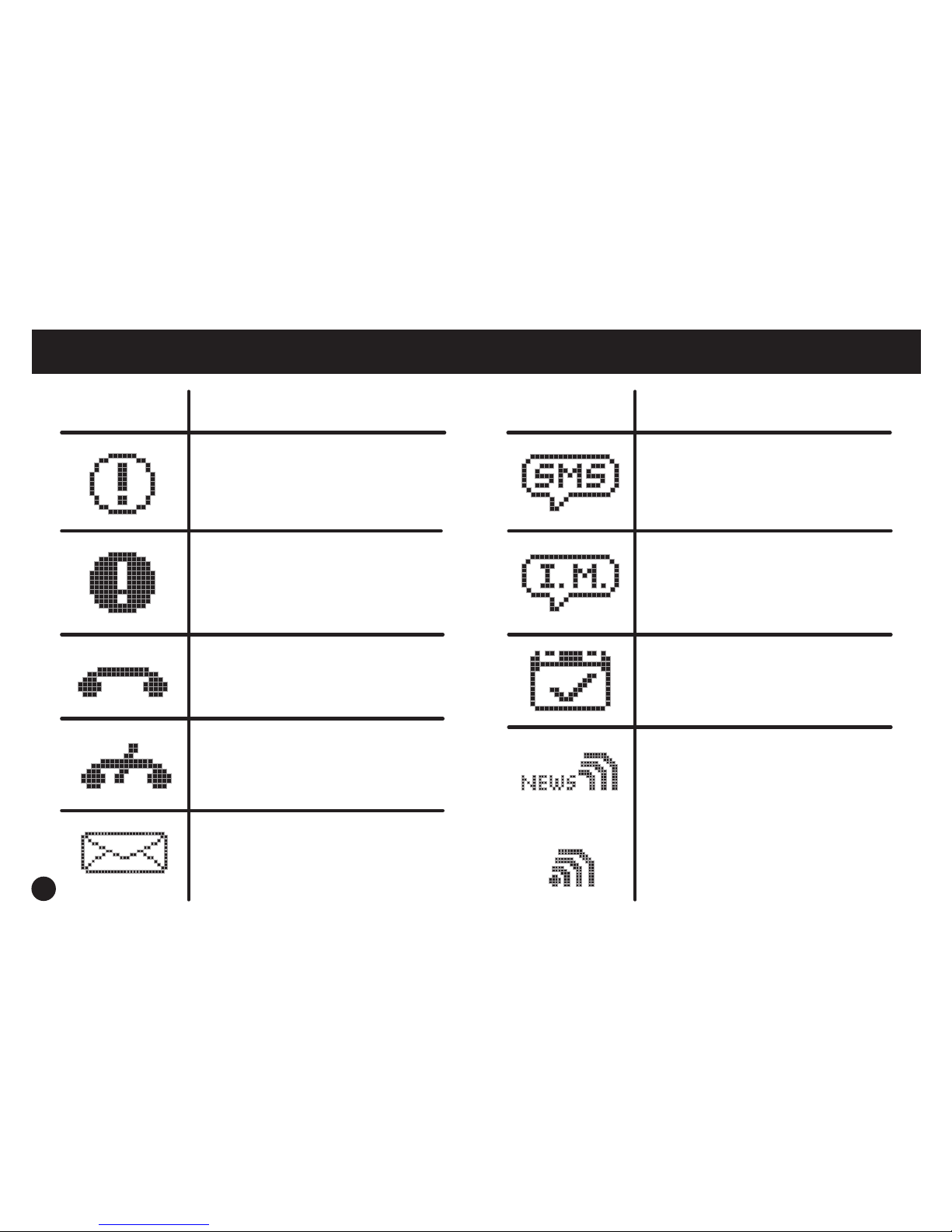
• Quickly interpret notications - LifeTrak Brite R450 uses distinct icons for many
notication types: IM, SMS, emails, incoming calls, missed calls, reminders,
RSS/news, general.
• Customize which notication types appear on your wrist and set up your
tness watch through the LifeTrak app.
STAYING CONNECTED
2

Now that your smartphone / tablet is attempting
to pair, we need your Brite R450 to do the same.
NOTE: For best results, keep your devices within
7 feet / 2 meters of each other when pairing.
START / STOP
From TIME MODE, PRESS & HOLD
to begin pairing. Button can be released once
the Bluetooth icon appears in the display.
Bluetooth Indicator
PAIR YOUR FITNESS TRACKER & SMARTPHONE / TABLET
3
1. Make sure Bluetooth is active on your smartphone / tablet.
2. Install the LifeTrak App on your compatible smartphone / tablet, then open the app.
3. Tap on “Connect a New Watch.”
4. Find the LifeTrak Brite R450 image & Click “Connect to Device.”

Once your LifeTrak Brite R450 and smartphone / tablet
are paired, you can sync tness data, receive notications
and set up your tness tracker.
• Smartphone notications sync automatically.
• Fitness data from your Brite R450 syncs manually.
You will need to sync your tness data manually with a simple
one-step process each time you wish to transfer the data.
To transfer your tness data, simply open your app and click on
the reload button in the top-right corner.
Remember: Bluetooth must be active on your
LifeTrak Brite R450 and your smartphone / tablet,
and devices must be PAIRED to complete the
data transfer (sync).
Indicator
Status
(activity tracker)
Solid: Bluetooth is
on and linked to a
device
Flashing: Bluetooth
is trying to establish a
connection
No icon: Bluetooth
is off
4
SYNC FITNESS DATA

5
START / STOP
Press to browse through your messages
VIEW
Press & hold to delete messages
From Time Mode,
press MODE until you reach Notications
MODES OF OPERATION : NOTIFICATIONS

NOTE: Bluetooth must be active on your smartphone / tablet AND your
LifeTrak Brite R450 to receive notications.
You must pair your Brite R450 with the LifeTrak app to receive notications.
Visit www.lifetrakusa.com/app or the App Store in iTunes / Google Play to download.
Once paired, calls and messages from your Bluetooth Smart Ready device will
automatically be sent to your tness tracker.
Up to 20 notications can be stored on your Brite R450. Select which types of
notications you want sent to your tness tracker through the LifeTrak app settings.
Displayed if there
are no messages
on your tness
tracker
Notications Mode
Example of an
email notication
on your tness
tracker
6
NOTIFICATIONS
7
Symbol Notication Type
Generic/Social Alert SMS/MMS
Message
Instant Message
News Feed
Calendar/Planner
Alert
High Priority Alert
Incoming Call
Missed Call
or
Email
Symbol Notication Type
NOTIFICATIONS : TYPES & SYMBOLS
Other manuals for Brite R450
2
Table of contents
Other LifeTrak Watch manuals