LG 65VS10 User manual

www.lg.com
OWNER’S MANUAL
MONITOR SIGNAGE
65VS10
Please read this manual carefully before operating the
your set and retain it for future reference.
MONITOR SIGNAGE MODELS
ENG
ENGLISH

2
ENG
ENGLISH
TABLE OF CONTENTS
CONTENTS
3LICENSES
4ASSEMBLING AND
PREPARING
4 Unpacking
5 Optional Accessories
6 Parts and buttons
7 Connecting the Speakers
7 Portrait Layout
8 Installing on a wall
9REMOTE CONTROL
11 USING THE MONITOR SET
11 Connecting to a PC
11 - Using the input list
12 - RGB connection
12 - HDM/DVI connection
13 - HDMI connection
14 CUSTOMIZING SETTINGS
14 Accessing main menus
15 - PICTURE settings
20 - AUDIO settings
21 - TIME settings
22 - OPTION settings
24 - TILE settings
26 ENTERTAINMENT
26 Using integrated media features
26 - Connecting USB storage devices
27 - Browsing files
29 - Viewing Photos
30 - Listening to Music
31 - Viewing Movies
34 - DivX registration code
34 - Deactivating the DivX feature
35 MAKING CONNECTIONS
36 Connecting to a HD receiver, DVD, Cam-
corder, Camera, Gaming Device or VCR
player
36 - HDMI connection
36 - HDMI/DVI connection
37 - Component connection
37 - AV(CVBS) connection
38 Connecting to the LAN
38 - LAN connection
39 Daisy Chain Monitors
39 - RGB Mode
39 - AV(CVBS) Mode
40 TROUBLESHOOTING
43 SPECIFICATIONS
46 IR CODES
47 CONTROLLING THE
MULTIPLE PRODUCT
47 Connecting the cable
47 RS-232C Configurations
47 Communication Parameter
48 Command reference list
50 Transmission / Receiving protocol

ENGLISH
3
LICENSES
LICENSES
Supported licenses may differ by model. For more information of the licenses, visit www.lg.com.
HDMI, the HDMI logo and High-Definition Multimedia Interface are trademarks
or registered trademarks of HDMI Licensing LLC.
ABOUT DIVX VIDEO: DivX® is a digital video format created by DivX, LLC, a
subsidiary of Rovi Corporation. This is an official DivX Certified® device that
plays DivX video. Visit divx.com for more information and software tools to
convert your files into DivX videos.
ABOUT DIVX VIDEO-ON-DEMAND: This DivX Certified® device must be
registered in order to play purchased DivX Video-on-Demand (VOD) movies.
To obtain your registration code, locate the DivX VOD section in your device
setup menu. Go to vod.divx.com for more information on how to complete
your registration.
DivX Certified® to play DivX® video, including premium content.
DivX®, DivX Certified® and associated logos are trademarks of Rovi
Corporation or its subsidiaries and are used under license.
Covered by one or more of the following U.S. patents: 7,295,673; 7,460,668;
7,515,710; 7,519,274

4
ENG
ENGLISH
ASSEMBLING AND PREPARING
Unpacking
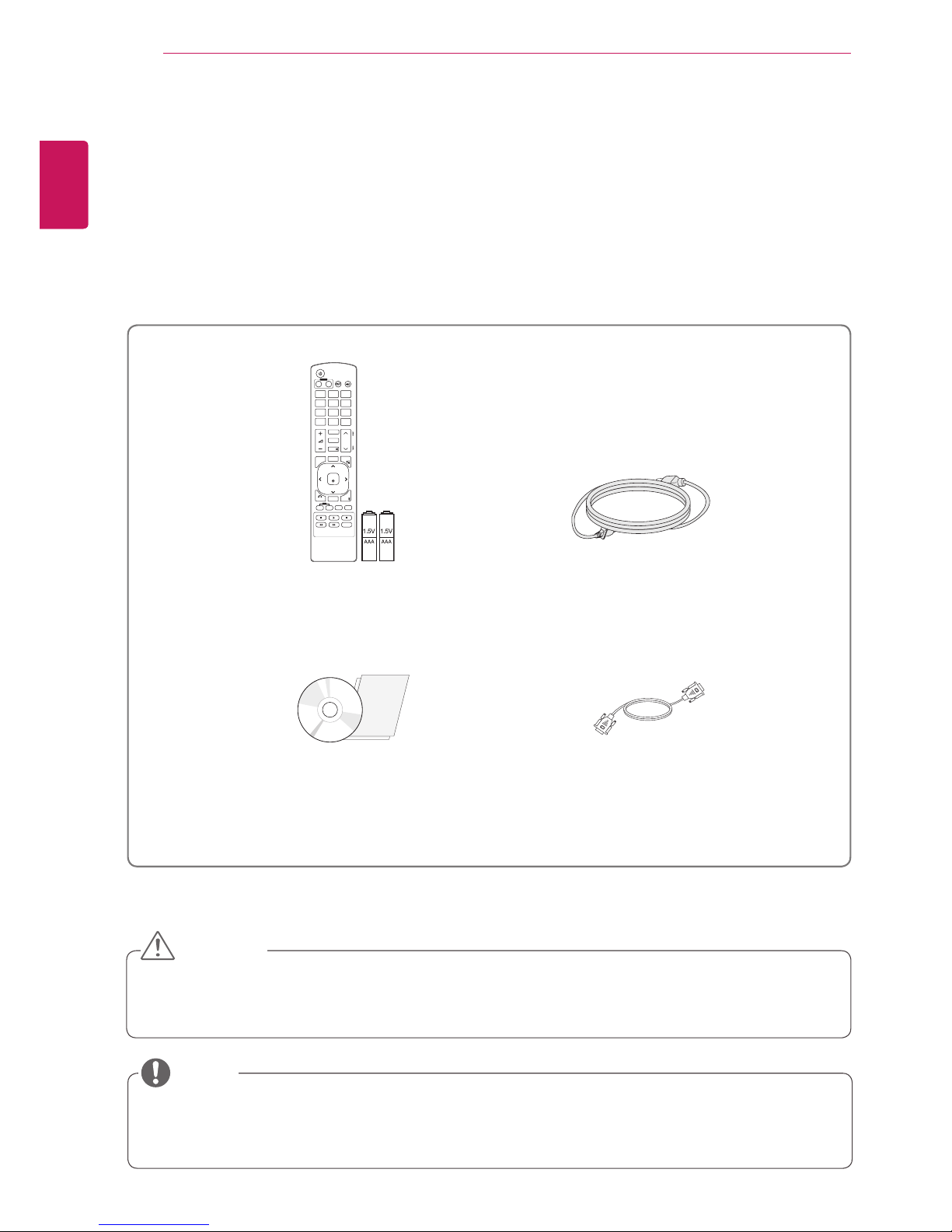
Check your product box for the following items. If there are any missing accessories, contact the local
dealer where you purchased your product. The illustrations in this manual may differ from the actual product
and accessories.
yDo not use any pirated items to ensure the safety and product life span.
yAny damages or injuries by using pirated items are not covered by the warranty.
yThe accessories supplied with your product may vary depending on the model.
yProduct specifications or contents in this manual may be changed without prior notice due to upgrade
of product functions.
Remote control and Batteries Power Cord
CD (Owner's Manual) / Card D-Sub Signal Cable
CAUTION
NOTE
P
A
G
E
INPUT
ENERGY
SAVING
MARK
ARC
ON
OFF
. , !
ABC
DEF
GHI
JKL
MNO
PQRS
TUV
1/a/A
- * #
WXYZ
CLEAR
MONITOR
PSM
AUTO
MUTE
BRIGHT
NESS
MENU
POWER
OK
S.MENU
ID
BACK TILE
ON OFF
EXIT

5
ENG
ENGLISH
ASSEMBLING AND PREPARING
Optional Accessories
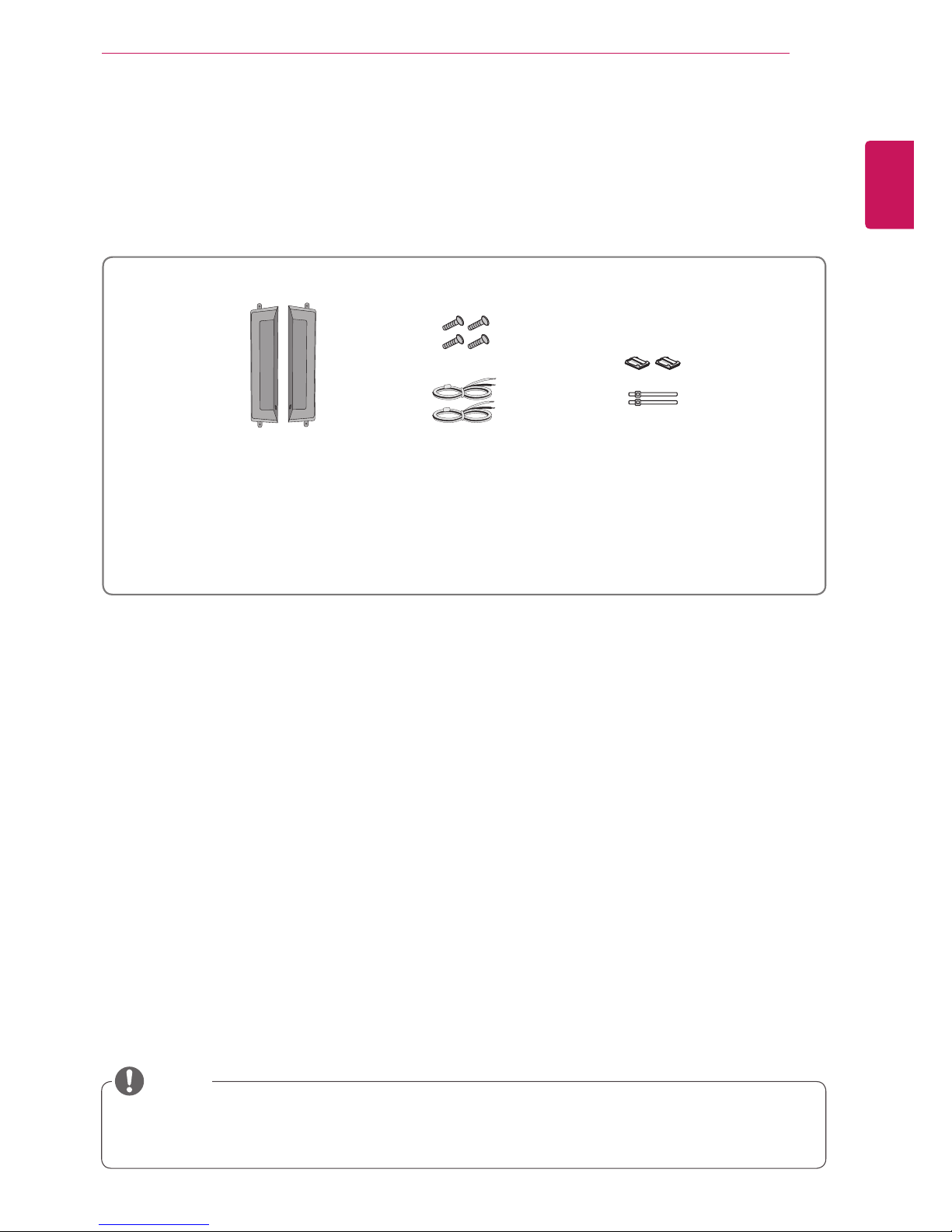
Without prior notice, optional accessories are subject to change to improve the performance of the product,
and new accessories may be added. The illustrations in this manual may differ from the actual product and
accessories.
yCable holder/Cable tie may not be available in some areas or for some models.
yOptional accessories are not included for all models.
NOTE
Speaker kit
Cable holder/
Cable Tie
Screws/Cable
Speaker

6
ENG
ENGLISH
ASSEMBLING AND PREPARING
yYou can set the Power indicator to on or off by selecting OPTION in the main menu.
Parts and buttons
Screen Marks Description
INPUT Changes the input source.
MENU Accesses the main menus, or saves your input and exits the menus.
▼▲ Adjust the up and down.
◄ ► Adjusts the volume level.
AUTO/SET Auto setup when using RGB input. It is also the Set or enter button to make changes in
the on-screen menus.
/ITurns the power on or off.
IR Receiver This is where the unit receives signals from the remote control.
Power Indicator This Indicator lights up green when the display operates normally(on mode). If the
display is in sleep (Energy Saving) mode, this indicator color changes to amber.
NOTE
RS-232C
(CONTROL)
IN
OUT
HDMI / DVI RGB IN
RGB OUT
AUDIO
(RGB/DVI)
LAN
COMPONENT IN
VIDEO AUDIO
AV IN / OUT
VIDEO
IN
OUT
AUDIO
USB
Connection panel ( See p.36 to p.38 )
Screen Buttons
Screen Marks
Power Indicator
yLighting On: Turned on
yLighting Off: Turned off

7
ENG
ENGLISH
ASSEMBLING AND PREPARING
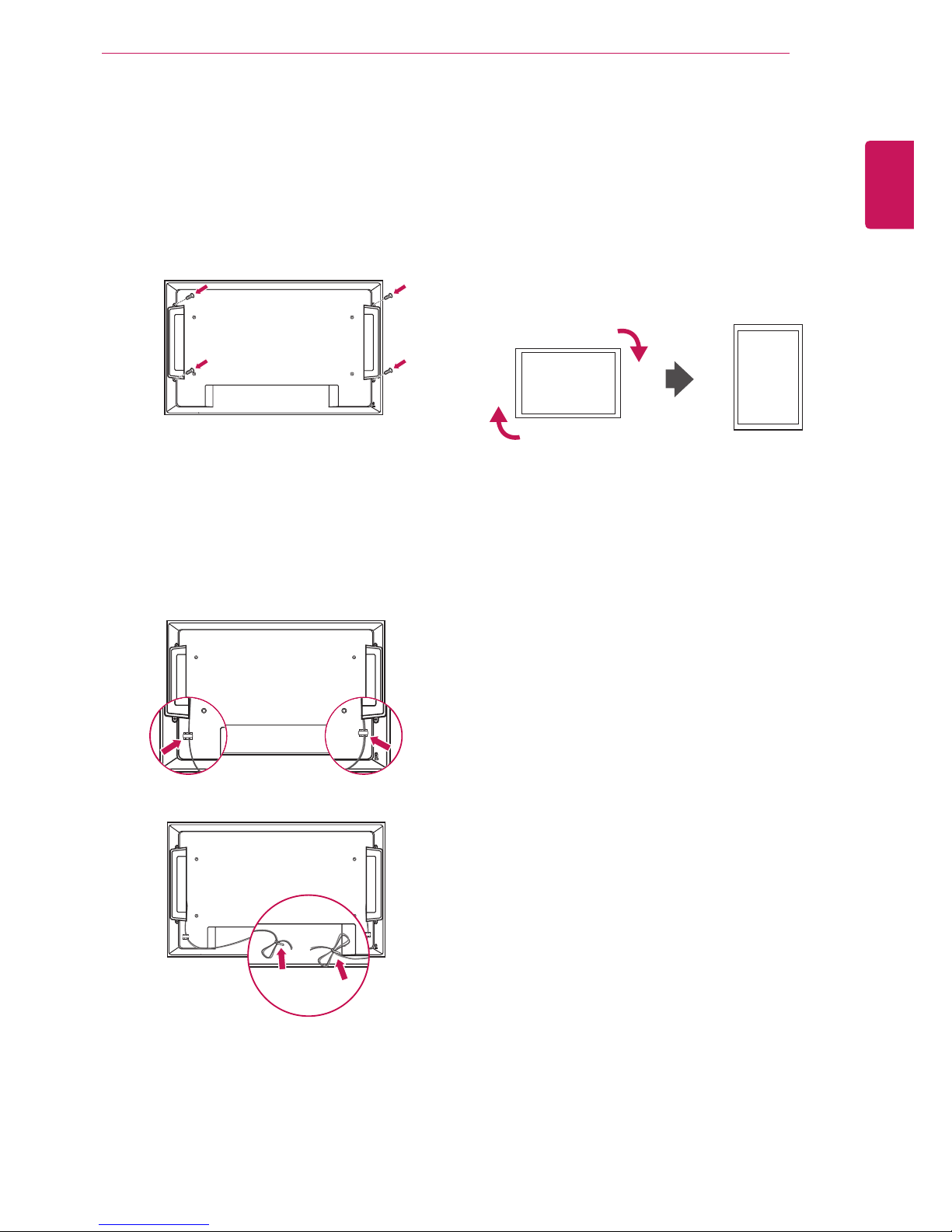
Connecting the Speakers
- Only on some models.
1Mount the speaker by using a screw as shown
in the following. Then connect the speaker
cable.
2After installing your speakers, use holders and
cable ties to organize the speaker cables. (This
feature is not available in all model.)
Portrait Layout
- Only on some models.
When installing in a Portrait Layout, rotate the
monitor clockwise 90 degrees (when facing the
screen).

8
ENG
ENGLISH
ASSEMBLING AND PREPARING
yDisconnect the power cord first, and then
move or install the Monitor set. Otherwise
electric shock may occur.
yIf you install the Monitor set on a ceiling or
slanted wall, it may fall and result in severe
injury. Use an authorized LG wall mount
and contact the local dealer or qualified
personnel.
yDo not over tighten the screws as this may
cause damage to the Monitor set and void
your warranty.
yUse the screws and wall mounts that
meet the VESA standard. Any damages
or injuries by misuse or using an improper
accessory are not covered by the warranty.
yThe wall mount kit includes an installation
manual and necessary parts.
yThe wall mount bracket is optional. You can
obtain additional accessories from your local
dealer.
yThe length of screws may differ depending
on the wall mount. Be sure to use the proper
length.
yFor more information, refer to the
instructions supplied with the wall mount.
CAUTION
If you want to mount the monitor on the wall (op-
tional), attach the wall mounting bracket to the rear
of the monitor.
Make sure that the wall mounting bracket is se-
curely fixed to the monitor and to the wall.
Use the wall mount plate and screws that comply
with the VESA standard as specified below.
y785mm(31 inch) or greater
* Fastening screw: Diameter 6.0 mm x Pitch 1.0
mm x Length 10 mm
(32 inch is Diameter 4.0 mm x Pitch 0.7 mm x
Length 10 mm)
Installing on a wall
Install the monitor at least 10 cm away from the
wall and leave about 10 cm of space at each side
of the monitor to ensure sufficient ventilation. De-
tailed installation instructions can be obtained from
your local retail store. Please refer to the manual
to install and set up a tilting wall mounting bracket.
10 cm
10 cm
10 cm
10 cm 10 cm
NOTE

9
ENG
ENGLISH
REMOTE CONTROL
REMOTE CONTROL
P
A
G
E
INPUT
ENERGY
SAVING
MARK
ARC
ON
OFF
. , !
ABC
DEF
GHI
JKL
MNO
PQRS
TUV
1/a/A
- * #
WXYZ
CLEAR
OK
S.MENU
MONITOR
PSM
AUTO
MUTE
BRIGHT
NESS
MENU
ID
BACK TILE
ON OFF
EXIT
POWER
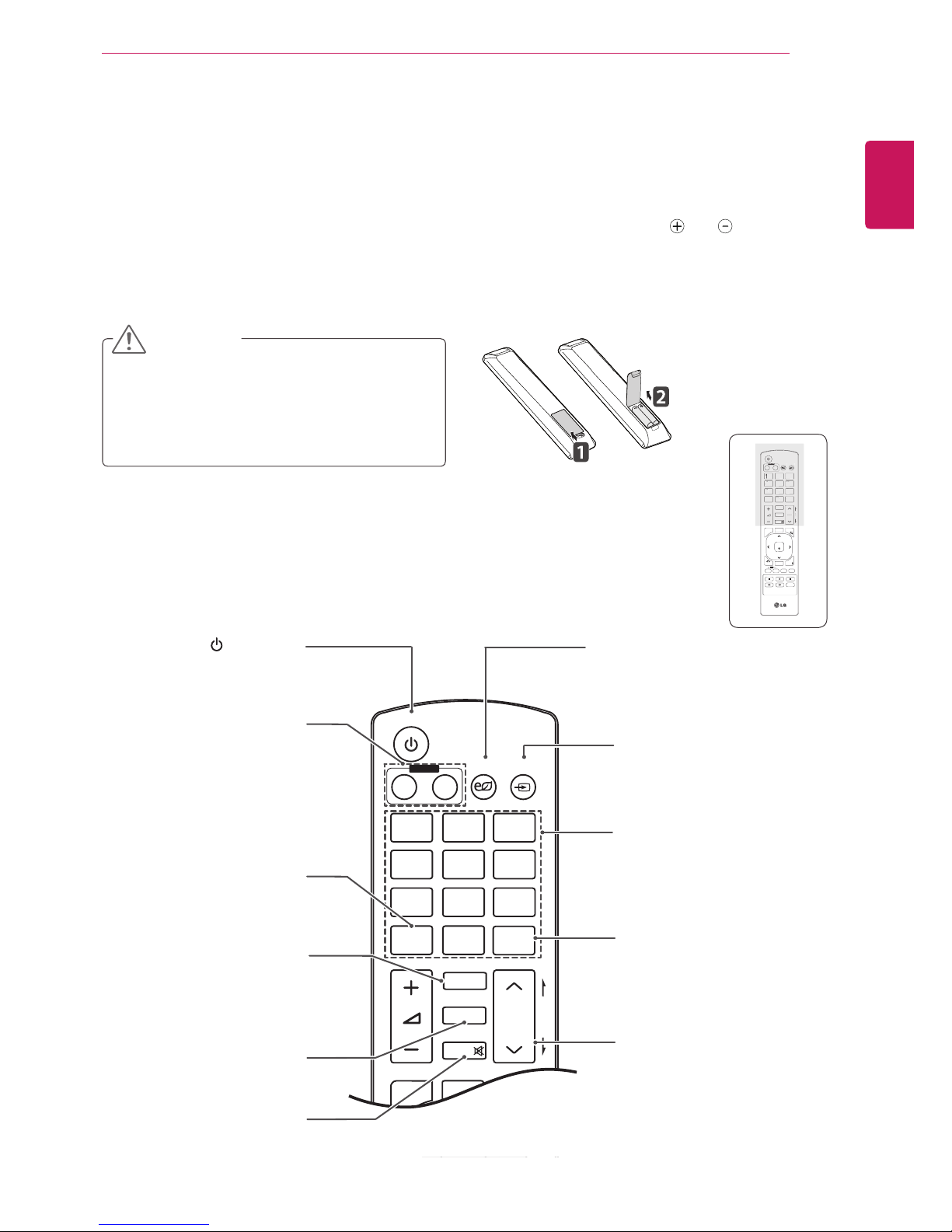
/I(POWER)
Turns the Monitor set on or off.
Monitor On / Off
Turn off the monitor and then
turn it back on.
1/a/A Button
This button selection is not
applicable.
ENERGY SAVING
Adjusts the brightness of
the screen to reduce energy
consumption.
INPUT
Selects the input mode.
Number and Alphabet buttons
Enters numbers.
The alphabet selection is not
applicable.
Clear
This button selection is not
applicable.
PSM
Selects the Picture Status
Mode.
MUTE
Mutes all sounds.
ARC
Selects the Aspect Ratio
Mode.
Brightness Key
Adjust the brightness by
pressing the Up and Down
buttons on the remote control.
In USB mode, the OSD menu
has the Page function to
move to the next file list.
P
A
G
E
INPUT
ENERGY
SAVING
MARK
ARC
ON
OFF
1
., !
2
ABC
3
DEF
4
GHI
5
JKL
6
MNO
7
PQRS
8
TUV
9
1/a/A
0
-* #
WXYZ
CLEAR
OK
S.MENU
MONITOR
PSM
AUTO
MUTE
BRIGHT
NESS
MENU
ID
BACK TILE
ON OFF
EXIT
POWER
P
A
G
E
I
NP
U
T
ENER
GY
S
AVIN
G
MARK
ARC
1
.
,
!
2
AB
C
3
D
E
F
4
G
HI
5
J
K
L
6
M
N
O
7
PQ
R
S
7
7
8
T
UV
9
1/a/A
0
-* #
WXY
Z
C
LEAR
O
N
O
F
F
MONITOR
MONITOR
PS
M
MU
T
E
BRI
G
H
T
NESS
PO
WE
R
The descriptions in this manual are based on the buttons of the remote control. Please read this manual
carefully and use the Monitor set correctly.
To replace batteries, open the battery cover, replace batteries (1.5 V AAA) matching and ends to the
label inside the compartment, and close the battery cover.
To remove the batteries, perform the installation actions in reverse.
CAUTION
yDo not mix old and new batteries, as this
may damage the remote control.
yMake sure to point the remote control to the
remote control sensor on the Monitor set.

10
ENG
ENGLISH
USING THE MONITOR SET
P
A
G
E
INPUT
ENERGY
SAVING
MARK
ARC
ON
OFF
. , !
ABC
DEF
GHI
JKL
MNO
PQRS
TUV
1/a/A
- * #
WXYZ
CLEAR
OK
S.MENU
MONITOR
PSM
AUTO
MUTE
BRIGHT
NESS
MENU
ID
BACK TILE
ON OFF
EXIT
POWER
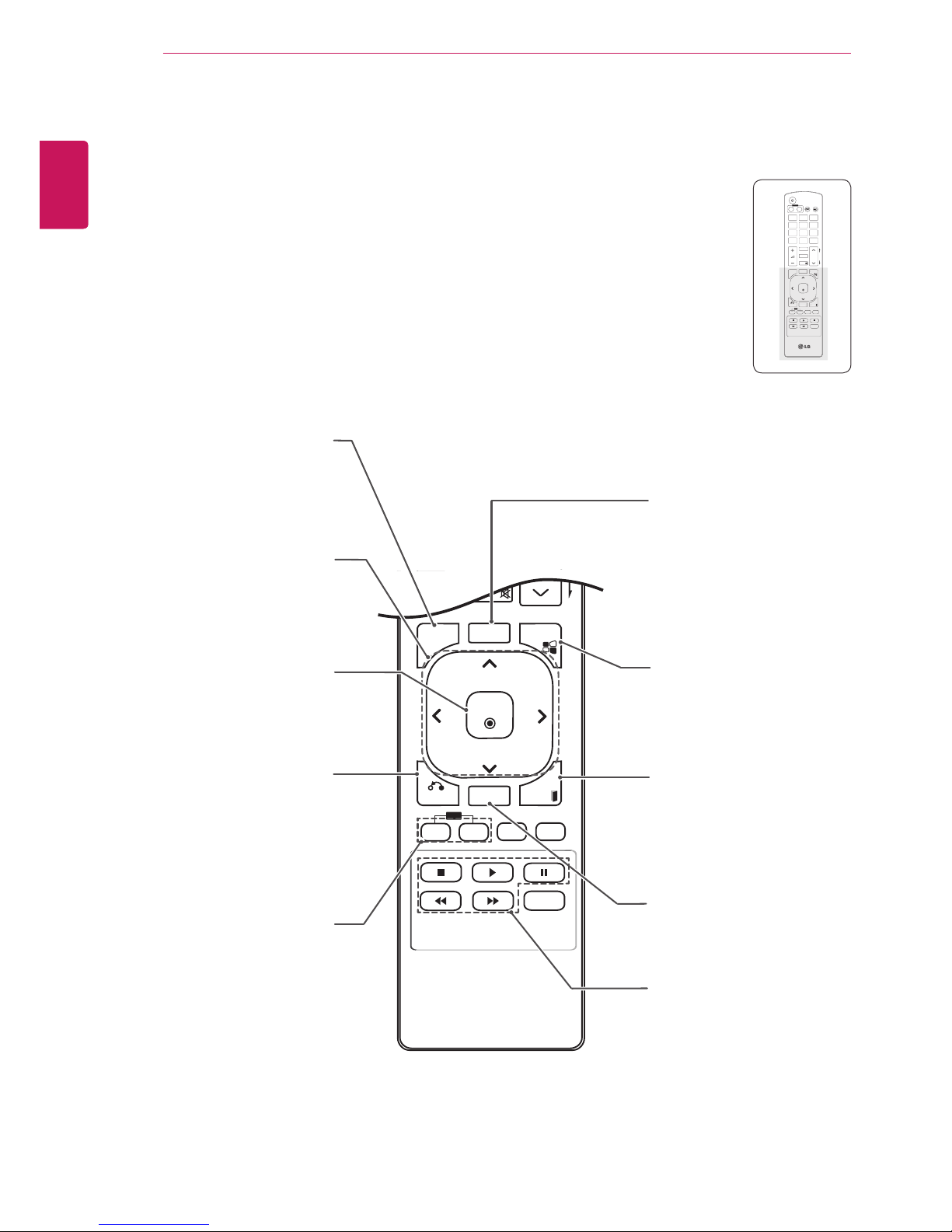
S.MENU
(SuperSign Menu Key)
This button selection is not
applicable.
EXIT
Clears all on-screen displays
and returns to Monitor set
viewing from any menu.
TILE
Selects the TILE Mode.
MENU (See p.14)
Accesses the main menus
or saves your input and exit
menus.
Navigation buttons
Scrolls through menus or
options.
OK
Selects menus or options and
confirms your input.
BACK
Allows the user to move back
one step in an interactive
application, EPG or other user
interaction function.
USB Menu control buttons
Controls media playback.
ID ON/OFF
When the number of input ID
is equal to the number of ID
Mode, you can control the
monitor which you want in the
multi display condition.
AUTO
Automatically adjusts picture
position and minimizes image
instability.(RGB input only)
P
A
G
E
INPUT
ENERGY
SAVING
MARK
ARC
ON
OFF
1
., !
2
ABC
3
DEF
4
GHI
5
JKL
6
MNO
7
PQRS
8
TUV
9
1/a/A
0
-* #
WXYZ
CLEAR
OK
S.MENU
MONITOR
PSM
AUTO
MUTE
BRIGHT
NESS
MENU
ID
BACK TILE
ON OFF
EXIT
POWER
OK
S
.MEN
U
A
U
T
O
MEN
U
ID
BA
C
KTIL
E
ON
O
F
F
EXI
T
Other manuals for 65VS10
1
Table of contents
Other LG Monitor manuals