
Kozumi KM-410P User manual

User Manual
Broadband ADSL 2/2+
Router
KM-410P
1

Contents
1. Introduction ..........................................................................................................................................................................4
1.1 Package List................................................................................................................................................................4
1.2 Safety Cautions...........................................................................................................................................................4
1.3 Descriptions of LEDs and Interfaces..........................................................................................................................5
1.4 System Requirements.................................................................................................................................................6
1.5 Feature........................................................................................................................................................................6
2. Hardware Installation ...........................................................................................................................................................8
3. Introducing the Web Configurator......................................................................................................................................10
3.1 How to access ROUTER..........................................................................................................................................10
3.2 Status........................................................................................................................................................................11
3.2.1 System ...........................................................................................................................................................11
3.2.2 LAN...............................................................................................................................................................11
3.2.3 WAN..............................................................................................................................................................12
3.2.4 Port Mapping.................................................................................................................................................12
3.2.5 Statistic..........................................................................................................................................................13
3.2.5.1 Traffic Statistic ...........................................................................................................................................13
3.2.5.2 DSL Statistic...............................................................................................................................................13
3.2.6 ARP Table .....................................................................................................................................................14
3.3 Wizard ......................................................................................................................................................................14
3.3.1 Wizard ...........................................................................................................................................................14
3.4 LAN..........................................................................................................................................................................21
3.4.1 LAN Settings.................................................................................................................................................21
3.4.2 DHCP Settings...............................................................................................................................................22
3.5 WAN ........................................................................................................................................................................26
3.5.1 WAN Interface ..............................................................................................................................................26
3.5.2 ADSL Settings...............................................................................................................................................29
3.6 Advance....................................................................................................................................................................29
3.6.1 DNS...............................................................................................................................................................29
3.6.2 Firewall..........................................................................................................................................................30
3.6.2.1 IP\Port Filter ...............................................................................................................................................30
3.6.2.2 MAC Filter .................................................................................................................................................31
3.6.2.3 URL Blocking.............................................................................................................................................32
3.6.3 Virtual Server ................................................................................................................................................32
2

3.6.3.1 Services.......................................................................................................................................................32
3.6.3.2 DMZ Settings .............................................................................................................................................33
3.6.4 Routing..........................................................................................................................................................33
3.6.4.1 RIP..............................................................................................................................................................34
3.6.4.2 Static Route.................................................................................................................................................34
3.6.5 IP QoS ...........................................................................................................................................................35
3.6.6 Anti-dos.........................................................................................................................................................35
3.6.7 Port Mapping.................................................................................................................................................36
3.6.8 Other..............................................................................................................................................................37
3.6.8.1 IGMP Proxy................................................................................................................................................37
3.6.8.2 UPNP..........................................................................................................................................................38
3.6.8.3 Bridge.........................................................................................................................................................38
3.6.8.4 IP PassThrough...........................................................................................................................................39
3.7 Admin.......................................................................................................................................................................40
3.7.1 Remote Access ..............................................................................................................................................40
3.7.2 Commit/Reboot .............................................................................................................................................40
3.7.3 Password........................................................................................................................................................41
3.7.4 Backup/Restore..............................................................................................................................................41
3.7.5 Upgrade Fireware..........................................................................................................................................42
3.7.6 Time Zone......................................................................................................................................................43
3.7.7 System Log....................................................................................................................................................43
3.7.8 SNMP............................................................................................................................................................44
3.7.9 TR069............................................................................................................................................................45
3.7.10 ACL.............................................................................................................................................................45
3.7.11 Logout..........................................................................................................................................................46
3.8 Diagnostic.................................................................................................................................................................46
3.8.1 Ping................................................................................................................................................................46
3.8.2 ATM Loopback .............................................................................................................................................47
3.8.3 ADSL.............................................................................................................................................................47
3.8.4 Diagnostic......................................................................................................................................................48
3

1. Introduction
The KM-410P supports multiple line modes. It provides four 10/100Base-T Ethernet interface at the
user end. Utilizing the high-speed ADSL connection, the device provide users with broadband connectivity
to the Internet or the Intranet for high-end users as net bars, office users, etc. can provide a downlink speed
up to 24 Mbit/s and uplink speed up to 1 Mbit/s.
1.1 Package List
One ADSL device(ADSL four port router)
One external splitter
One power adapter
Two pieces of telephone lines(RJ-11,more than 1.8m)
One piece of Ethernet cable(RJ-45, more than 1.8m)
One copy of User’s Manual
A quality guarantee card
A centificate of quality
One copy of driver and utility software CD(optional)
1.2 Safety Cautions
Follow these announcements below to pretect the device from risks and damage caused by fire or electric
power.
Use volume labels to mark the type of power.
Use the power adapter packed within the device package.
Pay attention to the power load of the outlet or prolonged lines. An overburden power outlet or
damaged lines and plugs may cause electric shock or fire accident. Check the power cords regularly. If
you find any damage, replace it at once.
Proper space left for heat radiation is necessary to avoid any damage caused by overheating to the
device. The long and thin holes on the Access Point are designed for heat radiation to make sure the
device works normally. Don’t cover these heat radiant holes.
Do not put this device close to a place where a heat source exits or high temperature occurs. Avoid the
device from direct sunshine.
Do not put this device close to a place where is over damp or watery. Do not spill any fluid on this
device.
Do not connect this device to any PC or electronic product, unless our customer engineer or your
broadband provider instructs you to do this, because any wrong connection may cause any power or fire
risk.
Do not place this device on an unstable surface or support.
4
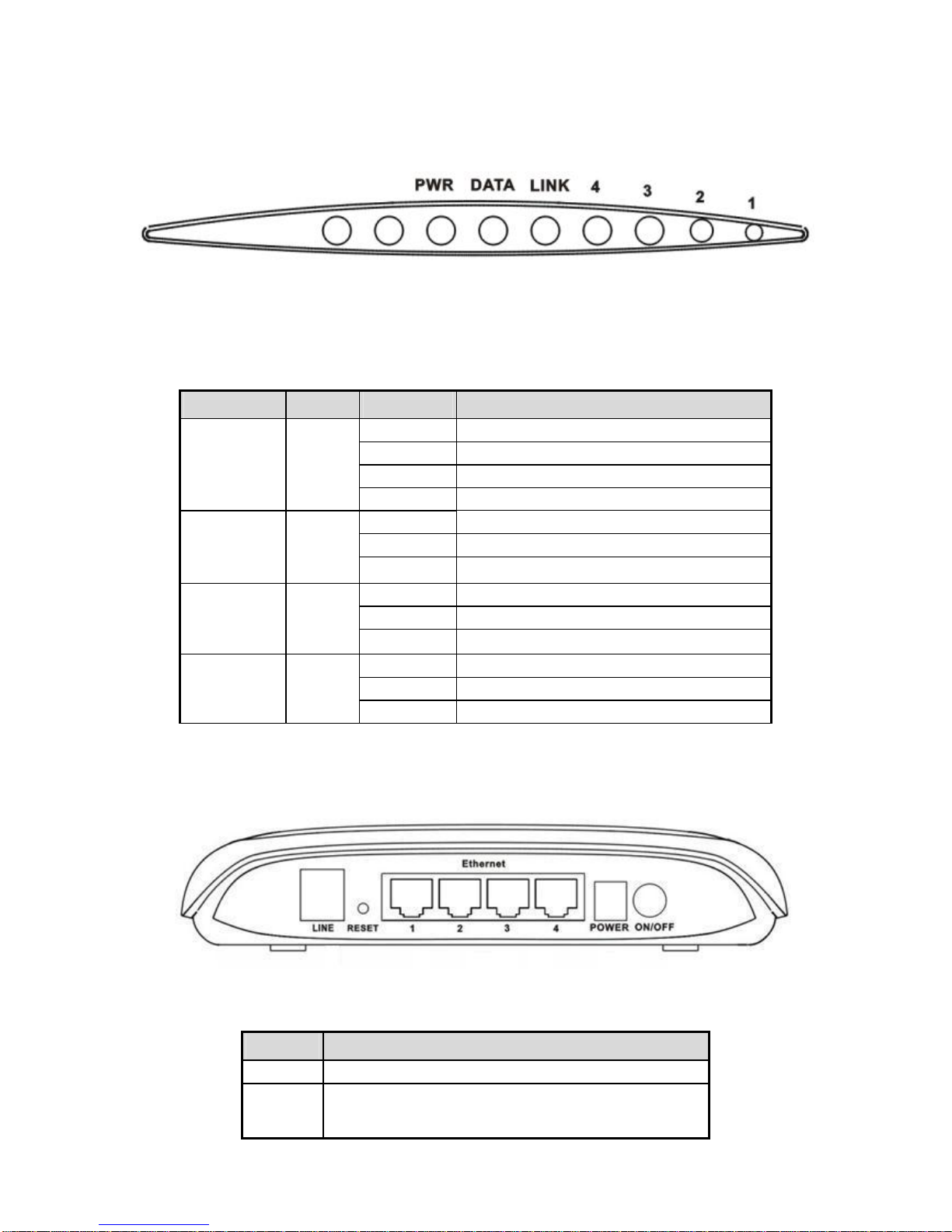
1.3 Descriptions of LEDs and Interfaces
Front panel
Fig 1.3-1 Front panel
LED Color Status Descriptions
OFF No power
GREEN Device init OK
RED Device init
PWR Green/Red
RED BLINK Fireware upgrade
OFF No WAN link
BLINK WAN data transiting
DATA Green
ON WAN link established and active
OFF Initial self-test failed
BLINK Device is detecting itself
LINK Green
ON Initial self-test of the unit is OK and ready
OFF No LAN link
BLINK LAN data transiting
4/3/2/1 Green
ON LAN link established and active
Rear panel
Fig 1.3-2 Rear panel
Items Usage
Line Line RJ-11 port
Reset Resets to factory defaults. To restore factory defaults, keep
the device powered on and push a paper clip in to the hole.
Press down the button over 5 seconds and then release.
5

Items Usage
Ethernet Ethernet RJ-45 port
Power On/Off.
Power Power connector. DC 12 Voltage/1000mA,female pole is
positive.
1.4 System Requirements
Make sure first that you have prepared these following items to guarantee the ROUTER can work normally.
Services subscriptions
An 10BaseT/100BaseT Ethernet card installed on your PC
HUB or Switch. (Attached to several PCs through one of Ethernet interfaces on the device)
Operation system: Windows 98SE, Windows 2000, Windows ME, or Windows XP
Internet Explorer V5.0 or higher, or Netscape V4.0 or higher, or firefox 1.5 or higher.
1.5 Feature
Supports various line modes
Supports external PPPoE dial-up access
Supports internal PPPoE/PPPoA dial-up access
Supports leased line mode
Supports ZIPB (Zero Installation PPP Bridge Mode)
Supports 1483B/1483R/MER access
Supports multiple PVCs(eight at most) and these PVCs can be isolated from each other
Support a single PVC with multiple sessions
Support multiple PVCs with multiple sessions
Supports the binding of the ports and the PVCs
Supports the 802.1Q and 802.1P protocol
Supports DHCP server
Supports NAT/NAPT
Supports static route
Supports firmware upgrade:WEB/tftp/ftp
Supports reset to factory default:reset, WEB
Supports DNS relay
Supports Virtual server
Supports DMZ functions
Supports two-level passwords and usernames
Supports WEB interface
Supports telnet CLI
Supports System status display
Supports PPP session PAP/CHAP
Supports IP filter function
6

Supports IP QoS function
Supports remote access control
Supports line connection status test
Supports remote management(Telnet; HTTP)
Supports configuration file backup and restoration function
Ethernet supported such as Crossover Detection & Auto-Correction and polarity correction
Supports UPnP
7
2. Hardware Installation
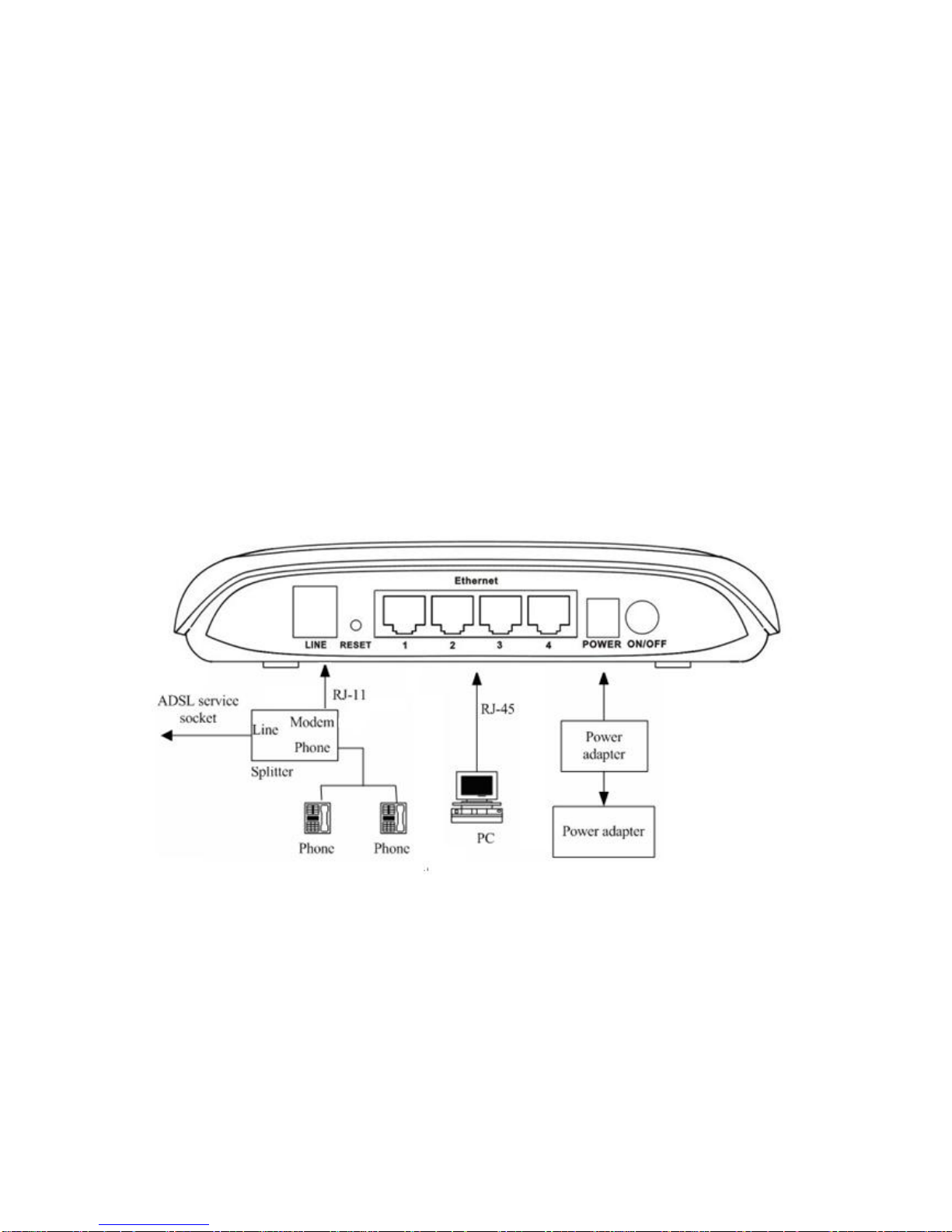
1、Refer to the figure below: Connect the DSL port of the device and the ROUTER port of the splitter with
a telephone cable; connect the phone to the Phone port of the splitter through a cable; connect the incoming
line to the Line port of the splitter.
The splitter has three ports:
LINE: Connects to a wall phone jack (RJ-11 jack)
ROUTER: Connects to the DSL jack of the device
PHONE: Connects to a telephone set
2、Connect the LAN port of the device to the network card of the PC via an Ethernet line (MDI/MDIX).
Note: Use twisted-pair cables to connect with the HUB/Switch.
3、Plug the power adapter to the wall outlet and then connect the other end of it to the PWR port of the
device.
Connection 1: Fig. 2-1 displays the application diagram for the connection of the Router, PC, splitter and
telephone set。
Fig 2-1 Connection Diagram(Without connecting telephone sets before the splitter)
Connection 2:As illustrated in the following figure, the splitter is installed close to the device.
8
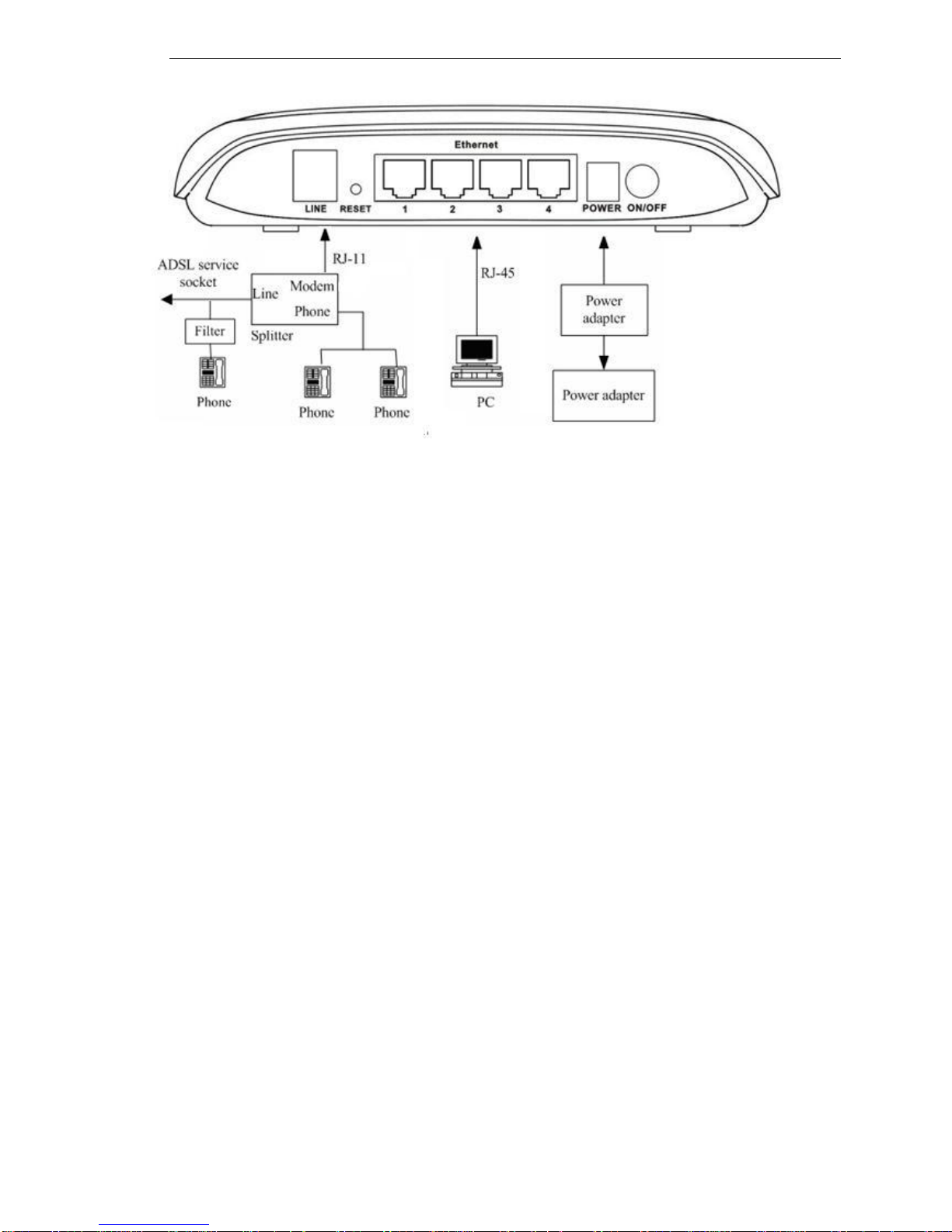
Fig 2-2 Connection Diagram(Connecting a telephone set before the splitter)
It is recommended to follow the Connection 1 in an actual connection!
Note: When Connection 2 is used, the filter must be installed close to the telephone lines. (See Fig.
2-2. Do not use the splitter instead of the filter).
Installing a telephone directly before the splitter may lead to a failure of connection between the device and
the device of LAN side, or cannot access into the Internet, or slow the connection speed if you really need to add
a telephone set before the splitter, you have to add a MicroFilter before connecting to a telephone set. Do not
connect several telephones before the splitter. Moreover, do not connect several telephones with MicroFilters.
9
3. Introducing the Web Configurator
3.1 How to access ROUTER
The following introductions are prepared for the first time users, it is a detail “How-To” user
guide.
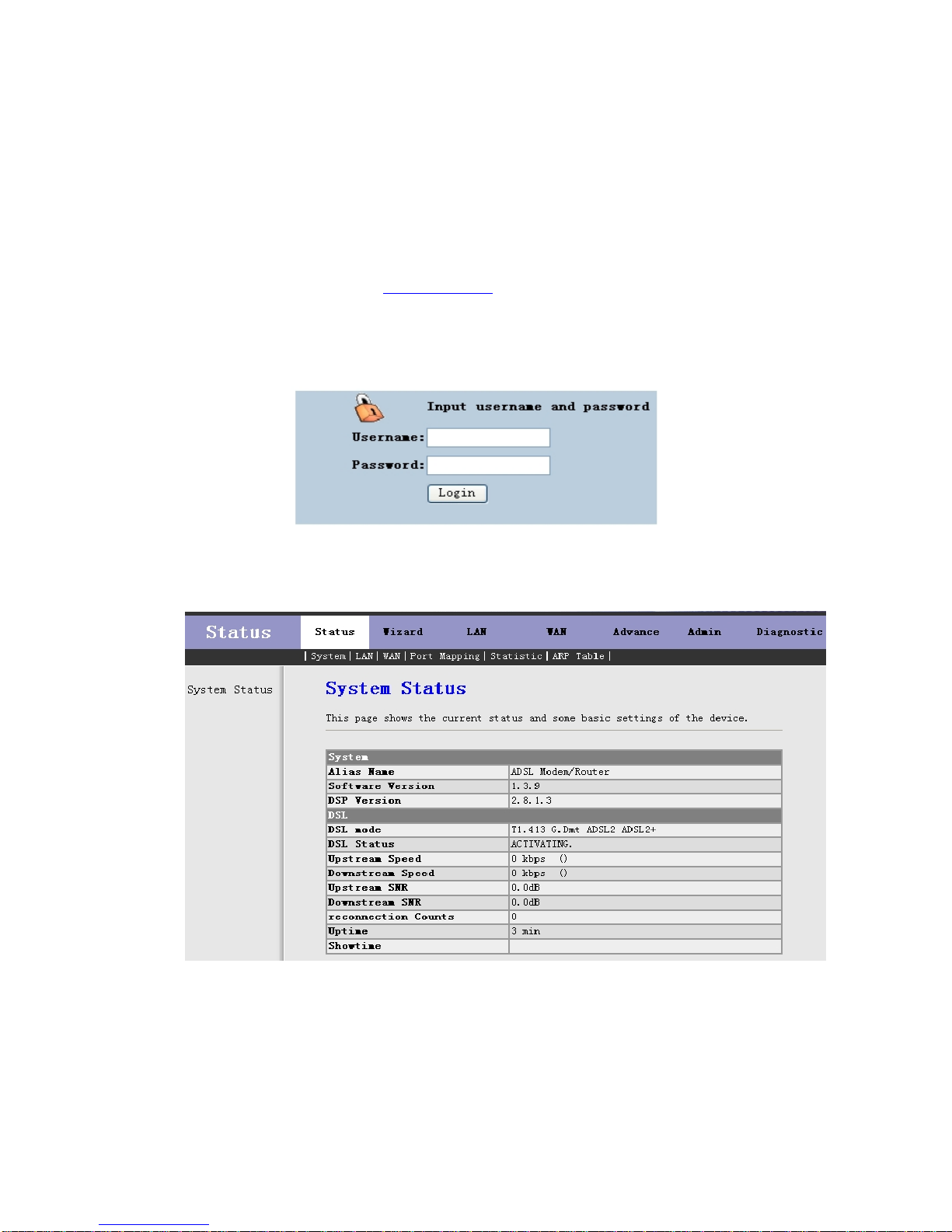
1、Open IE browser,then enter http://192.168.1.1 in address bar.
2、You are required to enter user name and password. See the Fig 3.1-1.
The super user name and password is admin/admin
The common user name and password is user/user
Fig 3.1-1
3、If you enter as super user, the below screen will be displayed when you enter successfully.
Fig 3.1-2
After you enter router as super user, you can check, config and modify all the options. You can use the
system diagnostic function also.
If you enter as common user, you can check the status of ROUTER, but can’t change the most of options.
10
Table of contents
Other Kozumi Network Router manuals





