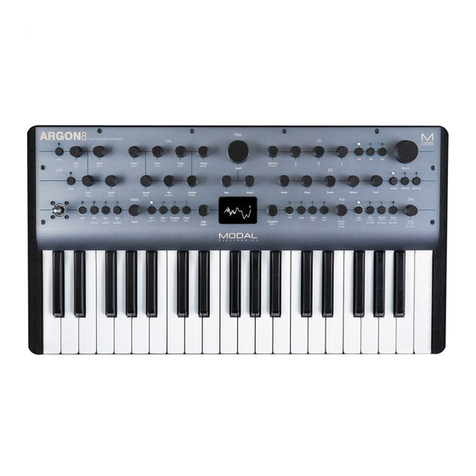
Korg MONOLOGUE User manual

E 2
Table of contents
Introduction...........................................2
monologue Key Features............................... 2
Block Diagram.................................................... 3
Controls and Connections ....................4
Front Panel Controls ........................................ 4
Rear Panel Connections.................................. 5
Turning the monologue On and O.......... 6
Playing Programs and Sequences........9
Selecting and Playing a Program ................ 9
Playing the Sequencer ..................................10
Programs............................................. 12
Program Architecture....................................12
Creating Sounds..............................................13
Saving a Program............................................14
Basic Parameter Editing................................15
Sequencer..........................................................22
Mortion Sequence ..........................................24
Edit Mode ............................................ 28
How to enter the Edit mode .......................28
Edit Mode Parameter List.............................30
PROGRAM EDIT mode...................................31
SEQ EDIT mode................................................35
GLOBAL EDIT mode........................................38
Other functions................................... 47
Tuning.................................................................47
Restoring the Factory settings ...................49
Shortcuts using the SHIFT button.............50
Understanding MIDI........................... 51
Connecting Devices via MIDI and USB....51
MIDI-Related Settings....................................53
Program List........................................ 55
Specications...................................... 56
MIDI Implementation Chart............... 58

2
Introduction
monologue Key Features
•Themonologueisamonophonicsynthesizer,whichfeaturesananalogsyn-
thesizercircuitbasedonthedesignofthepopularminilogue.
•TheVCFhasbeentunedforuseinmonosynths.Also,adrivecircuitallows
youtoproducemoreaggressivesounds.
•Themonologueiscompactandlightweight,andcanbepoweredbybaeries,
leingyouenjoymakingsoundwhereveryougo.
•Instantrecallof80factorypresetsplus20additionaluserprograms.
•Real-timeoscilloscopeprovidesvisualfeedbackofparameterchanges.
•16-stepmonophonicsequencercanautomateupto4synthparameters.
•SyncInandSyncOutjacksallowyoutoexpandyoursessionsetup.

3
Block Diagram
VCO 1 SAW
AUDIO IN
SQR
PITCH
PITCH
LFO
EG
LFO
VCO 2 WAVE SHAPE
OSC
SYNC
SAW
keytrack
TRI
TRI
LFO
WAVE SHAPE
RING
MOD
NOISE
GEN
VCA
VCF
EG
int
velocity
VCO 1 level
VCO 2 level
gate
0% 100%
wave shape amount
OUTPUT
NOISE
EG
int
DRIVE

4
Controls and Connections
Front Panel Controls
Thisdiagramshowsthelayoutofthefrontpanelknobs,switches,andbuons.
1
2
3
4
56 891011
12
13
7
1.
MASTER knob
2.
DRIVE knob
3.
OCTAVE switch
4.
Slider
5.
VCO 1
WAVEswitch
SHAPEknob
6.
VCO 2
OCTAVEswitch
PITCHknob
WAVEswitch
SYNC/RINGswitch
SHAPEknob
7.
MIXER
VCO1knob
VCO2knob
8.
FILTER
CUTOFFknob
RESONANCEknob
9.
EG
TYPEswitch
ATTACKknob
DECAYknob
INTknob
TARGETknob
10.
LFO
WAVEswitch
MODEswitch
RATEknob
INTknob
TARGETswitch
11.
SEQUENCER
TEMPOknob
KEYTRG/HOLDbuon
MOTION/SLIDE/
NOTEswitch
EDIT
EDITMODEbuon
WRITEbuon
EXITbuon
SEQUENCER
PLAYbuon
RECbuon
RESTbuon
SHIFTbuon
Buons1–8
12.
PROGRAM/VALUE knob
13.
Display

5
Rear Panel Connections
Theillustrationbelowshowsatypicalexampleofconnectionsforthemono-
logue.Connectyourequipmentaccordingtotheneedsofyourownsystem.
Besurethatthepoweronallofyourdevicesisturnedobeforeyou
makeconnections.Leavingthepoweronwhenyoumakeconnections
maycausemalfunctions,ordamageyourspeakersystemandother
components.
Connecting to audio devices
•Connectyourpoweredmonitorspeaker,mixerorothercomponentstothe
OUTPUTjack(monauraloutput)ofthemonologue.Adjustthevolumelevel
usingtheMASTERknob.
•Connectyourheadphonestotheheadphonesjack.Thisjackoutputsthesame
signalasthatoftheOUTPUTjack.
•Connectexternalsoundsources,suchasanothersynthesizer,totheAUDIO
INjack(monauralinput).
USB B connector
Power switch
MIDI IN, OUT connectors
SYNC IN
, OUT jacks AUDIO IN jack
OUTPUT jack
Headphones
jack
DC 9V jack
Computer
Mixer
Sound module, rhythm machine, etc.
MIDI keyboard, rhythm machine, etc. Groove machine
Microphone
Monitor speakers
(with internal amp)
Headphones
USB cable
MIDI OUT
MIDI IN
SYNC IN
USB port
INPUT
OUTPUT
AC adapter
(sold separately)
MIDI cable
SYNC cable

6
Connecting to a computer or MIDI devices
•ToexchangeMIDImessageswithyourcomputer,connectyourcomputerto
theUSBBconnectoronthemonologue.
•ToexchangeMIDImessageswithanexternalMIDIdevice,connectthede-
vicetotheMIDIIN/OUTconnectorsonthemonologue.
TIP Fordetails,referto“UnderstandingMIDI”(p.51)
Connecting the SYNC IN and OUT jacks
•UsetheSYNCINandOUTjacksofthemonologuewhenyouwanttosyn-
chronizetotheoutputpulsesandstepsfromtheaudiooutputjacksofsourc-
essuchastheKorgvolcaseriesoraDAW.ConnectusingaSynccable.
•TheSYNCOUTjacksendsa5Vpulseof15msatthebeginningofeachstep.
TIP Referto“Buon5(GLOBAL3)”(p.41)ofGLOBALEDITmodefor
theseingstoturnonthemonologue.
Turning the monologue On and O
Before you turn the monologue On:
Installing batteries
Makesurethatthemonologue’spoweristurnedo.
1. Open the baery cover on the monologue’s boom panel.
Whilepressingthelatch,pullupwardandremove.
2. Insert six AA baeries, taking care to observe the cor-
rect polarity (+/− orientation).
Usealkalineornickel-metalhydridebaeries.
3. Reaach the baery cover.
Inorderfortheremainingbaeryamounttobedetectedandshown
correctly,youmustusetheparameterinGLOBALEDITmodeto
specifythetypeofbaeriesthatyou’reusing.Bydefault,thisseing
issetto“Alkaline.”Fordetails,referto“BaeryType”(p.43).
Whenthebaeriesbecomedepleted,“BaeryLow”willappearonthedis-
play.Whenthisoccurs,it’stimetoreplacethebaeries.
Removeoldbaeriesimmediately.Otherwise,baeryleakagemayoc-
cur,resultinginamalfunction.Ifyoudon’tthinkthatyou’llbeusing
theunitforalongperiodoftime,youshouldremovethebaeries.
1

7
TIP ThemonologuecanalsobeusedwiththeseparatelysoldACadapter
connectedtotheDC9Vjack.
4. Make sure that any external output devices such as powered monitor
speakers are turned o before connecting them to the monologue.
TIP IfyouwanttoconnectaMIDIdeviceorcomputertothemonologue’s
MIDIconnectorsorUSBBconnectorinordertousethemonologue’s
keyboardandcontrollerstocontrolanexternalMIDItonegenerator,
orifyouwanttouseanotherMIDIkeyboardorasequencertoplay
themonologue’ssoundgenerator,youwillneedtoconguretheset-
tings.Fordetails,referto“UnderstandingMIDI”(p.51).
Turning the monologue On
1. Make sure that both the monologue and any external output devices such
as powered monitor speakers are turned o, and turn the volume of all
devices all the way down.
2. Hold down the Power switch on the rear panel of the monologue; once
the “monologue” logo appears in the display, take your nger o the
Power switch.
3. Turn on any external output devices such as powered monitor speakers.
4. Adjust the volume of your external output equipment, and adjust the
monologue’s volume using the MASTER knob.
Turning the monologue O
AnyProgramdatainthemonologuethathasnotbeensavedwillbelostwhen
thepoweristurnedo.BesuretosaveanyProgramandotherimportantdata
thatyouhaveedited(“SavingaProgram”,p.14).
1. Turn the MASTER knob of the monologue to the le to turn the volume
all the way down.
Also,turnthevolumeallthewaydownonanyexternaloutputdevices
thatmightbeconnected,suchaspoweredmonitorspeakers.
2. Hold down the Power switch on the rear panel of the monologue; to turn o
the power aer the display goes blank, take your nger o the power switch.
Onceyouhaveturnedthemonologueo,waitabout10secondsbe-
foreturningthemonologueonagain.

8
Auto Power O Feature
ThemonologuefeaturesanAutoPowerOfeaturethatcanautomaticallyturn
themonologueoaer4hourshaveelapsedwithnooperationoftheknobs,
switches,buons,orkeyboardofthemonologue.Bydefault,thefactoryseing
fortheAutoPowerOisenabled.TheAutoPowerOcanbedisabledusing
thestepsbelow.
1. Press the EDIT MODE buon.
ThemonologuewillentertheEditMode,andthedisplaywilllooklikethe
illustrationshownbelow.
2. Turn the PROGRAM/VALUE knob, and select GLOBAL EDIT.
TIP GLOBALEDITcanalsobeselectedbypressingtheEDITMODEbuon.
3. Press buon 8 twice.
“AutoPowerO”willbedisplayed.
4. Turn the PROGRAM/VALUE knob, and select “O”.
5. Press the EXIT buon.
ThemonologuewillenterthePlaymode,andthedisplaywillindicatethe
currentProgram.
TIP SeingsinGLOBALEDITaresavedautomatically.
12345678910 11 12 13 14 15 16
5
3
1
2, 4

9
Playing Programs and Sequences
Selecting and Playing a Program
Themonologuecomesequippedwith100Programs.Ofthose,80areready-to-
playpresetProgramsand20locationsareavailabletosaveyourownsounds
andcustomedits.
EachProgramincludesseingsforthesound,aswellassequencedataseings.
1. Enter the Play mode.
Whenthemonologueisturnedon,itwillautomaticallyenterthePlay
mode.
InthePlaymode,verifythattheEDITMODEbuononthefrontpanelare
unlit.
TIP IftheEDITMODEbuonislit,presstheEXITbuon.ThePLAYor
RECbuonswilllighttoindicatewhenthesequencedatasavedina
Programisbeingplayedbackorisrecording.Youcanstillselectother
Programsinthisstate,butpressthePLAYbuonifyouwishtostop
theSequencer.
2. Turn the PROGRAM/VALUE knob to select a Program.
ThedisplaywillindicatetheProgramnameandnumber.
Themonologuecomeswith80presetPrograms(001–080)aspartofthefac-
torypreloaddata.ThesepresetProgramsareinstantlyaccessibleandready
foryoutoenjoy.Fordetails,referto“ProgramList”(p.55).
TIP HolddowntheSHIFTbuonwhileturningthePROGRAM/VALUE
knobtoskipthroughtheProgramListinincrementsof10.
TIP InadditiontoshowingProgramnameandnumber,thedisplaycan
alsobeusedasanoscilloscope,toshowtheelectricalsignalscreated
bythewaveformofthesound.WhenSLIDEorNOTEisselectedus-
ingtheMOTION/SLIDE/NOTEswitch,thewaveformwillbedis-
played.
1Make sure EDIT MODE button is unlit.
2

10
3. Adjusting the OCTAVE range and the DRIVE knob, and the using the
Slider.
Asyouplay,youcanusetheve-wayOCTAVESwitchto
transposetheplayingareaofthekeyboardby±2octaves.
TurntheDRIVEknobtoadjustthedriveeect,whichadds
harmonicsanddistortiontothesound.
Inaddition,youcanmovetheSliderfromletorighttoadd
real-timeperformancecontrol.
TIP Theparameterassignedtothesliderwillvarydepending
ontheProgram.Rreferto“ProgramList”(p.55)tosee
whichparameterisassignedtothesliderineachProgram.
TIP TheSliderAssignfunctioninPROGRAMEDITmodeisusedtoas-
signparameterstotheslider(“SliderAssign”,p.31).
Playing the Sequencer
EachPrograminthemonologueincludessequencedata.Inthissection,we’ll
playthesequencedatasavedaspartofthepresetPrograms.
1. Turn the PROGRAM/VALUE knob to select a Program.
ThedisplaywillindicatetheProgramnameandnumber.
2. Press the PLAY buon in the SEQUENCER section.
ThesequencedatathatisrecordedinthecurrentProgramwillbeginplaying.
The1–16buonswilllightupinstepswhilethesequencerisplaying.
TIP IfyoupresstheKEYTRG/HOLDbuon(thebuonwillstaylit)in-
steadofthePLAYbuonandthenplaythekeyboard,thesequence
datawillplaybackwhileakeyisbeingpressed.Ifyouholddown
theKEYTRG/HOLDbuon(thebuonwillbegintoblink)andthen
playthekeyboard,thesequencedatawillkeepplayingback,evenaf-
teryoutakeyourhandothekeyboard.Pressadierentkeyonthe
keyboardwhileholdingdowntheKEYTRG/HOLDbuonasitlights
orashes,toplaybackthesequencedatatransposed.
1
2, 3
1
Other manuals for MONOLOGUE
3
Table of contents
Other Korg Synthesizer manuals