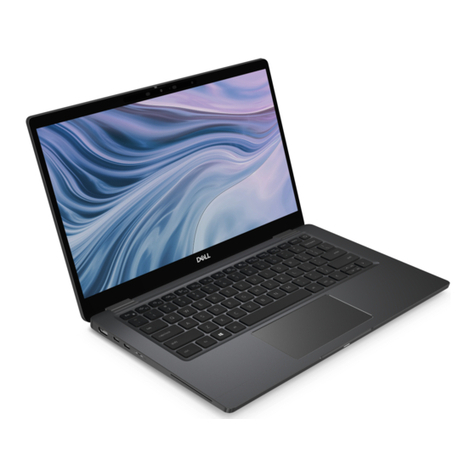
Kogan Agora User manual

Agora-Laptop
USER MANUAL

Indicators...................................................................................15
Replacing the memory ..................................................................28
the power adapter............................43
Navigating the BIOS setup screen ...........................................25
When and how to use BIOS setup...........................................24
Connecting to a wireless network...........................................22
ty (select models only) .....22
Windows key shortcuts and other keys ...................................20
Function hotkeys ......................................................................19
Using the keyboard .......................................................................18
FAQ and troubleshooting.............................................................33
Latvia, and Croatia.....................................................................44
in the European Union. ..............43
Safety information about the battery ........................................42
formation........................................................42
Appendix........................................................................................42
Cleaning your Notebook............................................................41
Battery maintenance ..................................................................41
Cleaning and battery maintenance ..............................................41
Display .......................................................................................39
System ........................................................................................35
Connection ................................................................................34
Battery and power .....................................................................33
Exit menu.............................................................................27
Security menu......................................................................26
Boot menu ...........................................................................26
Advanced menu...................................................................26
Main menu ..........................................................................26
Touring your .................................................................................. 9
Expanding the capabilities of your Notebook............................6
Getting your ready for use..........................................................3
Using BIOS setup ..........................................................................24
Using the touchpad...................................................................16
Using your notebook.................................................................... 16
Table of Contents ii
Table of Contents
Overview ......................................................................................... 1
About this book...........................................................................1
Typographics...............................................................................2
Getting started................................................................................ 3
Front view ................................................................................9
Left side view .............................................................................11
Right side view ..........................................................................13
Bottom view ..............................................................................14
Using built-in wireless connectivi
General safety in
Safety information about
Disposal of Waste Electrical and Electronic Equipment by
users in private households
Safety instructions for Poland, Romania, Slovenia, Bulgaria,

Using your Notebook
Touring your Notebook
components in your Notebook and demonstrates how to use
your Notebook
information about operating
components of your notebook
use your Notebook
Overview 1
Overview
About this book
This book provides you the main information about various
them. The following are the major chapters of this book.
Chapter title Description
Overview Introduction to this book
Getting started Information about beginning to
Introduction to the hardware
Basic and advanced
Using BIOS setup Information about how to use
the BIOS setup utility
Replacing the
memory
Information about how to
replace RAM memory
FAQ and
troubleshooting
Information about frequently
asked questions and
troubleshooting
Cleaning and battery
maintenance
Information about cleaning and
battery maintenance
Appendix Important safety information

menu in Windows Operating system .
When you first set up your Notebook, you may want to find
Overview2
Typographics
The usage of notes, tips, and warnings in this manual is
specifically for different purposes, which are described as
follows:
more information on setups. Refer to the user manual that is
supplied with your operating system, or search from Help and
Support in the Start
Icon/
Symbol
Item Meaning
Warning Information mainly to
prevent the damage to
components, data, or
personal injury caused by
misuse and improper
operation or behavior.
Tip Useful information for
completing a task.
Note Supplementary information.
< > or [ ] Keys on the
keyboard; User
Interface (UI)
on the screen
Indicates a key on the
keyboard, or the UI on the
screen. Do not actually type
the symbols together with
the enclosed letters.

Before using your Notebook for the first time, please check if
Close the lid of your Notebook(if open). Turn your Notebook
upside down and place it on a soft clean cloth. With the
Getting your Notebook
packaging in case you need to ship your Notebook for
Depending on the model of your Notebook, the appearance
Getting started 3
Getting started
Package contents
you have all the items with you. For details about what should
be included in the package, refer to the Product Specification
label on the product carton. If any of the items are missing or
appear damaged, contact your dealer immediately. Save the
service.
ready for use
1. Installing the battery pack
label side of the battery pack facing down, slide it gently into the
battery compartment until it snaps into place (1). Move
“Battery retainer B” to the left as shown to lock the battery pack
into place (2).
may be different from the illustrations shown in this manual.
Battery retainer B

Press the Power button to start up your Notebook, the Power
3. Opening your Notebook
You can still use your Notebook while the battery is
Notebook will automatically start charging the
Notebook .
Getting started4
2. Connecting the power
a. Connect the power cord to the power adapter.
b. Connect the power adapter to the power jack on your
c. Connect the power cord to a power outlet. The
battery.
Gently lift up the latchless lid that allows you to open the case
easily.
4. Performing initial setup
button indicator then lights up in white. And then follow the
• The battery pack is shipped with low charge from the factory.
charging.
• Power systems and plug types may vary depending on your
country/region.
• For details about the colors and meanings of the indicators,
refer to "Indicators" on page 15.

on-screen instructions to complete the initial Operating system
label on the product carton.
• The actual operating system that comes with your Notebook
may vary. For details, refe
Getting started 5
setup.
r to the Product Specification

to the LAN port of your Notebook.
projector) to the 15-pin D-sub video jack of your Notebook
Expanding the capabilities of your Notebook
Getting started6
Access local area network (LAN) by connecting a network cable
Connect an external display device (such as a monitor or
with a VGA cable.
Pay attention to the plug direction when making the following
connections. Incorrect direction may cause damage to the
device.
Toswitch to the external display device or simultaneous
display, press the <Fn> + <F7> hotkey combination.

Connect HDMI peripherals to the HDMI ports of your Notebook.
Connect USB peripherals to the USB ports of your Notebook.
Getting started 7
Insert a SD or MMC memory card following the direction
indicated on the card to exchange files.
Connect a microphone to the microphone input jack to record
sounds.

Getting started8
Connect an earphone to the audio output jack to output
sounds.
Other manuals for Agora
2
Table of contents
Other Kogan Laptop manuals

Kogan
Kogan ATLAS 11.6 CELERON D700 User manual

Kogan
Kogan Atlas 14.1 N600 User manual

Kogan
Kogan Atlas KAL11C250SB User manual

Kogan
Kogan KHLAP15I78GFHA User manual

Kogan
Kogan ATLAS User manual

Kogan
Kogan ATLAS L700 User manual

Kogan
Kogan D600 User manual

Kogan
Kogan KALAP10D300EA User manual

Kogan
Kogan Atlas KAL14N300HA User manual

Kogan
Kogan Atlas UltraSlim User manual