
KJB Security DIY120 User manual

FHD WiFi CAM User Manual
Indicator and key definition
A: Indicator color and status
1. Yellow indicator light-AP mode, when there is a TF card, it will automatically record after booting and flashes 3
times, then turn off, no card is on
2. Blue indicator—P2P mode, when there is a TF card, it will automatically record after booting and flashes 3 times,
then turn off, no card will be on
* The blue light keeps flashing fast: it means the network connection is not normal, reset the WiFi password after
"Reset"
3. Red light — red light goes out when fully charged (it is recommended to charge faster when the power switch is
turned OFF)
B. Key definition
1. Power toggle switch: "ON" direction is power on
* When there is a battery, the switch is in the ON direction, which means it is turned on
* When there is no battery, when the switch is in the ON direction, the USB can be connected to the mobile power
supply or the 5V charger to start the work
* When the computer is turned off, it can read the TF card file, but it can't be read when connected to the
computer in the ON direction
2. Reset button: Press and hold for 4 seconds in the power-on state to release it to restore the factory state and
enter the AP mode
3. TF format button: long press 4 seconds to start formatting TF card
Function and operation
First, please install the mobile phone software: download and install BXCAM for free in "Google Play", or
download XRCam in "APPstore"
The first time you can use the following steps:
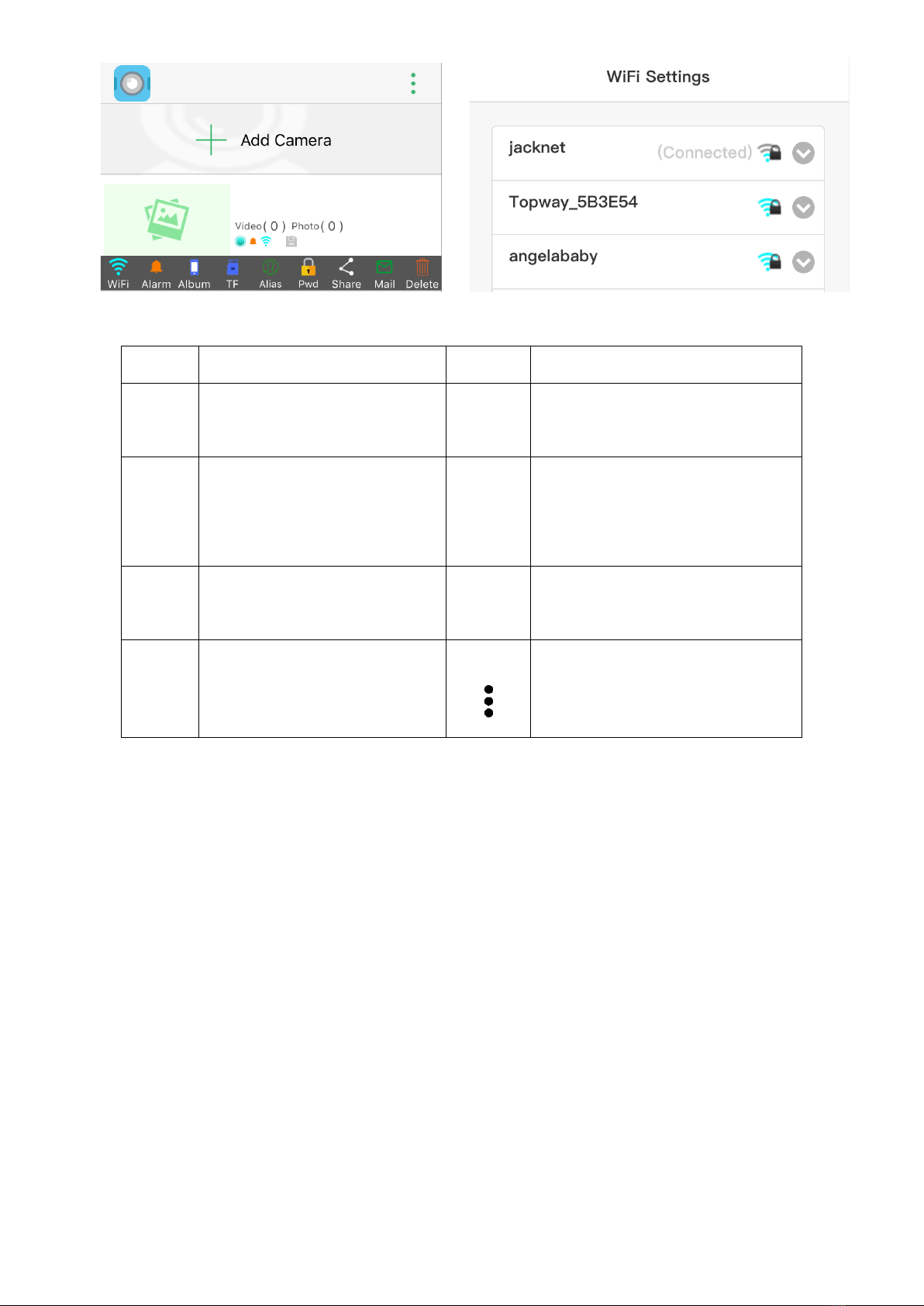
Figure 1 Figure 2
WiFi
WiFi connection
Password
Set the camera password
Alarm
You can choose to arm or cancel
arming.
Share
You can share and add via QR code.
Album
Photos or video files on the mobile
phone
Mail
Refer to the mailbox service provider's
guidelines for setting the alarm
mailbox
TF
Audio and video folder in TF card
Delete
Delete the current device in the
device list
Alias
Change the camera name
This button in the upper right corner,
you can view the version information
(Android can set whether to open the
message push)
Figure 1 Menu description
Step 1: AP connection (point-to-point)
A. Open the WLAN option in the phone settings, connect the name SZ *** hotspot, some brands of Android phones
(such as Huawei) will prompt "The current WLAN is not available for Internet access. Do you want to continue to
use this WLAN?", You must select "Use", otherwise Unable to connect to the APP. If you accidentally choose "not to
use", you need to select this hotspot in the WiFi list and set to "do not save" to reconnect.
B. Open the mobile phone software, each time you open the APP, it will automatically scan for new devices. If it is
not automatically added, please click to add a camera in the LAN
Step 2: P2P setting After the point-to-point connection is successful, you can start to set the P2P
mode. The steps are as follows:
Click the yellow arrow on the right of the APP to pop up the "Figure 1" menu, click on the leftmost WiFi icon in
the menu, select the hotspot and enter the password (Figure 2), the device will turn into a blue light, if the entered
password is correct, P2P remote access
* If you enter the wrong password, you need to rebind (long press the reset button for 4 seconds in the power-on
state and then reconnect)
* You must set a password (Figure 3) to see the video screen when you turn on the device for the first time (you
cannot access and add this device without setting the password after setting the password)
* After opening the camera screen, you can see the screen in Figure 4, the specific keys are defined in the following
table

Figure 3 Figure 4
<
Back to device list
i
Firmware version
Turn on or off infrared light
HD/4K
mobile phone resolution selection
Real-time camera photography on
the mobile phon
Real-time video recording on the
mobile phone
Turn real-time sound on or off
Image angle setting
Image angle setting
Battery level information
Figure 4 Icon description
Video Format
MOV
Video resolution
1920*1080P @H265
Player software
Recommend GOM Player or other players that support H265
encoding
Charging parameters
DC-5V/1A
Interface type
MicroUSB
Storage type
TF
Maximum memory support
256GB exFAT
Single machine weight
11g
Precautions
a) Use occasion: Please strictly abide by relevant national laws and regulations, and do not use this product for any
illegal purpose.
b) About the battery: As the usage time increases, the battery working time will be shortened. It has not been used
for a long time, please fully charge it before use.
c) File security: This product is a non-professional storage device, please back up files on the PC side in time
d) Other matters: This product is a precision electronic product. Do not subject to strong impact, and do not use it in
a strong magnetic field, strong electric field, or high humidity environment.
Table of contents
Other KJB Security Thermal Camera manuals


