
Kinivo BTE40 User manual

BTE40 Stereo Bluetooth Earphones
User Manual
© 2012 Kinivo LLC. All rights reserved.
Kinivo is a trademark of Kinivo LLC. Bluetooth word mark and the Bluetooth logo
are registered trademarks of Bluetooth SIG. All other trade names are registered
trademarks of respective manufacturers. This manual may not be copied in any
media or form without the written consent of Kinivo LLC.
Kinivo Product Support
Online : http://support.kinivo.com
Email : support@kinivo.com

Kinivo BTE40 Stereo Bluetooth Earphones
2
Table of Contents
Important Safety Instructions.............................................................3
Adapter Overview................................................................................4
Package Contents.................................................................................5
Features ................................................................................................5
Operation..............................................................................................5
1. Turning Unit On/O..........................................................................................5
2. Charging the Battery ........................................................................................6
3. Bluetooth Pairing...............................................................................................6
4. Bluetooth Multipoint Pairing.........................................................................7
5. To Pair with Windows 7 or Windows 8........................................................7
6. To Pair with Mac OS X.......................................................................................8
7. Button Functions................................................................................................8
8. LED Indicators .................................................................................................. 10
9. Factory Reset .................................................................................................... 11
Troubleshooting.................................................................................11
1. Unable to pair to smartphone or tablet ................................................. 11
2. BTE40 no longer connects to my device ................................................ 11
3. Earphones work with my smartphone but not my computer........ 12
4. Lost or damaged USB cable ........................................................................ 12
5. Error: Driver missing when trying to pair to computer..................... 12
6. Error messages when connecting on Mac OS X .................................. 12
Frequently Asked Questions .............................................................13
Specications .....................................................................................15
Warranty .............................................................................................16
Online Support / Contact Us..............................................................17

Kinivo BTE40 Stereo Bluetooth Earphones 3
Read all safety and operation instructions before using the Bluetooth earphones.
Warning: To reduce the risk of re or electric shock, do not expose the product
to water or moisture.
Important Safety Instructions
1. Do not expose the BTE40 to liquid, moisture or areas of high humidity.
2. Do not use abrasive cleaners to clean the BTE40 as they may damage the
unit. Always unplug and power o the unit before cleaning.
3. Do not expose the BTE40 to extremely high or low temperatures.
4. Do not attempt to open or modify the BTE40 in any way.
5. Keep the unit away from direct sunlight.
6. Refer to your State’s driving laws to see if they permit using Stereo
earphones while driving.
7. To avoid electronic interference and/or compatible conicts, turn o the
BTE40 in any facilities where posted notices instruct you to do so. For
example: Aircraft, Military Base, Hospital or Health Care Facilities.
8. To avoid impairing your hearing from long-term operation, keep the
playback volume at a moderate level.
9. Keep away from re, water, and high voltage equipment.
10. Store the earphones in a cool dry place.
11. The BTE40 earphones contain a lithium ion battery. Lithium ion batteries
are ammable and can cause re if misused or defective.
12. Always dispose of the packaging and unit in accordance with the local
regulations and in a responsible manner.
Kinivo BTE40 Stereo Bluetooth Earphones
4
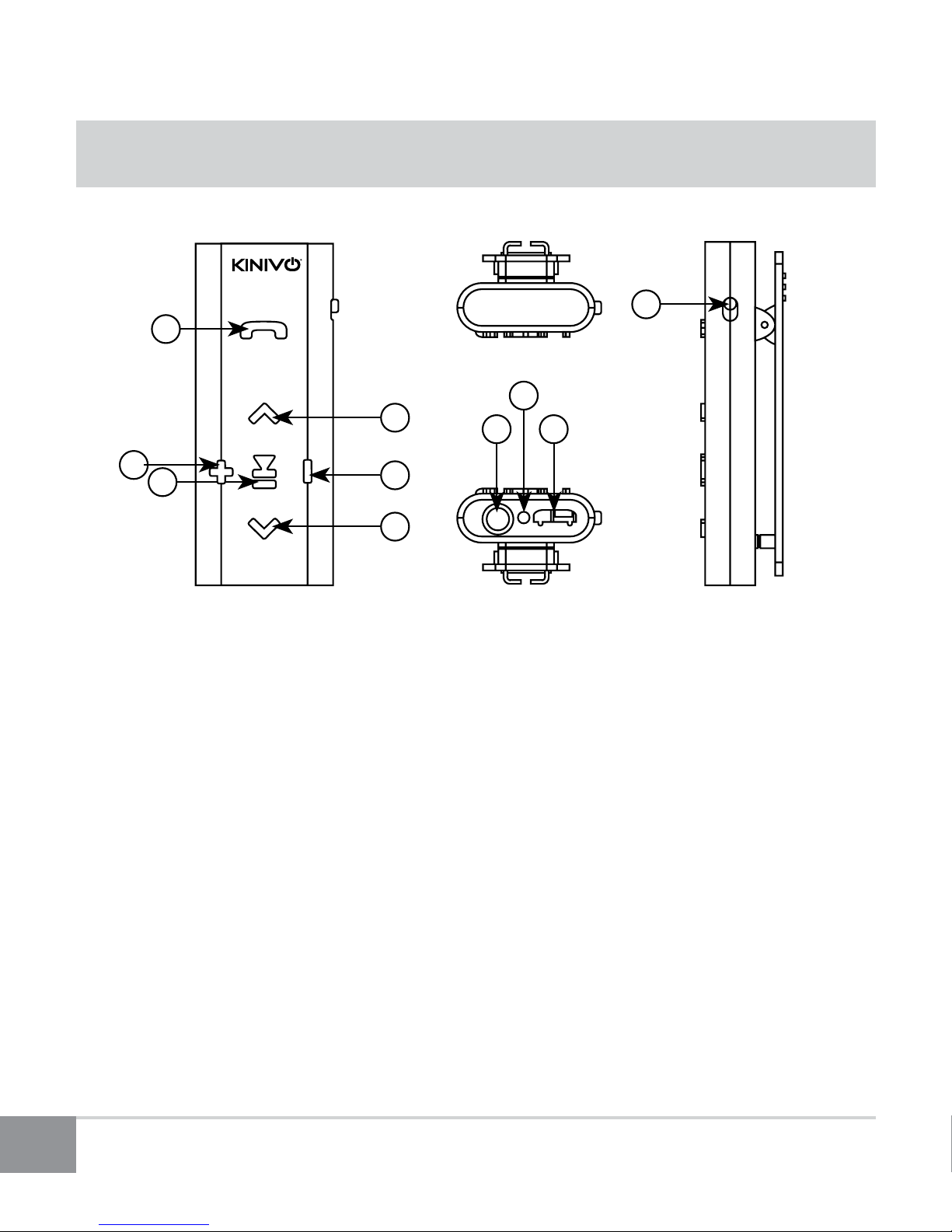
Adapter Overview
For additional information and features for Bluetooth controls, please refer to
the Operation section of this user manual.
10
7 9
8
4
3
1
6
25
1. Multifunction (MFB) / Call button
2. Increase volume
3. Pause/play button
4. Previous song button
5. Decrease volume
6. Next song button
7. 3.5mm audio port
8. Microphone
9. Charging port
10. Power switch
BTE40

Kinivo BTE40 Stereo Bluetooth Earphones 5
Package Contents
BTE40 stereo adapter
Earphones
Micro USB cable
3.5 mm cable 2 pcs
User manual
Features
Seamlessly stream music from almost any Bluetooth (A2DP) capable
device.
Multi-point Bluetooth support; connect up to two devices simultaneously.
Bluetooth Battery Meter in supported Apple devices (shows remaining
battery capacity in the iPhone / iPad information bar).
Can be used as a Bluetooth audio receiver for home theater or other
speakers. Connect the BTE40’s stereo output to your home theater and
stream music from your smartphone / tablet.
Operation
1. Turning Unit On/O
To turn the earphones on, toggle the power switch to the “On” position. To turn

Kinivo BTE40 Stereo Bluetooth Earphones
6
the earphones o, toggle the power switch to the “O” position.
2. Charging the Battery
To charge the BTE40 earphones, connect the Micro USB end of the included
charging cable to the BTE40, then connect the USB end into a USB power source.
USB power sources include computers, laptops, USB hubs, USB AC adapters, and
USB car chargers. When the BTE40 is charging, the red light will be lit. When the
battery is fully charged, the blue light will be lit. Fully charging the battery can
take up to 3 hours.
When the BTE40’s battery is low, the red light will blink quickly and you will hear
“Battery Low” through the earphones if the BTE40 is powered on.
3. Bluetooth Pairing
a. Ensure the earphones are powered on.
b. Press and hold the Call/Multifunction button for two to three seconds or
until red and blue lights begin alternately ashing.
c. Follow the operating instructions of your Bluetooth device to pair the
earphones.
d. If prompted for a passkey or PIN, enter “0000”(four zeros).
e. Once paired and connected, only the Blue LED will be blinking.
For iPad, iPhone, iPod Touch
Navigate to Settings > Bluetooth (On), then select the BTE40 to pair the
earphones.
For Android smartphones
Navigate to Settings > Wireless & networks > Bluetooth settings and enable

Kinivo BTE40 Stereo Bluetooth Earphones 7
Bluetooth, then select Scan for devices. Select the BTE40 to pair the earphones.
4. Bluetooth Multipoint Pairing
Bluetooth multipoint pairing allows you to connect up to two Bluetooth
capable devices simultaneously.
a. Follow the instructions in Bluetooth pairing section to pair the earphones
with the rst Bluetooth device.
b. Repeat the same pairing procedure for the second Bluetooth device. The
rst device will be disconnected temporarily.
c. The second Bluetooth device should now be connected. In the rst
Bluetooth device’s menu, connect to the earphones. Both devices should
now be connected.
Note: The BTE40 earphones will only connect to one device automatically
on each power on. To use the second Bluetooth device, please connect using
Bluetooth conguration on that device.
5. To Pair with Windows 7 or Windows 8
a. Make sure your computer is Bluetooth enabled and supports Bluetooth
stereo (A2DP).
b. After putting the BTE40 earphones in pairing mode, right click the
Bluetooth tray icon then select ‘Add a Device’ from the context menu.
Under Windows 8, type ‘Add a Bluetooth device’.
c. Locate the BTE40 from the devices list and click the Next button.
d. After your computer has loaded the device and the drivers for the
earphones, you should see that the device has successfully connected.

Kinivo BTE40 Stereo Bluetooth Earphones
8
Continue by clicking Close on the ‘Add a device’ window and closing the
second information window.
e. Right click the Volume control tray icon then select ‘Playback devices’ from
the context menu.
f. Select the earphones (Bluetooth Hands-free Audio) by left clicking the
device then click ‘Set Default’.
g. Hit OK to close the window. The Kinivo BTE40 earphones should now play
audio from your computer.
6. To Pair with Mac OS X
a. After putting the BTE40 earphones in pairing mode, click the Bluetooth
tray icon then select ‘Set Up Bluetooth Device’ from the drop down menu.
b. Locate the BTE40 from the devices list and click Continue.
c. You should see that the device pairing has successfully completed.
Continue by clicking Quit.
d. To use the earphones as the default audio device, click the Bluetooth tray
icon and hover over the BTE40 option then select ‘Use as Audio Device’.
e. The next time you adjust the volume in the menu bar or play music, the
computer will automatically connect to the earphones.
7. Button Functions
Function Operation
Toggle unit on/o Toggle the power switch to On/O position

Kinivo BTE40 Stereo Bluetooth Earphones 9
Bluetooth pairing mode
While the earphones are powered on, press
and hold the Call button for two to three
seconds until the red and blue LED start
alternately blinking
Voice command / dialing
(Siri for supported
iPhones)
To use this feature your mobile device must
support the voice dialing/command function.
1. Press the call / multifunction button
once.
2. Give voice command.
Press the multifunction button again to
cancel voice command.
Answer call
End call
Press multifunction button once (Note -this
will end the current call and answer the new
call )
Redial last number Press the call button twice (double click
quickly)
Refuse incoming call Press and hold multifunction button for 2
seconds
Toggle microphone
mute (during a call)
Press VOL- and VOL+ at the same time and
release immediately
Switch audio between
phone and BTE40
While in a call, press and hold multifunction
button for 2 seconds

Kinivo BTE40 Stereo Bluetooth Earphones
10
8. LED Indicators
Status LED Indicator
Powered o O
Bluetooth pairing mode Blinking blue and red alternately
Powered on and not connected Blinks blue twice every ve seconds
Powered on and connected Blinks blue once every seven seconds
Low battery Blinking red
Battery charging Steady red
Fully charged (plugged in) Steady blue
Increase volume Press VOL+ button, you will hear a beep
when at the maximum level
Decrease volume Press VOL– button, you will hear a beep
when at the minimum level
Play music
Pause music Press Play/Pause button
Next track Press Next button
Previous track Press Previous button
Table of contents
Other Kinivo Headphones manuals


