Kedacom KSCA121 Series User manual

KEDACOM
User Manual for Face Recognition
Access Control System
of KSCA121 Series
V1.1 (September, 2021)

Face Recognition Access Control System User Manual
Trademarks
, Kedacom®, TrueSens®, , and NexVision®are registered trademarks of Suzhou
Keda Technology Co., Ltd. in China and various other countries. All other trademarks mentioned in this
document are the property of their respective holders.
Suzhou Keda Technology Co., Ltd.
131 Jinshan Road
New District, Suzhou, 215011
People's Republic of China
https://www.kedacom.com
Tel: +86-512-68418188
Fax: +86-512-68412699
© 2021 Suzhou Keda Technology Co., Ltd. All rights reserved.
Without the prior written permission of Suzhou Keda Technology Co., Ltd., any reproduction, translation
or retransmission of all or any part of this document for any purpose in either electronic or mechanical
form is not allowed.
Notice
The information in this document is subject to change without notice. Every effort has been made to
prepare this document to ensure accuracy of the contents, but all statements, information, and
recommendations in this document do not constitute a warranty of any kind, express or implied. Suzhou
Keda Technology Co., Ltd. is not responsible for printing or clerical errors.

Face Recognition Access Control System User Manual
Target Audience
Administrators and Operators of Video Surveillance Products
Document Version
V1.1
Software Version
7.3.3
Applicable Models
KSCA121 series
Related Document
Quick Start Guide
Convention
Icon
Convention
Notes and warnings: necessary supplements to operations
BOLD
Menu, e.g. Drag to Zoom
>
Connector between menus of different levels, e.g. Settings > System
Safety Instruction
These instructions are intended to ensure that the user can use the product correctly to avoid danger or
property loss. Please read this Guide carefully before using the product, and keep it properly for future
reference. If the product cannot work normally or is damaged because the user does not follow the
safety instructions, we shall not assume any responsibility.
Working Conditions
Please make sure the device is stored or working under the following environment.
Model
Working Voltage
(Please use standard
power adaptor)
Temperature
Relative
Humidity
Altitude
Pressure
KSCA121
Series
DC12V±10%
Power consumption:
Max 25W
-40°C~+60°C
10%~95%
-60m~+3000m
86kPa~106kPa

Face Recognition Access Control System User Manual
Contents
1. Product Brief .......................................................................................................................................... 5
2. Device Touch Screen............................................................................................................................. 9
2.1 Startup............................................................................................................................................. 9
2.1.1 Local Activation......................................................................................................................... 9
2.1.2 Stand-By Interface .................................................................................................................. 10
2.2 Login...............................................................................................................................................11
2.3 Personnel....................................................................................................................................... 12
2.3.1 Register................................................................................................................................... 12
2.3.2 Search..................................................................................................................................... 14
2.4 Network.......................................................................................................................................... 16
2.4.1 Ethernet................................................................................................................................... 16
2.4.2 Wireless................................................................................................................................... 17
2.4.3 Peripheral................................................................................................................................ 19
2.4.4 Wigan...................................................................................................................................... 20
2.5 Settings.......................................................................................................................................... 22
2.5.1 Basic........................................................................................................................................ 23
2.5.2 Time ........................................................................................................................................ 25
2.5.3 Face ........................................................................................................................................ 26
2.5.4 Advanced................................................................................................................................ 28
2.5.5 Language................................................................................................................................ 30
2.6 Access Control............................................................................................................................... 30
2.7 Management.................................................................................................................................. 32
2.8 Event Search................................................................................................................................. 35
2.9 Storage.......................................................................................................................................... 36
2.10 Function Test ................................................................................................................................. 37
2.10.1 Sound Test .............................................................................................................................. 38
2.10.2 Card-Reader Test.................................................................................................................... 39
2.10.3 IO Test..................................................................................................................................... 39
2.10.4 Network Test............................................................................................................................ 40
2.11 System........................................................................................................................................... 41
2.11.1 Device Info .............................................................................................................................. 42
2.11.2 Device Log .............................................................................................................................. 43
3. Web Client............................................................................................................................................. 45
3.1 Startup........................................................................................................................................... 45
3.1.1 Activate.................................................................................................................................... 45
3.1.2 Configure Network Parameters............................................................................................... 47
3.1.3 Log In and Log Out of the Web Client..................................................................................... 48
3.1.4 Reset Password...................................................................................................................... 51

Face Recognition Access Control System User Manual
3.1.5 Main Interface ......................................................................................................................... 51
3.2 Basic Functions ............................................................................................................................. 52
3.2.1 Live View................................................................................................................................. 52
3.2.2 Playback.................................................................................................................................. 53
3.2.3 Snapshot................................................................................................................................. 56
3.2.4 Local Setting ........................................................................................................................... 56
3.3 Network.......................................................................................................................................... 59
3.3.1 IP and Port .............................................................................................................................. 59
3.3.2 Access Protocol ...................................................................................................................... 62
3.3.3 Other Protocols....................................................................................................................... 67
3.4 Access Control............................................................................................................................... 72
3.4.1 Personnel................................................................................................................................ 72
3.4.2 Settings ................................................................................................................................... 72
3.4.3 Event....................................................................................................................................... 77
3.4.4 Storage.................................................................................................................................... 78
3.5 Camera.......................................................................................................................................... 78
3.5.1 OSD......................................................................................................................................... 78
3.5.2 Video....................................................................................................................................... 80
3.5.3 Audio....................................................................................................................................... 81
3.6 Event.............................................................................................................................................. 82
3.6.1 Alarm Output........................................................................................................................... 82
3.6.2 Abnormality Linkage................................................................................................................ 83
3.7 Storage.......................................................................................................................................... 84
3.7.1 Storage Management.............................................................................................................. 84
3.7.2 Recording................................................................................................................................ 85
3.7.3 Snapshot................................................................................................................................. 86
3.8 System........................................................................................................................................... 88
3.8.1 Device Info.............................................................................................................................. 88
3.8.2 User Security........................................................................................................................... 89
3.8.3 Time ........................................................................................................................................ 93
3.8.4 Serial Port ............................................................................................................................... 95
3.8.5 Log .......................................................................................................................................... 95
3.8.6 System Maintenance............................................................................................................... 96
Appendix: Personnel Import Through Web Client..................................................................................... 98

Face Recognition Access Control System User Manual
1. Product Brief
KSCA121 series are a kind of face recognition access control and attendance system. It supports
multiple opening modes, including face/card/fingerprint, face & card & fingerprint, full match of face
and ID photo, and remote help. It manages access electric lock and checks on work attendance
through face recognition. Usually, it is applied to communities, financial places, enterprises,
governments, schools, public security bureaus, judiciary authorities and buildings where personnel
access needs to be controlled.
Picture 1-1 Product appearance (series with and without fingerprint)

Face Recognition Access Control System User Manual
Picture 1-2 Product appearance (Vertical type)

Face Recognition Access Control System User Manual
Picture 1-3 Product appearance (Desk type)
Features:
2.0MP 1/2.8” high-performance image sensor;
H.264 encoding, 1080P@25fps HD live video;
8-inch LCD touch screen, show face comparison information and provide good man-machine
interaction;
Binocular UHD wide-angle lens, face recognition distance at 0.3~2m, suitable for height range
of 1.2 to 1.9m;
Deep-learning algorithm, fast recognition speed and high accuracy rate;
Liveness detection, prevent photo-fraud and video-fraud effectively;
Intelligent facial fill light, enable fill light automatically according to the light condition to suit
outdoor backlight;
Support multiple opening modes, including face/card/fingerprint, face & card & fingerprint, full
match of face and ID photo, and remote help;

Face Recognition Access Control System User Manual
Support stand-alone off-line operation, input card and face information locally to manage
without platform or command center;
Real-time uploading data to the command center to manage the blacklist at real time;
Direct control over electric lock, door switch and door magnetism so as to manage access
control;
Support tamper alarm and door magnetic detection;
Support Wiegand and RS485 port, to connect to access control system;
Built-in MIC and speaker, support two-way audio and voice broadcast;
Support Wi-Fi for convenient internet service;
Support extended card reader, support people and card verification and registration;
TF card local storage (maximum 256 G), support ANR;
IP65-rated water-proof and dust-proof, -40°C~+60°C wide temperature range, to suit outdoor
severe environment;
Applied to communities, financial places, enterprises, governments, schools, public security
bureaus, judiciary authorities and buildings where personnel access needs to be controlled.

Face Recognition Access Control System User Manual
2. Device Touch Screen
2.1 Startup
Please refer to the Quick Start Guide for device installation and wire connection.
For first-use of the device, user should activate it by any of the three methods: local activation,
web client activation and IPCSearch activation. This chapter will introduce local activation and
other methods will be introduced in chapter 3.1.1 Activation.
2.1.1Local Activation
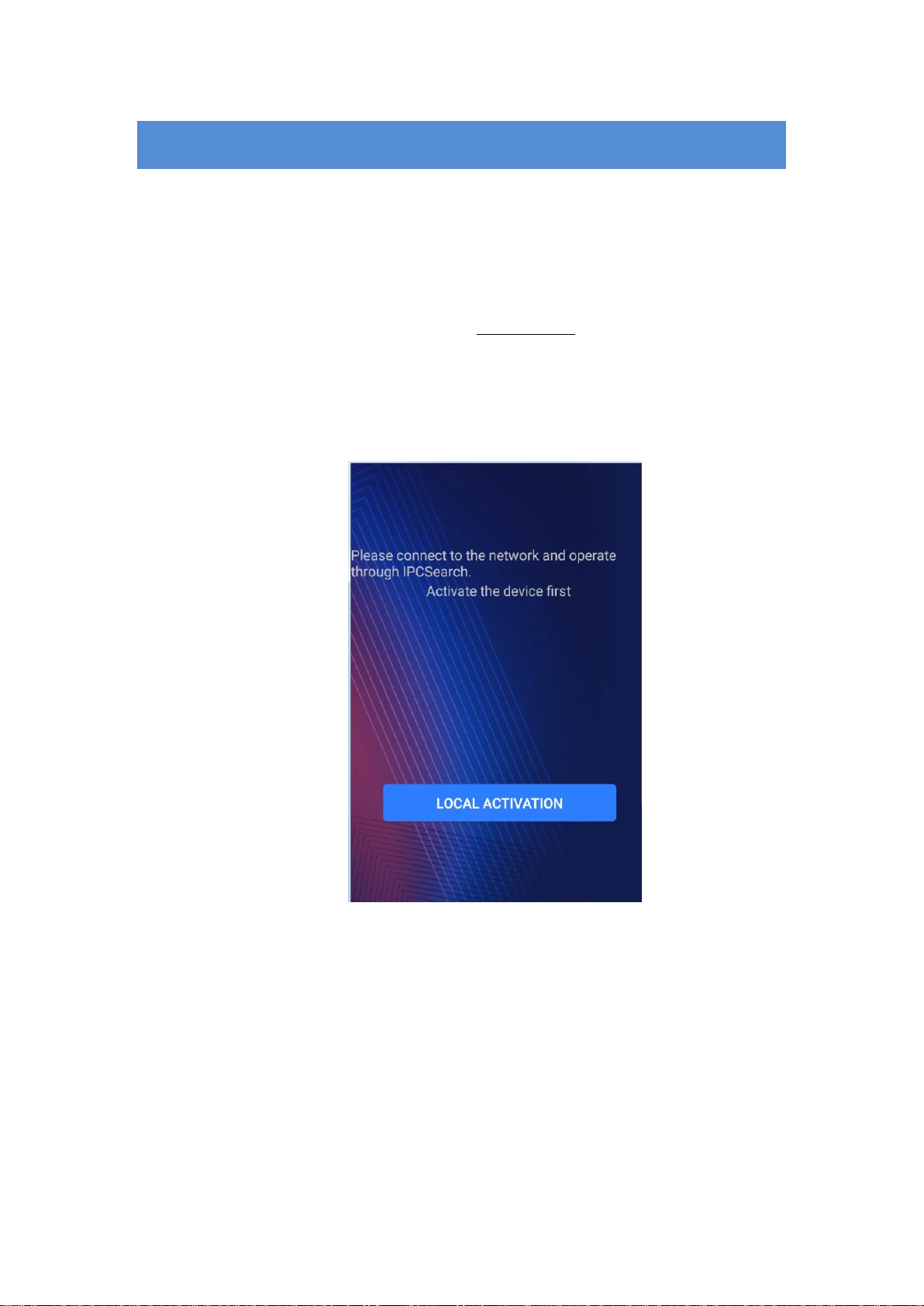
Electrify and start the device. If the device is not activated before use, it will come to the
activation interface automatically.
Picture 2-1 Activation prompt
Operation steps are as follows:
1) Tap “Local Activation” on the interface;
Table of contents
Other Kedacom IP Access Controllers manuals