JVC ProVerite PS-420W User manual

Digital Signage LCD Display
MODELS:
PS-420W
PS-470W
OWNER’S MANUAL
Signage LCD
S
Signage LCD
S
Signage LCD
S
Signage LCD
S
D
S

1
Important Precautions
Electrical Power Related Precautions
Warning
nUse only the power cord supplied with the unit or another manufacturer’s authorized cord.
- Failure to do so may result in re or electrical shock or damage to the display.
nUse only a properly grounded plug and receptacle.
- If you do not, you may be electrocuted or injured. Or the display might be damaged.
nDo not use a damaged or loose plug.
- This may cause electrical shock or re.
nOperate the display only from a power source (i.e. voltage) indicated in the product
specication.
- Otherwise, the display can be damaged, re can occur or you may be electrocuted. If you are not
sure what type of power supply you have, consult a certied electrician.
nIn the presence of thunder and lightning, never touch the power cord and signal cable because
it can be very dangerous.
- It can cause electric shock.
nDo not connect several extension cords, electrical appliances or electrical heaters to a single
outlet. Use a power bar with a grounding terminal designed for exclusive use with the display.
- A re can break out due to overheating.
nDo not touch the power plug with wet hands. Additionally, if the cord pin is wet or covered with
dust, dry the power plug completely or wipe dust off before plugging in the cord.
- You may be electrocuted due to excess moisture.
nIf you do not intend to use the display for a long time, unplug the power cord from the display.
- Covering dust can cause a re, or insulation deterioration can cause electric leakage, electric shock
or re.
nInsert the power plug rmly so it cannot come loose.
- A loose connection can cause re. Hold the plug when pulling out the power cord.
nDo not pull the plug out by the wire. Do not bend the power cord with excessive force or put
heavy objects on the power cord.
- The power line can be damaged, which may cause electric shock or re.
nDo not insert metal or other conductive materials into the display openings. Additionally, do
not touch the power cord right after plugging the cable into the wall input terminal.
- You may be electrocuted.
nThe power supply cord is used as the main disconnection device. The socket-outlet shall be
installed near the equipment and shall be easily accessible.
nDo not unplug the power cord while the display is in use.
- Electrical shock can damage the product.
nAs long as this unit is connected to the AC wall outlet, it is not disconnected from the AC
power source even if the unit is turned off.
Please read these safety precautions carefully before using the display.
Warning Failure to follow those warnings may result in death, serious injury
or damage to the display or other property.
2
Important Precautions
Important Precautions
Precautions in Installing the Display
Warning
nKeep away from heat sources like heaters or open ames.
- Electrical shock, re, malfunction or deformation may occur.
nKeep the packing anti-moisture material or vinyl packing out of the reach of children.
- Anti-moisture material is harmful if swallowed. If swallowed by mistake, force the patient to vomit and
visit the nearest hospital. Additionally, vinyl packing can cause suffocation. Keep it out of the reach of
children.
nDo not put heavy objects on the display or sit upon it.
- If the display collapses or is dropped, you may be injured. Children must pay particular attention.
nDo not leave the power or signal cable where someone can trip over it.
- The passerby can falter, which can cause electrical shock, re, display breakdown, or injury.
nInstall the display in a neat and dry place. Do not use near water.
- Dust or moisture can cause electrical shock, re, or display damage.
nDo not add accessories that have not been designed for this display.
nIf you smell smoke or other odors or hear a strange sound from the display, unplug the power
cord and contact Customer Service (Please refer to the label on the rear cover).
- If you continue to use without taking proper measures, electrical shock or re can occur.
nIf you dropped the display or the case is broken, turn off the display and unplug the power
cord.
- If you continue to use without taking proper measures, electrical shock or re can occur. Contact
Customer Service (Please refer to the label on the rear cover).
nDo not drop an object on or apply impact to the display. Do not throw any toys or objects at the
display.
- It can cause injury to humans, problems to the display, and damage the display.
nKeep out of reach of children and do not place toys near the display.
nMake sure the display ventilation hole is not blocked. Install the display more than 10cm away
from the wall.
- If you install the display too close to the wall, it may be deformed or re can break out due to internal
heat build-up.
nDo not cover the display with cloth or other material (eg. plastic) while plugged in.
- The display can be deformed or re can break out due to internal overheating.
nPlace the display on a at and stable surface that is large enough to support the display.
- If the display is dropped, you may be injured or the display may be broken.
nInstall the display where no Electromagnetic Interference occurs.
nKeep the display away from direct sunlight.
- The display can be damaged.
nDo not place the display on the oor.
- Small children and others may trip over it.
3
Important Precautions
Precautions in Moving the Display
Warning
nMake sure to turn off the display.
- You may be electrocuted or the display can be damaged.
nMake sure to remove all cables before moving the display.
- You may be electrocuted or the display can be damaged.
nDo not shock the display when moving it.
- You may be electrocuted or the display can be damaged.
nMake sure the display faces forward and hold it with both hands to move.
- If you drop the display, the damaged display can cause electric shock or re.
nDo not place the display face down.
- This may damage the display.
Precautions in Using/Cleaning the Display
Warning
nDo not attempt to disassemble, repair, or modify the display yourself.
- Fire or electric shock can occur.
- Contact Customer Service (Please refer to the label on the rear cover) for repair.
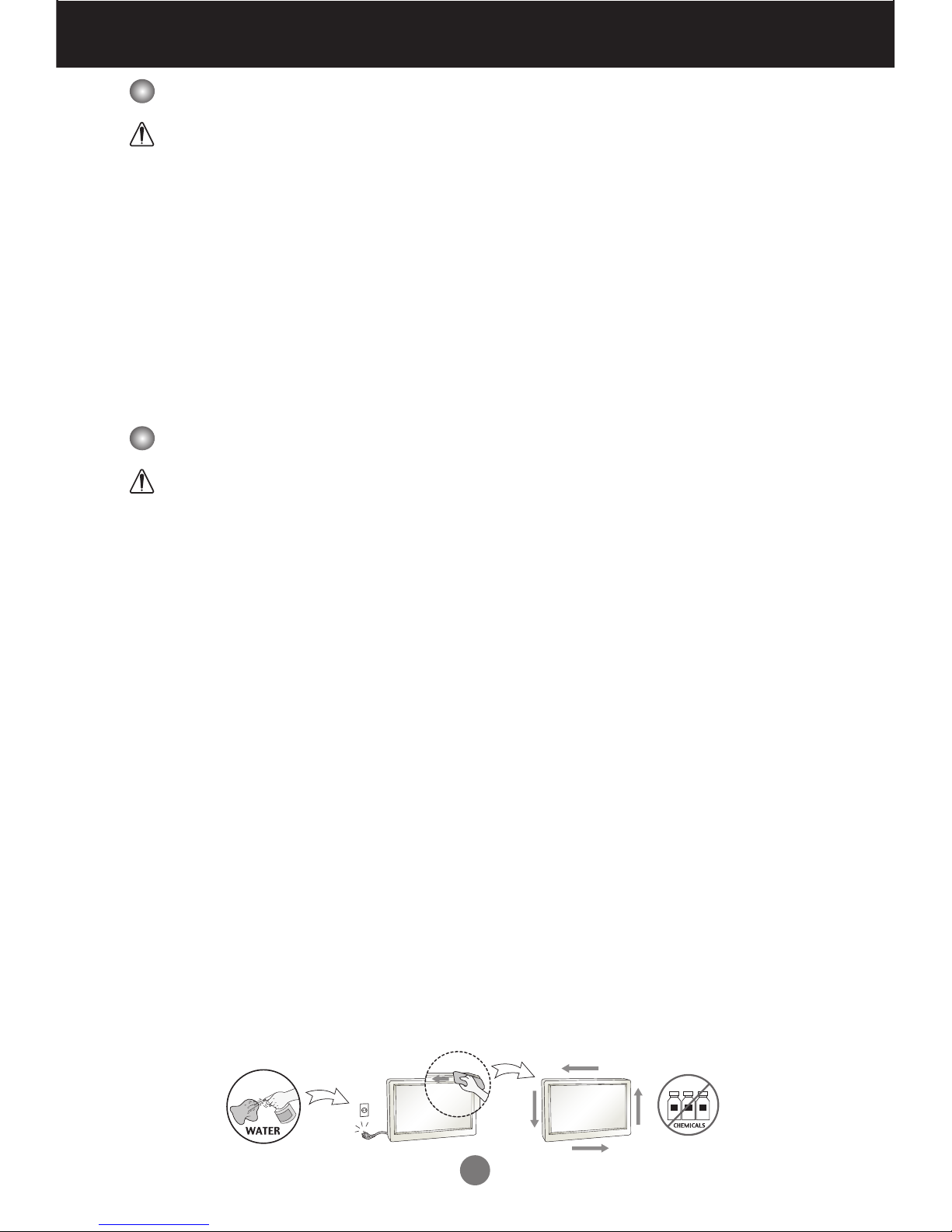
nWhen cleaning the display, unplug the power cord and scrub gently with a soft cloth to prevent
scratching. Do not clean with a wet cloth or spray water or other liquids directly onto the
display. An electric shock may occur. (Do not use chemicals such as benzene, paint thinners,
or alcohol)
nKeep the display away from water.
- Fire or electric shock accident can occur.
nAvoid high temperatures and humidity.
nDo not put or store ammable substances near the display.
- There is a danger of explosion or re.
nKeep the display clean at all times.
nDo not press on the display with a hand or sharp object such as nail, pencil or pen, or make a
scratch on it.
nKeep proper distance from the display and rest from time-to-time.
- Your vision may be impaired if you look at the display too closely or for too long.
nKeep small accessories out of the reach of children.
nLeaving a xed image on the display for a long time may cause damage to the display and
cause image retention. Make sure to use a screen saver on the display. Burn-in and related
problems are not covered by the warranty on this display.
nSpray water onto a soft cloth 2 to 4 times, and use it to clean the front frame; wipe in one
direction only. Too much moisture may cause staining.

4
Important Precautions
On Disposal (Only, Hg lamp used Display)
nThe uorescent lamp used in this display contains a small amount of mercury.
nDo not dispose of this display with general household waste.
nDisposal of this display must be carried out in accordance to the regulations of your local
authority.
Precautions for Image Sticking
To optimize display lifetime and function, pay attention on the following operation
usages:
nNormal operating condition
- Operating Temperature: 0°C to 40°C
- Operating Ambient Humidity: 10% to 90%
- Display Pattern: dynamic pattern (real display)
Note:
Long-term static display can cause image sticking.
nOperating usages under abnormal condition
a. Ambient condition
- Well-ventilated place is recommended to set up the system.
b. Power and screen saver
- Periodical power-off or screen saver is needed after long-term display.
nOperating usages to protect against image sticking due to long-term static display
a. Suitable operating time
- Under 18 hours a day.
b. Static information display recommended to use with moving image
- Cycling display between 5 minutes information (static) display and 10 seconds moving image.
c. Background and character (image) color change
- Use different colors for background and character, respectively.
- Change colors themselves periodically.
d. Avoid combination of background and character with large different luminance
Note:
1) Abnormal condition just means conditions except normal condition.
2) Black image or moving image is strongly recommended as a screen saver.
5
Accessories
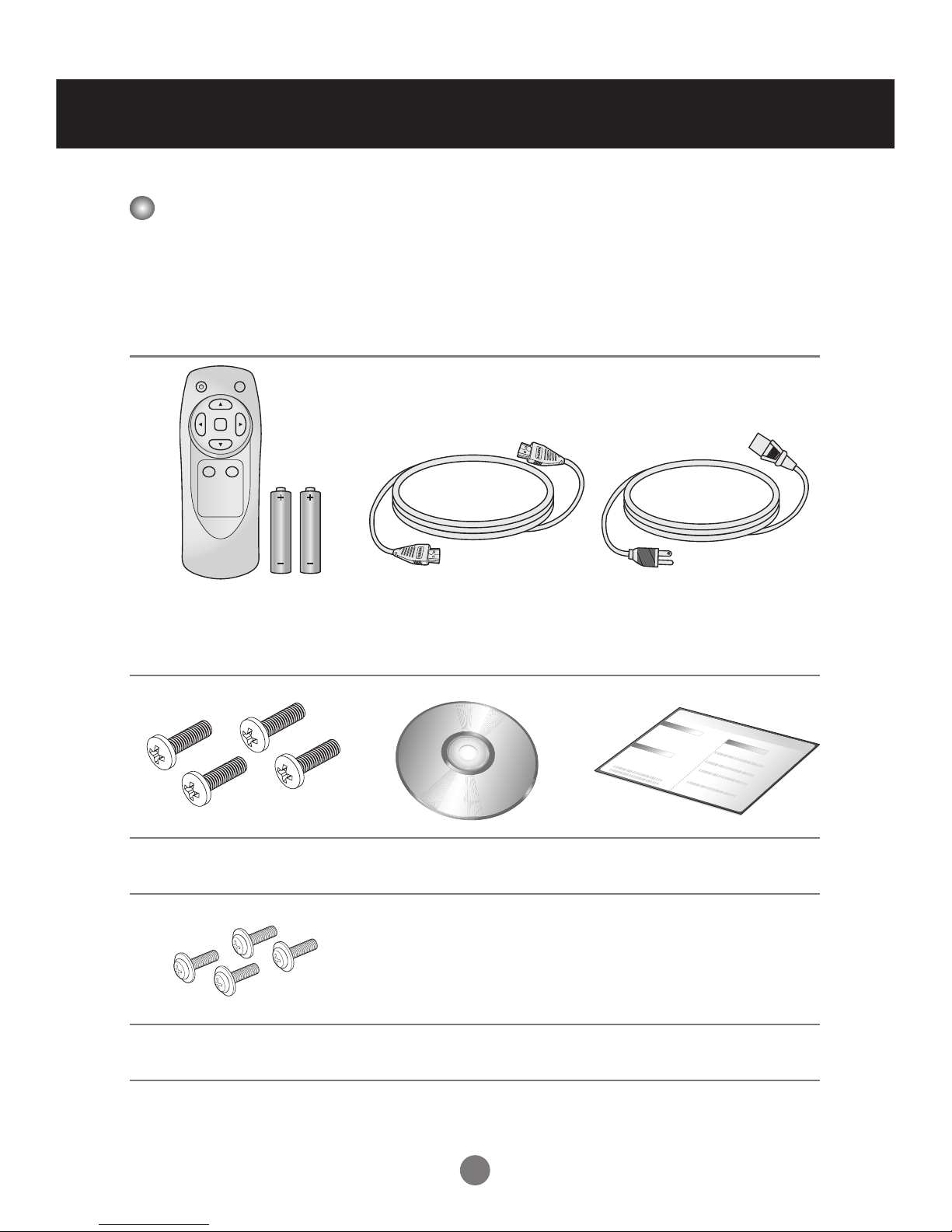
Included Accessories
Thank you for your purchase. Ensure that the following accessories are included
with your display. If an accessory is missing, please contact the dealer where you
purchased the display.
v The accessories included may differ from the images shown below.
Remote Control &
Batteries (AAA × 2)
HDMI Cable Power Cord
*Power Cord for EU
(Optional)
Vesa Mount Screws
(4 pcs)(Size : M6 × L20)
CD-ROM (User’s Manual) Quick Start Guide
DMP Mount Screws
(4 pcs)(Size : M3 × L12)
INPUTPOWER
OK
BACKLIGHT
MENU
6
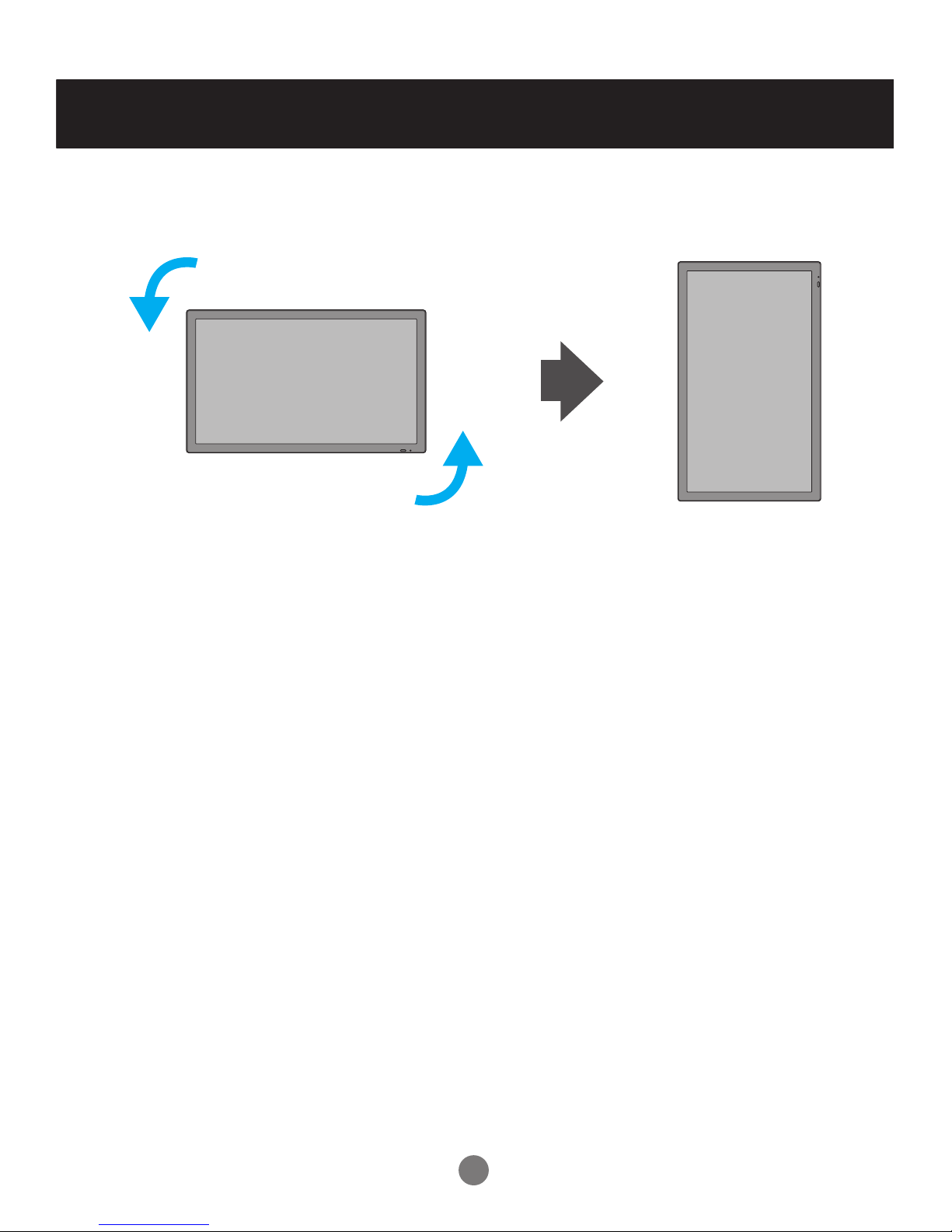
Portrait Mode
To change the display orientation to Portrait mode, rotate the display counter-
clockwise as shown below.
7
Using the Remote Control
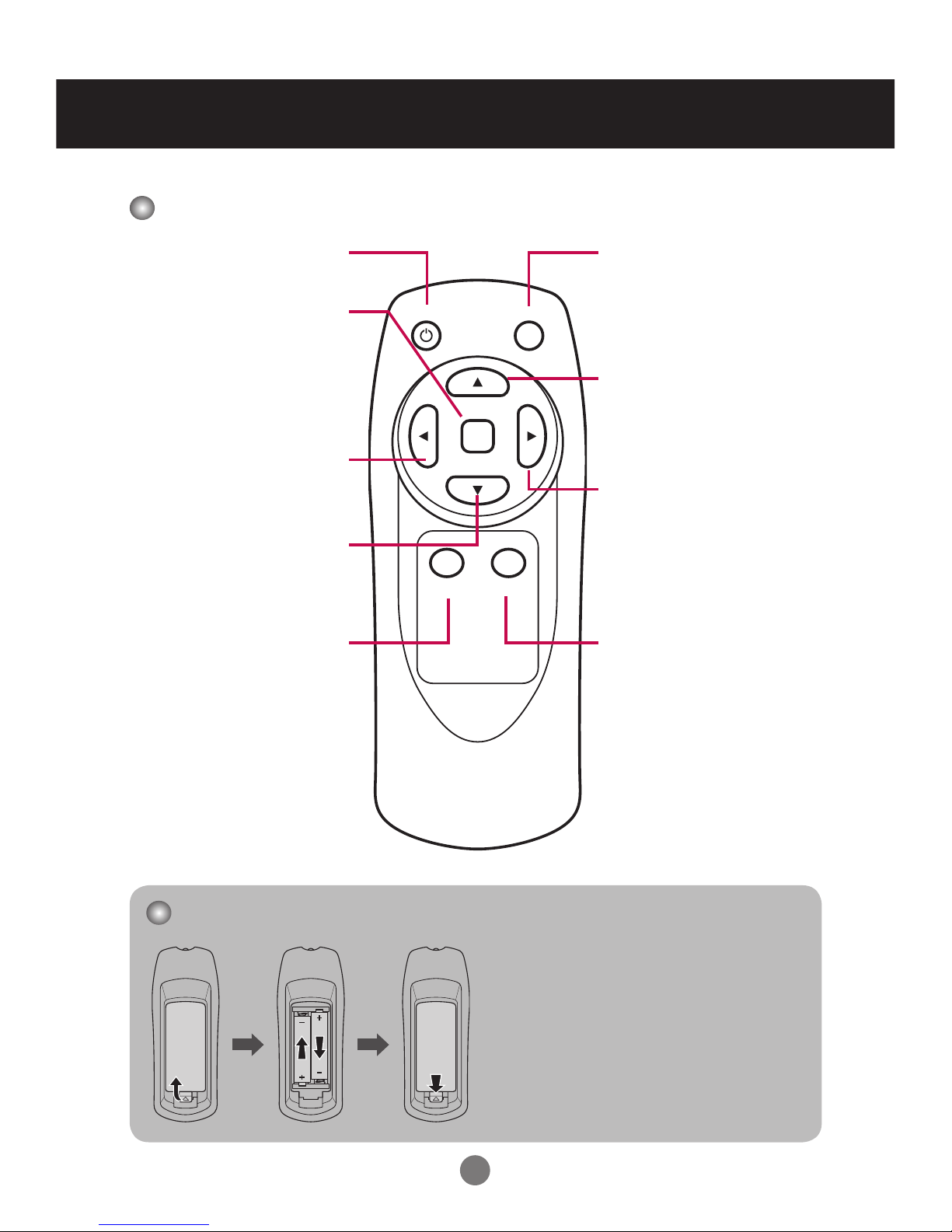
Name of the Remote Control Buttons
Power
Turn the display on/off.
Left
Decrease the• values.
Control the tuning bar.•
Change the • options.
Right
Increase t• he values.
Enter the submenu.•
Change th• e options.
Control the tuning bar.•
Up
M• ove upward on the
selection.
Ch• ange selected item.
Down
Move d• ownward on the
selection.
Change• selected item.
Menu
Display OSD (• on-screen
display) menu.
Return to the previous •
menu.
Exit O• SD menu.
Input
Switch the input source.
Backlight
Adjust brightness level.
Installing Batteries into the Remote Control
1. Open the battery cover.
2. Install the batteries matching the
correct polarity.
Install two 1.5V AAA batteries. •
3. Close the battery cover.
Dispose the • used batteries
in the recycle bin to prevent
environmental pollution.
INPUTPOWER
OK
BACKLIGHT
MENU
OK
Enter th• e submenu.
Activate the tuning bar.•
Conrm the selection.•
Display information •
banner (current input
source and resolution).
8
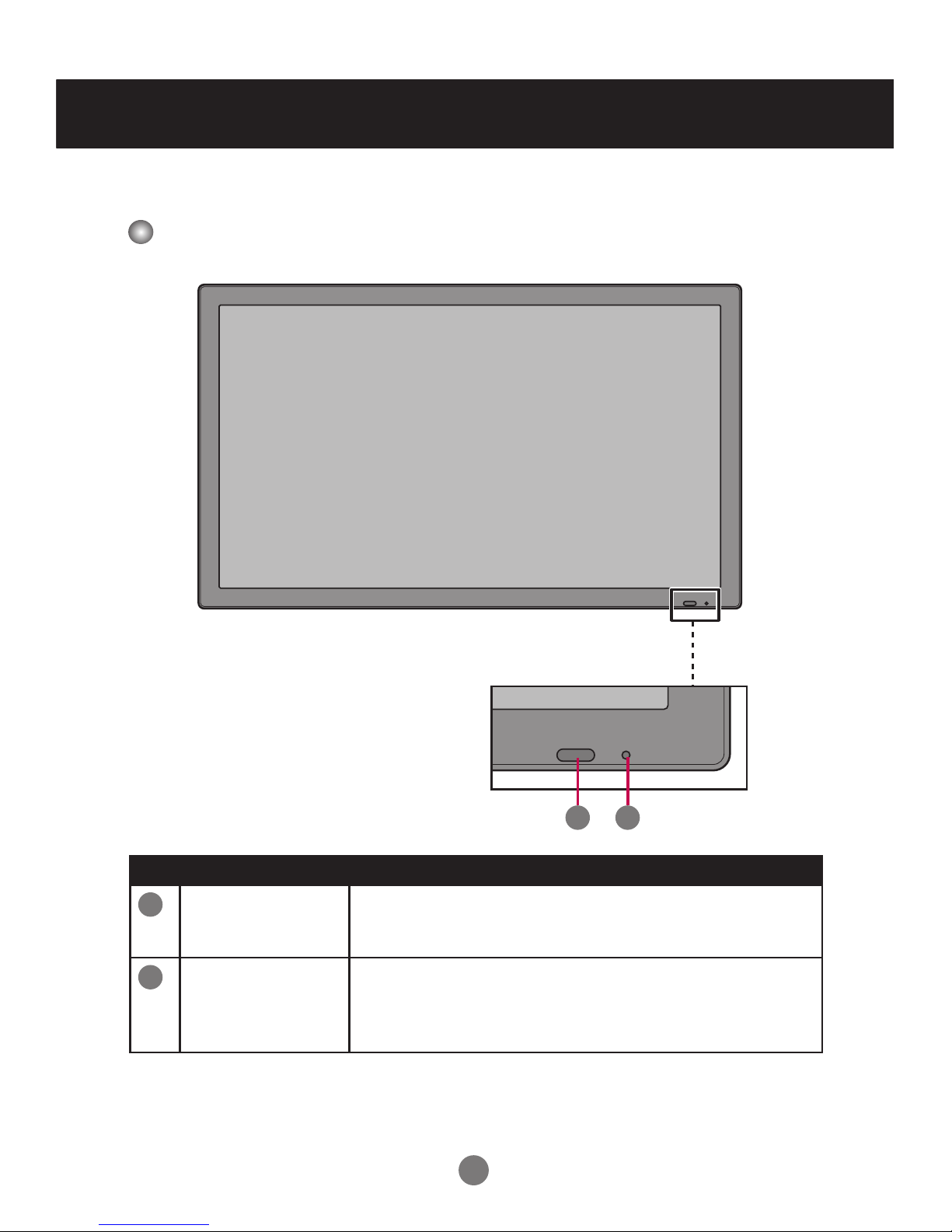
Front View
Name and Function of the Parts
* The image shown in the user’s guide could be different from the actual image.
No. Item Description
1Light sensor/
IR Receiver
Used to detect the current level of visible light in the
surrounding environment.
Receive incoming remote control commands.
2Power indicator Indicate power on or sleep mode status.
- Power on: Green LED lights up.
- Sleep mode: Amber LED lights up.
- Power off: LED off.
1
Name and Function of the Parts
2
9
Name and Function of the Parts
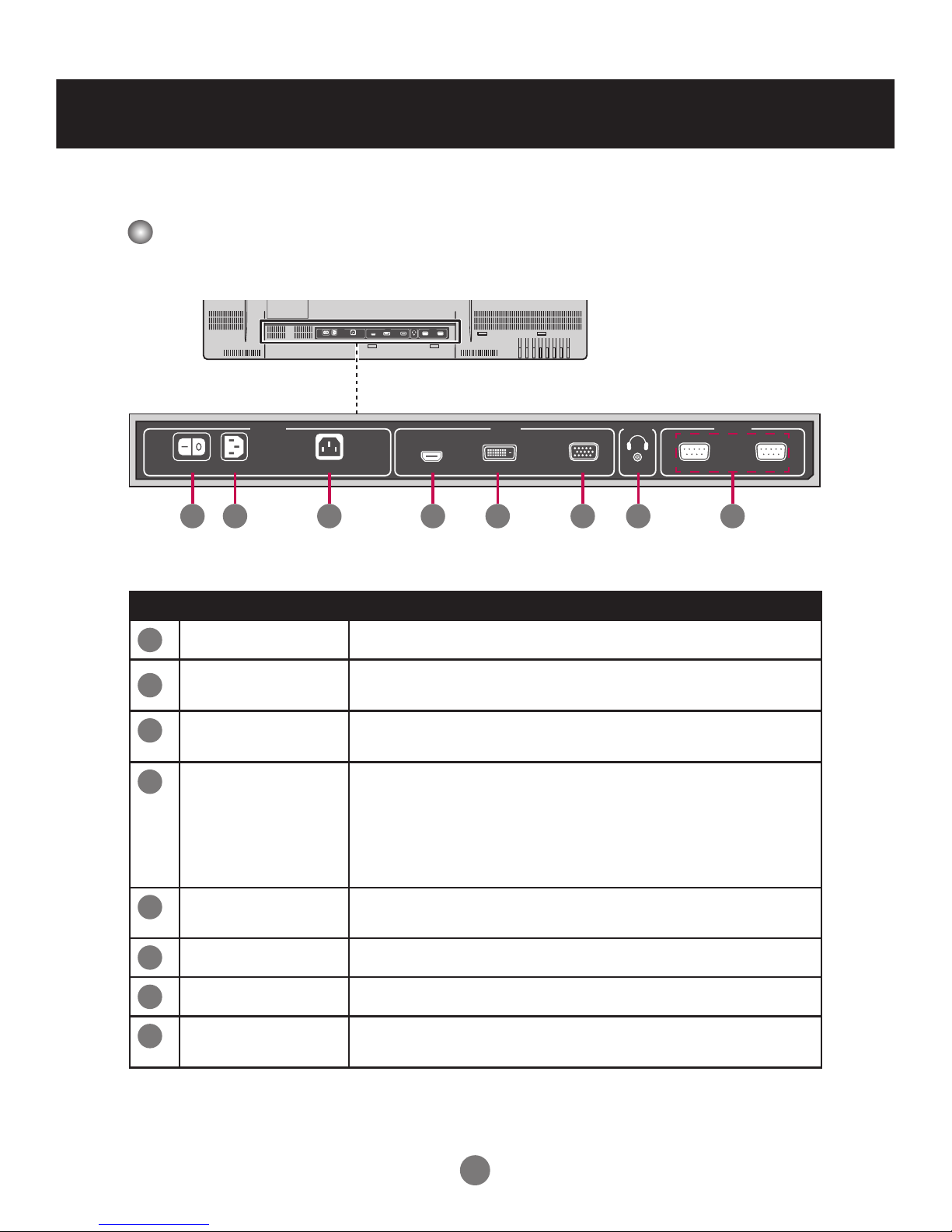
Rear View
No. Item Description
1AC Switch Switch the power supply on/off.
2AC Power Input
Connector
Connect the power cord.
3AC Power Output
Connector
Connect the AC power output.
4HDMI Port Connect an HDMI equipment or an HDMI-DVI adapter
cable to devices such as a DVD player or set-top box.
v HDMI Supports High Denition input and HDCP
(High-bandwidth Digital Content Protection). Some
devices require HDCP in order to display HD signals.
5DVI Port Connect an DVI cable to devices such as a DVD player
or set-top box.
6RGB Port Connect to a PC VGA port.
7Audio system Connect External Audio System or headphones.
8RS-232C Serial
Ports
Connect several displays with serial port.
INPUT
MENU
DOWN
UP
RIGHT
LEFT
AUTO/OK
POWER
SWITCH IN OUT
5.7-2.2A
AC100-240~, 50-60Hz
3.0-1.2A
POWERVIDEO
HDMIIN DVIIN RGBIN
RS232C
ExternalControl
IN OUT
AUDIO
LINEOUT
SWITCH IN OUT
5.7-2.2A
AC 100-240~, 50/60Hz
3.0-1.2A
POWER VIDEO
HDMI IN DVI IN RGB IN
RS232C
External Control
IN OUT
AUDIO
LINE OUT
1 2 3 4 5 6 7 8
Name and Function of the Parts
This manual suits for next models
1
Table of contents