
JVC KW-XG810 User manual

ENGLISH
INDONESIA
EN, IN 1111DTSMDTJEIN
[TIPE]
KW-XG810
[TAPE MOBIL]
CD RECEIVER / ALAT PENERIMA CD
GET0766-001A
[UN]
INSTRUCTIONS
BUKU PETUNJUK
Having TROUBLE with operation?
Please reset your unit
Refer to page of How to reset your unit
Ada MASALAH dengan unit anda?
Silakan setel (reset) terlebih dahulu unit anda
Lihat pada halaman bagaimana cara mereset unit anda.
Jika masalah masih timbul, silakan
menghubungi pusat service kami:
PT. Jaya Victori Cemerlang
Jl. Cideng Timur No. 6D
Jakarta 10130
Indonesia.
Telp: (62)(021) 6386 7836
Fax: (62)(021) 6386 7837
Dibuat oleh:
PT. JVC ELECTRONICS INDONESIA
Jl. Surya Lestari Kav. I-16B, Kota Industri Surya
Cipta Karawang 41361, Jawa Barat.
CoverRear_KW-XG810S[UN]f.indd 1-2CoverRear_KW-XG810S[UN]f.indd 1-2 10/27/11 11:26:46 AM10/27/11 11:26:46 AM
2ENGLISH
Please read all instructions carefully before operation, to ensure your complete understanding and
to obtain the best possible performance from the unit.
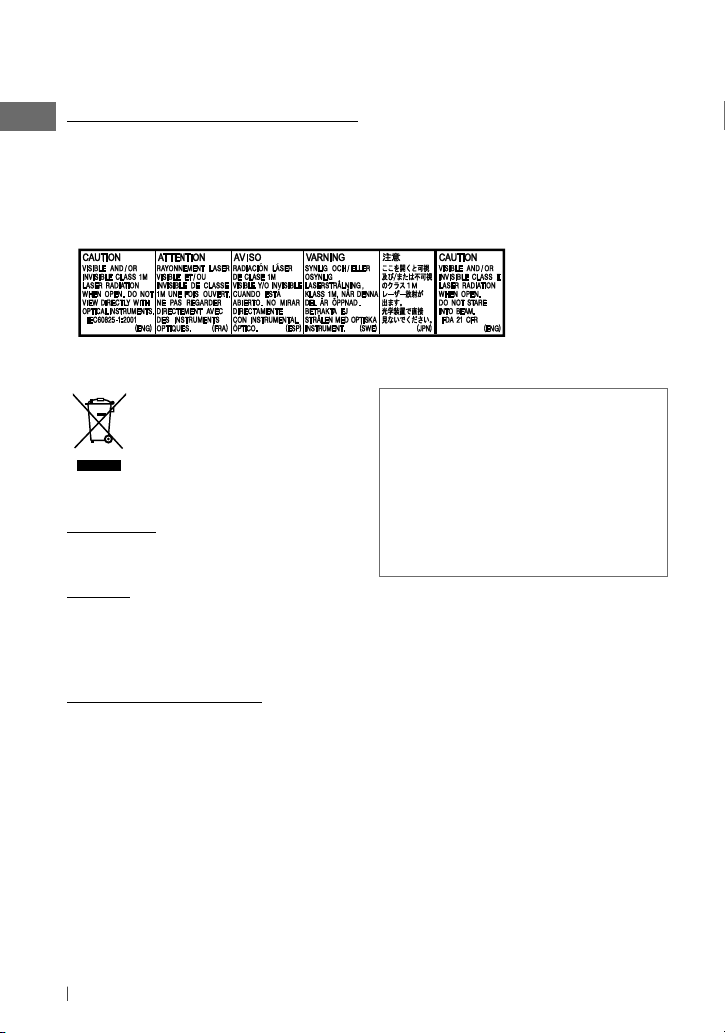
IMPORTANT FOR LASER PRODUCTS
1.CLASS 1 LASER PRODUCT
2.CAUTION: Do not open the top cover. There are no user serviceable parts inside the unit; leave
all servicing to qualified service personnel.
3.CAUTION: Visible and/or invisible class 1M laser radiation when open. Do not view directly with
optical instruments.
4.REPRODUCTION OF LABEL: CAUTION LABEL, PLACED OUTSIDE THE UNIT.
[European Union only]
WARNING:
Stop the car before operating the unit.
Caution:
Adjust the volume so that you can hear sounds
outside the car. Driving with the volume too
high may cause an accident.
Caution on volume setting:
Digital devices (CD/USB) produce very little
noise compared with other sources. Lower the
volume before playing these digital sources to
avoid damaging the speakers by the sudden
increase of the output level.
Condensation : When the car is air-
conditioned, moisture may collect on the
laser lens. This may cause disc read errors. In
this case, remove the disc and wait for the
moisture to evaporate.
Temperature inside the car : If you have
parked the car for a long time in hot or cold
weather, wait until the temperature in the car
becomes normal before operating the unit.
EN_KW-XG810S[UN]1.indd 2EN_KW-XG810S[UN]1.indd 2 9/29/11 2:56:38 PM9/29/11 2:56:38 PM

3ENGLISH
CONTENTS
3 How to reset your unit
3 How to forcibly eject a disc
3 Maintenance
4 Setting the clock
5 Basic operations
6 Listening to the radio
8 Listening to a disc
9 Listening to the USB device
10 Listening to the other external
components
10 Selecting a preset sound mode
11 Menu operations
14 More about this unit
16 Troubleshooting
19 Specifications
How to reset your unit
Your preset adjustments will also be erased.
How to forcibly eject a disc
• Be careful not to drop the disc when it ejects.
• If this does not work, reset your unit.
Maintenance
Cleaning the unit:
Wipe off the dirt on the panel with a dry silicon
or soft cloth. Failure to observe this precaution
may result in damage to the unit.
[Hold]
EN_KW-XG810S[UN]1.indd 3EN_KW-XG810S[UN]1.indd 3 9/29/11 2:56:39 PM9/29/11 2:56:39 PM

4ENGLISH
Setting the clock
1 Turn on the power.
2
3 Select <CLOCK>.
4 Select <CLOCK SET>.
5 Adjust the hour.
6 Adjust the minute.
7 Exit from the setting.
[Hold]
EN_KW-XG810S[UN]f.indd 4EN_KW-XG810S[UN]f.indd 4 10/27/11 11:25:16 AM10/27/11 11:25:16 AM

5ENGLISH
Basic operations
Control dial
Ejects the disc
Loading slot
USB (Universal Serial Bus) input terminal
Display window
Auxiliary input jackSelects preset station.
When you press or hold the following button(s)...
Button General operation
• Turns on.
• Turns off if pressed and held.
• Selects the available sources (if the power is turned on). If the source is ready,
playback also starts.
• Selects the sound mode.
• Enters tone level adjustment directly (see page 10) if pressed and held.
• Changes the display information.
• Scrolls the current display information if pressed and held.
• Adjusts the volume level.
• Selects items.
Continued...
EN_KW-XG810S[UN]f.indd 5EN_KW-XG810S[UN]f.indd 5 10/27/11 11:25:16 AM10/27/11 11:25:16 AM

6ENGLISH
Button General operation
• Mutes the sound while listening to a source. If the source is “CD” or “USB,”
playback pauses. Press the control dial again to cancel muting or resume
playback.
• Confirms selection.
Enters menu setting if pressed and held (see page 11).
Returns to the previous menu.
Enters playback mode menu directly (see page 8).
Listening to the radio
~
]
“FM” or “AM”
Ÿ
• [Press] Searches for stations automatically.
• [Hold] Searches for stations manually.
“M” flashes, then press the button repeatedly.
“ST” lights up when receiving an FM stereo broadcast with sufficient signal strength.
Automatic presetting (FM)—
SSM (Strong-station Sequential Memory)
You can preset up to 18 stations for FM.
While listening to a station...
1
2
]<TUNER> ]<SSM> ]<SSM 01 – 06> /
<SSM 07 – 12> / <SSM 13 – 18>
“SSM” flashes and local stations with
the strongest signals are searched and
stored automatically.
To preset another 6 stations, repeat the
above procedure by selecting one of the other
SSM setting ranges.
Improving the FM reception
1
2
]
<TUNER>
]
<MONO>
]
<MONO ON>
Reception improves, but stereo effect
will be lost.
To restore the stereo effect, repeat the same
procedure to select <MONO OFF>.
[Hold]
[Hold]
EN_KW-XG810S[UN]1.indd 6EN_KW-XG810S[UN]1.indd 6 9/29/11 2:56:39 PM9/29/11 2:56:39 PM

7ENGLISH
Manual presetting (FM/AM)
You can preset up to 18 stations for FM and 6
stations for AM.
1
]
Tune in to a station you want to
preset.
2
“PRESET MODE” flashes.
3
]
Selects a preset number.
Preset number flashes and “MEMORY”
appears.
•
Pressing and holding the number buttons
(1 to 6) can also store the current station to the
selected number buttons (1 – 6).
Selecting a preset station
or
• Pressing the number buttons (1 to 6) can also
select the preset stations (1 – 6).
Changing the display information
Frequency
=
Clock
=
Station name *
=
(back to the
beginning)
* If no title is assigned to a station, “NO NAME”
appears for a few seconds.
[Hold]
Title assignment
You can assign titles up to 30 station
frequencies (FM and AM) using 8 characters
(maximum) for each title.
• If you try to assign titles to more than 30
station frequencies, “NAME FULL” appears.
Delete unwanted titles before assignment.
1
]
“FM” or “AM”
2
]
Show the title entry screen.
3
]
Select a character (A – Z, 0 – 9, —, /,
<, >, space).
4
]
Move to the next (or previous)
character position.
5Repeat steps 3and 4until you have
finished entering the title.
6
To erase the entire title, press and hold
DISP
after step 2, then press the control dial.
[Hold]
EN_KW-XG810S[UN]1.indd 7EN_KW-XG810S[UN]1.indd 7 9/29/11 2:56:40 PM9/29/11 2:56:40 PM

8ENGLISH
Stopping playback and ejecting
the disc
If the ejected disc is not
removed within 15 seconds, it is
automatically inserted into the
loading slot.
Basic operations
Selects folder of the MP3/WMA.
[Press] Selects track.
[Hold] Fast-forwards or reverses the track.
Selecting a track/folder from the
list
For MP3/WMA discs, select the desired folder,
then the desired track by repeating the control
dial procedures.
• To return to the previous menu, press
BACK
.
Selecting the playback modes
You can use only one of the following playback
modes at a time.
1
2
]
“REPEAT”
j
“RANDOM”
3
REPEAT
TRACK RPT : Repeats current track
FOLDER RPT : Repeats current folder
RANDOM
FOLDER RDM : Randomly plays all
tracks of current folder, then tracks of
next folders
ALL RDM : Randomly plays all tracks
To cancel repeat play or random play, select
“RPT OFF” or “RDM OFF.”
Changing the display information
Disc title/Album name/performer (folder
name)*
=
Track title (file name)*
=
Current
track number with the elapsed playing time
=
Current track number with the clock
time
=
(back to the beginning)
* “NO NAME” appears for conventional CDs or if
not recorded.
Listening to a disc
~
]
Turn on the power.
Ÿ
All tracks will be played repeatedly until you change the source or eject the disc.
EN_KW-XG810S[UN]1.indd 8EN_KW-XG810S[UN]1.indd 8 9/29/11 2:56:40 PM9/29/11 2:56:40 PM

9ENGLISH
If you have turned off the power (without
detaching the USB device)...
Pressing
SRC
turns on the power and
playback starts from where it has been stopped
previously.
• If a different USB device is currently attached,
playback starts from the beginning.
Stop playing and detaching the
USB device
Straightly pull it out from the unit.
“NO USB” appears. Press
SRC
to listen to
another playback source.
You can operate the USB device in the same
way you operate the files on a disc.
(See page 8.)
Listening to the USB device
This unit can play MP3/WMA files stored in a USB device.
~
]
Turn on the power.
Ÿ
All tracks will be played repeatedly until you change the source or detach the USB device.
USB input terminal
USB memory
Cautions:
• Avoid using the USB device if it might hinder
your safety driving.
• Do not pull out and attach the USB device
repeatedly while “READING” is shown on the
display.
• Do not start the car engine if a USB device is
connected.
• This unit may not be able to play the files
depending on the type of USB device.
• Operation and power supply may not work as
intended for some USB devices.
• You cannot connect a computer to the USB
input terminal of the unit.
• Make sure all important data has been backed
up to avoid losing the data.
• Do not leave a USB device in the car, expose
to direct sunlight, or high temperature to
avoid deformation or cause damages to the
device.
• Some USB devices may not work immediately
after attaching USB device or turn on the
power.
• For more details about USB operations, see
pages 15 and 16.
EN_KW-XG810S[UN]1.indd 9EN_KW-XG810S[UN]1.indd 9 9/29/11 2:56:40 PM9/29/11 2:56:40 PM

10 ENGLISH
Connecting an external component to the AUX input jack
3.5 mm stereo mini plug
(not supplied)
Portable audio player,
etc.
Listening to the other external
components
Selecting a preset sound mode
While listening, you can adjust the tone level of
the selected sound mode.
1
2
Adjust the level (–06 to +06) of the
selected tone (BASS / MID / TRE).
The sound mode is automatically stored
and changed to “USER.”
You can select a preset sound mode suitable
for the music genre.
FLAT
=
NATURAL
=
DYNAMIC
=
VOCAL
BOOST
=
BASS BOOST
=
USER
=
(back to
the beginning)
[Hold]
Auxiliary input jack
Recommended to use a 3-terminal plug head stereo mini plug for
optimum audio output.
You can connect an external component to the AUX (auxiliary) input jack on the control panel.
Preparation: Make sure <AUX ON> is selected for the <SRC SELECT>
=
<AUX IN> setting.
(See page 13.)
• For details, refer also to the instructions supplied with the adapter or external components.
~
]
“AUX IN”
ŸTurn on the connected component and
start playing the source.
EN_KW-XG810S[UN]1.indd 10EN_KW-XG810S[UN]1.indd 10 9/29/11 3:04:26 PM9/29/11 3:04:26 PM
Table of contents
Languages:
Other JVC Car Receiver manuals


