JVC KW-XG704 User manual

CD RECEIVER KW-XG704
For canceling the display demonstration, see page 4.
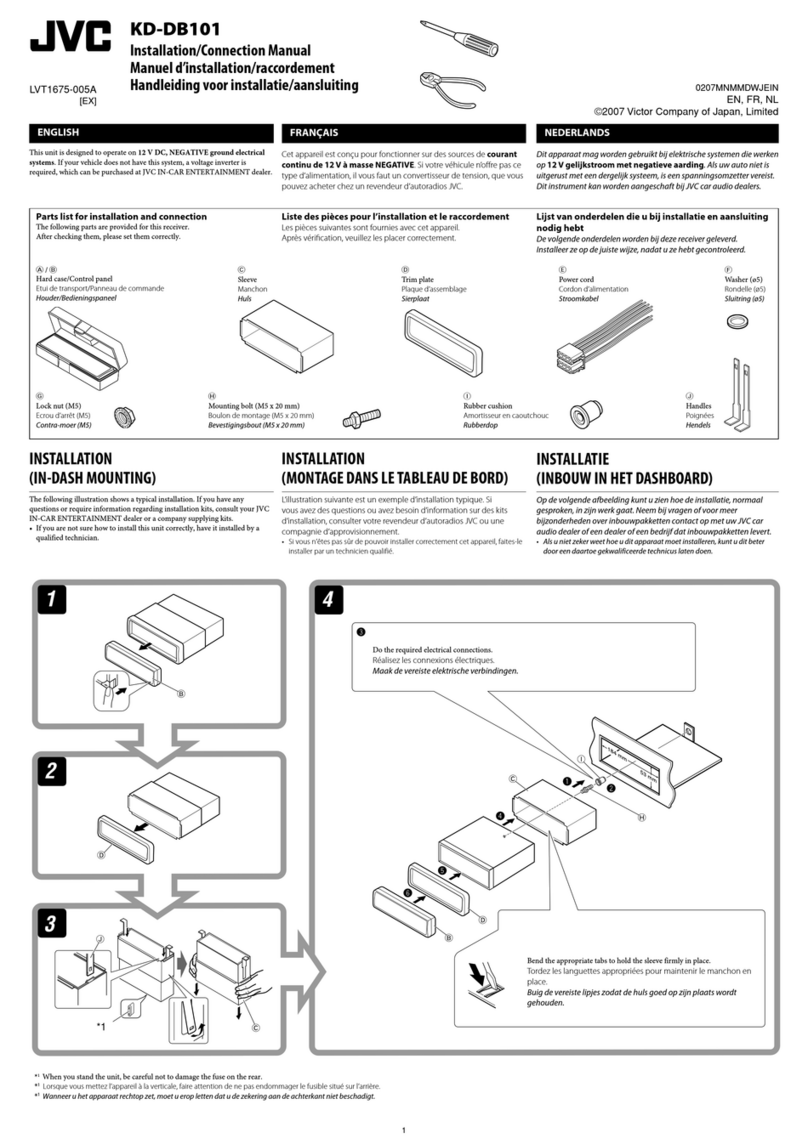
For installation and connections, refer to the separate manual.
INSTRUCTIONS
GET0459-001A
[UI]
Cover_KW-XG704[UI]f.indd 1Cover_KW-XG704[UI]f.indd 1 4/13/07 12:57:50 PM4/13/07 12:57:50 PM

2
Thank you for purchasing a JVC product.
Please read all instructions carefully before operation, to ensure your complete understanding and to obtain the best
possible performance from the unit.
IMPORTANT FOR LASER PRODUCTS
1. CLA 1 LA ER PRODUCT
2. CAUTION: Do not open the top cover. There are no user serviceable parts inside the unit; leave all servicing to
qualified service personnel.
3. CAUTION: Visible and/or invisible class 1M laser radiation when open. Do not view directly with optical
instruments.
4. REPRODUCTION OF LABEL: CAUTION LABEL, PLACED OUT IDE THE UNIT.
[European Union only]
For safety...
• Do not raise the volume level too much, as this will
block outside sounds, making driving dangerous.
• top the car before performing any complicated
operations.
Temperature inside t e car...
If you have parked the car for a long time in hot or cold
weather, wait until the temperature in the car becomes
normal before operating the unit.
Warning:
If you need to operate the unit while driving, be sure to
look around carefully or you may be involved in a traffic
accident.
EN02-07_KW-XG704[UI]f.indd 2EN02-07_KW-XG704[UI]f.indd 2 4/13/07 12:55:59 PM4/13/07 12:55:59 PM

3
How to reset your unit
• Your preset adjustments will also be erased (except
the registered Bluetooth device, see page 12).
How to forcibly eject a disc
• Be care ul not to drop the disc when it ejects.
• I this does not work, reset your unit.
How to use t e MODE button
If you press MODE, the unit goes into functions
mode, then the number buttons and 5/∞ buttons
work as different function buttons.
[Within 5 seconds...]
CONTENTS
INTRODUCTIONS
Preparation ...................................... 4
OPERATIONS
Basic operations ................................ 5
• Using t e control panel ................ 5
• Using t e remote controller
(RM-RK50) ................................... 6
Listening to t e radio ......................... 8
Disc operations .................................. 9
EXTERNAL DEVICES
Listening to t e USB device ................. 11
Using t e Bluetoot ® devices .............. 12
• Using t e Bluetoot cellular
p one ......................................... 14
• Using t e Bluetoot audio
player ......................................... 16
Listening to t e CD c anger ................ 17
Listening to t e iPod / D. player .......... 19
Listening to t e ot er external
components ................................... 20
SETTINGS
Selecting a preset sound mode ............ 22
General settings — PSM ..................... 23
Bluetoot settings ............................. 26
Assigning titles .................................. 27
REFERENCES
Maintenance ..................................... 28
More about t is unit .......................... 28
Troubles ooting ................................ 32
Specifications .................................... 36
EN02-07_KW-XG704[UI]f.indd 3EN02-07_KW-XG704[UI]f.indd 3 4/13/07 12:56:01 PM4/13/07 12:56:01 PM
4INTRODUCTIONS
Preparation
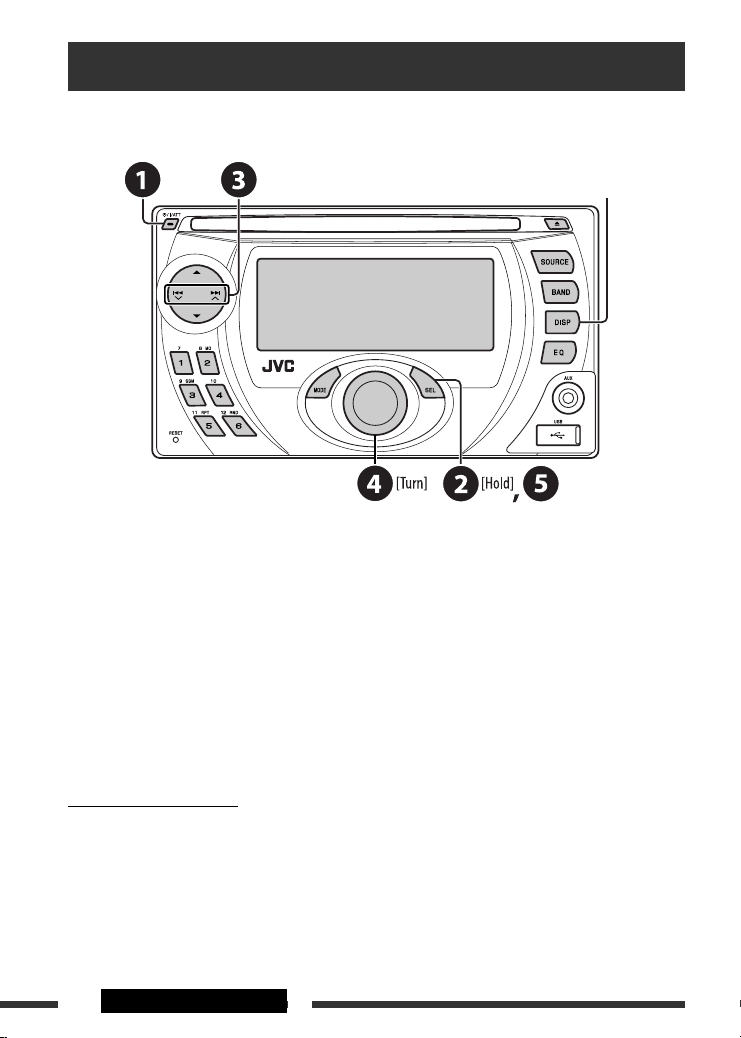
Cancel t e display demonstration and set t e clock
• ee also page 24.
~ Turn on the power.
Ÿ Enter the PSM settings.
! ] ⁄ Cancel the displa demonstrations
elect “DEMO,” then “DEMO OFF.”
Set the clock
elect “CLOCK H” (hour), then adjust the hour.
elect “CLOCK M” (minute), then adjust the minute.
@ Finish the procedure.
Caution on volume setting:
Digital devices (CD/U B) produce very little noise compared with other sources. Lower the volume before playing
these digital devices to avoid damaging the speakers by the sudden increase of the output level.
When the power is turned off: Check the current clock time
When the power is turned on: Change the display information
EN02-07_KW-XG704[UI]f.indd 4EN02-07_KW-XG704[UI]f.indd 4 4/13/07 12:56:02 PM4/13/07 12:56:02 PM

5OPERATIONS
Basic operations
Using t e control panel
1 • FM/AM: elect preset station.
• CD/USB/CD-CH: elect folder.
• IPOD/D.PLAYER: Enter the main menu/Pause or
stop playback/Confirm selection.
• BT-PHONE/BT-AUDIO: Enter setting menu/
Confirm selection.
2 • Turn on the power.
• Turn off the power [Hold].
• Attenuate the sound (if the power is on).
3 • FM/AM: earch for station.
• CD/USB/CD-CH: elect track.
• IPOD/D.PLAYER: elect track.
• BT-PHONE/BT-AUDIO: elect setting item/
elect a registered device.
4 Loading slot
5 Display window
6 elect the source.
FM/AM = CD * = USB * = CD-CH */IPOD */
D.PLAYER * (or EXT IN) = BT-PHONE *
(Bluetooth Phone) = BT-AUDIO * (Bluetooth
Audio) = AUX IN = (back to the beginning)
* You cannot select these sources i they are not
ready or not connected.
7 Eject disc.
8 elect the bands.
9 Reset button
p • FM/AM: elect preset station.
• CD/USB/CD-CH: elect folder/track/disc (for CD
changer).
• BT-PHONE: elect preset phone number.
q Enter functions mode.
Press MODE, then one of the following buttons
(within 5 seconds)...
MO : Turn on/off monaural reception.
SSM : Automatic station presetting [Hold].
RPT : elect repeat play.
RND : elect random play.
5 / ∞ : kip 10 tracks.
w Volume control [Turn].
e • Enter the P M settings [Hold].
• Adjust the sound mode.
r elect the sound mode.
t AUX (auxiliary) input jack
y U B (Universal erial Bus) input terminal
u Change the display information.
EN02-07_KW-XG704[UI]f.indd 5EN02-07_KW-XG704[UI]f.indd 5 4/13/07 12:56:02 PM4/13/07 12:56:02 PM

6
Before using the remote controller:
• Aim the remote controller directly at the remote
sensor on the unit.
• DO NOT expose the remote sensor to bright light
(direct sunlight or artificial lighting).
Display window
Using t e remote controller (RM-RK50)
Installing the lithium coin batter (CR2025)
Remote sensor
1 Playback source indicators
2 Track information indicators
3 Main display
(Menu, playback information)
4 Tuner reception indicators
5 Playback mode/item indicators
(Random/Repeat)
6 • pectrum analyzer meter
• Volume level indicator
7 ound mode indicators
8 Equalizer indicator
9 Loudness indicator
p Clock indicator
q Analyzer indicator
w Bluetooth indicator
e Track indicator
r ource display/Preset No./Track No./Folder No./
Disc No.
t tatus of Bluetooth device
(Device number, [1 – 5]; signal strength, [0 – 3]*;
battery reminder, [0 – 3]*)
* As the number increases, the signal/battery
strength becomes stronger.
EN02-07_KW-XG704[UI]f.indd 6EN02-07_KW-XG704[UI]f.indd 6 4/13/07 12:56:03 PM4/13/07 12:56:03 PM

7OPERATIONS
Warning:
To prevent accidents and damage
• Do not install any battery other than CR2025 or
its equivalent.
• Do not leave the remote controller in a place
(such as dashboards) exposed to direct sunlight
for a long time.
• tore the battery in a place where children
cannot reach.
• Do not recharge, short, disassemble, heat the
battery, or dispose of it in a fire.
• Do not leave the battery with other metallic
materials.
• Do not poke the battery with tweezers or similar
tools.
• Wrap the battery with tape and insulate when
throwing away or saving it.
1 • Turns the power on if pressed briefly or
attenuates the sound when the power is on.
• Turns the power off if pressed and held.
2 • Changes the FM/AM bands with 5 U.
• Changes the preset stations with D ∞.
• Changes the folder of the MP3/WMA/WAV.
• While playing an MP3 disc on an
MP3-compatible CD changer:
– Changes the disc if pressed briefly.
– Changes the folder if pressed and held.
• While listening to an Apple iPod or a JVC
D. player:
– Pauses/stops or resumes playback with D ∞.
– Enters the main menu with 5 U.
(Now 5 U/D ∞/2 R/F 3 work as the menu
selecting buttons.)*
* 5 U : Returns to the previous menu.
D ∞ : Con irms the selection.
3 Adjusts the volume level.
4 elects the sound mode (iEQ: intelligent equalizer).
5 elects the source.
6 For Bluetooth cellular phone:
– Answers calls if pressed briefly.
– Rejects calls if pressed and held.
7 • earches for stations if pressed briefly.
• Fast-forwards or reverses the track if pressed and
held.
• Changes the tracks if pressed briefly.
• While listening to an iPod or a D. player (in menu
selecting mode):
– elects an item if pressed briefly. (Then, press
D ∞ to confirm the selection.)
– kips 10 items at a time if pressed and held.
• Reverse skip/forward skip for Bluetooth audio.
EN02-07_KW-XG704[UI]f.indd 7EN02-07_KW-XG704[UI]f.indd 7 4/13/07 12:56:03 PM4/13/07 12:56:03 PM

8
Listening to the radio
Change the display information
~ Select “FM/AM.”
Ÿ Select the bands.
! Search for a station to listen—Auto Search.
Manual Search: Hold either one of the buttons until “M” flashes on the display, then press it repeatedly.
* If no title is assigned to a station, “NO NAME” appears. To assign a title to a station, see page 27.
Select preset station.
When an FM stereo broadcast is hard
to receive
1
2
Reception improves, but stereo effect will be lost.
• M indicator lights up.
FM station automatic presetting —
SSM (Strong-station Sequential
Memory)
You can preset up to six stations for each band.
1
2
Lights up when receiving an FM stereo
broadcast with sufficient signal strength.
EN08-13_KW-XG704[UI]f.indd 8EN08-13_KW-XG704[UI]f.indd 8 4/13/07 12:56:16 PM4/13/07 12:56:16 PM

9OPERATIONS
Continued on the next page
3
Local FM stations with the strongest signals are
searched and stored automatically in the FM band.
Manual presetting
Ex.: Storing FM station of 92.5 MHz into preset number
4 of the FM1 band.
1
2
3
Disc operations
Insert the disc.
Playback starts automatically.
Change the display information
MP3/WMA: Album name/performer (folder name *1) = Track
title (file name *1) = Elapsed playing time and Current track
number = (back to the beginning)
Audio CD/CD Text: Disc title/performer *2 = Track title *2 =
Elapsed playing time and Current track number = (back to the
beginning)
*1 If the file does not ha e Tag information
or “TAG DISP” is set to “TAG OFF” (see
page 25), folder name and file name
appear. TAG indicator will not light up.
*2 “NO NAME” appears for an audio CD.
EN08-13_KW-XG704[UI]f.indd 9EN08-13_KW-XG704[UI]f.indd 9 4/13/07 12:56:18 PM4/13/07 12:56:18 PM

10 OPERATIONS
Prohibiting disc ejection
To cancel the prohibition, repeat the same
procedure.
o stop play and eject the disc
• Press S URCE to listen to another
playback source.
Pressing (or holding) the following buttons allows you to...
Disc type
(Number buttons) *1
MP3/WMA
Press: Select track
Hold: Reverse/fast-forward
track
Select folder Locate particular folder
directly *2
Audio CD/
CD Text
Press: Select track
Hold: Reverse/fast-forward
track
—
Locate particular track directly
*1 Press to select number 1 to 6; hold to select number 7 to 12.
*2 It is required that folders be assigned with 2-digit numbers at the beginning of their folder names—01, 02, 03, and
so on.
After pressing M DE, press the following buttons to...
Disc type
MP3/WMA
Skip 10 tracks (within
the same folder)
TRK RPT:
Repeat current track
FLDR RPT:
Repeat current folder
FLDR RND:
Randomly play all tracks of
current folder, then tracks of
next folders
DISC RND:
Randomly play all tracks
Audio CD/
CD Text
Skip 10 tracks TRK RPT:
Repeat current track
DISC RND:
Randomly play all tracks
• To cancel repeat play or random play, select “RPT OFF” or “RND OFF.”
EN08-13_KW-XG704[UI]f.indd 10EN08-13_KW-XG704[UI]f.indd 10 4/13/07 12:56:18 PM4/13/07 12:56:18 PM
Other manuals for KW-XG704
1
Table of contents
Other JVC Car Receiver manuals