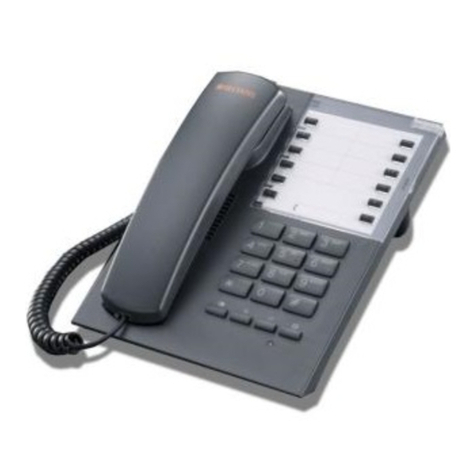
Invoxia NVX 610 User manual

User guide
NVX 610

Declaration of Conformity for the European Union
Invoxia declares that the NVX 610 product complies with the essential requirements and other
relevant provisions of the European RTTE Directive 1999/5/EC on Radio and Telecommunication
Terminal Equipment.
You can read the Declaration of Conformity at the following address: www.invoxia.com/fr/support.
U.S. Federal Communications Commission (FCC) Compliance Statement
This device has been tested and found to comply with the limits for a Class A digital device,
pursuant to Part 15 of the FCC rules. These limits are designed to provide reasonable protection
against harmful interference in a commercial installation.
This equipment generates, uses and can radiate radio frequency energy and, if not installed and
used in accordance with the instructions, may cause harmful interference to radio communications.
Environment
Your NVX 610 telephone has been designed and manufactured using quality materials and compo-
nents which can be reused and recycled.
The presence of the crossed-out wheeled bin symbol indicates that the product complies with EU
Directive 2002/96/EC.
It must be disposed of through an appropriate collection and recycling structure.
Please contact your local electrical and electronic equipment waste management scheme.
Please respect your local municipal regulations and do not dispose of these products with unsor-
ted household waste.
The correct disposal of products at the end of their working life is good for the environment and
your health.
Legal
invoxia ®, ™ Experience your phone, In Vivo Acoustic ®, Smart holder® and related trademarks,
names and logos are the property of invoxia.
iPad, iPhone, iPod touch are trademarks of Apple Inc., registered in the U.S. and other countries.
Bluetooth ® is a trademark of Bluetooth SIG.
2User Guide NVX 610

Important information 5
• Safety Guidelines 5
1 Discover your phone 6
• Box Contents 6
• Your invoxia phone 6
2 Setup 7
• Positioning 7
• Connecting the base 7
• Installing the handset 10
• Installing the iPad 11
• Downloading the invoxia application 11
• Connecting your iPhone/iPod touch/iPad 12
3 Use 13
• Making calls 13
• Ending a call 13
• Receiving an incoming call 13
• Adjusting the volume 13
• Muting the mic 13
• Activating and deactivating the speakers 13
4 Contact list 14
• Displaying and calling a contact 14
• Adding a new contact 14
5 List of recent calls 14
• Displaying your recent calls 14
• Redialing a number from Recents 14
6 Custom Settings 15
• Customizing your ringtones 15
• Connecting your iPhone/iPod/iPad via Bluetooth 15
• Skype and SIP accounts 15
• SIP Voicemail 15
Table of contents
3User Guide NVX 610

7 Technical Data 16
• Mfi program 16
• Connectivity 16
• Codecs 16
• Technical Specifications 16
• Buttons 16
8 FAQs 17
• No dialing tone/ I cannot make a call 17
• I cannot be reached/I am unable to use the application 17
9 Warranty 17
• Warranty Period 17
• Warranty Coverage 17
• Exclusion 17
• Procedure 18
• Contact 18
4User Guide NVX 610

Important information
Safety Guidelines
Required Power Supply
This phone is powered by PoE (Power over Ethernet) through a compatible network, or through
a mains AC 100-240V supply. In the latter case, the telephone cannot operate without the power
supply (e.g. during a blackout).
Warning
• Do not open the base, handset or charger.
• Please ensure that no liquid comes into contact with the product. Do not expose the device
to excessive smoke, dust, mechanical vibration or shock.
• Only use the cables, adapters and batteries supplied.
• Place the unit near an accessible electrical outlet.
• Remove the handset from your ear when speaker mode is activated.
• Do not expose the device to excessive heat, e.g. to direct sunlight or near heating
equipment.
• Do not use in areas where there are risks of explosion.
Operating and storage temperature
Use the device in a room where the temperature is always between 0 and 40ºC (32 to 104ºF).
5User Guide NVX 610

Secrecy mode
Adjust volume/
Receive and End a call
Messages
Bienvenue
NVX 610
This welcome bookletiPhone / iPod
adapters
Ethernet Cable AC adapter
NVX 610 handset
and cable
Smart holder x 3 iPad standNVX 610 base
Box Contents
1 Discover your phone
Your invoxia phone
Designed and produced by invoxia, Paris
6User Guide NVX 610

2 Setup
Positioning
Place your phone near your network socket (and near your mains supply socket if you are using a
mains power adapter).
Connecting the base
This phone is powered by PoE (Power over Ethernet) on a compatible network, or through a mains
AC 100-240V power supply.
1. The base and the handset are protected by transparent films. Please remove them.
2. Place the smart holder on the base. It will cleverly fit in the right place (if the poles are magneti-
cally repelled, simply turn it around horizontally 180º).
7User Guide NVX 610

USB
O/I
PWR
4. Insert the iPad stand in the slots at the back of the base.
5. If you are using the mains supply, plug the mains power adapter into the back of the base and
into an active wall socket.
3. Insert your iPhone/iPod adapter.
To connect a different model, remove the adapter and insert another one.
8User Guide NVX 610

ETH
PC
O/I
WR
6. Plug one end of the Ethernet cable into the ETH connector at the back of the base and into your
network telephone socket.
7. Connect your phone to your computer by attaching an Ethernet cable between the PC port at
the back of the base and the Ethernet port on your computer (cable not supplied).
8. Press the On/Off button at the back of the base.
9User Guide NVX 610

P
USBUSB
Installing the handset
1. Plug the cord of the handset into one of the USB ports at the back of the base. Slide the cord
into place through the interstices under the base.
2. Place the handset on the Smart Holder on top of the base.
10User Guide NVX 610
Other manuals for NVX 610
2
Table of contents
Other Invoxia Telephone manuals