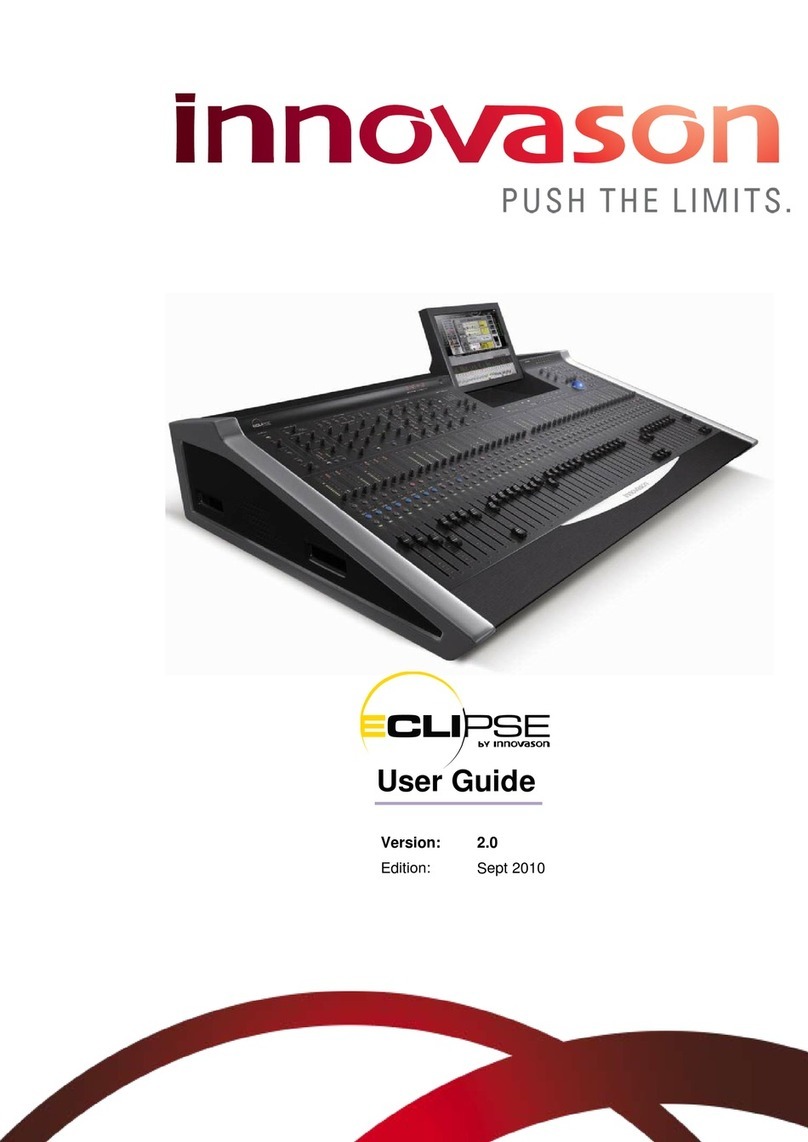
INNOVASON M.A.R.S. User manual

M.A.R.S.
User Guide
Version:
Edition: 19-Jan-2010

Copyright
All rights reserved. Permission to reprint or electronically reproduce any document or graphic in
whole or in part for any reason is expressly prohibited, unless prior written consent is obtained
from Innovason.
All trademarks and registered trademarks belong to their respective owners. It cannot be
guaranteed that all product names, products, trademarks, requisitions, regulations, guidelines,
specifications and norms are free from trade mark rights of third parties.
All entries in this document have been thoroughly checked; however no guarantee for
correctness can be given. Innovason cannot be held responsible for any misleading or incorrect
information provided throughout this manual.
Innovason reserves the right to change specifications at any time without notice
© Innovason, 2009

Table of Contents
M.A.R.S. User Guide
Table of Contents
TABLE OF CONTENTS 3
M.A.R.S. (MULTITRACK AUDIO RECORDING SYSTEM) 5
Introduction 5
About this User Guide 5
Audio Routing 7
Connecting M.A.R.S. 9
Checking Communication 11
Playing Back the Demo Project 12
Transport Control 17
Recording 29
Advanced Functions 37
Project Management in M.A.R.S. 47
Ethersound Configurations 61
Troubleshooting 63
Replacing the M.A.R.S. Hard Disk 67
INSTALLING M.A.R.S : System and software 68


M.A.R.S. (Multitrack Audio Recording System)
Introduction
M.A.R.S. User Guide 5 / 69
M.A.R.S. (Multitrack Audio Recording
System)
Introduction
M.A.R.S. is an integrated 64-track hard disk recorder which is
fitted as standard to every Eclipse mixing console. A dedicated
control panel under the console touch-screen provides rapid
access to recording and playback functions. Additional functions
are accessible from the touch-screen display.
M.A.R.S. is designed for recording and playing back audio in
preparation for a live show or production. The most common
application is to record the sound check so that it can be
replayed later as a “virtual sound check”.
About this User Guide
M.A.R.S. exists in its own right as a stand-alone hard disk
recorder. When integrated into Eclipse, the system is known as
M.A.R.S. (Multitrack Audio Recording System). When used with
other systems, the recorder is called MT128.
This manual describes the operation of M.A.R.S. with Eclipse, and
concentrates on common tasks such as recording and playing
back a sound check. For details on all the functions provided by
the MT128 recording system, please refer to the documentation
provided at http://www.vb-audio.com

M.A.R.S. (Multitrack Audio Recording System)
About this User Guide
6 / 69 M.A.R.S. User Guide
Overview
M.A.R.S. provides 64 tracks of hard disk recording and playback
onto a removable hard disk which slots into the rear panel of the
Eclipse frame. The system is handled by a second computer which
runs separately from Eclipse’s Nova software.
To switch the console’s touch-screen between the two control
computers:
1. Press the M.A.R.S. or NOVA buttons on the TRANSPORT
control panel:
•NOVA – accesses the Nova mix management software
described within the main Eclipse user guide. Nova controls
the console and stores/recalls mix settings.
•M.A.R.S. – accesses the hard disk recorder displays. All
audio recording is managed by the M.A.R.S. control
computer. All audio files are stored on the M.A.R.S. hard
disk which slots into the rear panel of the frame.
When working within the M.A.R.S. displays, all functions are
selected either by touching an on-screen button, or using the
trackball and keyboard. As most buttons are large, the quickest
method of operation is to reach out and touch a button!

M.A.R.S. (Multitrack Audio Recording System)
Audio Routing
M.A.R.S. User Guide 7 / 69
Audio Routing
Audio is transferred to and from M.A.R.S. via Ethersound. The
diagram below shows the Ethersound connections and audio
streaming for a standard Eclipse configuration:
Recording
M.A.R.S. always records the downstream Ethersound channels it
receives (shown in blue), with Ethersound channel 1 recorded to
track 1, Ethersound channel 2 to track 2 and so on. With standard
patching, the result is:
•Tracks 1 to 56 = DioCore Mic Inputs 1 to 56
•Tracks 57 to 64 = are freely available and can be used to
record mix busses from the console.
Audio routing is controlled by the Ethersound channel patching
within the PATCH INPUT and PATCH OUTPUT grids. See Page
37 for details.

M.A.R.S. (Multitrack Audio Recording System)
Audio Routing
8 / 69 M.A.R.S. User Guide
Playback
In normal live operation, the upstream Ethersound channels
feeding the console (shown in red) are fed from the DioCore (Mic
inputs 1 to 56) – i.e. the Loop Back (in black) is active.
By enabling VSC mode (Virtual Sound Check), the DioCore mic
inputs, are replaced by the corresponding M.A.R.S. tracks. This
allows the engineer to instantly switch between live mic inputs from
the stage and M.A.R.S playback at the touch of a button.
Alternatively, using BDWY mode (Broadway), individual channels
can be switched between the live mic and replay track using the
console’s CUE buttons. This is great if, for example, the drummer
is late for the rehearsal and you have him pre-recorded!
Note that when your Ethersound network consists of more than
one Eclipse, you can connect the Ethersound network in different
ways. See Page 61 for more details.

M.A.R.S. (Multitrack Audio Recording System)
Connecting M.A.R.S.
M.A.R.S. User Guide 9 / 69
Connecting M.A.R.S.
The M.A.R.S. computer and hard drive are fitted to the rear of the
Eclipse frame:
*The Nova/MARS toggle switches are used to force the KVM into
a specified position.
**The ON/OFF switches are useful is case of a re-boot is
necessary on one of the computer without disturbing the passing
audio and the other computer.
For a “soft” system reboot on the M.A.R.S computer, press “ALT +
INS” when MARS is displayed on the Eclipse screen.
For a “soft” system reboot on the NOVA comuter, press “ALT +
DEL” when NOVA is displayed on the Eclipse screen.
The system ships with some connections pre-installed:
•Network link between the Nova and M.A.R.S. control
computers (Ethernet).
•Screen connections (VGA) to the touch-screen.
•Ethersound link between the console (OUT of the DioEs
module) and M.A.R.S IN (this allows to play the demo song
immediately).

M.A.R.S. (Multitrack Audio Recording System)
Connecting M.A.R.S.
10 / 69 M.A.R.S. User Guide
Ethersound interconnection of the complete system:
1. Remove the pre-installed Ethersound cable
form Eclipse (the OUT on the DioES
module) to the MARS (IN).
2. Connect the Ethersound OUT from
Eclipse (the OUT on the DIOEs
module) to the IN of the DioCore.
3. Connect the Ethersound OUT from the DioCore to the IN of
M.A.R.S.
Using standard CAT5 cables, the length may be up to 100m.
When the connections are correctly made, and the receive and
transmit devices powered, the 2 LEDs beside the Ethersound
connector flash synchronously.
By leaving the console’s Ethersound IN connection free, the
console becomes the Ethersound Primary Master device; this
enables it to detect DioCores automatically and assign channels
and data flow onto the Ethersound network. Please see the main
Eclipse User Guide for more details.
Table of contents
Other INNOVASON Recording Equipment manuals