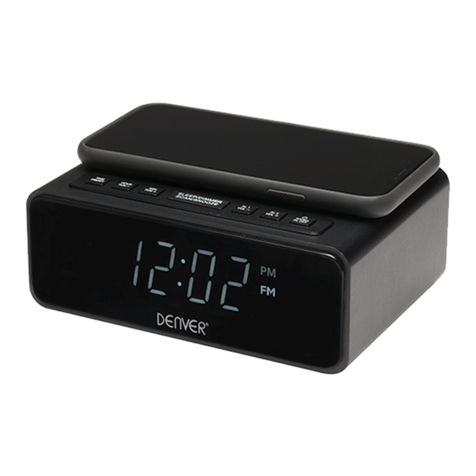
iHome iBT29 User manual

Model: iBT29
instruction manual
iBT29 Eng IB
Size: 153mm x 120mm
Printing color: Black
Jan. 22, 2015. P1
LED Full Spectrum
Color Changing
Bluetooth FM Clock Radio
with USB Charging
Questions? Contact Customer Service at 1-800-288-2792

iBT29
Introduction
Thank you for purchasing the iHome iBT29. This product is designed to provide fun colors and high
quality wireless sound for your iPad, iPhone, iPod or other Bluetooth audio device.
This instruction booklet explains the basic operation and care of the unit. Please read it carefully and keep
for future reference.
• Place the unit on a level surface away from sources of direct sunlight or excessive heat.
• Protect your furniture when placing your unit on a natural wood and lacquered finish. A cloth or other
protective material should be placed between it and the furniture.
• Clean your unit with a soft cloth moistened only with mild soap and water. Stronger cleaning agents,
such as benzene, thinner or similar materials can damage the surface of the unit.
1
P2
Maintenance

iBT29
Table of Contents
2
What’s Included...............................................................................................................3
Meet Your iBT29 ..............................................................................................................4
The Display/Setting Up the Unit ..........................................................................................5
Replacing and Installing Clock Backup Battery.......................................................................6
Setting the Clock/Setting and Using the Alarms .....................................................................7
Previewing the Alarm and Turning the Alarm On/Off ..............................................................8
Snooze/Display Dimmer Button/Sleep Mode/FM Radio.........................................................9
Setting and Using FM Presets/Using FM Radio in Other Countries...........................................10
Pairing Your Bluetooth Device ..........................................................................................11
Playing Audio Via Bluetooth..............................................................................................12
Using the Speakerphone Feature .......................................................................................12
Playing Audio via Aux-In .................................................................................................13
Charging Devices via USB Port .........................................................................................14
Color Change Mode ......................................................................................................15
Consumer Product Safety Guide........................................................................................16
FCC Information.............................................................................................................17
Troubleshooting..............................................................................................................18
Warranty......................................................................................................................19
P3

iBT29
3
P4
What’s Included
• iBT29 unit
• 100V-240V universal AC adaptor
• Audio cable
100V-240V universal
AC adaptor Audio cable
iBT29 unit

iBT29
P5
Meet Your iBT29
Top
4
Bottom Back
DC Jack USB Charging Port Aux-in Jack
FM Antenna
Bluetooth Pairing
Button
Answer Call/
Plus Settings
Button
Mode Button Color Mode Button
Volume Down Button
Volume Up Button
Snooze/Display Dimmer Button
Alarm 1 Button
Alarm 2 Button
Time Set/Sleep
Button
Power/Alarm Reset Button
End Call/Minus Settings Button
Presets/Play/Pause Button
Backup Battery Compartment
Remove the pull tab before initial use to activate the
SureAlarm battery backup system.
Pull Tab
Remove before use

iBT29
Using the
The Display
5
P6
Alarm Active Indicator
Set Wake-to
Sleep Mode Indicator
Bluetooth/Pairing
Indicator
PM/AM
Indicators
Color Mode: Fade, Fast, Color, Pulse, Sky, Off
Time/Alarm Time/Radio Frequency Display
Low Backup Battery Indicator
FM antenna
Setting Up the Unit
Connect the included AC adaptor to the DC jack located on
the back of the unit and connect the other end to a working
wall outlet. Extend FM antenna.
1 CR2450 battery is included for battery backup. Remove
the battery pull tab located on the bottom of the unit before
using the unit. See page 6 for more on installing and
replacing backup batteries.
Mode: Aux, Bluetooth, FM Radio
RESET
RESET
TEST
TEST

P7
6
Using the iBT29
Replacing and Installing Clock Backup Battery
Note: 1 CR2450 battery is included with the unit. Pull battery tab before using the unit.
This model is equipped with a battery backup circuit that will maintain the time and alarm time settings in the event
of a temporary power interruption (the display is NOT maintained). The battery backup circuit will also operate
the buzzer alarm to wake you up at the selected wake up time even if the power is out. When the backup battery
is getting weak the Low Backup Battery Indicator will begin flashing in the display. When you see this flashing
indicator you should replace the backup battery as soon as possible.
To install/replace the backup battery:
IMPORTANT: When replacing the backup battery be sure to have the unit
connected to the AC outlet to maintain all of your settings, otherwise it will
be necessary to reset the time and alarm time after the batteries are
replaced.
1. Use a Phillips screwdriver to unscrew the battery door located on the
bottom of the unit. Remove the battery door. If replacing battery, remove
the exhausted battery.
2. Insert 1 fresh CR2450 battery in the backup battery compartment. Make
sure the “+” side of the battery is facing you (see illustration).
3. Replace the battery door and screw shut. Do not overtighten. Confirm that
the backup battery indicator is not flashing in the display.
Note: Make sure you dispose of batteries properly (see your local regulations)
BATTERY INFORMATION
For models that use Lithium batteries
• Lithium batteries can explode or cause burns if disassembled, shorted, recharged, exposed to water, fire, or
high temperatures. & not handled appropriately
• Do not place loose batteries in a pocket, purse, or other container containing metal objects, mix with used
or other battery types, or store with hazardous or combustible materials.
• Store in cool, dry, ventilated area.
• Follow applicable laws and regulations for transport and disposal.
Replacing Backup Battery

P8
7
Setting the Clock
1. Press and hold the Time Set/Sleep Button for 2 seconds until the clock display flashes
and a beep sounds.
2. Press the or Buttons to adjust the clock to the current time (hold for rapid setting).
Make sure you set the correct AM/PM time. The AM and PM indicators appear to the
left of the display.
3. Press the Time Set/Sleep Button to confirm the time and exit clock setting mode. 2 beeps will confirm
clock setting is complete.
TIP: To toggle the clock display between standard 12 hour time and 24 hour (“military”) time display,
press the Alarm 1 Button or Alarm 2 Button while the display is flashing during clock setting.
Setting and Using the Alarms
This unit features dual alarms which can be set to different times and alarm sources. Each is set in the
same way. Instructions are given as “Alarm Button”; use Alarm 1 Button or Alarm 2 Button to set
respective alarms.
Note: Each step must be completed while display is flashing or step will time-out with any changes saved.
Using the iBT29

8
P9
Setting and Using the Alarms (Continued)
1. Press and hold the Alarm Button for 2 seconds until the alarm time display and alarm icon flash. A beep
sounds.
2. Press the or Buttons to adjust the alarm time to the desired time (hold for rapid setting).
Make sure you set the correct AM/PM alarm time. The AM and PM indicators appear to the left of the
display.
3. Press the Alarm Button to confirm the alarm time setting. The wake-to source will flash.
4. Press the or Buttons to select the desired wake-to alarm source: Bluetooth, FM radio or tone.
Wake to Bluetooth: You will wake to the currently linked Bluetooth device. If no device is
detected, the alarm will default to the last tone selected.
Wake to FM radio: Press the Alarm Button to confirm. Press the Presets Button to select an FM preset
to wake to, or press the or Buttons to tune in a desired wake to station.
Wake to Tone: Press the Alarm Button to confirm. Press the or Buttons to select the desired
tone to wake to (Tone 1 -Tone 4).
5. Press the Alarm Button to confirm wake-to source.
6. Press the or Buttons OR the or Buttons to adjust the alarm volume.
7. Press the Alarm Button to confirm alarm volume and enter wake-to light selection.
8. Press the or Buttons to select the desired wake-to light mode: Slow fade, Fast Change, One
Color (selects current color), Pulse to Music, Sky Gradient or Off (no change to light mode that is active
when alarm sounds).
9. Press the Alarm Button to confirm the alarm settings and exit alarm setting mode. 2 beeps will confirm
alarm setting is complete. The alarm icon will remain on the display, indicating the alarm is armed.
10.To turn off a sounding alarm and reset it to come on the next day at the same time, press the
Power/Alarm Reset Button or the associated alarm button (Alarm 1 Button or Alarm 2 Button) to reset
alarm.
Previewing the Alarm and Turning the Alarm On/Off
Press and release the desired Alarm Button as needed to preview the alarm and to toggle the alarm ON
(indicated by the alarm icon) or OFF (no alarm icon).
Using the iBT29

P10
9
Snooze/Display Dimmer Button
1. To program Snooze, press and hold the Snooze/Display Dimmer Button during normal operation
(when no alarm is sounding).
2. Press the or Buttons to select the desired snooze time (between 01 and 29 minutes).
3. Press and release the Snooze/Display Dimmer Button to confirm Snooze setting. 2 beeps will sound.
• While the alarm is sounding, press and release the Snooze/Display Dimmer Button to temporarily
silence the alarm for the set duration (9 minutes is the default). Snooze can be used several times during
the one hour alarm cycle.
• To adjust the brightness of the display, press and release the Snooze/Display Dimmer Button during
normal operation (when no alarm is sounding) to cycle through the brightness display settings, including
OFF.
Sleep Mode
This unit allows you to sleep to the current sound source for a set time before turning the unit off.
1. To set Sleep time, press and release the Time Set/Sleep Button as needed to cycle to the desired sleep
duration:120, 90, 60, 30 or 15 minutes or OFF (turns the unit off).
2. Press the or Buttons to adjust the sleep volume on the unit. Note that the sleep volume setting is
stored separately from other volume settings.
FM Radio
Extend the FM antenna for best reception.
1. Press and release the Power/Alarm Reset Button to turn the unit on.
2. Press and release the Mode Button as needed until the FM indicator icon and current FM radio
frequency appear on the display.
3. Press the or Buttons to tune the radio to the desired station (hold to scan for the next clear
station).
4. Press the or Buttons to adjust the volume on the unit.
5. When you are through listening, press the Power/Alarm Reset Button to turn the unit off.
Using the iBT29
Other manuals for iBT29
1
Table of contents
Other iHome Clock Radio manuals


iHome
iHome HDL99 User manual

iHome
iHome iDL100 User manual

iHome
iHome iHM28 Technical manual

iHome
iHome iHM50R User manual

iHome
iHome ZN90 User manual

iHome
iHome iHC5 User manual

iHome
iHome iH12 User manual

iHome
iHome iDL46 User manual

iHome
iHome Hello Kitty Si-B62 User manual

iHome
iHome iHome iBT20 User manual