iHome IB969 User manual
iB969
instruction manual
iB969 English Manual
Size: 6”W x 4 3/4” H
Print in Black
June 18,10

iB969
Introduction
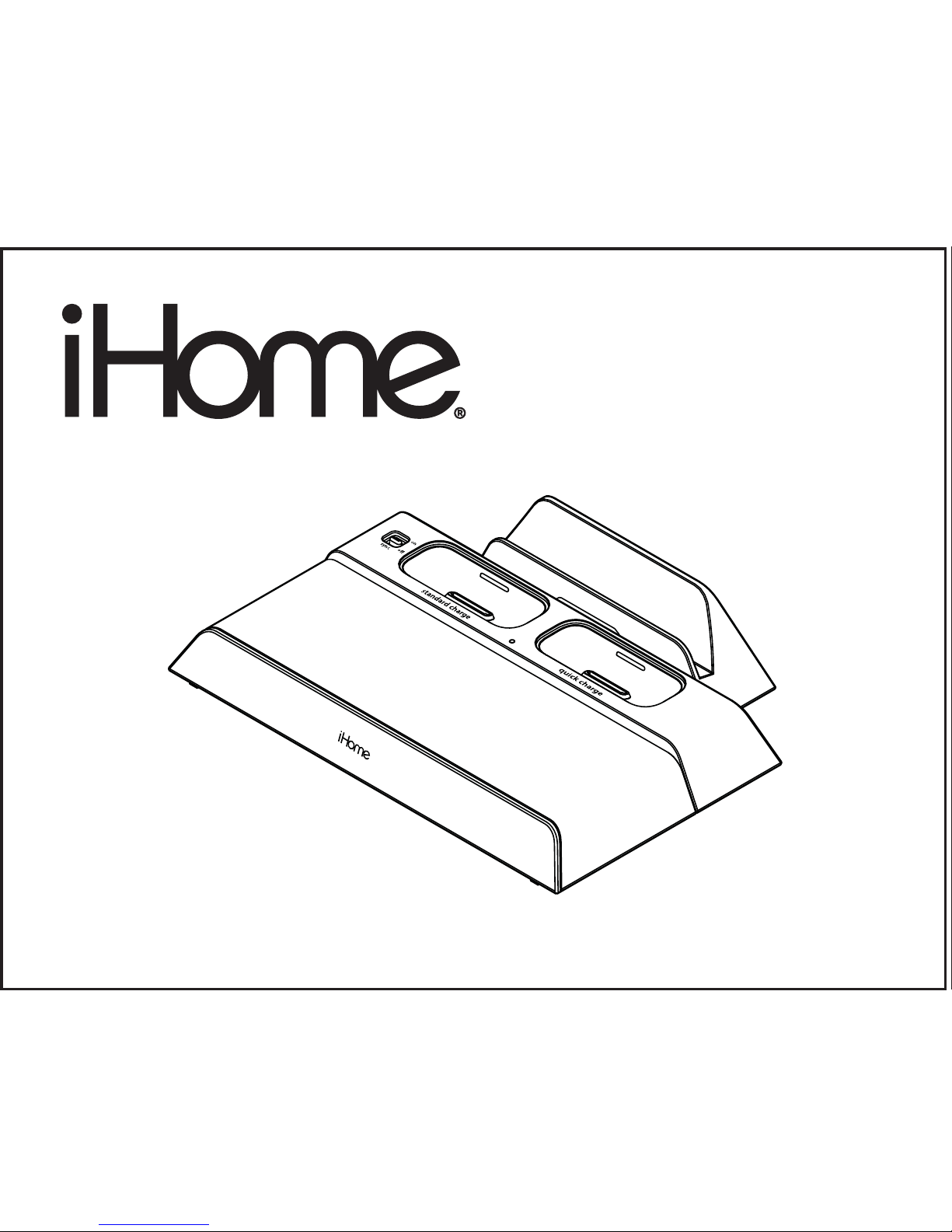
Thank you for purchasing the iHome iB969, the dual dock charging station
for iPad, iPhone and iPod that allows you to charge an iPhone or iPod in half
the typical time, and to sync to a computer. There are two additional USB
ports that let you connect and charge two additional devices such as an
iPad, cellphones, PDAs,and eBook readers at the same time. Up to four
devices at once!
This instruction booklet explains the basic operation and care of the unit.
Please read it carefully and keep it for future reference.

iB969
FCC Information
This equipment complies with the limits for a Class B digital device as specified in Part 15 of FCC Rules. These
limits provide reasonable protection against radio and TV interference in a residential area.
However, your equipment might cause TV or radio interference even when it is operating properly. To eliminate
interference you can try one or more of the following corrective measures:
• Reorient or relocate the receiving antenna.
• Increase the distance between the equipment and the radio or TV.
• Use outlets on different electrical circuits for the equipment and the radio or TV.
• Consult your dealer or an experienced radio/television technician if the problem still exists.
Modifying or tampering with your system’s internal components can cause a malfunction and might invalidate
the system’s warranty and void your FCC authorization to operate it.
This Class B digital apparatus complies with Canadian ICES-003.
Cet appareil numérique de la classe B est conforme à la norme NMB-003 du Canada.
This device complies with Part 15 of the FCC Rules, operation is subject to the
following two conditions: (1) This device may not cause harmful interference,
and (2) this device must accept any interference received, including interference
that may cause undesired operation.

iB969
Using the
Table of Contents
Meet Your iB969 ........................................................................ 1-2
Getting Started ..............................................................................3
Charging iPhone and iPod............................................................ 4-5
Syncing iPhone or iPod to a Computer............................................... 5
Charging iPad and other Devices Using the USB Ports........................ 6-7
Consumer Safety and Product Maintenance...................................... 8-9
Troubleshooting............................................................................10
Warranty....................................................................................11
Meet Your iB969
iB969
1
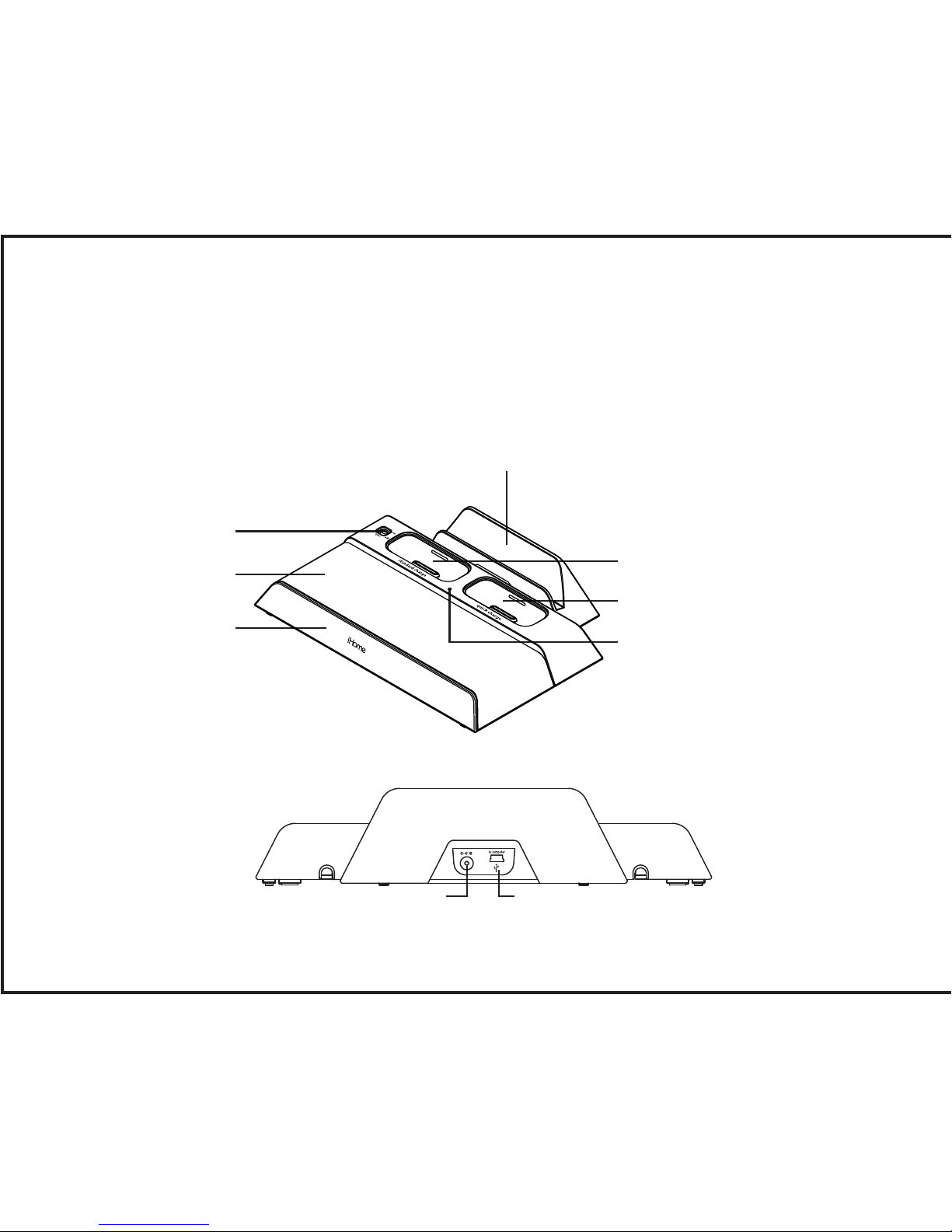
Power Indicator
Sliding Base
USB 2.0 syncing port
Quick Charge Dock (no sync)
Standard Charge Syncing Dock
Sync Switch
iPad rest
Rubberized rest
DC Jack
Top
Rear
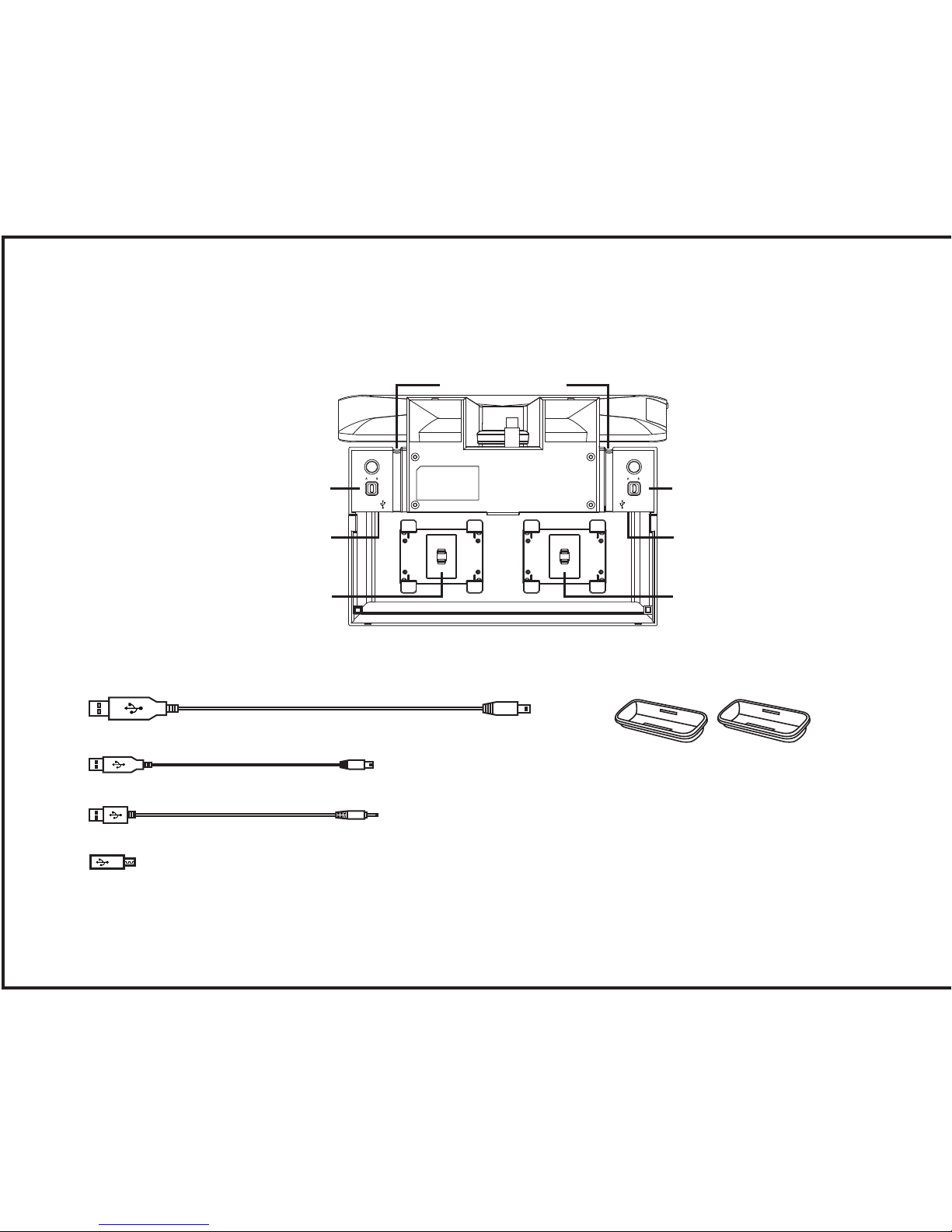
Meet Your iB969
iB969
2
Bottom
Included Cables Included Inserts
• 36 inch sync cable (to sync iPhone/iPod to computer)
• 12 inch USB to mini USB cable (to charge compatible devices)
• 12 inch USB to 4mm plug (to charge Sony eReader)
• 1 mini USB to micro USB adapter
• 2 iPhone inserts
quick charge standard charge
Cord HoldersCord Holders
Quick Charge/iPad
USB port
A – B Switch for Quick
Charge USB port
Standard Charge
USB port
A – B Switch for
Standard Charge
USB port
Cord Channels
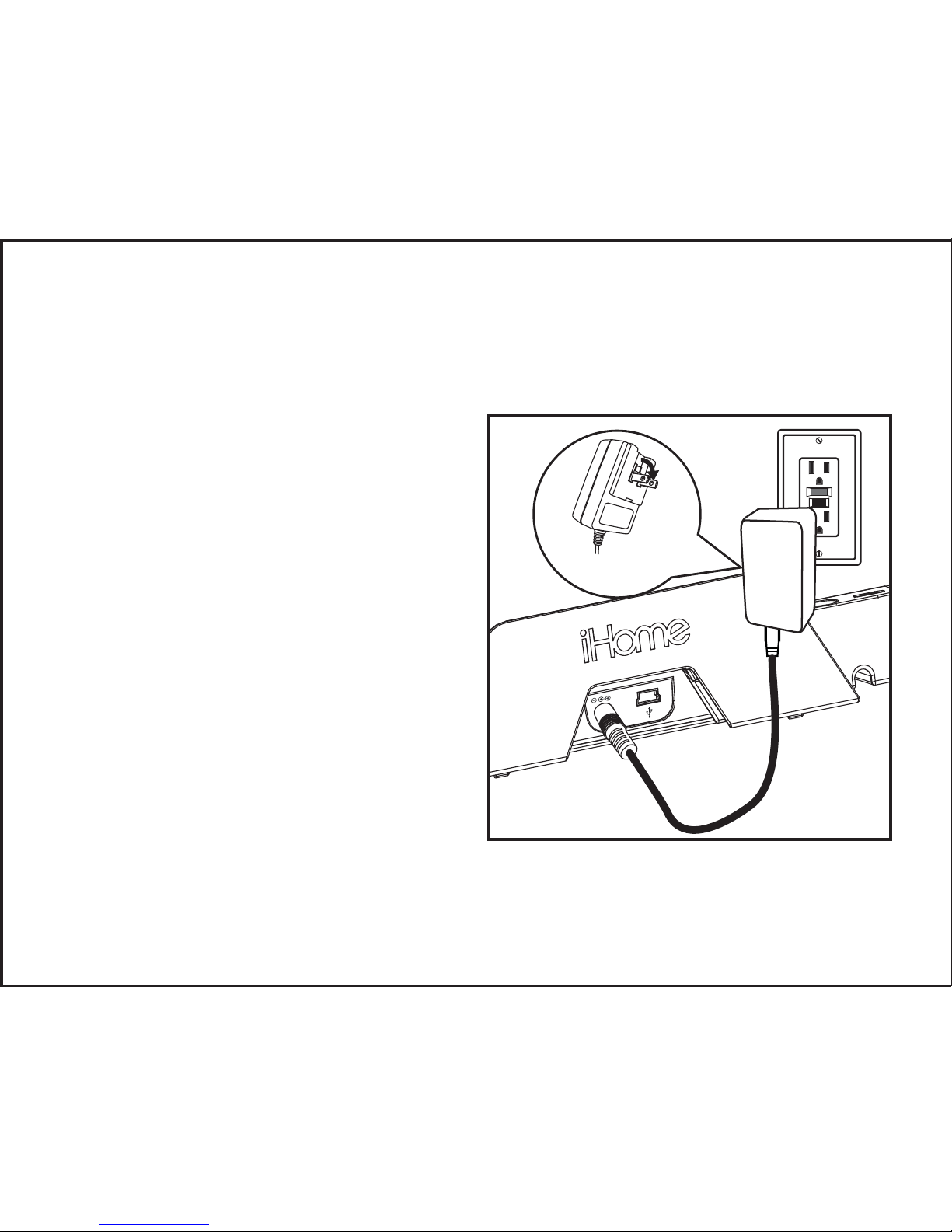
iB969
Using the
Getting Started
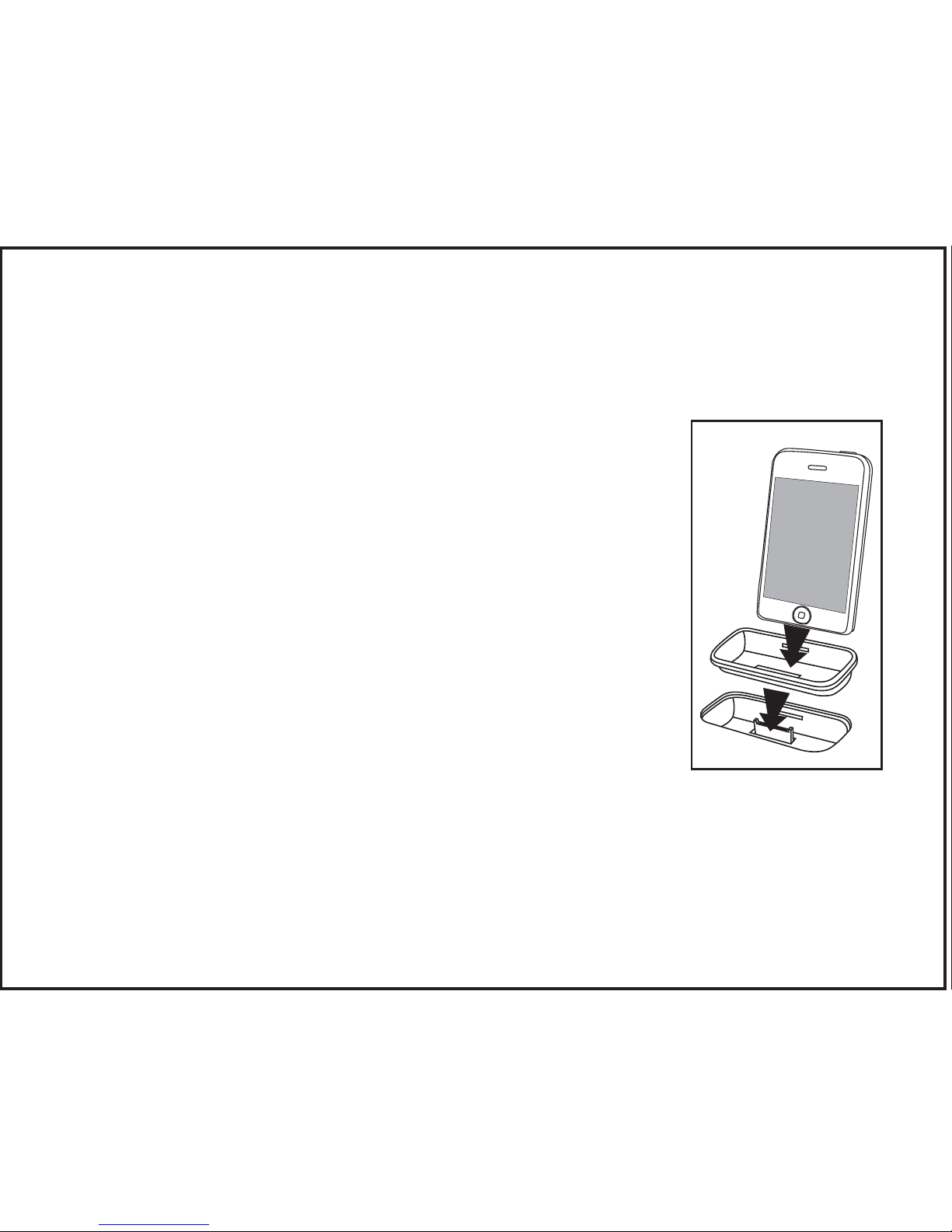
1.Plug the 100V - 240V universal
switching AC adapter into the DC
jack on the rear of the iB969 and
the other end into a working
outlet. A blue LED indicator will
light up, indicating the unit has
power and is ready to charge. If
the blue light does not appear, try
activating any wall switch that
controls the outlet, or try using
another outlet.
3
1
RESET
RESET
TEST
TEST
to computer
Folding Adapter
Blades
iB969
4
Charging iPhone and iPod
The iB969 has two universal docks for iPhone or iPod.
The left dock is a standard charging dock with sync
that will recharge your iPhone or iPod and and lets you
sync your iPhone or iPod to the iTunes library on your
computer if desired.
The right dock provides quick charging without sync.
The docks will charge your iPhone or iPod until
completely charged then stop charging. Use both docks
to charge two devices at once.
1. Make sure the unit is connected to a working power
source
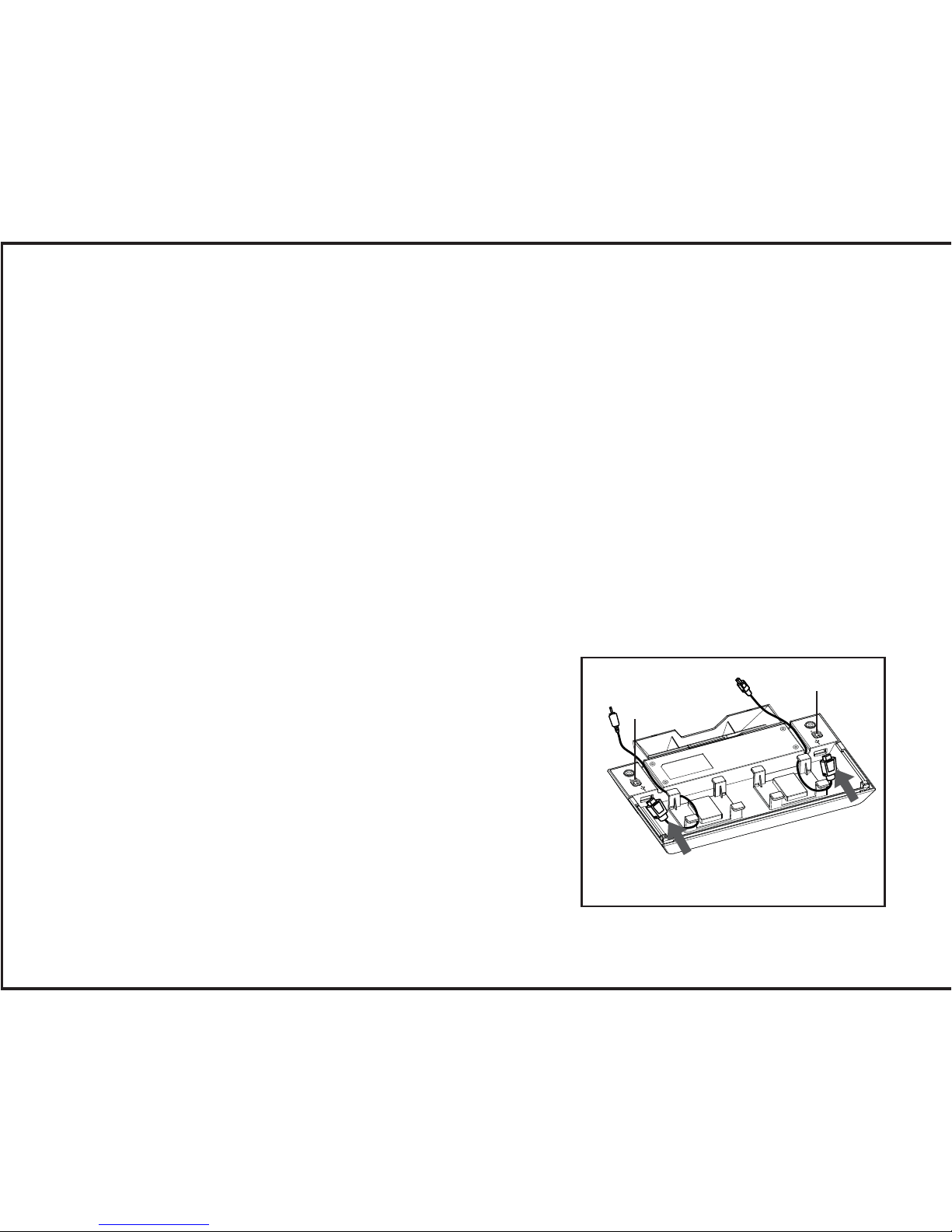
2. Place the insert that came with your iPod into the
desired dock. If using an iPhone, use the iPhone insert
provided with the iB969.
NOTE: If you do not have an insert for your iPod, please visit www.ihomeaudio.com (or call iHome toll free at
800-288-2792) to purchase one

iB969
5
3.Gently dock an iPhone or iPod into the desired dock on top of the unit. Do not
force. Make sure your iPhone or iPod is not in a case or “skin”. To avoid damage
to your iPhone or iPod, never dock an iPhone or iPod without using an insert.
Avoid using undue pressure when placing and removing iPhone or iPod from
dock(s). Your docked iPhone or iPod will charge until fully charged.
1.Connect the small end of the included Sync Cable to the Sync Jack on the rear
of the unit and the other end into a USB port on your computer.
2.Slide the Sync Switch located on the top left of the unit to the ON position.
Your iPhone or iPod will begin syncing with your computer.
DO NOT disconnect the Sync Cable or move the Sync Switch during
sync function. A notice should appear on your computer display when
sync is complete and it is safe to disconnect.
3.
Gently dock an iPhone or iPod into the left dock on top of the unit (see above)
.
4.Once sync is complete, return the Sync Switch to the OFF position.
NOTE: A docked iPhone/iPod will not charge if the sync cable is not connected
to a computer while the Sync Switch is in the ON position
Syncing iPhone and iPod to an iTunes Library on Your Computer
iB969
Using the
Charging iPad and other Devices Using the USB Ports
The iB969 has two additonal USB ports on the bottom of the unit, one
quick-charging USB port (left) for iPad and other devices and one standard charging
USB port (right) that can charge most USB-compatible devices such as Blackberries,
eBook readers, etc., allowing you to charge two additional devices at once. Each
port has a USB Mode Switch (A–B) to accomodate the different USB-powered
devices.
6
Charging Devices
A. position: Will charge iPad and most iPod and
iPhone models.
B. position: Will charge Sony Reader™, Amazon
Kindle™, Barnes & Noble Nook™, Border’s
kobo™, Blackberry and other devices.
If device does not charge, move USB Mode
Switch to A position to see if it charges.
If device still does not charge, try unplugging
the device from the USB port then reconnecting
it.
Use this USB port to charge iPad
USB switch
USB switch
Table of contents
Other iHome Batteries Charger manuals