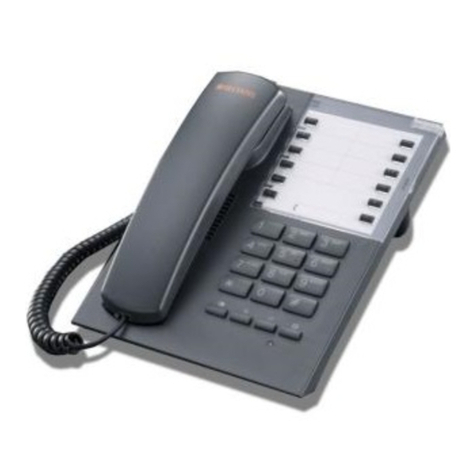
Huawei F610 User manual

V5102C00310-One Net Desk Phone Guide-EH-V7.indd 1 25/04/2012 15:47
Desk phone user guide
HUAWEI F610
Capetune Limited
224A Riverdale road,
Erith,
Bexley,
London.
DA8 1QE
United Kingdom.
Phone: +44(0)1322 43 1983
Mobile: +44 (0)7878 254 022
Email: [email protected]
Website: www.capetune.com

Huawei F610
Copyright © Huawei Technologies Co., Ltd. 2011. All rights reserved.
No part of this document may be reproduced or transmitted in any form or by any means without
prior written consent of Huawei Technologies Co., Ltd.
The product described in this manual may include copyrighted software of Huawei Technologies
Co., Ltd and possible licensors. Customers shall not in any manner reproduce, distribute, modify,
decompile, disassemble, decrypt, extract, reverse engineer, lease, assign, or sublicense the said
software, unless such restrictions are prohibited by applicable laws or such actions are approved by
respective copyright holders under licenses.
Trademarks and Permissions
, and are trademarks or registered trademarks of Huawei
Technologies Co., Ltd.
Other trademarks, product, service and company names mentioned are the property of their
respective owners.
Notice
Some features of the product and its accessories described herein rely on the software installed,
capacities and settings of local network, and may not be activated or may be limited by local
network operators or network service providers. Thus the descriptions herein may not exactly match
the product or its accessories you purchase.
Huawei Technologies Co., Ltd reserves the right to change or modify any information or
specications contained in this manual without prior notice or obligation.
NO WARRANTY
THE CONTENTS OF THIS MANUAL ARE PROVIDED “AS IS”. EXCEPT AS REQUIRED BY APPLICABLE
LAWS, NO WARRANTIES OF ANY KIND, EITHER EXPRESS OR IMPLIED, INCLUDING BUT NOT LIMITED
TO, THE IMPLIED WARRANTIES OF MERCHANTABILITY AND FITNESS FOR A PARTICULAR PURPOSE,
ARE MADE IN RELATION TO THE ACCURACY, RELIABILITY OR CONTENTS OF THIS MANUAL.
TO THE MAXIMUM EXTENT PERMITTED BY APPLICABLE LAW, IN NO CASE SHALL HUAWEI
TECHNOLOGIES CO., LTD BE LIABLE FOR ANY SPECIAL, INCIDENTAL, INDIRECT, OR CONSEQUENTIAL
DAMAGES, OR LOST PROFITS, BUSINESS, REVENUE, DATA, GOODWILL OR ANTICIPATED SAVINGS.
Import and Export Regulations
Customers shall comply with all applicable export or import laws and regulations and will obtain all
necessary governmental permits and licenses in order to export, re-export or import the product
mentioned in this manual including the software and technical data therein.
V5102C00310-One Net Desk Phone Guide-EH-V7.indd 2 25/04/2012 15:47

Contents
1Introduction 1
Appearance 1
Front view and function keys 1
Feature access keys 3
Installation 4
2Basic operations 6
Using the menu 6
3Contacts 9
Groups 9
4Call log 11
5Tools 12
6 Proles 14
7Settings 15
Phone settings 15
Call settings 16
8FAQs 19
9Safety precautions and warnings 20
Safety instructions 20
EU Regulatory Conformance 24
Certication information (SAR) 25
Antenna location 26
V5102C00310-One Net Desk Phone Guide-EH-V7.indd 3 25/04/2012 15:47

1
1 Introduction
Appearance
The figures in this guide are provided for your reference only.
Front view and function keys
1 2 3
4
5678
9
V5102C00310-One Net Desk Phone Guide-EH-V7.indd 1 25/04/2012 15:47

2
No. Item Description
1Menu key
•••
• Select to access the phone’s menu including Contacts,
Messages, Call Logs, Tools, Proles and settings.
2Navigation
keys
Left navigation key
• Allows you to select the call log
• You can select the option displayed in the lower left corner of
the screen.
Right navigation key
• Short code access to write and create a text message.
• Default is standard input mode.
3Contacts key
•••
• Select this key to enter the phone’s contacts.
4Speed dial
keys
• Speed-dial a dened phone number in standby mode.
5Number and
symbol keys
• Enter numbers, letters, and symbols.
• Number keys (2–9): Speed-dial a user-assigned phone number
by pressing and holding a key in standby mode.
• * Key: Switch between text input methods in editing mode.
• # Key: Switch between the predictive English input method
and the traditional English input method in editing mode.
• 1 key: Display the symbol list in editing mode.
6Call/Send
key
• Make or answer a call.
• View the call log in standby mode.
7Speaker key • Activate the hands-free mode to dial a number already entered
or answer an incoming call.
8End key • End or reject a call.
• Press and hold this key to power the phone on or off.
• Return to the standby mode.
V5102C00310-One Net Desk Phone Guide-EH-V7.indd 2 25/04/2012 15:47

3
No. Item Description
9Hold Key
“HOLD”
Transfer Key
“TRANS”
Conference
Key “CONF”
Mute
• Press the hold key to ensure the call is held in progress – a
small capital H appears on the display. This allows for the user
to make choices from the options menu while the call is held.
• Allows the user to re-direct the connected call to another user.
• Allows the user to connect other users into the call in progress.
• Press mute to ensure the other call parties cannot hear you.
During a call the mute button suppresses the receiver and
hands - free microphones.
Signal strength Battery level
Call in progress No network available
Hands-free mode Phone powered by the power adapter
Feature access keys
Screen icons
V5102C00310-One Net Desk Phone Guide-EH-V7.indd 3 25/04/2012 15:47

4
Installation
Before using the phone, install the battery properly. When installing the battery, ensure
that the phone is powered off and is disconnected from the power adapter; ensure that
the golden contacts of the battery mate securely with those in the battery slot.
If the phone will not be used for a long time, remove the battery from the phone.
Connecting the power adapter to the phone
Insert power cable into socket at back of device.
Powering on
To power on the phone, press and hold the end key until the screen lights up.
Notes:
• The phone will power on automatically after the power adapter is connected to it.
• Press and hold the end key to power off the phone.
V5102C00310-One Net Desk Phone Guide-EH-V7.indd 4 25/04/2012 15:47

5
Text input
Notes:
• Press the Right Navigation Key to switch between input methods.
• Press #key to enable or disable T9 method.
• Press 1key to display the list of symbol.
• Press Navigation key to delete the letter in front of the cursor.
T9 input method (also known as Predictive text)
• Press each key carrying the desired letter once, and then the predictive text scheme
will present the available words composed by the letters you have entered in the
drop-down list.
Traditional input method
• When T9 input method is off, you can use the traditional input method. Repeatedly
press the key that carries the letter to be entered when it appears on the screen.
“123” numeric input method
• In a text editing screen, press and hold the character/number keys to enter
corresponding numeric characters.
• You can also press the * key successively to switch to the “123” numeric input method,
and enter corresponding numeric characters by pressing the character/number keys.
Symbol input method
Your device provides an independent symbol input method:
• For example, to enter “:” with the symbol input method, you can just press the scroll
keys to select “:” from the symbol list and then press .
V5102C00310-One Net Desk Phone Guide-EH-V7.indd 5 25/04/2012 15:47

6
2 Basic operations
Using the menu
1. In the default mode, press Menu key to enter the main menu. •••
2. Press the upper and lower Navigation keys or to move around the
menus, and then press Menu key or OK to select items.
3. If the menu contains further submenus, repeat Step 2.
4. Use the selected function according to the prompts on the screen.
5. Press Contacts key ••• to return to the previous menu.
6. Press to return to the standby mode.
Making or answering calls
Making a voice call
Enter or edit a number in one of the following ways:
• Enter a phone number through the keypad. You do NOT need to put an breakout code
i.e. (9 or 1 for an outside line) before the phone number
• Select a number from Call Log
• Select a number from Contacts, by pressing the Right function key
• Press the Call/Send key to dial
• Press to end the call.
Notes:
• For the specic call duration, see your network operator’s charging bill.
V5102C00310-One Net Desk Phone Guide-EH-V7.indd 6 25/04/2012 15:47

7
Answering or rejecting a voice call
• When there is an incoming call, press , , Menu key or lift the handset to answer
it. Press to reject it.
Making emergency calls
• With or without SIM card inserted into the phone – dial either 999 or 112 and press the
call/send key to make the call.
Operations during a voice call
During a voice call, you can select Options by pressing the Menu key ••• to perform
the operations.
• Place the call on HOLD.
• End the call.
• Place a new call, which will automatically place the rst call on HOLD.
• Open the Contacts address book to view contents.
• Once HOLD has been selected an additional menu option becomes available:
• Resume - to allow the on hold call to be retrieved
• End - to end call
• New call - to start a new call
• Open contacts - to open contacts.
• If you select Place a new call, either from the root menu, or the sub menu when a call is
already on HOLD, then a second call can be placed.
• The display will show the rst call details with a very small H next to the phone icon,
indicating which call is on hold.
• The second information line will be displayed indicating the new call details and status.
V5102C00310-One Net Desk Phone Guide-EH-V7.indd 7 25/04/2012 15:47
Other manuals for F610
1
Table of contents
Other Huawei Telephone manuals

Huawei
Huawei ETS2526 User manual

Huawei
Huawei P9 EVA-L09 User manual

Huawei
Huawei ETS3125i User manual

Huawei
Huawei F201 User manual

Huawei
Huawei G2800 User manual

Huawei
Huawei eSpace 8850 User manual

Huawei
Huawei F615-51 User manual

Huawei
Huawei Nova 7i User manual

Huawei
Huawei F688 User manual

Huawei
Huawei ETS3125i User manual

Huawei
Huawei Mate50 Pro User manual

Huawei
Huawei ETS2252+ User manual

Huawei
Huawei G Play mini CHC-U23 User manual

Huawei
Huawei F617 User manual

Huawei
Huawei F203 Instruction Manual

Huawei
Huawei ETS2000 Series User manual

Huawei
Huawei M920 User manual

Huawei
Huawei F688 User manual

Huawei
Huawei Mate20 Pro User manual

Huawei
Huawei ETS222M User manual