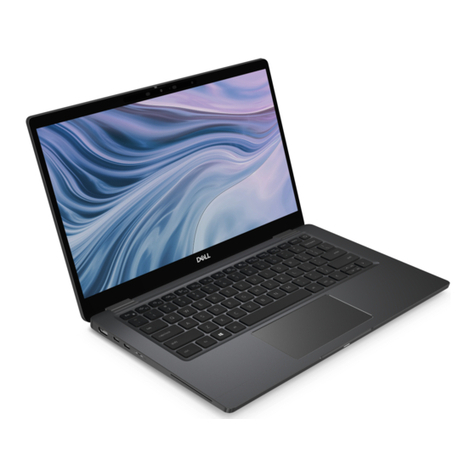
HP Net PC 20 User manual

User Guide

© Copyright 2014 Hewlett-Packard
Development Company, L.P.
AMD is a trademark of Advanced Micro
Devices, Inc. Intel is a trademark of Intel
Corporation in the U.S. and other countries.
Microsoft and Windows are U.S. registered
trademarks of the Microsoft group of
companies.
The information contained herein is subject
to change without notice. The only
warranties for HP products and services are
set forth in the express warranty statements
accompanying such products and services.
Nothing herein should be construed as
constituting an additional warranty. HP shall
not be liable for technical or editorial errors
or omissions contained herein.
Second Edition: November 2014
First Edition: May 2014
Document Part Number: 779499-002
Product notice
This guide describes features that are
common to most models. Some features
may not be available on your computer.
Not all features are available in all editions
of Windows. This computer may require
upgraded and/or separately purchased
hardware, drivers and/or software to take
full advantage of Windows functionality. Go
to http://www.microsoft.com for details.
To access the latest user guide, go to
http://www.hp.com/support, and select your
country. Select Drivers & Downloads, and
then follow the on-screen instructions.
Software terms
By installing, copying, downloading, or
otherwise using any software product
preinstalled on this computer, you agree to
be bound by the terms of the HP End User
License Agreement (EULA). If you do not
accept these license terms, your sole
remedy is to return the entire unused
product (hardware and software) within 14
days for a full refund subject to the refund
policy of your seller.
For any further information or to request a
full refund of the price of the computer,
please contact your seller.

Safety warning notice
WARNING! To reduce the possibility of heat-related injuries or of overheating the computer, do not
place the computer directly on your lap or obstruct the computer air vents. Use the computer only on
a hard, flat surface. Do not allow another hard surface, such as an adjoining optional printer, or a soft
surface, such as pillows or rugs or clothing, to block airflow. Also, do not allow the AC adapter to
come into contact with the skin or a soft surface, such as pillows or rugs or clothing, during operation.
The computer and the AC adapter comply with the user-accessible surface temperature limits defined
by the International Standard for Safety of Information Technology Equipment (IEC 60950).
iii

iv Safety warning notice

Processor configuration setting (select models only)
IMPORTANT: Select computer models are configured with an Intel® Pentium® N35xx series or a
Celeron® N28xx/N29xx series processor and a Windows® operating system. Do not change the
processor configuration setting in msconfig.exe from 4 or 2 processors to 1 processor. If you do so,
your computer will not restart. You will have to perform a factory reset to restore the original settings.
v

vi Processor configuration setting (select models only)

Table of contents
1 Starting right ...................................................................................................................................................... 1
Visit the HP Apps Store ........................................................................................................................ 1
Best practices ....................................................................................................................................... 1
Fun things to do .................................................................................................................................... 1
More HP resources .............................................................................................................................. 3
2 Getting to know your computer ......................................................................................................................... 5
Finding your hardware and software information ................................................................................. 5
Locating hardware ............................................................................................................... 5
Locating software ................................................................................................................. 5
Right side ............................................................................................................................................. 6
Left side ................................................................................................................................................ 7
Display .................................................................................................................................................. 8
Top ....................................................................................................................................................... 9
TouchPad ............................................................................................................................ 9
Lights ................................................................................................................................. 10
Buttons and speakers ........................................................................................................ 11
Keys ................................................................................................................................... 12
Bottom ................................................................................................................................................ 13
Labels ................................................................................................................................................. 14
3 Connecting to a network ................................................................................................................................. 15
Connecting to a wireless network ....................................................................................................... 15
Using the wireless controls ................................................................................................ 15
Using the wireless button .................................................................................. 15
Using operating system controls ....................................................................... 15
Sharing data and drives and accessing software .............................................................. 16
Using a WLAN ................................................................................................................... 16
Using an Internet service provider .................................................................... 16
Setting up a WLAN ............................................................................................ 17
Configuring a wireless router ............................................................................ 17
Protecting your WLAN ....................................................................................... 17
Connecting to a WLAN ...................................................................................... 18
Connecting to a wired network ........................................................................................................... 18
Connecting to a local area network (LAN) ......................................................................... 18
vii

4 Enjoying entertainment features ..................................................................................................................... 20
Multimedia features ............................................................................................................................ 20
Using the webcam .............................................................................................................................. 21
Using audio ........................................................................................................................................ 21
Connecting speakers ......................................................................................................... 22
Connecting headphones and microphones ....................................................................... 22
Using Beats Audio ............................................................................................................. 22
Accessing Beats Audio Control Panel ............................................................... 22
Enabling and disabling Beats Audio .................................................................. 22
Testing your audio features ............................................................................................... 22
Using video ......................................................................................................................................... 23
Connecting video devices by using an HDMI cable ........................................................... 23
Setting up HDMI audio ...................................................................................... 24
Discovering and connecting to Miracast-compatible wireless displays (select AMD
models only) ...................................................................................................................... 24
Discovering and connecting to Miracast-compatible wireless displays (select Intel
models only) ...................................................................................................................... 24
5 Navigating the screen ..................................................................................................................................... 26
Using the TouchPad and gestures ..................................................................................................... 26
Tapping .............................................................................................................................. 27
Scrolling ............................................................................................................................. 28
2-finger pinch zoom ........................................................................................................... 29
2-finger click ....................................................................................................................... 30
Rotating (select models only) ............................................................................................ 31
Edge swipes ...................................................................................................................... 32
Display and select a charm ............................................................................... 32
Display the Customize icon ............................................................................... 33
Switch between open apps ............................................................................... 34
Using touch screen gestures (select models only) ............................................................................. 34
One-finger slide ................................................................................................................. 34
Tapping .............................................................................................................................. 36
Scrolling ............................................................................................................................. 36
2-finger pinch zoom ........................................................................................................... 37
Rotating (select models only) ............................................................................................ 37
Edge swipes ...................................................................................................................... 38
Right-edge swipe .............................................................................................. 38
Left-edge swipe ................................................................................................. 38
Top-edge swipe and bottom-edge swipe .......................................................... 39
Using the keyboard and mouse .......................................................................................................... 39
Using the keys ................................................................................................................... 39
viii

Using the action keys ........................................................................................ 39
Using Windows shortcut keys ........................................................................... 40
Using the hot keys ............................................................................................. 40
6 Managing power ............................................................................................................................................. 42
Initiating Sleep and Hibernation ......................................................................................................... 42
Manually initiating and exiting Sleep .................................................................................. 43
Manually initiating and exiting Hibernation (select models only) ....................................... 43
Setting password protection on wakeup ............................................................................ 43
Using the power meter and power settings ........................................................................................ 44
Running on battery power .................................................................................................................. 44
User-replaceable battery ................................................................................................... 44
Finding battery information ................................................................................................ 45
Conserving battery power .................................................................................................. 45
Identifying low battery levels .............................................................................................. 45
Resolving a low battery level ............................................................................................. 46
Resolving a low battery level when external power is available ........................ 46
Resolving a low battery level when no power source is available ..................... 46
Resolving a low battery level when the computer cannot exit Hibernation ....... 46
Storing a user-replaceable battery ..................................................................................... 46
Disposing of a user-replaceable battery ............................................................................ 46
Replacing a user-replaceable battery ................................................................................ 47
Running on external AC power .......................................................................................................... 47
Troubleshooting power problems ...................................................................................... 47
HP CoolSense .................................................................................................................................... 48
Refreshing your software content with Intel Smart Connect Technology (select models only) .......... 48
Shutting down (turning off) the computer ........................................................................................... 48
Hybrid Graphics and AMD Dual Graphics (select models only) ......................................................... 49
Using Hybrid Graphics (select models only) ...................................................................... 49
Using AMD Dual Graphics (select models only) ................................................................ 50
7 Maintaining your computer .............................................................................................................................. 51
Improving performance ...................................................................................................................... 51
Handling drives .................................................................................................................. 51
Using HP 3D DriveGuard (select models only) .................................................................. 51
Identifying HP 3D DriveGuard status ................................................................ 52
Using Disk Defragmenter ................................................................................................... 52
Using Disk Cleanup ........................................................................................................... 52
Adding or replacing memory modules ............................................................................... 52
Updating programs and drivers .......................................................................................................... 55
Cleaning your computer ..................................................................................................................... 55
ix

Cleaning procedures .......................................................................................................... 56
Cleaning the display (All-in-Ones or Notebooks) .............................................. 56
Cleaning the sides or cover ............................................................................... 56
Cleaning the TouchPad, keyboard, or mouse ................................................... 56
Traveling with or shipping your computer ........................................................................................... 57
8 Securing your computer and information ........................................................................................................ 58
Using passwords ................................................................................................................................ 58
Setting Windows passwords .............................................................................................. 59
Setting Setup Utility (BIOS) passwords ............................................................................. 59
Using Internet security software ......................................................................................................... 59
Using antivirus software ..................................................................................................... 60
Using firewall software ....................................................................................................... 60
Installing software updates ................................................................................................................. 60
Installing critical security updates ...................................................................................... 60
Installing HP and third-party software updates .................................................................. 60
Securing your wireless network .......................................................................................................... 61
Backing up your software applications and information ..................................................................... 61
Using an optional security cable lock ................................................................................................. 61
9 Using Setup Utility (BIOS) and HP PC Hardware Diagnostics (UEFI) ............................................................ 62
Starting Setup Utility (BIOS) ............................................................................................................... 62
Updating the BIOS ............................................................................................................................. 62
Determining the BIOS version ........................................................................................... 62
Downloading a BIOS update ............................................................................................. 63
Using HP PC Hardware Diagnostics (UEFI) ...................................................................................... 63
Downloading HP PC Hardware Diagnostics (UEFI) to a USB device ............................... 64
10 Backing up, restoring, and recovering .......................................................................................................... 65
Creating recovery media and backups ............................................................................................... 65
Creating HP Recovery media ............................................................................................ 65
Restore and recovery ......................................................................................................................... 66
Recovering using HP Recovery Manager .......................................................................... 67
What you need to know ..................................................................................... 67
Using the HP Recovery partition (select models only) ...................................... 67
Using HP Recovery media to recover ............................................................... 68
Changing the computer boot order ................................................................... 68
Removing the HP Recovery partition (select models only) ................................................ 68
x
Other manuals for Net PC 20
22
Table of contents
Other HP Laptop manuals

HP
HP 4310s - ProBook - Core 2 Duo 2.1 GHz User manual

HP
HP ENVY 17 Manual

HP
HP g14 Manual

HP
HP EliteBook 745 G2 User manual

HP
HP Pavilion DV7-4060 Manual

HP
HP Pavilion DM4-1060 Manual

HP
HP 8730w - EliteBook Mobile Workstation User manual

HP
HP EliteBook 820 G1 User instructions

HP
HP Compaq nx9010 User manual

HP
HP Compaq 6910p User instructions

HP
HP Pavilion dv9000 User manual

HP
HP ZBook 14 User manual

HP
HP 2230s - Compaq Business Notebook Instruction Manual

HP
HP CQ58-300 Manual

HP
HP Chromebook x360 Manual

HP
HP CQ45-323TX User manual

HP
HP EliteBook 1040 G4 Manual

HP
HP Pavilion N3310 How to use

HP
HP Presario CQ60-106ER Manual
HP
HP 500 - Notebook PC User manual